
How to Make AI Horror Videos Inspired by Classic Movies

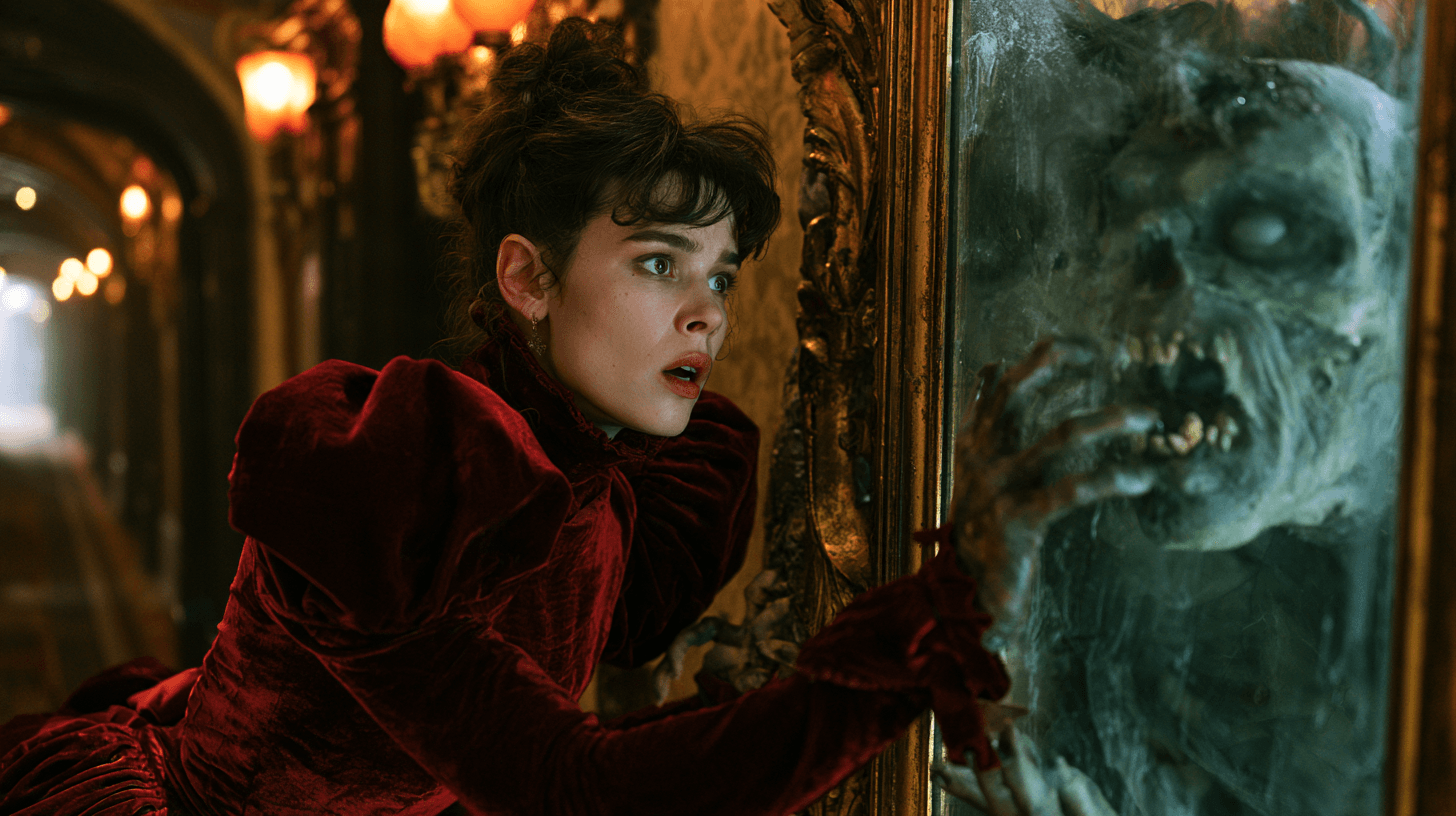
Warning: This article contains horror videos and jump scares. Watch with caution.
You can make AI horror videos by creating a reference image, animating it in Omni Reference, and finishing the clip with sound and editing. A favorite horror film gives you a starting point for the setting, lighting, and camera movement.
Find a Film Reference for Your Scene
For a hotel corridor inspired by The Shining, use a centered composition with repeating doorframes leading toward a distant doorway.
Other films suggest different ways to stage a short:
- Halloween: use a residential street with a figure partly hidden beside a window or doorway.
- Bram Stoker's Dracula: build a gothic scene around ornate architecture, costume, and dramatic light.
- Five Nights at Freddy's: place a mascot in a deserted entertainment space and use stiff movements at its joints.
Create the Hotel Corridor Image
The reference image needs a clear vanishing point, visible floor between the camera and the figures, and enough space for both figures beside the far doorway.
Open the Multi-Model Image Generator & Editor and try this image prompt:
A cinematic still of a long, aging hotel corridor, viewed straight down the center from a low camera position. Repeating wooden doorframes and wall lamps lead toward a distant doorway. A faded patterned carpet runs along the floor. Two adult figures in matching pale clothes stand side by side near the far doorway, facing the camera. They are small within the frame, with their faces partly in shadow. Muted amber light reveals the wallpaper, carpet texture and clothing without illuminating every corner. Symmetrical composition, believable architectural proportions, realistic materials, restrained color palette. Keep the foreground empty and the entire passage visible. Landscape composition, no text or graphic injury.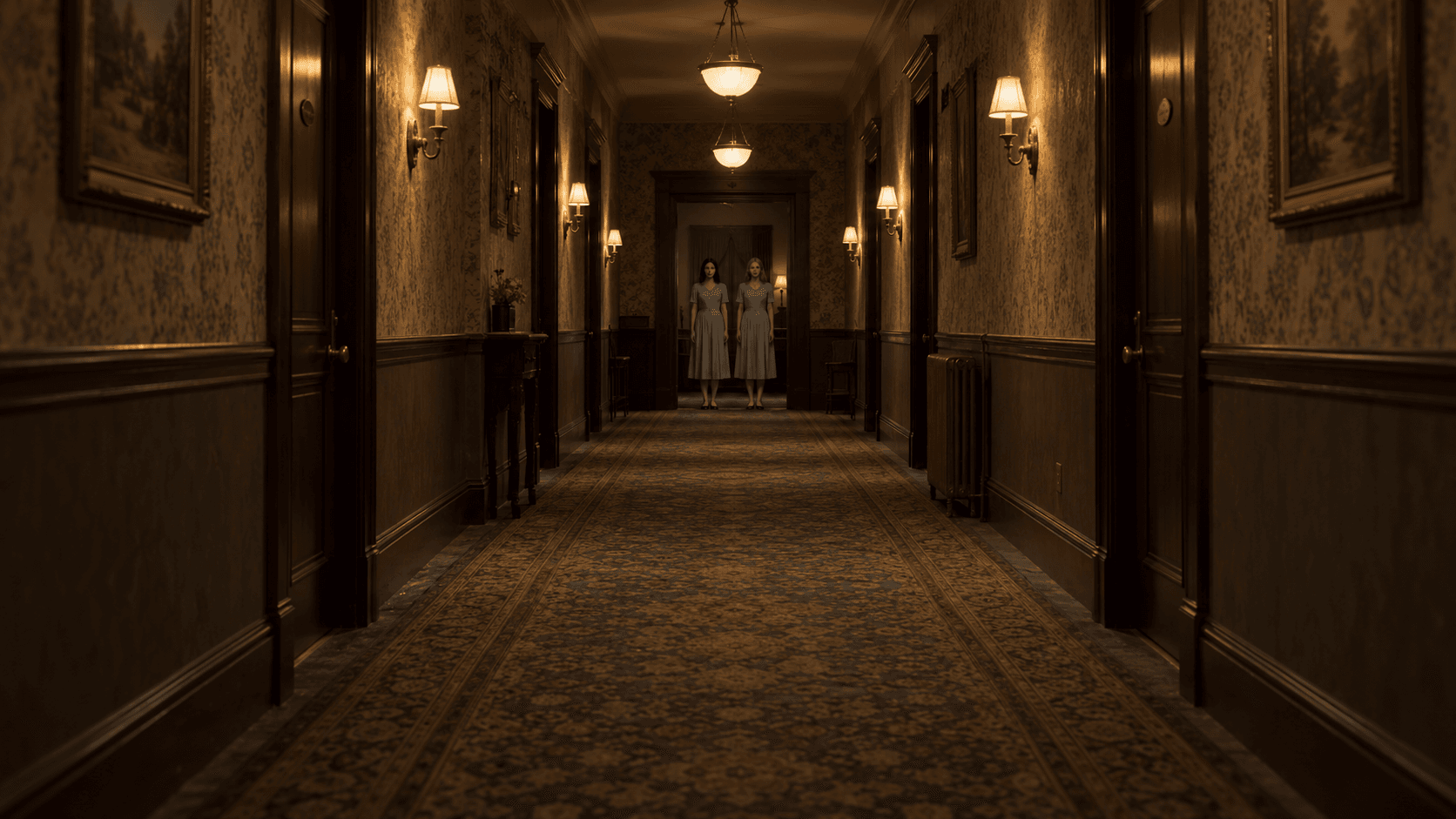
Choose an image with straight doorframes, a carpet pattern that narrows toward the far end, and both figures standing on the floor. Keep their silhouettes visible against the background.
If the figures fill too much of the frame, move them closer to the far doorway in the image edit. If the corridor looks flat, show more foreground floor and make the distant doorframes smaller. Correct these details before generating video.
Animate the Corridor in Omni Reference
Upload the Image and Set the Format
Upload the corridor image to Omni Reference and select Seedance 2.5. In the prompt, call the uploaded image Image 1.
For this scene, try an eight-second, 16:9 clip at 720P. Seedance 2.5 in Omni Reference supports 4–30-second output at 480P or 720P.
Set the duration, aspect ratio, and resolution in the interface. Writing them into the prompt does not select those controls. You can generate with audio, then decide what to keep when editing.
Make the Figures Disappear and Reappear
Move the camera slowly down the hallway. Have both figures vanish, leave the corridor empty for one second, then make them reappear directly in front of the lens.
Suggested video prompt:
Use Image 1 as the opening frame. Preserve the hotel corridor, the two adult figures, their clothing and the warm amber lighting.

The camera moves slowly forward down the center of the hallway. The two figures stand completely still beside the distant doorway, staring at the camera. After a brief hold, both figures vanish instantly, leaving the hallway empty. The camera continues moving through the empty corridor for one second.

Both figures suddenly reappear directly in front of the lens. Their faces fill the frame, eyes wide open and mouths stretched into unnatural expressions, staring straight into the camera. Their arrival is instantaneous: no walking, running, sliding forward or gradual transformation.

Hold the final close-up briefly. Keep the corridor and lighting unchanged. One continuous shot with no cuts, fades or camera shake.
Warning: Sudden jump scare.
Warning: Sudden jump scare.
Review and Trim the Clip
Check that both figures disappear completely and reappear together beside the camera without walking forward. Keep the empty-corridor pause and the final close-up when trimming.
Make a Gothic Horror Scene
For a gothic scene, use a tall stone hall, an arched doorway, and an adult character in a heavy velvet outfit.
Prepare a reference image with the character already placed beneath the arch. Put a window on one side and candles on the other, so the two light sources have clear positions. Leave enough space above the character to show the height of the room.
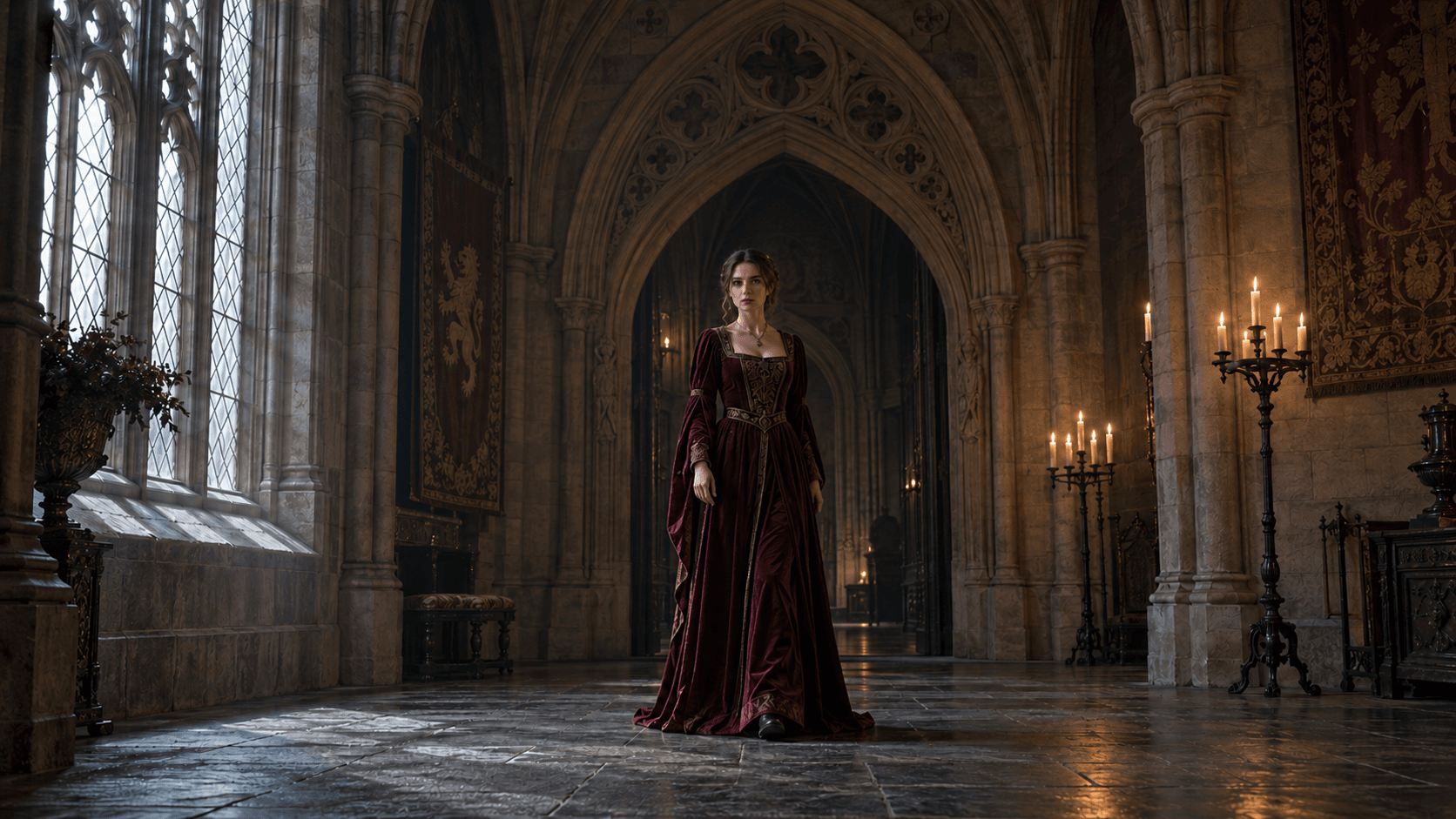
Use that image as Image 1 in Omni Reference and try this prompt:
Use Image 1 as the opening frame. Preserve the adult woman, her burgundy velvet dress, the stone hall, the arched doorway, the window and the candles.

The camera slowly pushes closer as the woman stands beneath the arch. Her face initially looks normal. She turns her head toward the window, then pauses with her face turned away from the camera.

She abruptly snaps her head back toward the lens, revealing that she has become a zombie: ashen skin, sunken cheeks, cloudy eyes, dark veins and a slack jaw. The transformation happens while her face is turned away. Do not show a gradual morph.

She locks eyes with the camera, opens her mouth and lunges forward as the shot ends. Keep her dress, hairstyle and the room unchanged. Maintain the cold window light and warm candlelight. One continuous shot with no cuts or fades.
Warning: Sudden jump scare.
Warning: Sudden jump scare.
Make a Mascot Horror Scene
Set the mascot scene in an empty restaurant with faded party decorations and a worn stage.
Create a starting image with the mascot on the stage and an empty table in the foreground. Make the costume's construction visible: fabric seams, a rigid mouth, plastic eyes, and a neck joint. Keep the lighting simple enough to show these surfaces.
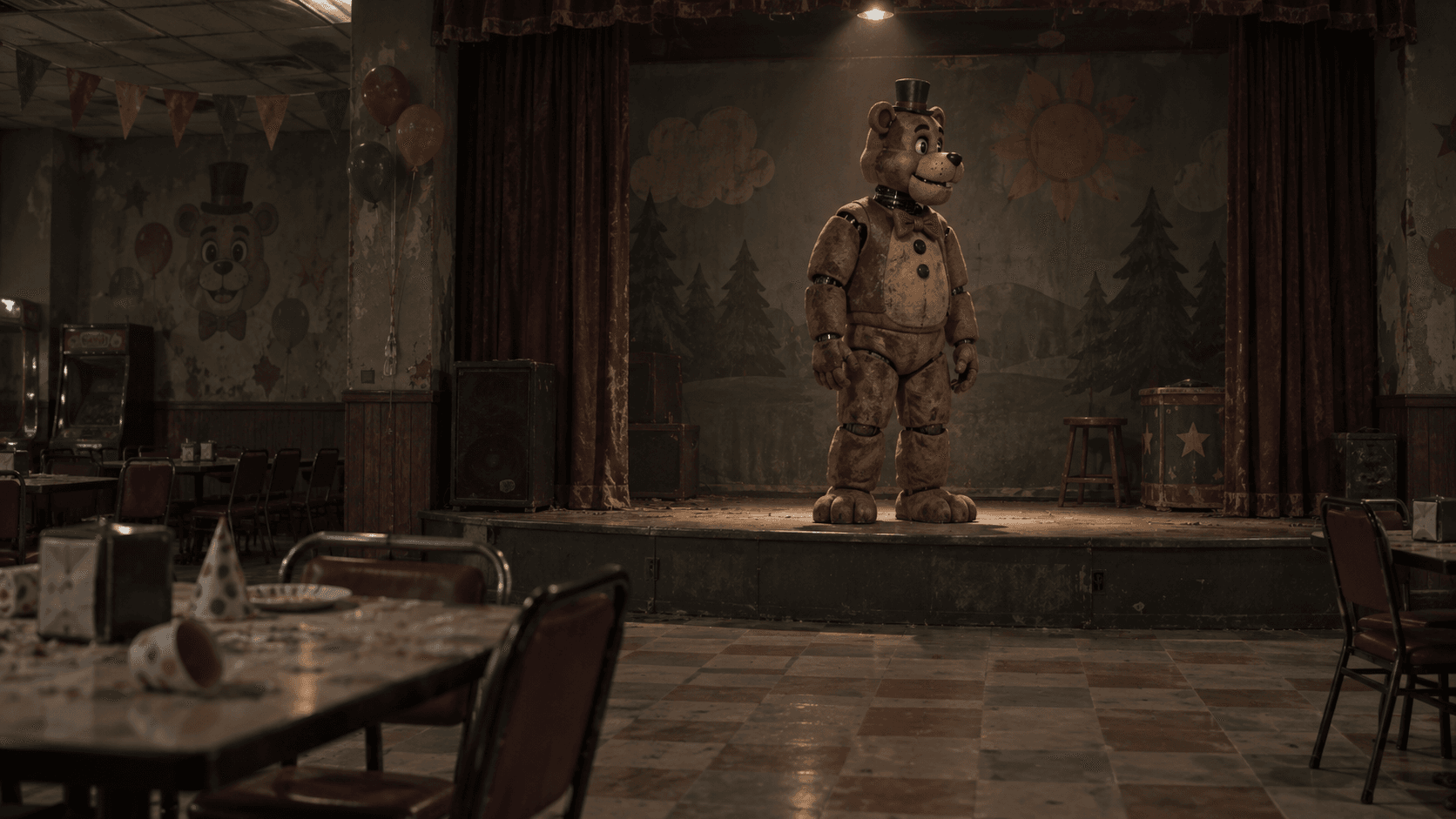
Upload the completed image as Image 1. For this shot, keep the camera still and let the mascot move:
Use Image 1 as the opening frame. Preserve the animatronic bear, the stage and the abandoned restaurant. Keep the camera fixed behind the empty foreground table.

The bear slowly turns its head toward the camera while its body remains motionless. It stops and stares directly into the lens, holding its fixed smile.

The stage light suddenly goes out, plunging the room into darkness for a brief moment. When the light returns, the stage is empty. Hold on the empty stage for one second.

The bear's head suddenly thrusts into the frame from the right, extremely close to the lens. One plastic eye and its worn muzzle fill most of the image. Its jaw snaps open, exposing the metal mechanism inside.

The bear must disappear from the stage during the blackout and reappear beside the camera without crossing the room on screen. No walking or gradual approach. Preserve its original face, worn fabric and costume proportions. Keep the furniture unchanged. No camera movement or cuts.
Warning: Sudden jump scare.
Warning: Sudden jump scare.
Check the start and end of the head turn. If the motion is too fluid, emphasize the joint and the firm stop. If the face stretches, improve the reference so the mouth and eyes clearly belong to a constructed costume.
Finish the Video With Editing and Sound
Build the sound around those actions:
- Hotel corridor: use quiet room ambience, such as a distant hum or a low sustained tone.
- Gothic hall: time a sharp sound to the zombie reveal as the woman turns back toward the camera.
- Mascot stage: combine the room's electrical hum with a short motor sound and a small mechanical stop as the head reaches its final position.
Listen to the generated audio before adding more layers. Match mechanical sounds and sound effects to the visible actions.
When combining clips, keep the lighting and color consistent across the cut. Check the result on a phone as well as your editing display: dark faces, distant silhouettes, and small details can disappear at that size.
When cropping for a vertical post, keep the corridor's vanishing point, the gothic arch, or the mascot and foreground table visible.
Fix the Details That Weaken the Scene
The picture is too dark. Brighten the subject's outline or a nearby surface in the reference image. Match the added light to an existing lamp, window, or candle.
The space changes during the camera move. Try a shorter move before redesigning the whole scene. Straight architectural edges make changes easy to spot, so watch the doorframes as the clip plays.
The character changes appearance unintentionally. Reduce the motion and use a clearer character image. Identify that image as the character reference in the prompt.
Recreate a Haunted Elevator CCTV Clip
In the Haunted Elevator CCTV showcase, two CCTV glitches make zombies appear and disappear around a passenger looking at her phone.
Warning: Sudden jump scare.
Warning: Sudden jump scare.
Set Up the Passenger and Elevator References
Open the showcase and choose Remix to work from its references and prompt in Omni Reference. The example uses Seedance 2.5 with two reference images, an eight-second duration, and a vertical 9:16 frame at 480P.
- Image 1 — the passenger: use a clear character image or character sheet that shows the face, hairstyle, and outfit. Replace this image if you want to put yourself or an original character in the scene.
- Image 2 — the elevator: use an interior viewed from a high corner, with the doors, floor, and button panel visible. Leave room around the passenger for the figures to appear.
Generate the CCTV Glitch Sequence
Keep the camera fixed and the passenger's face, clothes, and position consistent through both glitches.
Suggested prompt adapted from the showcase:
Use Image 1 for the adult passenger's face, hair and clothing. Use Image 2 for the elevator interior, doors, button panel and high-corner surveillance-camera angle. Keep a fixed wide view of the cabin in one continuous shot, with the passenger's face, phone and body visible.

The doors open and the passenger enters, presses a floor button, then leans against the right wall and looks down at her phone. The doors close. She remains relaxed and absorbed in the screen.

Brief static and horizontal interference interrupt the CCTV feed. As the picture clears, several zombies are suddenly crowded beside and behind her, with others crouched near her feet. Their movement is slow and uneven. Leave her face and phone visible. She keeps the same appearance and position, continues looking at her phone, and remains unaware of the figures around her.

A second short burst of interference removes the zombies. The picture clears to the same elevator with the passenger alone, still looking at her phone. Hold this quiet view for the final moment.

Keep the metal walls, doors and button panel in place throughout. Use dim, cool ceiling light and slight surveillance grain. Add a low elevator hum and brief electrical static during each glitch, with no dialogue.
Watch the passenger through both transitions. If she changes into a zombie, specify that only the surrounding figures should change. If her position jumps, start with her already leaning against the wall.
Questions About Making AI Horror Videos
Can I recreate a particular horror movie scene?
Yes, you can use its framing, characters, setting, and movement as references. Start with a short shot, then compare your generated version with the original. Refine the reference images and prompt if the result differs from the original.
Do I need the original movie clip?
No. You can build these scenes from images. The elevator example uses separate passenger and setting references. A short video reference can help guide a particular camera move or performance; assign it that role separately from the images that define appearance.
Can I put myself in the video?
Yes. Add a clear photo of yourself as a character reference and use a scene image to establish the location, costume, and lighting. Check your appearance throughout the motion, especially when the camera gets closer or your face turns.
How do I make a longer horror short?
Generate the shots separately and assemble them in an editor. Reuse the same character and location references, then check costume, lighting, and screen direction across each cut. Build the sound after you have chosen the takes and their final order.
Start With One Scene
Create your horror video in Omni Reference, or explore the Halloween video examples for another scene to try.