


As smartphones have become widespread, short vertical videos have become an established form of content that people can easily enjoy in spare moments.
In Japan, the numbers of users of YouTube Shorts, TikTok, and Instagram Reels continue to grow each year, making short video one of today’s main content formats.
Hello, I’m Ny@Tech, pronounced “Nya-Tech.”
My background is mainly in web marketing. Around 2024, I developed a strong interest in the possibilities of generative AI, and I now research and test various AI video generation tools every day.
The spread of short video has not only provided entertainment but also significantly changed monetization and social media marketing.
With YouTube Shorts’ advertising revenue-sharing system and direct commerce connections through TikTok, short video has evolved from content people watch into a medium that generates revenue.
In corporate branding, relatable and timely short videos are increasingly influencing users’ decisions more than expensive television commercials.
This article explains how even beginners can easily create attractive short videos by combining Canva and DomoAI.
An Era When Generative AI Makes Video Creation Easy
Video production once required expensive equipment, powerful computers, and editing skills, making it a field largely reserved for specialists.
By 2026, generative AI has significantly lowered these technical barriers, allowing anyone to create videos easily without specialist knowledge.
An Introduction to Major AI Video Generation Tools
A wide range of AI video generation tools is now available.
Here is a brief overview of some major services.
| Service | Overview |
|---|---|
| Sora 2 | An AI video generation tool developed by OpenAI, known for creating ChatGPT. It generates high-quality, relatively long videos from text instructions and excels at realistic visuals and complex movements. |
| Veo 3.1 | Google’s AI video generation tool. It excels at high-quality cinematic footage and allows comparatively detailed control over camerawork and composition. |
| Kling AI | An AI video generation tool from China. It is strong at human movement and action, and at creating short videos with a lively pace. |
| Runway Gen-2 | An AI video generation tool with a rich set of creator-oriented features. It generates video from text or images and supports a wide range of video editing and experimental expression. |
| Hailuo AI | A video generation platform using advanced AI. It creates videos from text or images and excels at translating prompts faithfully into footage and producing cinematic, dreamlike visuals. |
| NoLang | An AI video generation tool developed by a Japanese company. Its major feature is automatically creating explainer videos from web pages, documents, and text. |
| Niji Journey | An AI service specializing in anime-style illustrations. Its generated character images are also frequently used as video assets. |
| Synthesia | Specializes in generating videos with AI avatars, particularly narrated explainers and presentation videos. |
| DomoAI | An AI video generation tool specializing in image and video style conversion. It transforms existing assets into anime, 3D, and other styles, and can be combined with AI avatars to create expressive assets for short videos. |
Each of these tools has its own strengths.
The image below presents a simple matrix showing their roles and specialties at a glance.
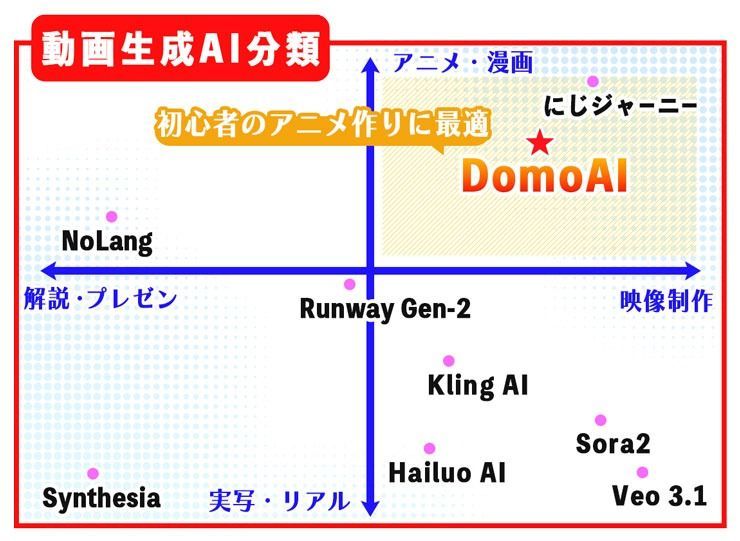
For beginners to work comfortably while maintaining a reasonable level of quality, choosing services according to the task helps shorten production time and keep results consistent.
A Beginner-Friendly Combination: Canva and DomoAI
Many AI video tools can generate the footage itself.
However, finishing tasks such as adding subtitles, adjusting effects, and inserting background music commonly require a video editor such as Adobe Premiere Pro or Final Cut Pro.
These editors work very differently from familiar tools such as Excel and Word. Their distinctive interfaces and specialist terminology take time to learn.
This has made them somewhat daunting for video editing beginners.
That is where Canva, a design tool used by many people, deserves attention.
Canva was originally known for creating banners and featured images, so some people may not think of it as a video editing tool.
It now includes video editing, however, with intuitive controls and plentiful templates that make it easy to create videos for different social platforms.
When I imported footage generated in DomoAI into Canva and added subtitles, I was able to finish a short video more smoothly than expected.
An Overview of Canva
Canva is an online design service founded in Sydney, Australia. Since its release in 2013, it has reportedly grown to more than 190 million monthly users.
Canva Pricing
Canva offers a Free plan and paid plans with expanded features, as of February 2026.
| Item | Canva Free | Canva Pro |
|---|---|---|
| Price | Free | ¥1,180/month ¥8,300/year |
| Templates | Limited | All templates available |
| Premium assets | × | ◎ |
| Storage | Approx. 5 GB | Approx. 100 GB |
| AI features | Some limitations | All features available |
| Background removal | × | ◎ |
| Team sharing | No (limited) | ◎ |
Business and Enterprise plans are also available, but I think Pro is generally sufficient for many individual users.
Reference: Plans and Pricing
What Can You Do with Canva?
Canva is no longer simply an image editing tool.
Broadly speaking, it has become a comprehensive visual content creation platform that brings together design, video editing, and AI assistance, much like Adobe products.
Its main features are as follows.
| Feature | Capabilities and characteristics | Main uses |
|---|---|---|
| Visual design | Create banners, featured images, thumbnails, social media images, flyers, business cards, posters, and more from templates. | Blog images, thumbnails, advertising banners |
| Video editing | Trim footage, add subtitles and text, apply animation, and insert background music or narration. | Short videos, simple promotional videos |
| Presentations and documents | Create slides and simple documents from templates and share them with a team. | Proposals, presentations, internal documents |
| Asset library | Built-in photos, videos, illustrations, icons, background music, and sound effects, including free and paid assets. | Finding design assets quickly |
| AI features (Magic Studio) | Generate and summarize text, remove or extend image backgrounds, create images from text, and get design assistance. Availability varies by plan. | Saving production time, creating rough concepts |
| Team features and sharing | Share designs, leave comments, and use basic permission management. | Collaborative creation and review |
| Website creation and publishing | Create simple vertically scrolling websites from templates and publish them using Canva hosting. Paid plans allow custom domain connections. | Landing pages, announcements, portfolios |
I think one of Canva’s most remarkable features is its library of more than 3.6 million templates.
Even beginners can achieve professional-looking results quickly by choosing a template and replacing its text, colors, and images.
Not having to start from scratch may be Canva’s greatest attraction.
Canva’s Easy-to-Use Video Editing
I think a major strength of Canva’s video editor is that templates help beginners get past the initial uncertainty of where to start.
For example, select a template for YouTube Shorts, Instagram Reels, or TikTok and replace its assets and text to begin editing immediately.
Being able to search for templates by purpose or keyword is also convenient.
It includes the essential features for video production, such as adding and editing background music and sound effects, splitting clips, adjusting volume and fades, and adding subtitles.
Although the interface uses a timeline, most operations involve drag and drop, making it easier to learn than specialist video editing software.
Templates that make it easy to get started and the essential editing features help maintain both production speed and a consistent level of quality.
An Overview of DomoAI
DomoAI is an AI video generation tool that creates and transforms video content from text, images, and videos.
It has a distinctive strength in Video-to-Video style conversion: uploading existing footage and transforming its appearance into anime, painting, and other styles while preserving its movement and content.
DomoAI Pricing and Features
DomoAI uses credits. Subscribing to Basic, Standard, or Pro gives you a monthly credit allowance.
Keep in mind that credits reset on the renewal date and unused credits do not roll over. Separately purchased additional credits are excluded from this rule.
The table below summarizes DomoAI’s pricing and plan features.
| Item | Basic | Standard | Pro |
|---|---|---|---|
| Monthly billing | $9.99/month | $27.99/month | $69.99/month |
| Annual billing | $83.88/year ($6.99/month equivalent) | $235.08/year ($19.59/month equivalent) | $587.88/year ($48.99/month equivalent) |
| Monthly credits | 500 | 1,500 | 4,000 |
| Relax Mode | Unavailable | Available | Available |
| Watermark | None | None | None |
| Parallel Fast Lanes (concurrent processing slots) | 3 | 3 | 6 |
One of DomoAI’s distinctive features is Relax Mode.
On Standard or higher, Relax Mode lets you generate unlimited images and videos without spending credits.
Well Suited to Animation and Short Videos
DomoAI’s strength is using AI to convert existing footage into another style with Video-to-Video.
It preserves the original motion and content while changing only the visual appearance to anime, cartoon, artistic, and other styles.
More than 40 preset styles are available, making it easier for beginners to achieve the mood they want.
Transforming live-action footage into animation can be particularly striking.

The output options are practical too: image and video aspect ratios can be set to Auto, 1:1, 16:9, 9:16, 4:3, or 3:4.
This makes it easier to publish videos created for social media directly to each platform.
DomoAI therefore makes it possible to quickly prepare visually distinctive assets, helping short videos feel original.
Steps for Creating a Short Video
This section introduces a workflow for creating assets in DomoAI and finishing them in Canva. First, let’s review vertical video dimensions, including aspect ratios and resolutions.
Video Sizes for Major Social Platforms
Here is a table of approximate video sizes for major social platforms.
| Platform | Post type | Aspect ratio | Resolution |
|---|---|---|---|
| YouTube | Standard video (desktop) | 16:9 (landscape) | 1920 x 1080 |
| YouTube | Shorts (smartphone) | 9:16 (portrait) | 1080 x 1920 |
| TikTok | Standard post | 9:16 (portrait) | 1080 x 1920 |
| Reels/Stories | 9:16 (portrait) | 1080 x 1920 | |
| Feed post | 4:5 or 3:4 | 1080 x 1350/1440 | |
| X (formerly Twitter) | Standard post | 16:9 or 1:1 | 1280 x 720/720 x 720 |
| X (formerly Twitter) | Vertical video | 9:16 | 720 x 1280 |
| Reels | 9:16 | 1080 x 1920 | |
| Feed | 1:1 or 4:5 | 1080 x 1080/1350 |
I included this size table because giving AI assets with inconsistent aspect ratios or resolutions can cause it to fill missing areas or crop them, making the results more unpredictable.
To get closer to the angle and composition you want, I recommend matching the intended platform’s aspect ratio, such as 9:16, before generating.
STEP 1: Create Images in DomoAI
First, create the images you want to turn into a short video in DomoAI.
For this example, I’ll use DomoAI’s Nano Banana Pro model to create a cat character.
As of February 2026, DomoAI’s Nano Banana Pro model cannot generate images from text prompts alone.
You therefore need to upload an image. Uploading a blank white image lets it generate an image according to the prompt.
Because this will be a vertical video, I set the generated image’s aspect ratio to 9:16.
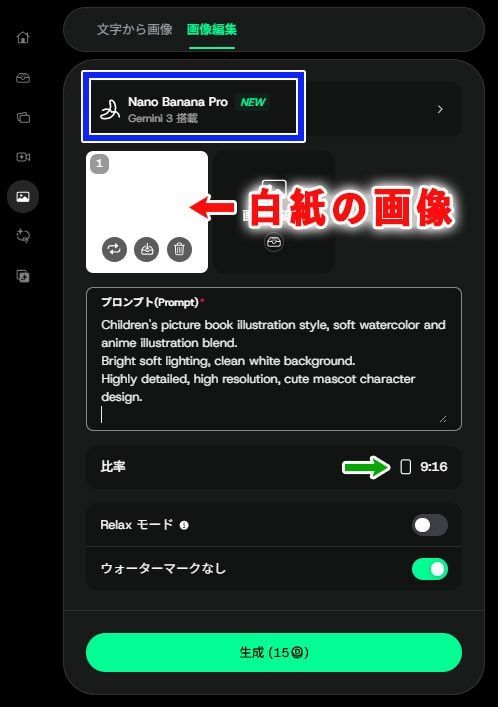
Once you have an image you are happy with, create several variations in advance, including side and back views.
The example uses English prompts, but Japanese instructions work too.
AI tools such as ChatGPT and Gemini can also help you develop prompts that are less likely to produce visual errors.
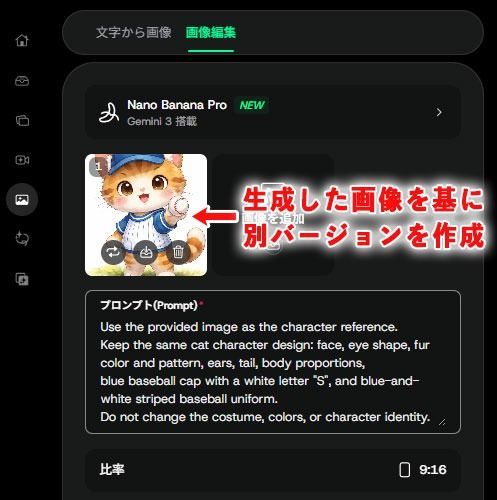
Variations in direction and expression are useful when animating the images later.
Nano Banana Pro is strong at character consistency, so uploading several reference images when creating a new image helps maintain that consistency.

STEP 2: Create Animation in DomoAI
One reason DomoAI excels at animation is its Frames to Video feature.
When you upload multiple images or frames, the AI generates animation to fill the gaps between them and exports the result as one video.
For example, set two images created in DomoAI as the start and end, then provide a prompt to generate the animation connecting them.
Multi-Keyframe mode supports up to eight images and generates animation between each frame.
You can specify the duration of each segment, allowing a multi-scene video such as Image A → (3 seconds) → Image B → (4 seconds) → Image C.
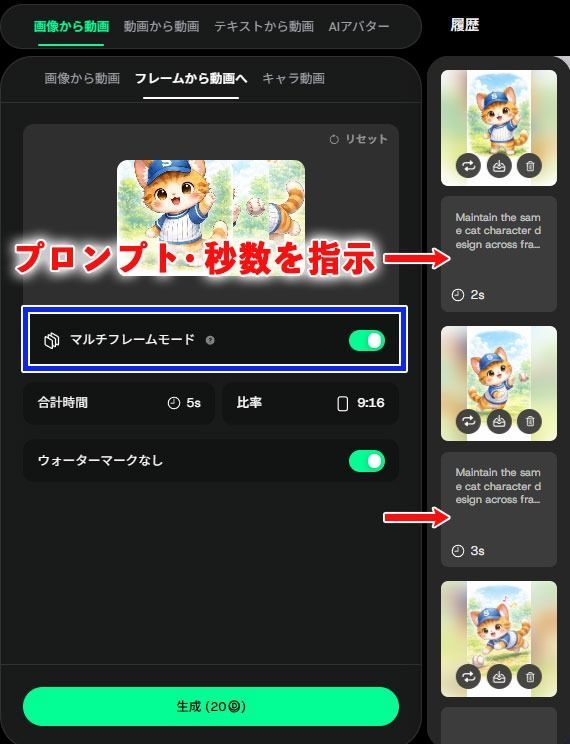
Below is the animation generated with these settings, exported as a GIF.

Repeat this process of image creation and animation to complete your animation.
STEP 3: Import Videos and Images into Canva
Next, log in to Canva to edit the video you created.
Select Video from the left-hand menu and choose a format.
For this example, I chose Mobile Video at 1080 × 1920.
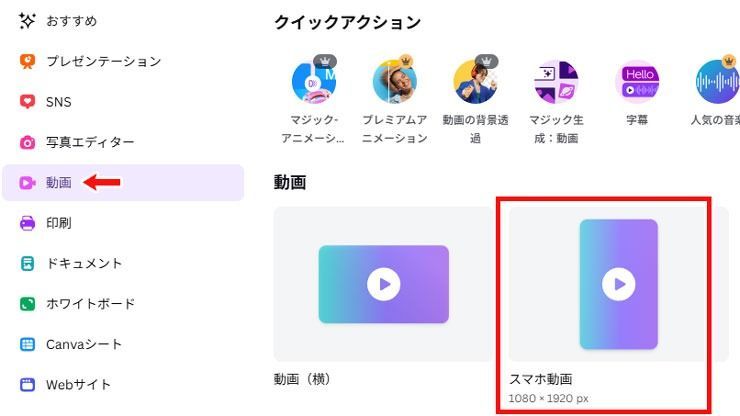
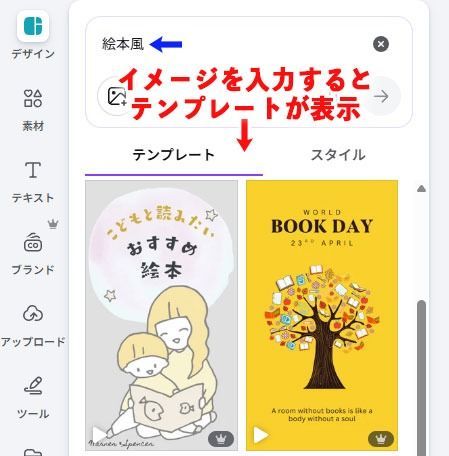
Canva has many templates. Enter keywords close to the look you want to find one suited to your purpose.
Applying a template adds it to the editor’s timeline, with its text, images, videos, backgrounds, and other elements placed there individually.
Click an element to select it and replace or adjust its content.
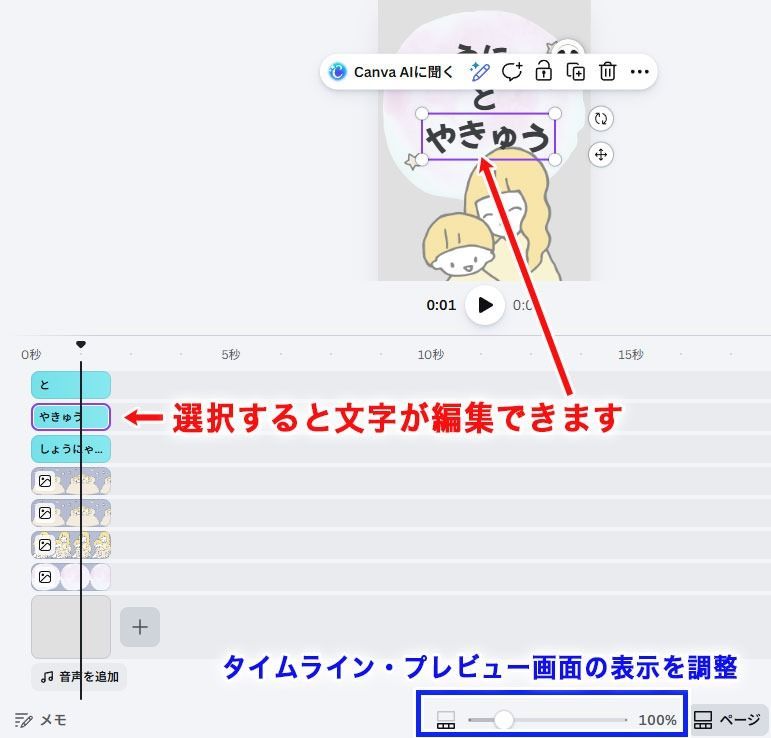
You can adjust the zoom level of the timeline and preview using the sliders at the bottom of the page.
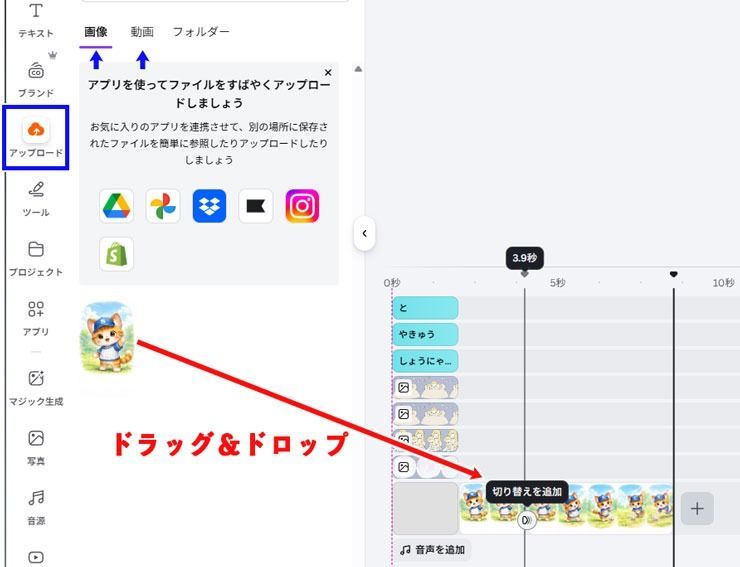
Next, import the images and animation you created in DomoAI into Canva.
Select File from the top menu, then Upload Files to upload the generated video and image files. Other upload methods are also available.
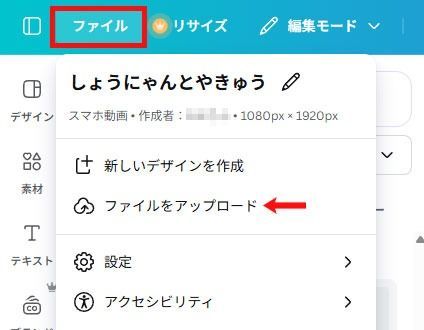
Your uploaded files appear in Media. Drag and drop the images or videos you want directly onto the timeline.
STEP 4: Add Subtitles in Canva
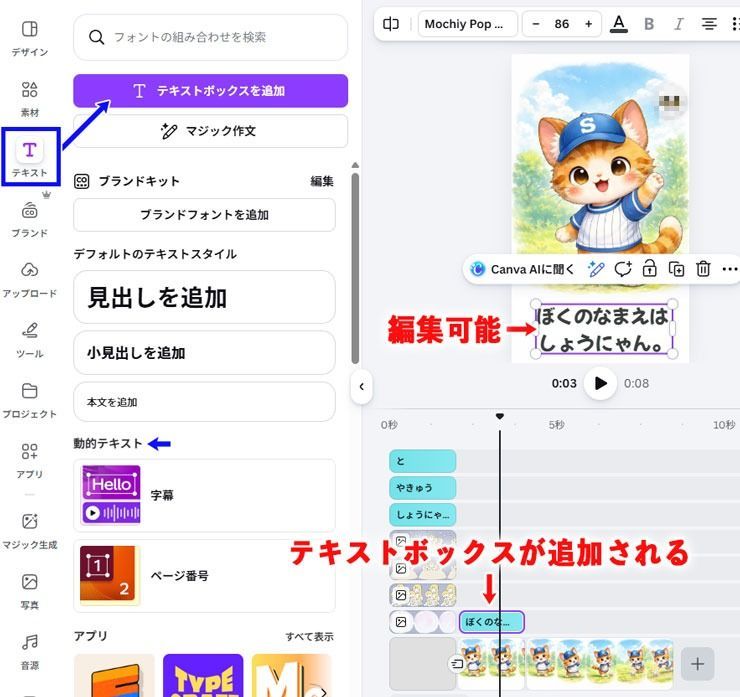
Add subtitles or on-screen text beneath the images and videos you placed.
Select Text from the left-hand menu and click Add a Text Box to add a text box to the timeline.
Enter the text you want to display as subtitles in the box.
For videos containing audio, you can also generate subtitles from the audio using the Captions feature under Dynamic Text.
Once you finish entering subtitles in the text boxes, use Share to upload directly to social platforms or download the file in MP4 or GIF format.
Below is the file downloaded as a GIF.

It has no sound because it is a GIF, but you can also add background music or narration in Canva.
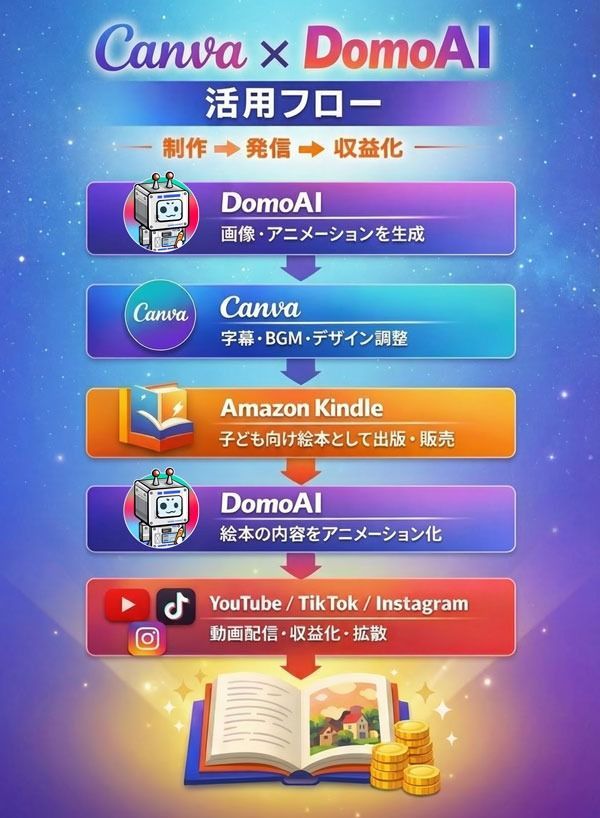
For example, these features could support a workflow such as:
Generate images and animation in DomoAI → Edit in Canva → Create a children’s picture book and publish and sell it on Amazon Kindle → Animate its content in DomoAI and share it on YouTube or elsewhere for monetization.
This is one possible way to expand the workflow.
Both DomoAI and Canva are intuitive and accessible even for beginners.
Start with a small piece and find a production workflow that suits you through hands-on practice.
Precautions for AI Video Production
Generative AI tools are very useful, but there are some important precautions to keep in mind.
Consider the following points to avoid legal risks and ethical issues.
Do Not Create False Content or Fake Videos
Japan held a House of Representatives general election in February 2026. Reports described videos of uncertain authenticity spreading on social media and causing confusion during that period.
There have also been cases where AI-generated fact checks themselves contained errors and were shared without correction.
Making a fake video casually can have a much greater impact or cause more trouble than you expect.
Avoid creating or publishing videos that could deceive others or contain misleading expressions.
Do Not Train on Videos and Images Posted on Social Media
You should avoid transforming and using other people’s social media videos or images with tools such as DomoAI.
The following actions are particularly likely to cause problems.
- Downloading and converting videos by YouTubers or influencers.
- Transforming and using corporate advertisements or parts of films.
- Using footage from artists’ music videos.
Copyright law includes adaptation rights: authors also hold the right to transform or adapt their original work.
AI style conversion is therefore also likely to qualify as adaptation.
To avoid problems, use material you filmed or created yourself, or stock assets explicitly licensed for commercial use.
Take Care with AI Mass Production
Generative AI can create large quantities of video content in a short time.
However, posting large amounts of spam-like or low-quality content on platforms such as YouTube and TikTok may violate their terms.
Viewers generally want valuable content. Posting only videos that look obviously mass-produced can reduce trust in a channel or account.
I therefore think it is important to prioritize content quality over quantity and design a long-term content strategy.
Conclusion and Frequently Asked Questions
Finally, here are answers to questions related to this article and short videos.
Q1. What is a suitable length for a short video?
A1. There is no single answer, but I often see TikTok videos of 15–60 seconds, Instagram Reels of 15–90 seconds, and YouTube Shorts of 30–120 seconds. Considering viewers’ attention spans, around 30 seconds may be the most effective length, although opinions vary.
Q2. What is the maximum length for YouTube Shorts?
A2. YouTube currently allows Shorts of up to three minutes, or 180 seconds.
Q3. What happens if I post a video without disclosing that it was AI-generated?
A3. As of 2026, major platforms are moving toward recommending—and in some cases requiring—disclosure or labels for AI-generated content. Failing to disclose it may result in reduced visibility, removal, or loss of monetization. Exact treatment depends on each platform’s policies and practices, so check the latest terms before posting.
Q4. Can I make videos using only a smartphone?
A4. Yes, but working on a small screen can be difficult. I recommend using a computer for serious production.
Q5. Can the videos I create be used commercially?
A5. Commercial use is possible with a paid plan for either service. However, you must also choose assets such as background music and images that permit commercial use. Check each asset’s license and rules.
Reference: Using Canva to Design Digital and Physical Products for Sale
That concludes the frequently asked questions.
This article explained an approachable workflow for beginners to create short videos by combining Canva and DomoAI.
I hope it gives you ideas for getting started with video production and helps guide your work.


