


Key points in this article
- DomoAI’s face-swap feature can replace an entire person, not just a face
- The “Draw subject only” setting and matching compositions are the keys to high-quality videos without visual breakdowns
- Combine it with NanoBanana 2, lip sync, and upscaling for the strongest results
DomoAI’s face-swap feature is a new AI video-conversion feature that replaces an entire person, rather than swapping only the face. Accuracy improved significantly with the latest 2026 update, and high-quality composite videos have attracted attention on social media.
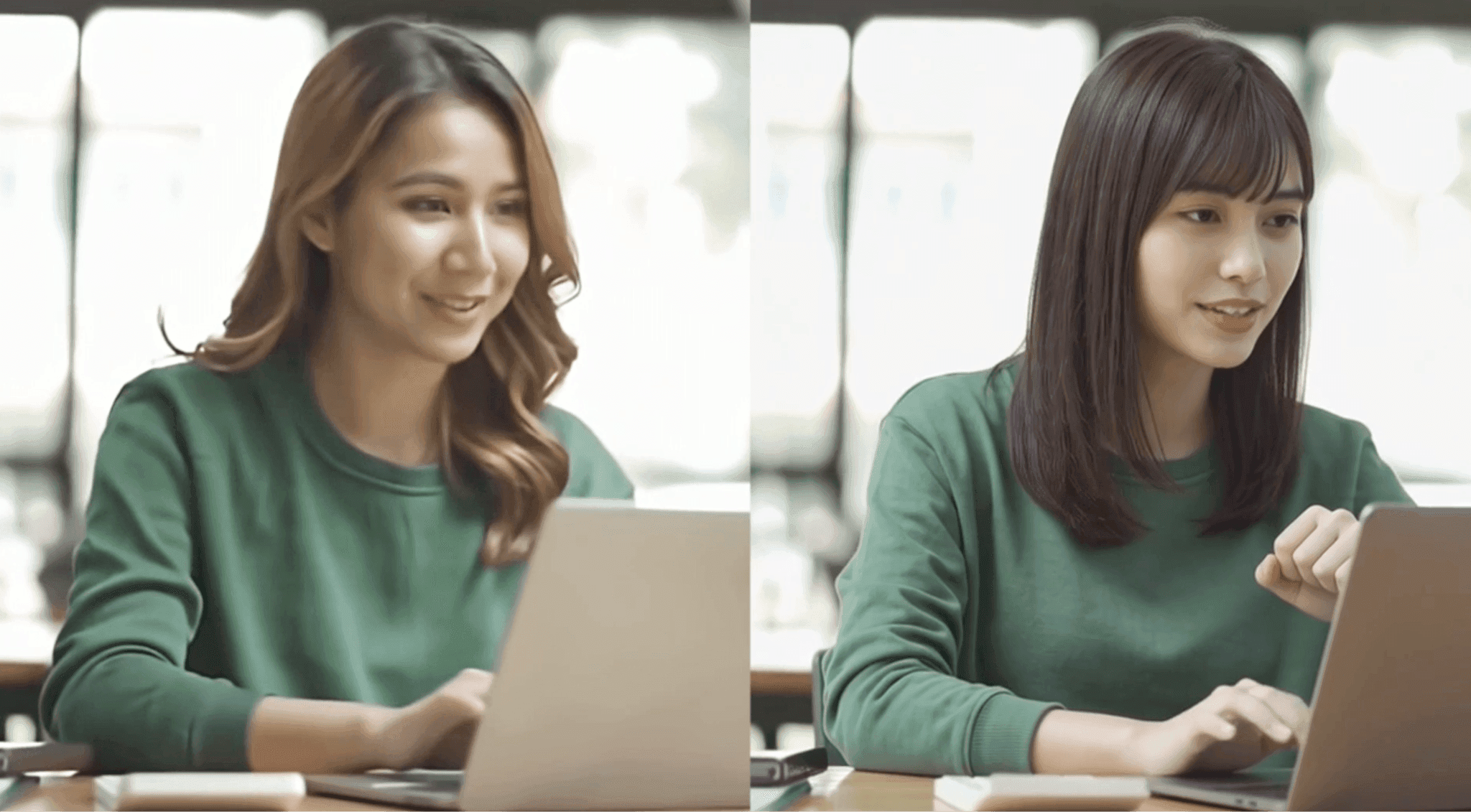
DomoAI’s Character to Video feature lets anyone generate professional-quality FaceSwap videos in minutes using just one base video and one character image.
Recommended for
- People trying DomoAI’s face-swap feature for the first time
- Creators struggling with visual breakdowns in videos that replace people
- People who want to streamline video production by combining AI avatars and lip sync
- People who want to finish short videos or YouTube openings on their own
This article carefully explains everything from the basic controls for DomoAI face swap to tips for avoiding failures and advanced techniques. It also introduces practical workflows combining Nano Banana 2 and lip sync, helping you take your video production up a level starting today.
Here is a video made with face swap
What Is DomoAI’s Face-Swap Feature?

DomoAI’s face-swap feature is an AI video-conversion feature that replaces an entire person in a video with another character.
Traditional FaceSwap tools mainly replaced the outline of the face. DomoAI, however, supports replacing the whole person, including their face, hairstyle, clothing, and physique.
What You Can Do with Face Swap
- Replace the whole person: transform their physique, clothing, and pose, as well as their face
- Preserve the background: keep the original video’s atmosphere with the “Draw subject only” setting
- Direct movement with prompts: use text to describe the movements you want the new person to make
- High-resolution output: use upscaling to improve image quality up to 4K
How to Use DomoAI Face Swap
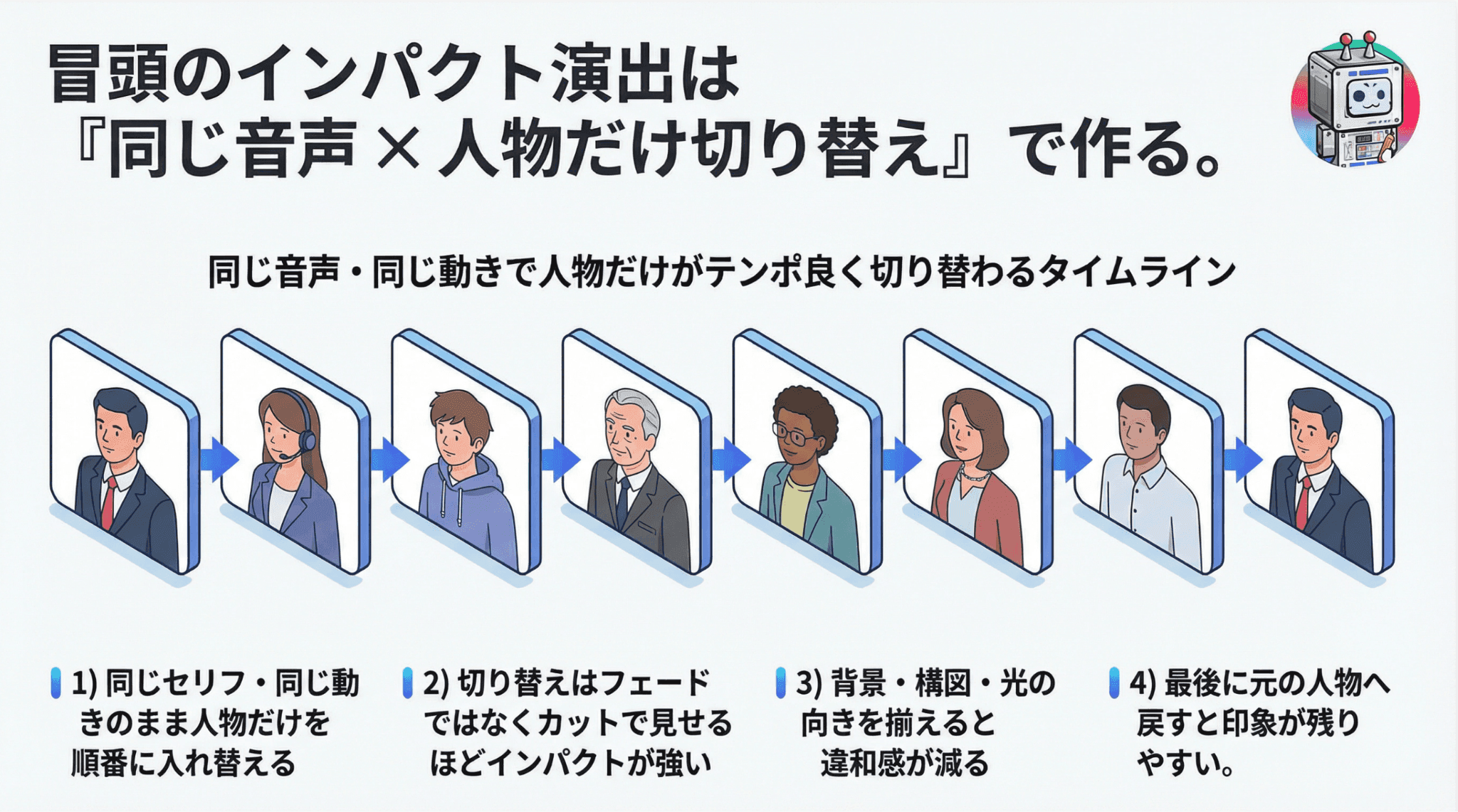
Let’s walk through the steps for creating a face-swap video in DomoAI.
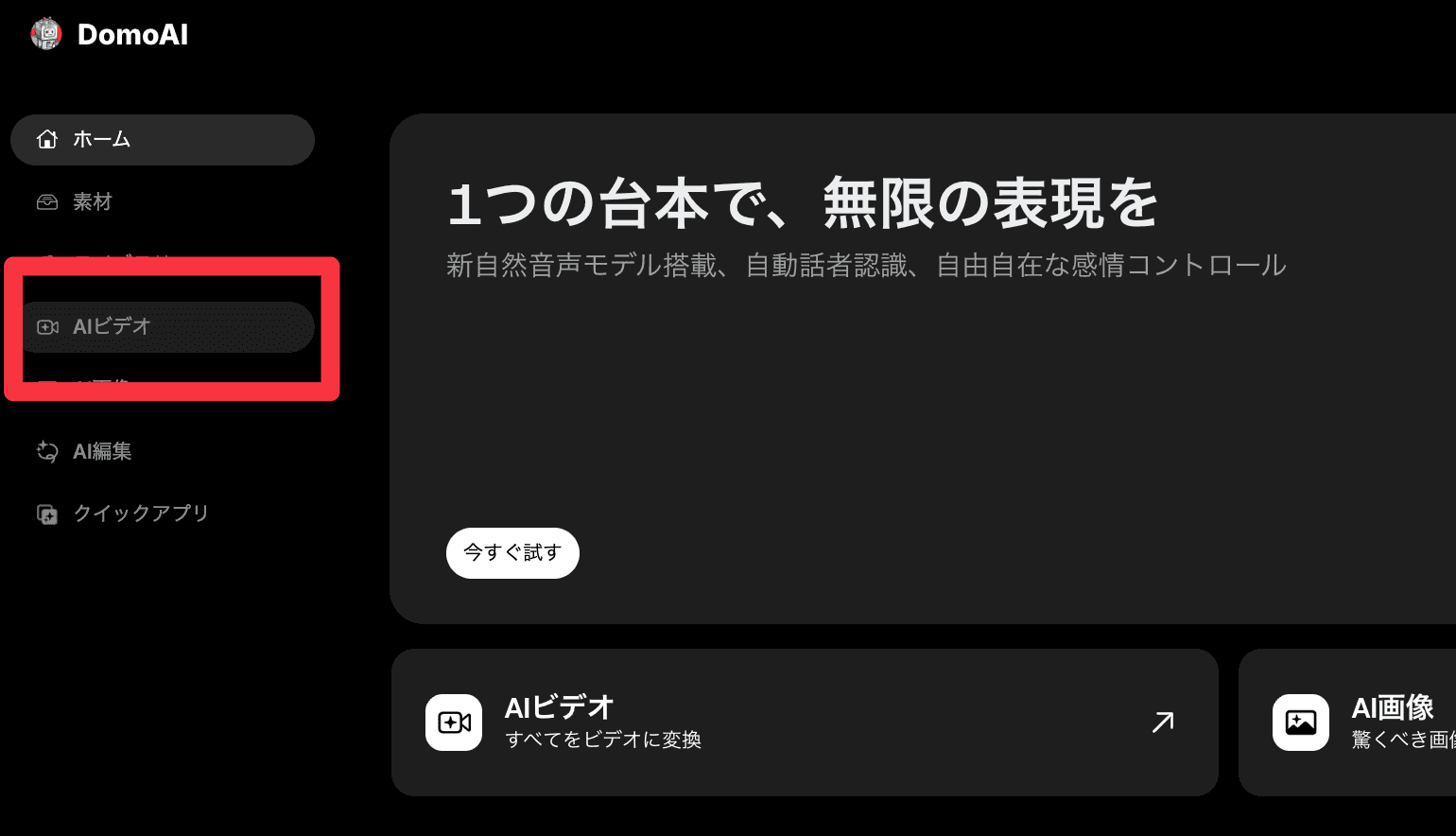
STEP 1. Log in to DomoAI and open AI Video
Visit the DomoAI official website and sign in with your Google account. Click “AI Video” in the menu on the left.
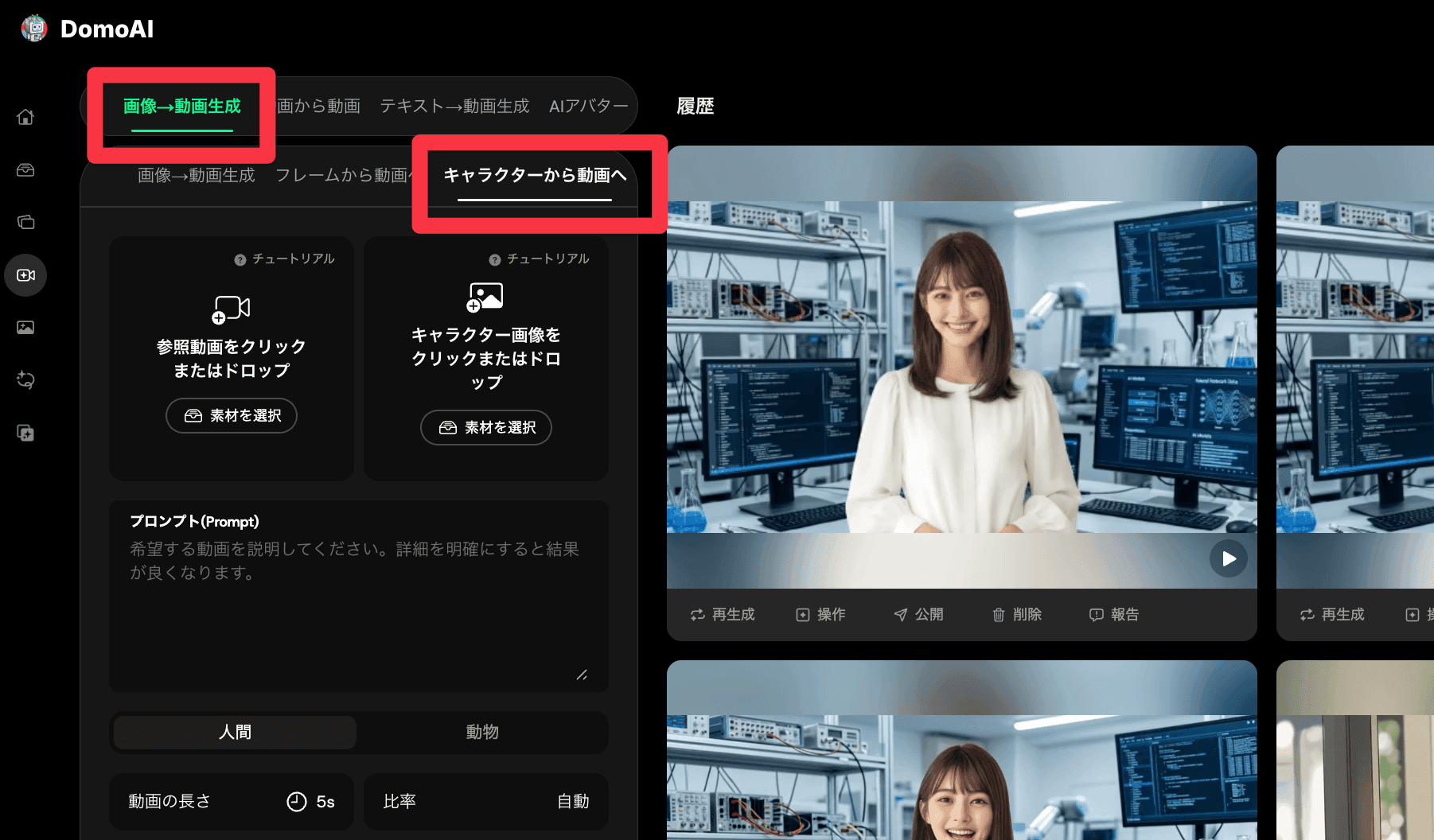
STEP 2. Select Character to Video
Choose “Character to Video” on the screen. This is the entry point for DomoAI’s face-swap feature.
STEP 3. Upload the base video and character image
Upload the original video on the left, then drop an image of the replacement person into the “Character Image” area on the right. That is all you need to finish the setup.
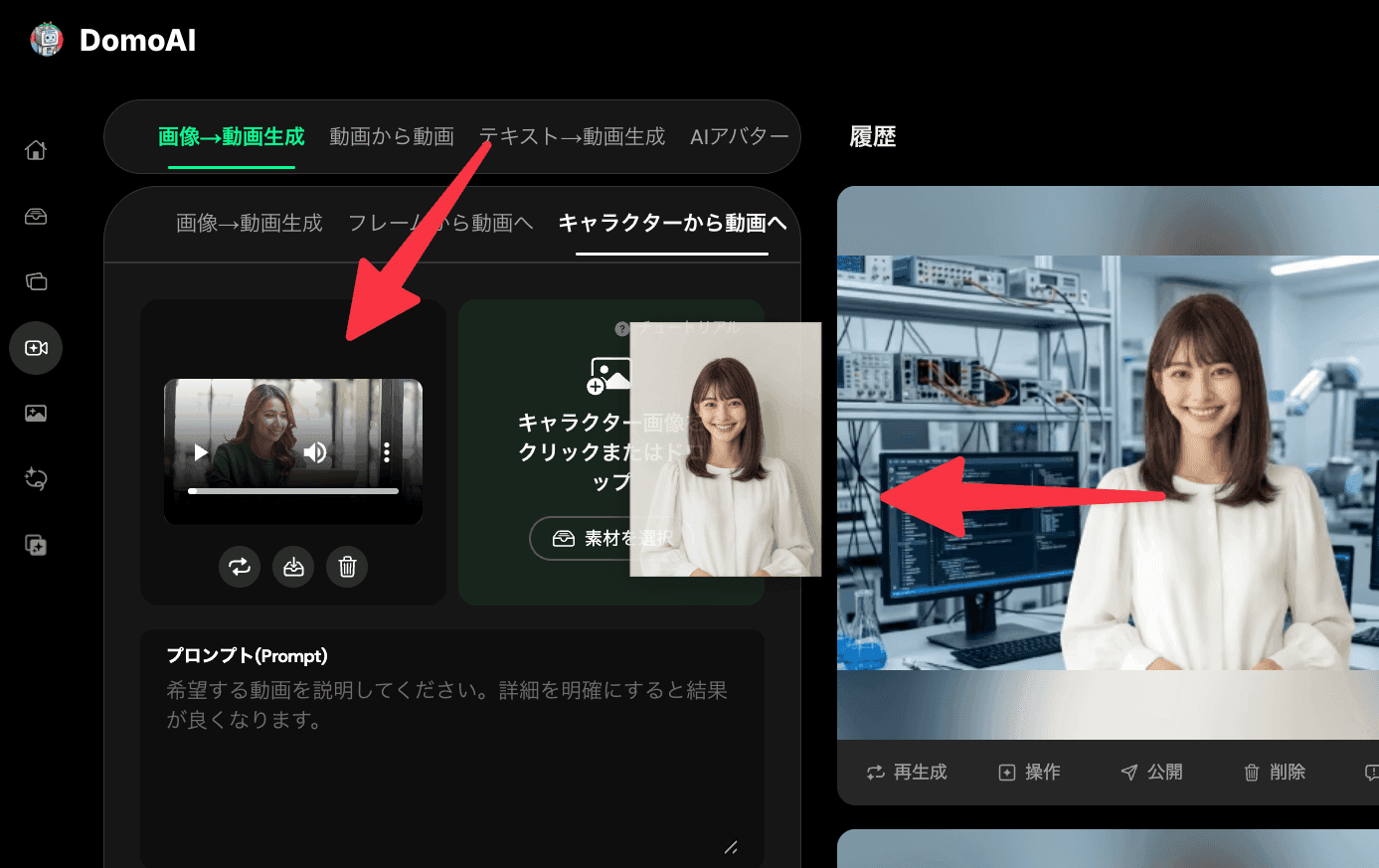
STEP 4. Describe the movement in a prompt
Enter the movement you want the new person to make, such as “Smiling, typing on a computer, and speaking while facing forward.” If the subject is a person, remember to select the “Human” button.
STEP 5. Press Generate
After setting the video length, aspect ratio, and mode, click the Generate button at the bottom left. Your face-swap video will be ready in a few minutes.
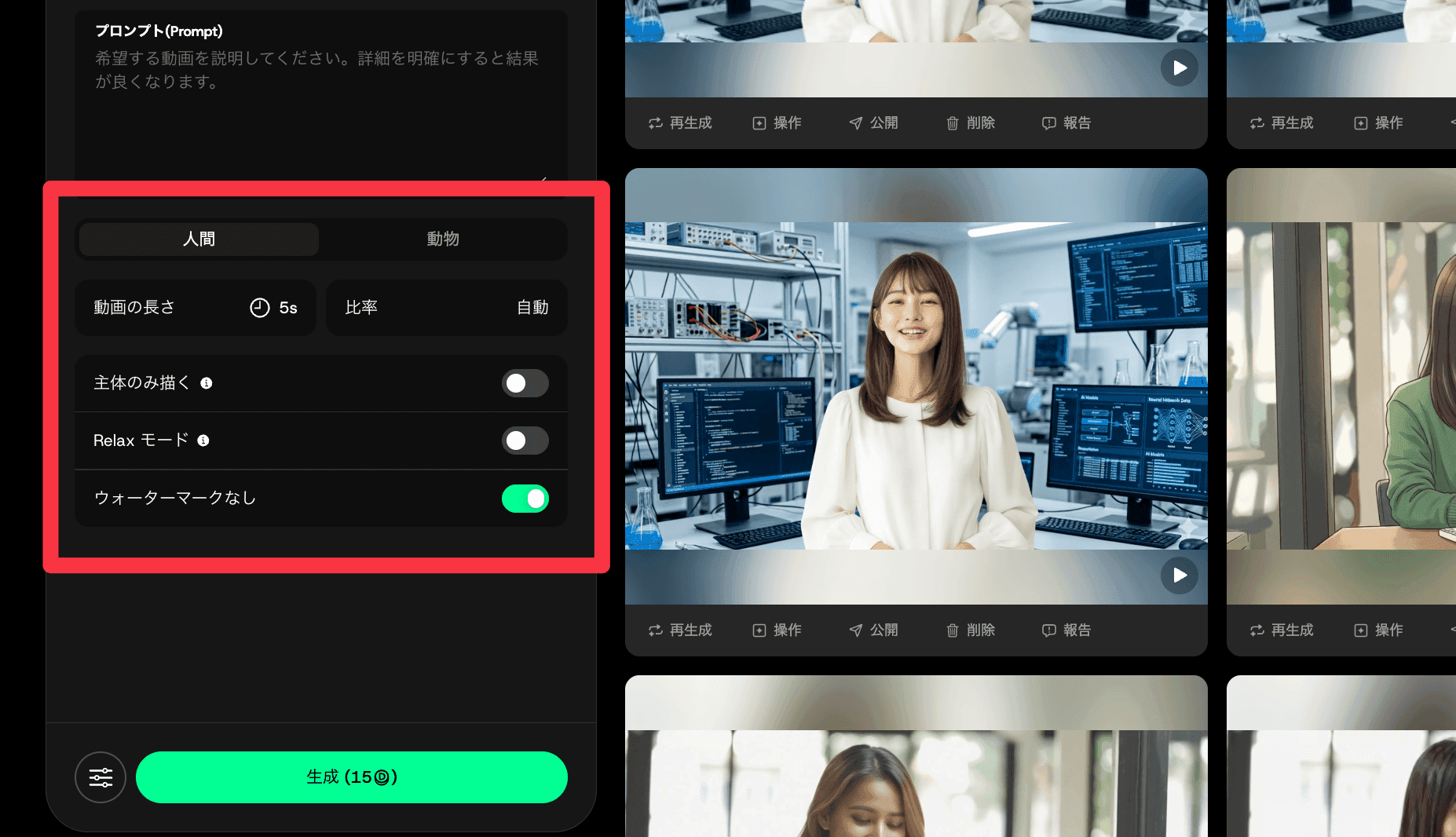
Important Settings for Avoiding Failures
To get consistently successful results with DomoAI face swap, you need to understand a few key settings.
Turn on “Draw subject only”
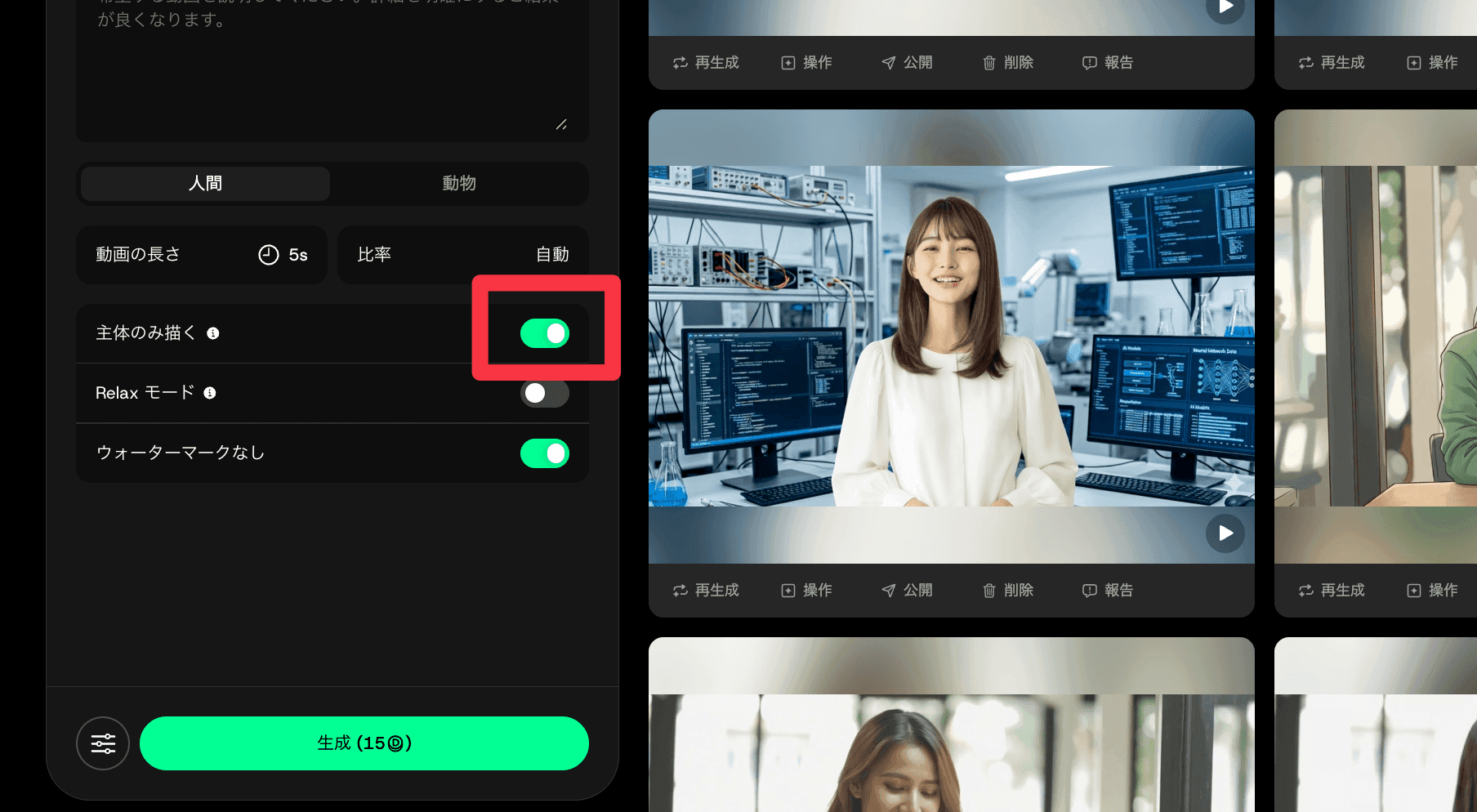
The most important point is to turn on “Draw subject only.” Turning it off mixes the uploaded image’s background with the original video’s background, disrupting the atmosphere.
With it on, you can neatly replace only the person while keeping the original video’s background, improving the quality of the composite.
Set the video length longer than the source material
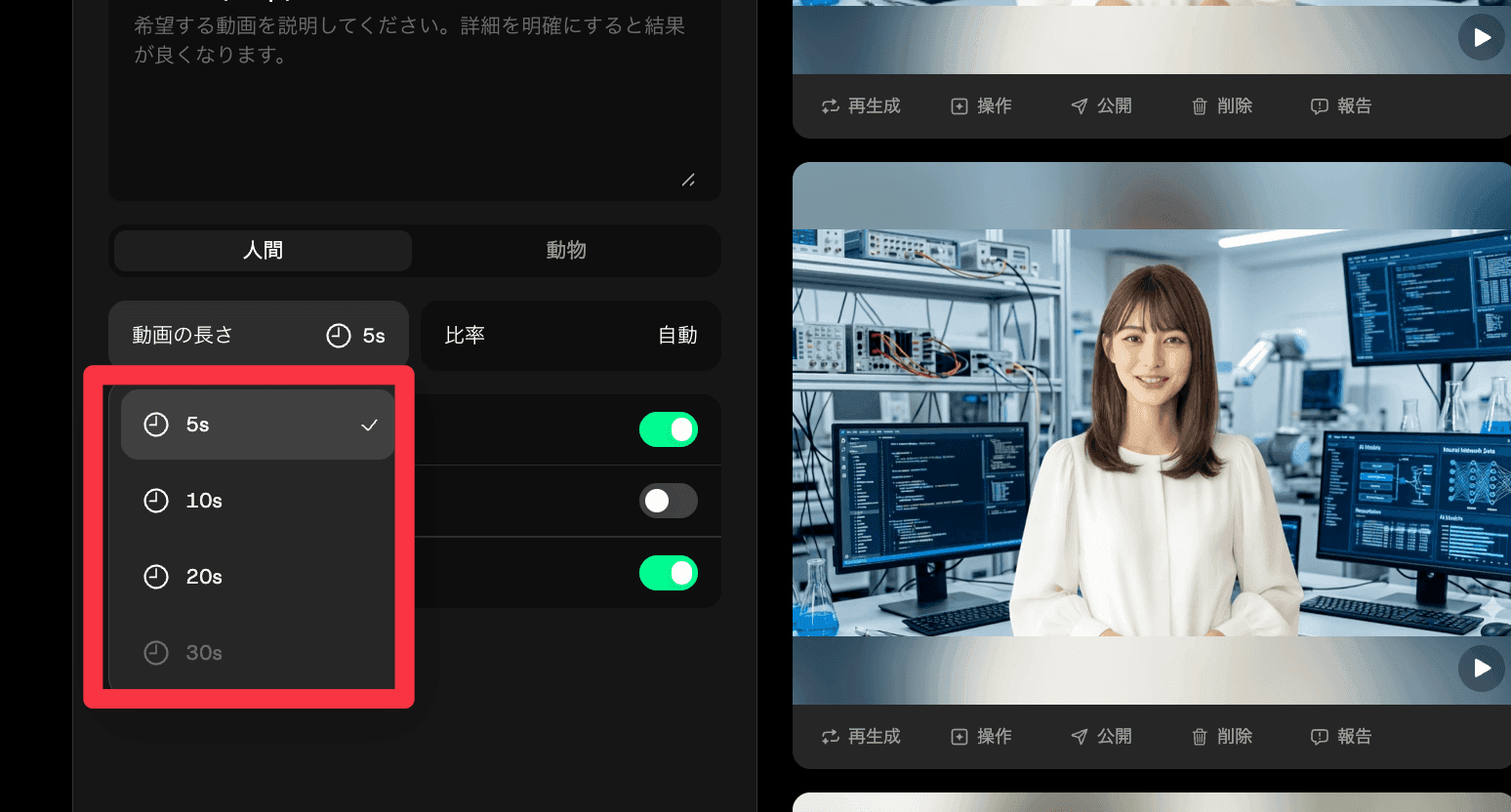
Always set the generated video’s length longer than the base video you uploaded. For example, generating a 15-second video with a five-second setting will cut it off partway through.
Fix the aspect ratio and use Relax mode
We recommend setting the aspect ratio manually rather than using “Auto.” Automatic settings tend to follow either the video or image, producing an unexpected ratio. Setting your intended final ratio, such as 16:9 or 9:16, in advance helps prevent this. If you have time, turn on “Relax mode” as well. Generation is a little slower, but you can generate videos repeatedly without using credits. This makes experimentation easier and is useful when you want to keep adjusting until you are satisfied.
Advanced Technique: Match Compositions for FaceSwap Without Visual Breakdowns
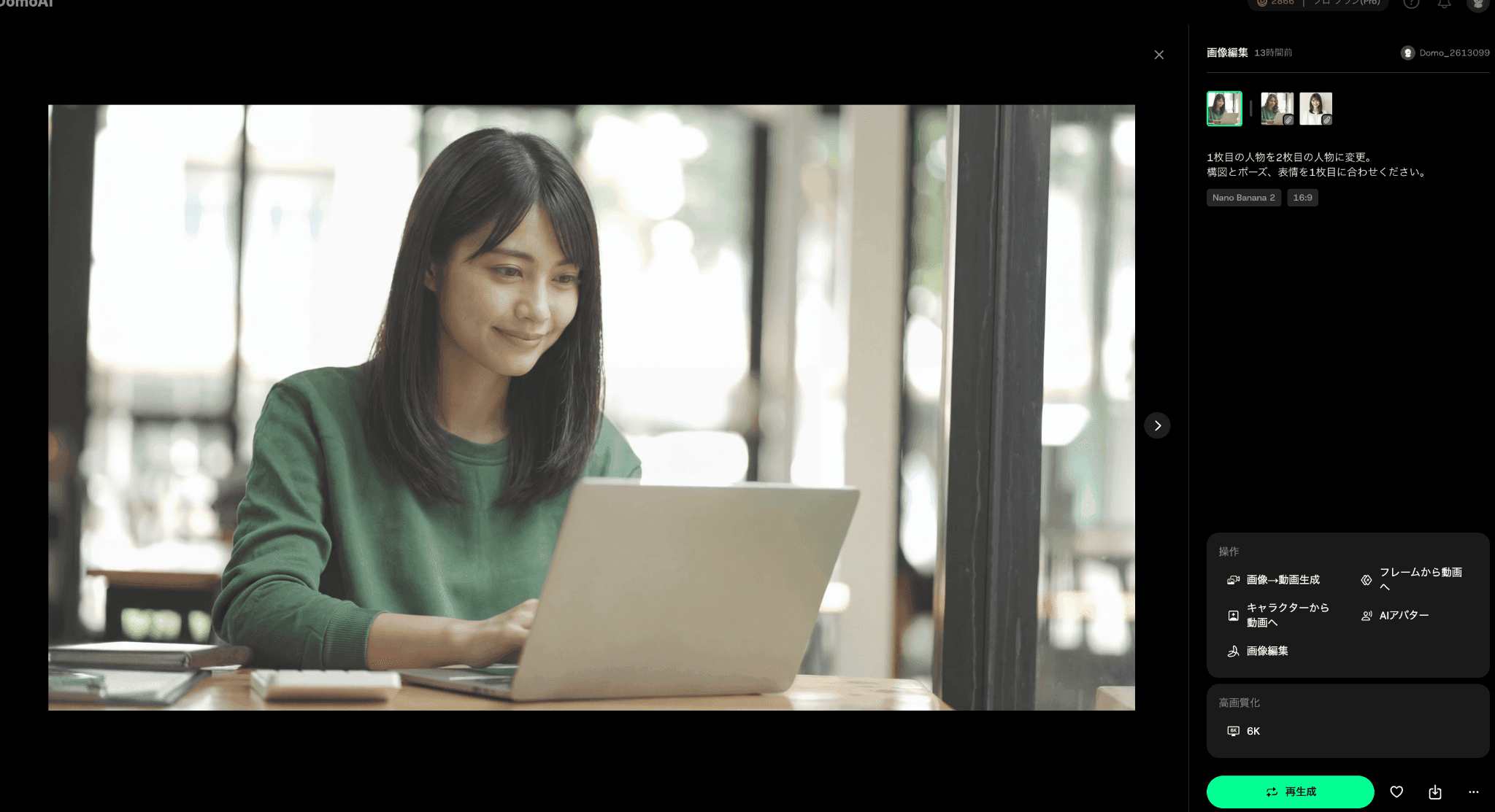
In fact, applying face swap directly to a video often causes the person’s movements to drift and break down.
For example, someone using a computer in the original video may inexplicably be holding a sheet of paper in the generated video. This happens because the AI cannot properly match the composition of the original video to the replacement image.
The recommended technique is to first use image-generation AI to create an image with a matching composition, then turn it into a video.
A Workflow for Matching Compositions with NanoBanana2
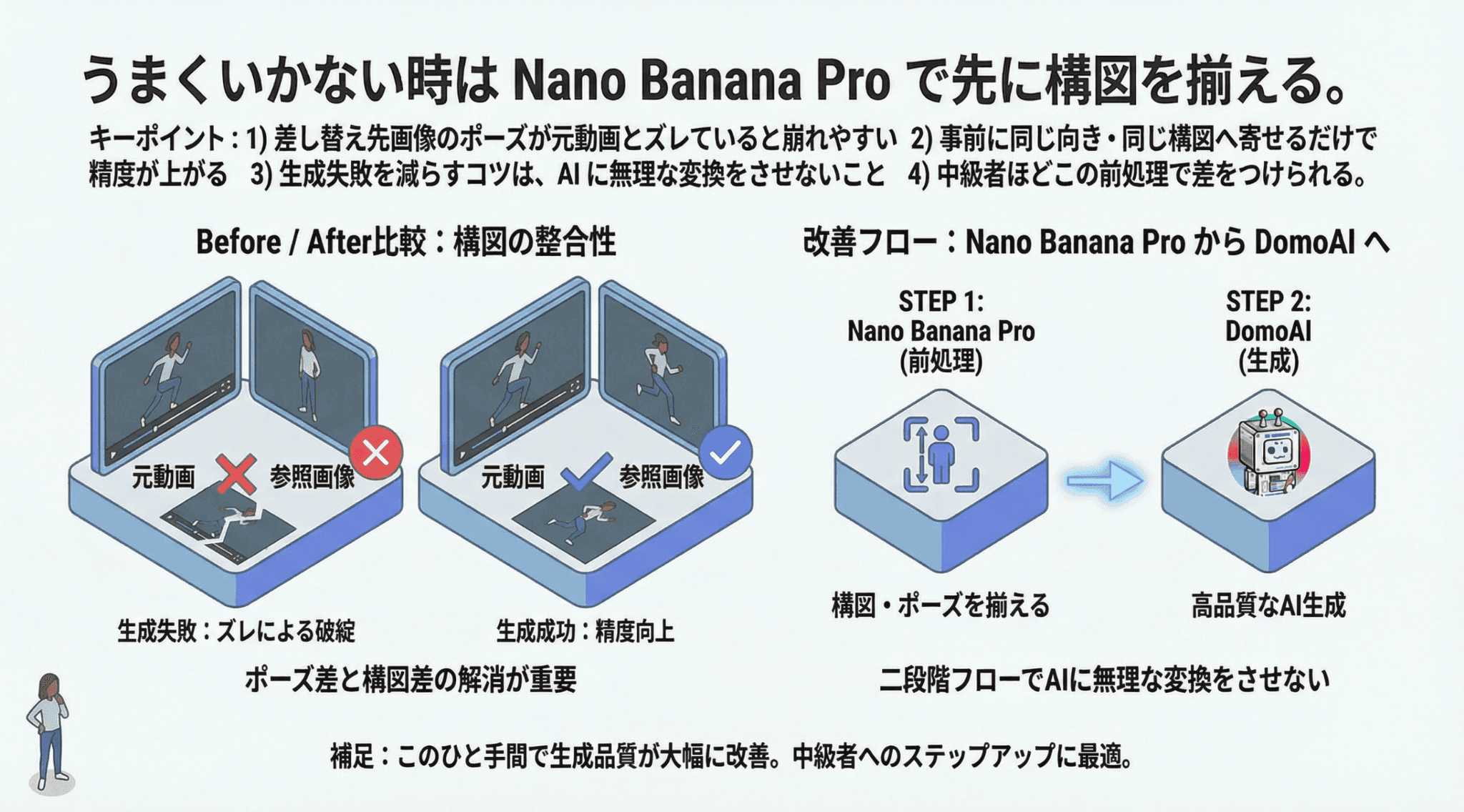
- Click “Image Editing” in DomoAI, which supports NanoBanana2 and NanoBananaPro
- Upload a still frame taken from the original video
- Also upload an image of the person you want to substitute
- Enter the prompt: “Replace the person in the first image with the person in the second image. Match the composition, pose, and expression to the first image.”
- To match the lighting as well, add “Keep the direction of the light consistent too”
- Use the generated image as the character image and apply face swap again
Adding this single step lets you create a composite video with perfectly matched movements, facial position, expressions, and gestures.
The key is to carefully prepare the target person’s composition first instead of immediately running face swap


Finish with Lip Sync and Upscaling
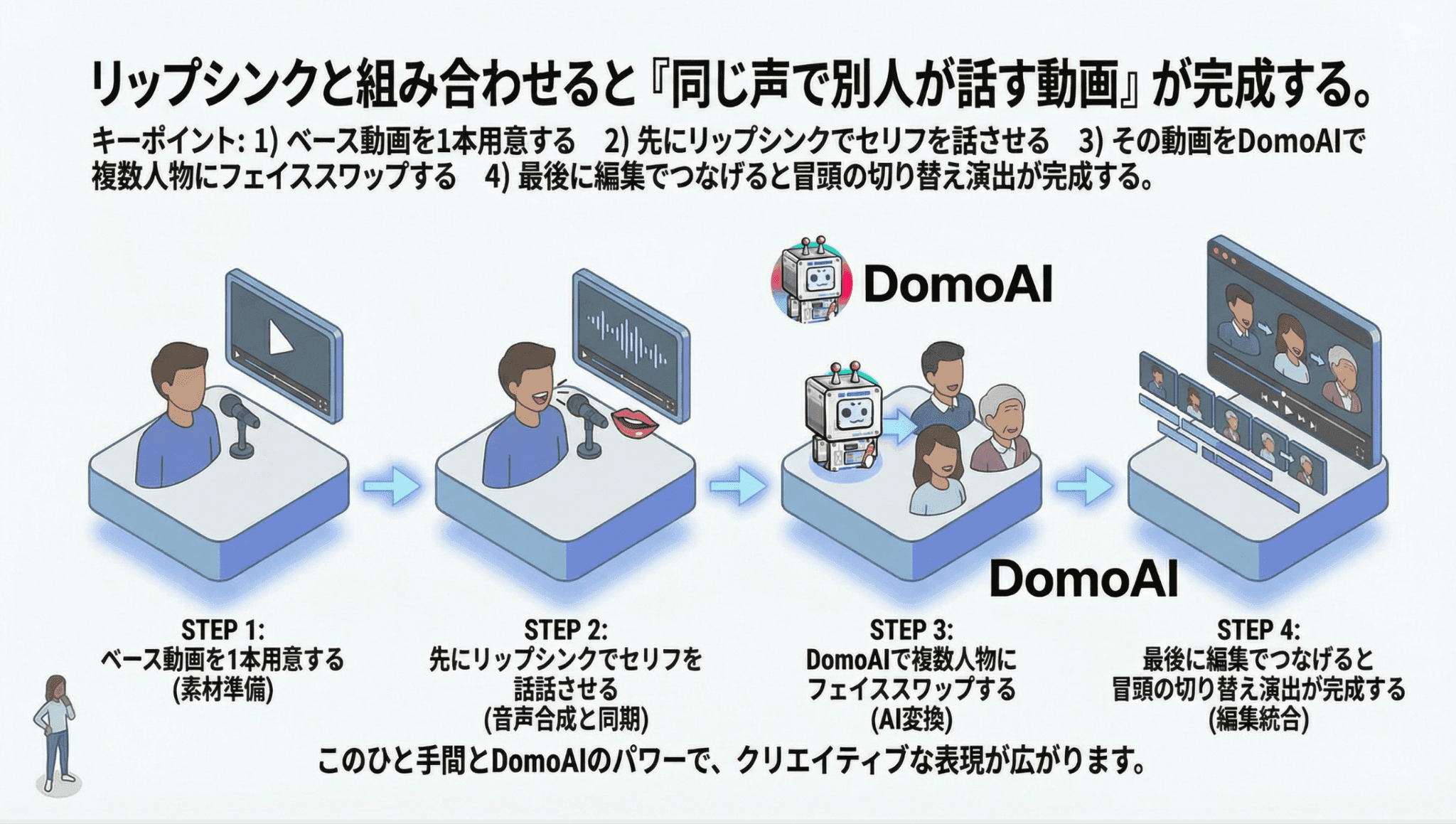
Next, we’ll take this a step further and introduce advanced techniques you can use for opening videos and more.
Combine it with the AI avatar’s lip-sync feature
If you want the face-swapped person to speak, combine the result with DomoAI’s AI Avatar lip-sync feature. In the “AI Avatar” section of AI Video, upload the base video and an audio file, then describe the movement in a prompt. This produces a video of the character speaking naturally.
Here is a video explaining the lip-sync feature in detail
Tip: You can use text-to-speech AI for the audio, but using your own recording or a high-quality track made with voice-generation AI can immediately bring the result up to professional quality.
Improve image quality with upscaling
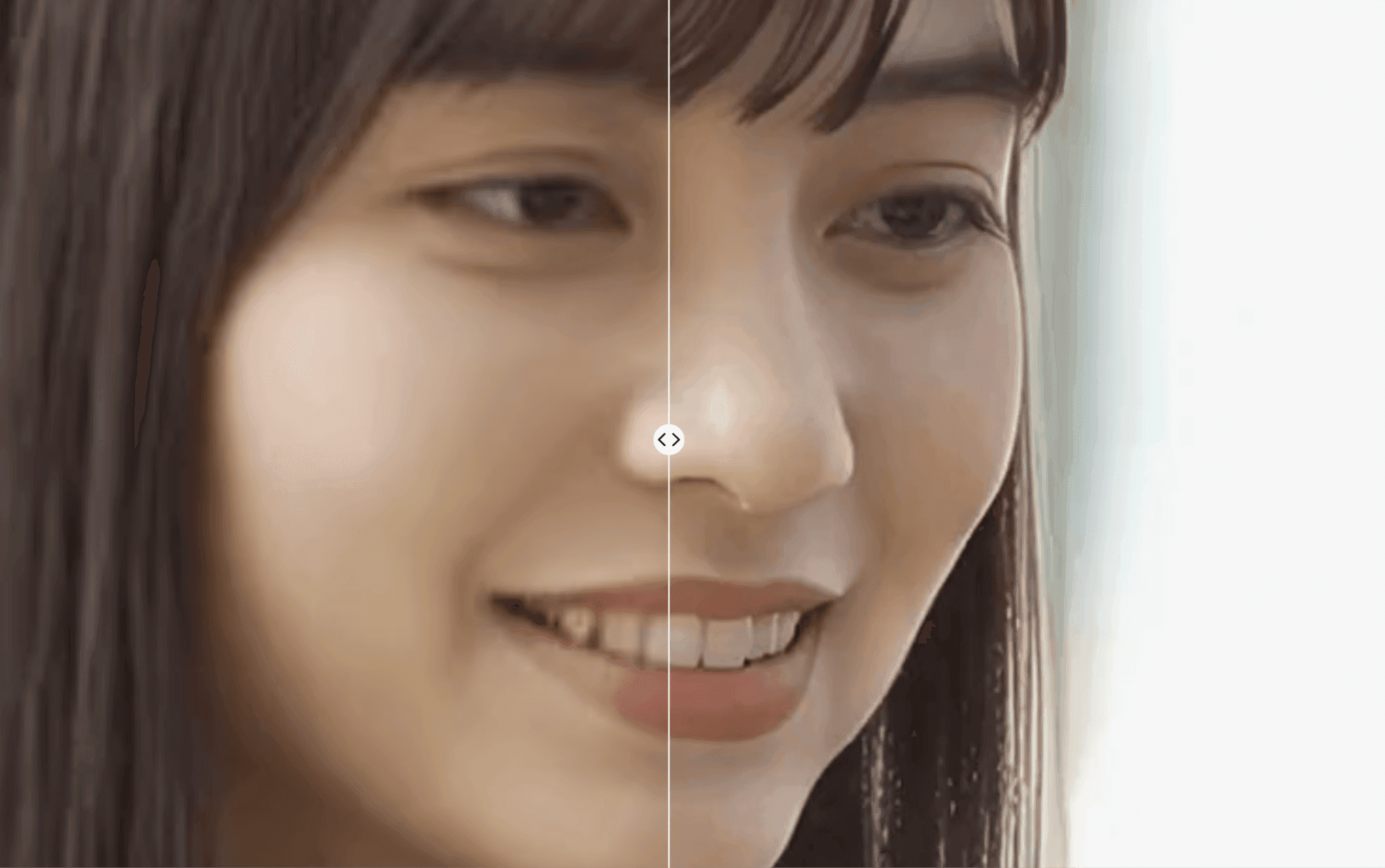
The upscaling feature under DomoAI’s “AI Editing” section improves the quality of both images and videos. When generating video from an image, a higher-quality source image produces a more stable video. Upscaling once before animation can make a major difference to the quality of the finished footage.
Summary: A Small Extra Step Makes DomoAI Face Swap Look Professional

We have covered how to use DomoAI face swap, tips for avoiding failures, and advanced techniques.
- DomoAI face swap replaces the whole person, and the “Draw subject only” setting is essential
- The key to avoiding visual breakdowns is to first create an image with a matching composition in NanoBanana2
- Combining lip sync and upscaling lets one person create videos suitable for an opening sequence
- Relax mode on the Standard plan and above lets you experiment without limits while keeping costs down
AI video generation is evolving at an astonishing pace. Individual creators can now easily produce footage that looks like a scene from a film. Use this article as a guide and explore new forms of visual expression with DomoAI face swap.


