


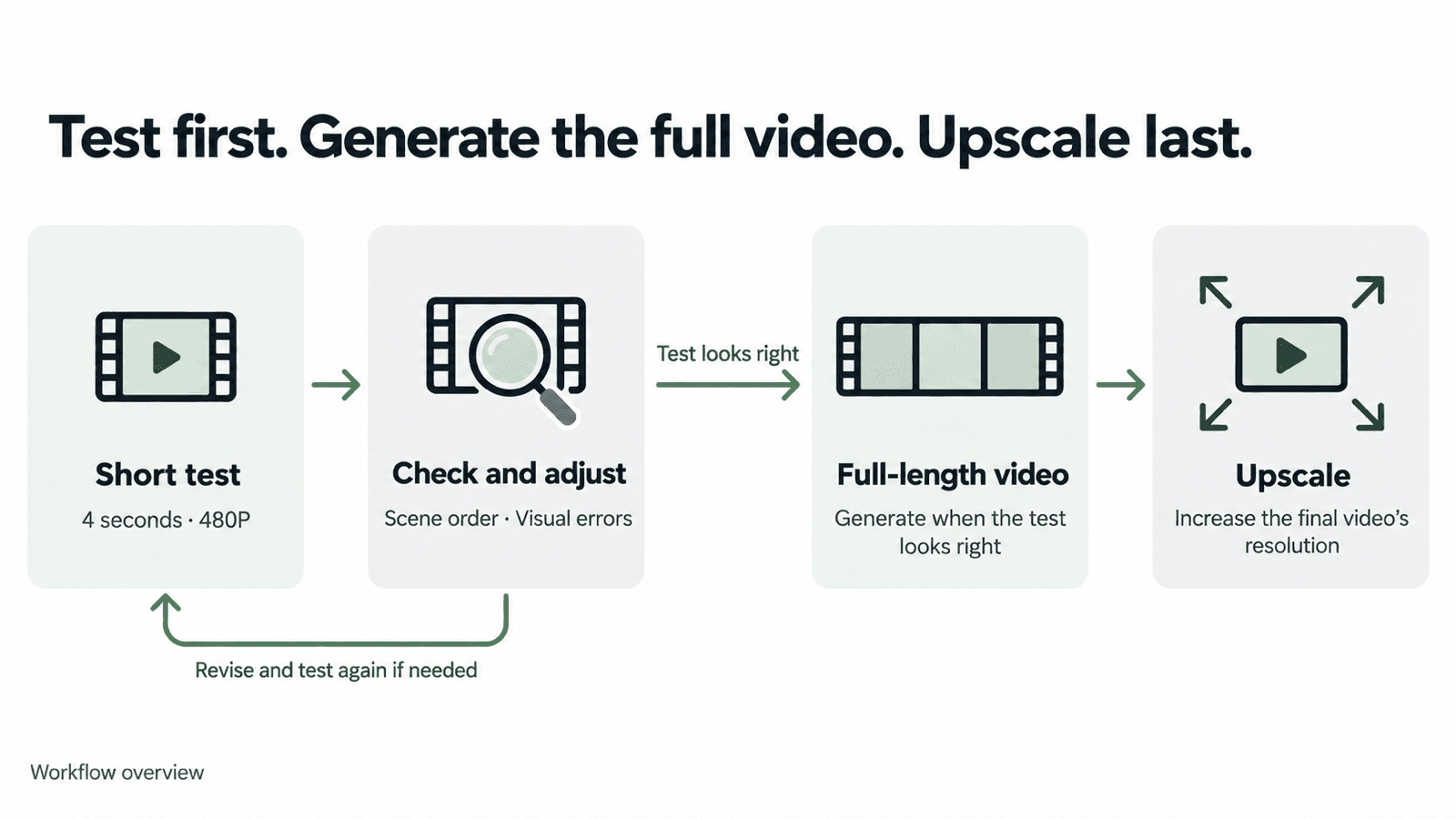
To reduce AI creation costs, use short, low-resolution videos to test your prompt and references. Once the result looks right, generate the full-length video. Upscale the final version if you need a higher output resolution.
1. Start with a short, low-resolution test
DomoAI offers several ways to create videos. Choose the tool that fits the material you already have:
- Omni Reference: Combine images, video, and audio references to guide a new video.
- Image to Video: Animate a still image with subject and camera movement.
- Frames to Video: Guide a video with start and end frames or multiple keyframes, depending on the model.
- Character to Video: Use a reference video to animate a character from an image.
- Text to Video: Generate a video from a written scene description.
- Video to Video: Restyle existing footage while retaining its motion.
This walkthrough uses Seedance 2.5 in Omni Reference. Add your reference image or video, select the model, and start with 4 seconds at 480P. Choose the aspect ratio and audio setting, then check the credit quote before generating.
A short generation may compress several scenes from your prompt into a faster sequence. Use it to check whether the video follows your idea: the scenes appear in the right order, the subject looks consistent, and there are no obvious visual errors.
If small text or product details are too hard to see at 480P, use 720P for that test.
2. Check the test clip
Watch the clip at normal speed, then pause where something looks wrong.
- Do the scenes follow the intended order? Check for missing scenes, unexpected cuts, or events happening in the wrong sequence.
- Are there any obvious visual errors? Look for changing faces, distorted bodies, disappearing props, or objects appearing where they should not.
- Does the action happen? Does the person pick up the cup, or just reach toward it? Does the movement finish?
- Does the camera show what you need? Check for unwanted zooms and make sure the important action stays in frame.
- Does the audio work? If you need sound, check the words, voice, background audio, and lip sync.
Choose the main problem to fix before your next test. If the only issue is a brief moment at the end, consider whether trimming it would be enough.
3. Give the model clearer references and instructions
If an instruction is unclear, revise the prompt. If a reference is missing an important detail, replace it. Change one at a time and keep the model and settings the same.
Give each reference a clear purpose
References provide details that words can leave unclear. For examples of how to assign each reference a role, see our Seedance 2.5 workflow guide.
Use a clear character image that shows the face, outfit, and accessories you need. Choose a motion reference that shows the intended action. Remove references with conflicting details, such as different outfits.
Use the reference labels shown in the interface to explain what each file contributes. In the birthday example below, the prompt uses @Image1 for the dog’s identity and asks for a new background, pose, and lighting.
Describe the scenes and camera movements clearly
A detailed prompt can work well when each section has a clear purpose. The birthday prompt separates the reference instructions, visual style, seven scenes, and camera rules.
For each scene, describe what happens and how the camera moves. Keep the sequence clear and remove conflicting instructions. A short test can help you see how the model handles the full sequence.
Match the instructions to the input mode
An image-to-video prompt can focus on movement because the starting image already shows the subject and composition. A prompt using several references needs to explain what to take from each one. An image-editing prompt should describe what to change and what to preserve.
Understanding how prompts and references guide AI generation helps you choose the right input to change.
If you switch to MiniMax H3, use the MiniMax H3 prompt guide for its mode-specific examples.
4. Generate the full-length video
Once the test clip matches the intended result, use the same prompt and references to generate the full-length video. Select the duration and generation resolution you need, check the credit quote, and generate.
Example: A dog birthday video
The short test presents a quick sequence of the main scenes: the close-up reveal, head pat, gift bag, five-dog lineup, and birthday ending. It provides a first look at the scene order, the dog’s appearance, and any obvious visual errors.
The four-second test followed the intended scene sequence without obvious visual errors. The same prompt was then used to generate the 20-second video.
4-second test · Portrait
20-second video · Landscape
The longer version gives the scenes more time to unfold, including the gift bag reveal and the camera move across the five-dog lineup.
View the full prompt
Create a premium minimalist birthday film featuring the dog from @Image1.

REFERENCE USAGE

@Image1 defines the dog’s exact identity and appearance.

Preserve the same dog throughout the entire film:
- same face and facial proportions
- same eyes, nose, ears, and expression style
- same fur color, markings, texture, and coat length
- same body proportions, size, and age

Use @Image1 only as the dog’s identity reference.
Do not copy its background, pose, lighting, camera angle, or composition.

Every dog shown in the film must clearly be the same dog from @Image1.

VISUAL STYLE

Pure white seamless studio background, soft white floor, subtle natural contact shadows, bright diffused lighting, extremely clean composition, generous negative space, and precise centered framing.

The entire film should feel elegant, playful, modern, and highly designed — like a premium product reveal rather than a traditional birthday party.

Use a pure white and warm ivory palette.

Avoid colorful party decorations, crowded props, busy backgrounds, excessive balloons, heavy confetti, or childish birthday styling.

SHOT 1 — MACRO REVEAL

Begin with an extreme macro close-up of @Image1 dog’s nose filling most of the frame.

Slowly and smoothly pull the camera backward.

Reveal the eyes, then the full face, then the entire dog sitting perfectly centered in the white studio.

Preserve the dog’s exact facial identity throughout the pullback.

The dog wears only a very minimal birthday collar with one small elegant ivory accent.

SHOT 2 — PORTRAIT INTERACTION

Clean centered medium portrait of the same dog.

Large amounts of empty white space surround the dog.

The dog slowly looks slightly upward.

A human hand gently enters from above and softly pats the dog once on the head.

Keep the dog calm and natural.

No change to the dog’s face, fur, proportions, or identity.

SHOT 3 — GIFT REVEAL

Hard cut.

A large minimalist ivory-white gift bag stands alone in the center of the studio.

The same dog from @Image1 slowly lifts its head out of the bag and naturally rests both front paws over the edge.

Keep the dog fully recognizable.

No extra decorations.

SHOT 4 — BIRTHDAY COLLECTION

Hard cut to an extreme wide shot.

One tiny version of the same dog sits alone in the center of a huge white space.

After a brief pause, the lineup expands outward from the center.

First, one matching dog appears on the left and one on the right of the original center dog.

Then, one more matching dog appears farther to the left and one more farther to the right.

Finish with five versions of the exact same dog standing side by side in a perfectly symmetrical horizontal lineup, with the original dog remaining in the center.

All five must share exactly the same face, fur, body proportions, and identity from @Image1.

Only the birthday styling changes:

1. minimal ivory party hat
2. small white bow tie
3. tiny ivory birthday cape
4. soft minimal ivory outfit
5. original clean look

All five dogs face forward.

Even spacing.
Perfect symmetry.
No variation in breed, face, fur color, or body shape.

SHOT 5 — LINEUP DETAIL

Cut closer.

Perform one slow, perfectly smooth horizontal camera move across the five identical versions of the dog from left to right.

Each dog remains calm and mostly still.

Emphasize the same recognizable face, detailed fur texture, and subtle styling differences.

The movement should feel like a luxury product commercial.

SHOT 6 — THE BIRTHDAY MOMENT


Hard cut away from the five-dog lineup.


Return to one single dog only — the original dog from @Image1.


The dog sits alone in the center of the white studio, wearing a simple elegant birthday hat.


A small minimalist white birthday cake sits directly in front of the dog.


On top of the cake is one clearly visible number “6” candle with a soft glowing flame.


The dog looks at the cake, then looks toward the camera with a happy, gentle expression, as if celebrating its birthday.


Only one dog appears in this scene.


SHOT 7 — FINAL BIRTHDAY PULLBACK


Continue with the same single dog wearing the birthday hat and the same birthday cake.


The camera slowly and continuously pulls backward.


Medium shot → full body → wide shot → extreme wide shot.


The single dog and cake gradually become smaller while remaining centered in the large white studio.


In the final 1–2 seconds, display:


“Happy Birthday!”


Add a few subtle ivory ribbons, tiny stars, and delicate celebratory accents around the outer edges of the frame.


Keep the dog, cake, number “6” candle, and text clearly visible.


End with only the single birthday dog and cake in the center of the frame.

CAMERA RULES

Smooth controlled camera movement only.
No handheld movement.
No random zooms.
No fisheye distortion.
No dramatic camera shake.

Mostly frontal and symmetrical compositions.

Use hard cuts between major setups.

Within each shot, use only one clear camera movement.

CHARACTER CONSISTENCY — STRICT

The dog from @Image1 is the only character identity reference.

Do not change:
breed,
face,
eye shape or color,
nose,
ear shape,
fur color,
fur markings,
fur texture,
coat length,
body proportions,
size,
or age.

The five-dog lineup consists of five identical versions of the same dog, not five different dogs.

DESIGN RULES

Pure white and warm ivory color palette.
Soft realistic contact shadows.
Premium commercial studio lighting.
Minimal props.
Large negative space.
Clean geometry.
Photorealistic dog and fur.
No visible logos.
No clutter.
No colorful birthday-party background.
No excessive decorations.

OVERALL FEELING

The dog from @Image1 is presented like the most important new product of the year — elegant, slightly humorous, extremely cute, premium, and unmistakably birthday-themed.
5. Upscale the final video
If your final video needs a higher output resolution, upload it to Video Upscaler. Choose the output resolution, check the credit quote, and process the version you plan to use.
Cost Example: Short Tests Before a 20-Second Video
Let's take a 20-second, 720P video with Seedance 2.5 as an example.
In the first option, you generate three full-length videos and keep the third. In the second, you run three short tests, then generate one full-length video.
| Stage | Full-length attempts | Short tests first |
|---|---|---|
| Testing | Three 20-second, 720P videos: 625 × 3 = 1,875 credits | Three 4-second, 480P videos: 30 × 3 = 90 credits |
| Final 20-second, 720P video | Included in the third attempt | 625 credits |
| Total | 1,875 credits | 715 credits |
Under these assumptions, short tests reduce the total by 1,160 credits, or about 61.9%. Both options finish with a video generated directly at 720P.
The calculation assumes you are satisfied after three short tests and need one full-length generation. Additional attempts would increase the total.
Another option: Generate at 480P, then upscale
You could also generate the full-length video at 480P and upscale it to 1080P:
| Stage | Estimated cost |
|---|---|
| Three 4-second, 480P tests | 90 credits |
| One 20-second, 480P video | 280 credits |
| Upscaling to 1080P with Video Upscaler V2 | 40 credits |
| Total | 410 credits |
This method has the lowest estimated credit cost of the three, but an upscaled 1080P video may differ in detail and motion from a video generated directly at 720P. The resolution number alone does not determine which looks better.
Written on October 22, 2026.


