

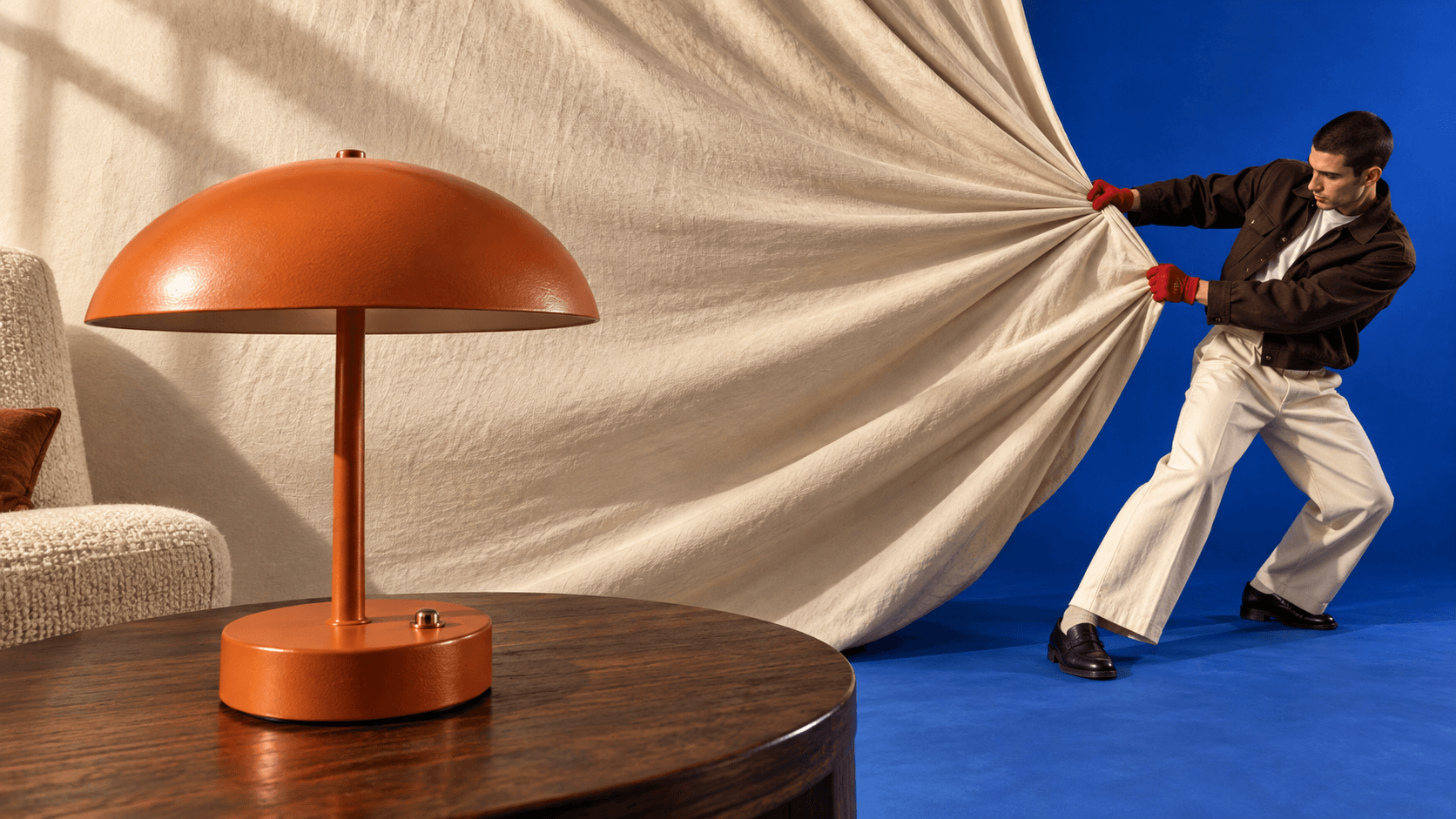
To use Nano Banana 2.1 on DomoAI, select the model in the image editor, write a prompt or upload an image to edit, choose your aspect ratio and resolution, and generate. For your next edit, use the image you want to build on and specify what should change and what should stay.
This guide follows one project from start to finish: a fictional orange table lamp becomes a product photograph, a reading-corner scene, and a square social media advertisement. You can follow the same sequence with your own product image or use the English prompts below to try the example.
We generated the images in this walkthrough with Nano Banana 2.1 at the 2K setting. These results are for reference only; your results may vary with your inputs and settings.
If you are choosing between models, our Nano Banana 2.1 vs Nano Banana 2 comparison covers their results across a broader set of tasks.
Set up Nano Banana 2.1 in DomoAI
Open the Multi-Model Image Generator & Editor and select Nano Banana 2.1 from the model menu. Check the model name again whenever you open a result for further editing.
For a new image, enter your description in Prompt. To edit an existing product photo, use Add Images to upload it first. Choose a photograph that clearly shows the product's shape, finish, and distinctive details. A clean background makes those features easier to inspect before and after editing.
Open Ratio and resolution to select the frame and output setting. This walkthrough uses three shapes because the image has a different job at each stage:
| Stage | Input | Ratio | Resolution |
|---|---|---|---|
| Product reference | Text prompt | 4:3 | 2K |
| Reading-corner scene | Product reference from Stage 1 | 16:9 | 2K |
| Square social advertisement | Reading-corner result from Stage 2 | 1:1 | 2K |
Choose the ratio in the interface as well as describing the composition in your prompt. The setting determines the requested frame; the prompt tells the model where to place the subject and any open space.
Before selecting Generate, review the credit quote shown for your selected model, reference images, and settings. After generation, inspect the result before using it as the next input. Carry forward the version you want to keep.
Stage 1: Create a clear product reference
A useful reference gives later edits something specific to preserve. For this example, the lamp has four recognizable features: an orange mushroom-shaped shade, a slim stem, a round base, and a small brass button. The background stays simple so the product is easy to see.
If you already have an approved product photograph, you can skip this generation step and use that image in Stage 2. For a real product, start with its actual photograph rather than asking the model to invent its construction from a written description.
Input: No reference image. Settings: Nano Banana 2.1, 4:3, 2K.
Product-reference prompt
Create a clean studio product photograph of a fictional portable table lamp. The lamp has a burnt-orange mushroom-shaped metal shade, a slim matching stem, a round weighted base, and one small brass push button centered on the front of the base. Show the whole lamp in a three-quarter front view, switched off, on a seamless warm off-white background with a soft contact shadow. Keep the design simple and physically plausible. The lamp fills the center of the frame with generous space around it. No text, logo, cord, people, or extra objects.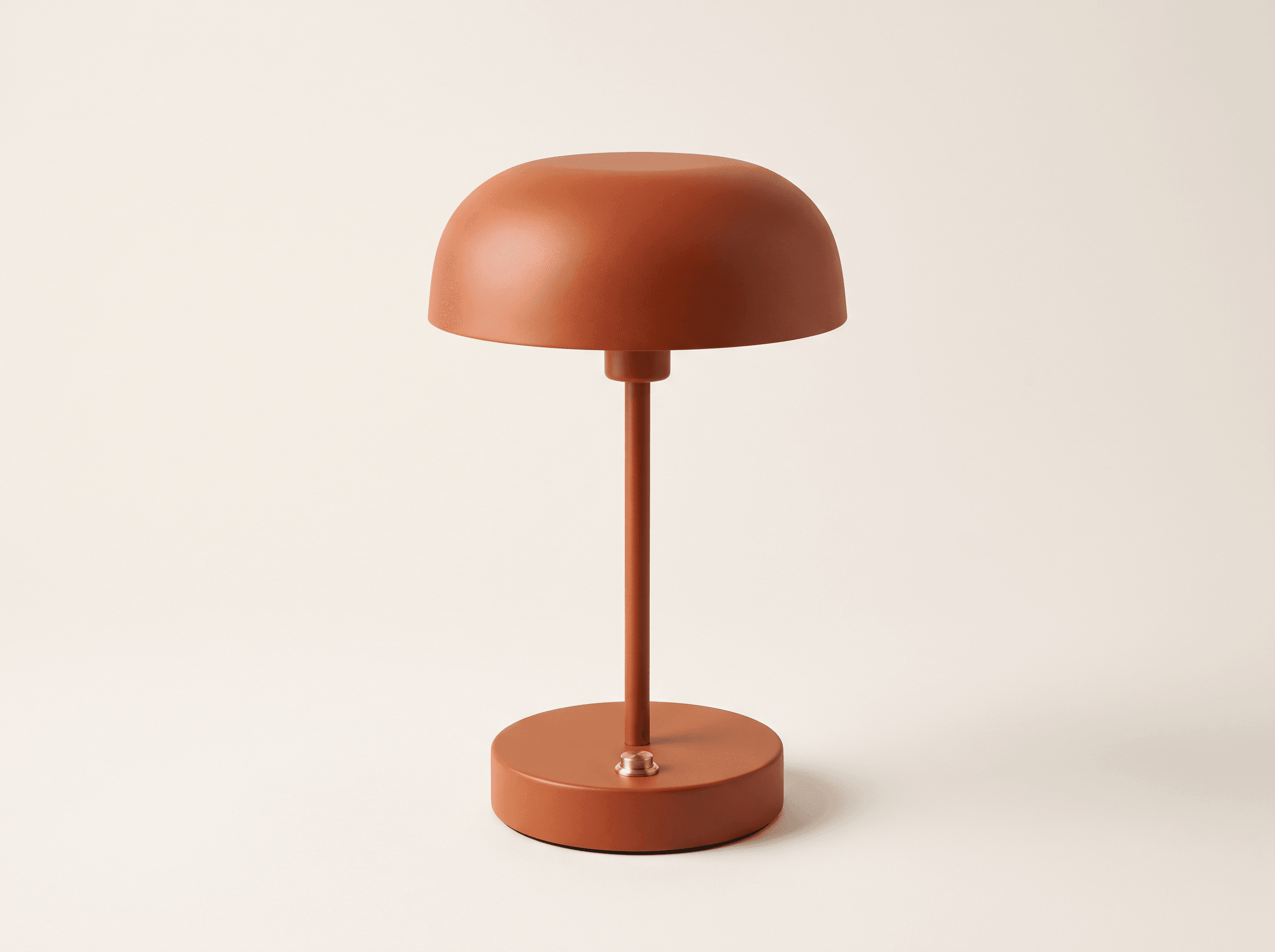
Why this prompt is useful
The prompt defines the object before describing the photography. It gives the model a shape, material, color, and visible detail, then specifies the view and background. “Show the whole lamp” also gives you a concrete result to check: neither the shade nor the base should be cut off.
The exclusions serve this particular brief. A logo would introduce lettering to preserve in later edits; extra objects would make the source less clear. You do not need the same exclusion list for every product. Keep only the restrictions that matter to your image.
Check the reference before continuing
Inspect the shade-to-stem connection, the base, and the brass button. Look for awkward joints, duplicate controls, or a shadow that makes the lamp appear to float. In this reference, the button sits on the upper surface toward the front of the base. Use the actual visible design as your reference for the following steps.
If a detail is wrong, resolve it here before building a campaign around the image. For an invented product, you can revise the description and regenerate. For a real product, return to an accurate source photograph when a generated version changes its construction.
Stage 2: Put the product into a reading-corner scene
Now give the lamp a setting and a purpose. The goal is a landscape image with the product on the right and usable wall space on the left. That composition gives you room for a headline without placing text over the lamp.
Upload the Stage 1 image, or open that result and choose the image-editing action. Confirm Nano Banana 2.1 is selected, then change the ratio to 16:9. Use only the product reference for this step; the room is described in words.
Input: The product-reference image. Settings: Nano Banana 2.1, 16:9, 2K.
Reading-corner prompt
Use the reference image as the exact product identity. Place this same burnt-orange mushroom table lamp on a walnut side table in a quiet reading corner. Preserve the shade shape, slim stem, round base, brass button, and orange finish. Keep the lamp switched off. Add a soft cream wall and the edge of a linen armchair, lit by gentle daylight from the left. Show the complete lamp on the right half of the image, with an uncluttered cream wall on the left half for a headline to be added later. Editorial interior product photography, realistic scale, natural contact shadows. No text, logo, people, extra lamps, books, or decorative clutter.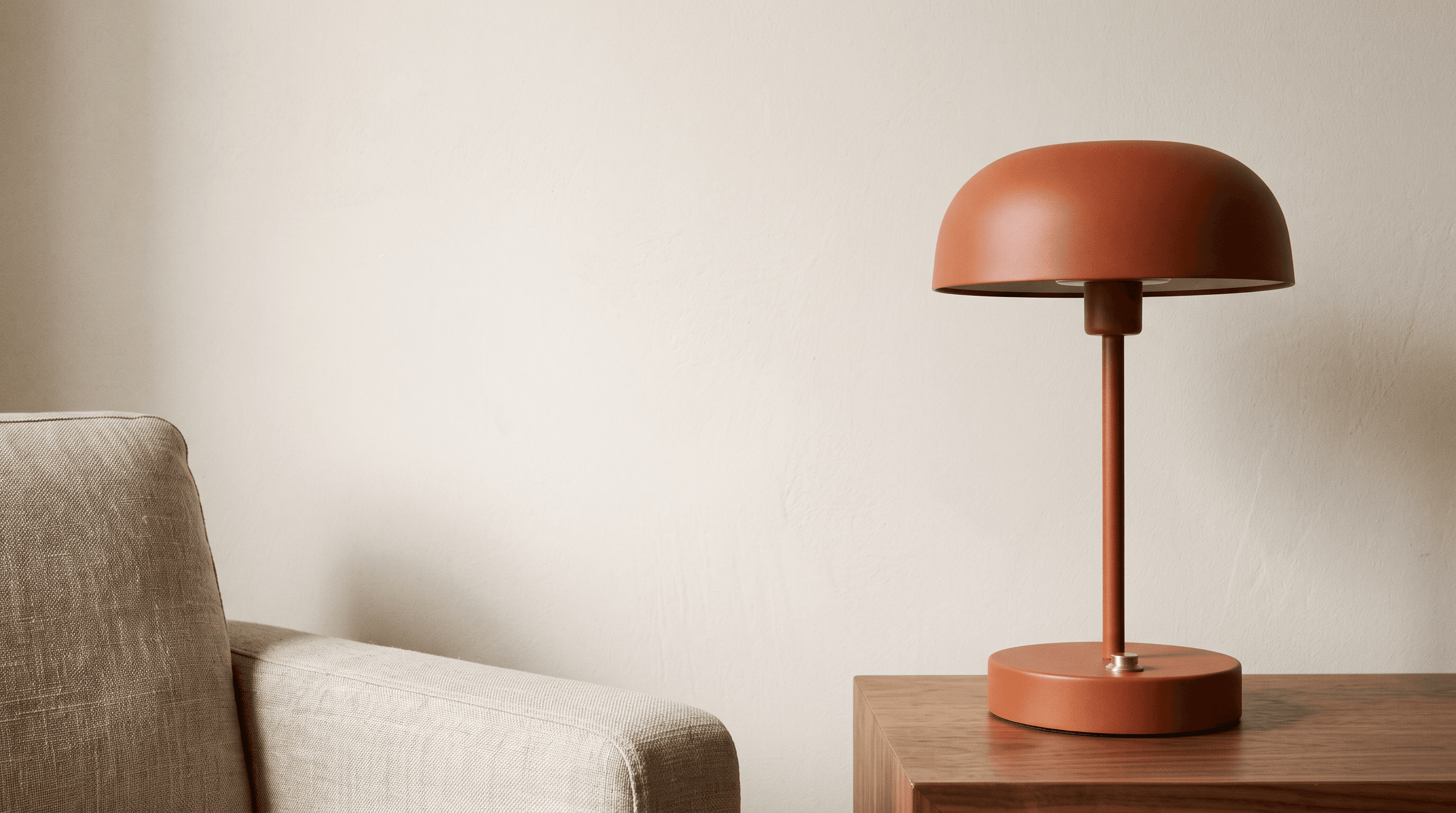
Separate the product from the setting
The opening instructions define what the reference supplies: the lamp's identity. The rest describes what can change: the room, furniture, lighting, and placement. This is more precise than “make a lifestyle ad,” which leaves the product treatment and composition open.
Keeping the lamp switched off also keeps the lighting task simple. The image uses daylight and surface shadows rather than asking for a new light source inside the shade. If an illuminated lamp is essential to your campaign, request it explicitly and inspect the resulting glow and shadows.
The phrase “for a headline to be added later” explains why the wall should remain open. The prompt also says “No text,” so this stage produces a photographic background rather than attempting the final advertisement in one step.
Check the scene at two scales
First, view the whole composition. Is the product easy to notice? Is the wall area large enough for your intended copy? Here, the armchair occupies the lower-left area, so the usable text space is above it rather than across the entire left side.
Then compare the lamp with the source. Its orange finish, mushroom shade, round base, and brass control remain recognizable, but the new perspective reveals more of the shade's underside. Treat this as a newly generated scene, not an unchanged product cutout. Check proportions and construction before using an image for a real product campaign.
If the room becomes too busy, reduce the scene description to the product, support surface, wall, and one contextual element. If the lamp changes shape, restart from the original product image and make the preservation instructions more specific. Do not build the next stage on a result whose product details you already want to replace.
Stage 3: Turn the scene into a square social advertisement
Use the reading-corner result as the next reference. This time, you are preserving the scene's visual direction while changing its frame and adding copy. Select 1:1 in Ratio and resolution, keep 2K, and check the model selection before generating.
A square advertisement needs a different arrangement from a landscape image. Simply cropping the previous result could remove part of the lamp or leave too little room for the headline. The prompt therefore asks for a new composition within the square frame.
Input: The reading-corner result. Settings: Nano Banana 2.1, 1:1, 2K.
Square-advertisement prompt
Adapt this reading-corner photograph into a square social media advertisement. Preserve the same burnt-orange lamp, brass button, walnut table, linen chair, cream wall, and soft daylight. Recompose rather than stretch the image: show the complete lamp on the right, keep the chair partly visible at the lower left, and leave a clean wall area in the upper left. Add exactly this headline in the upper-left area: "ROOM TO UNWIND". Set it on two lines in large, dark-brown, elegant serif lettering. Beneath it, add the smaller line "A little light. A calmer evening." in a simple dark-brown sans-serif font. Keep all text clear of the lamp and away from the edges. Do not add a logo, price, button, border, extra words, or extra objects.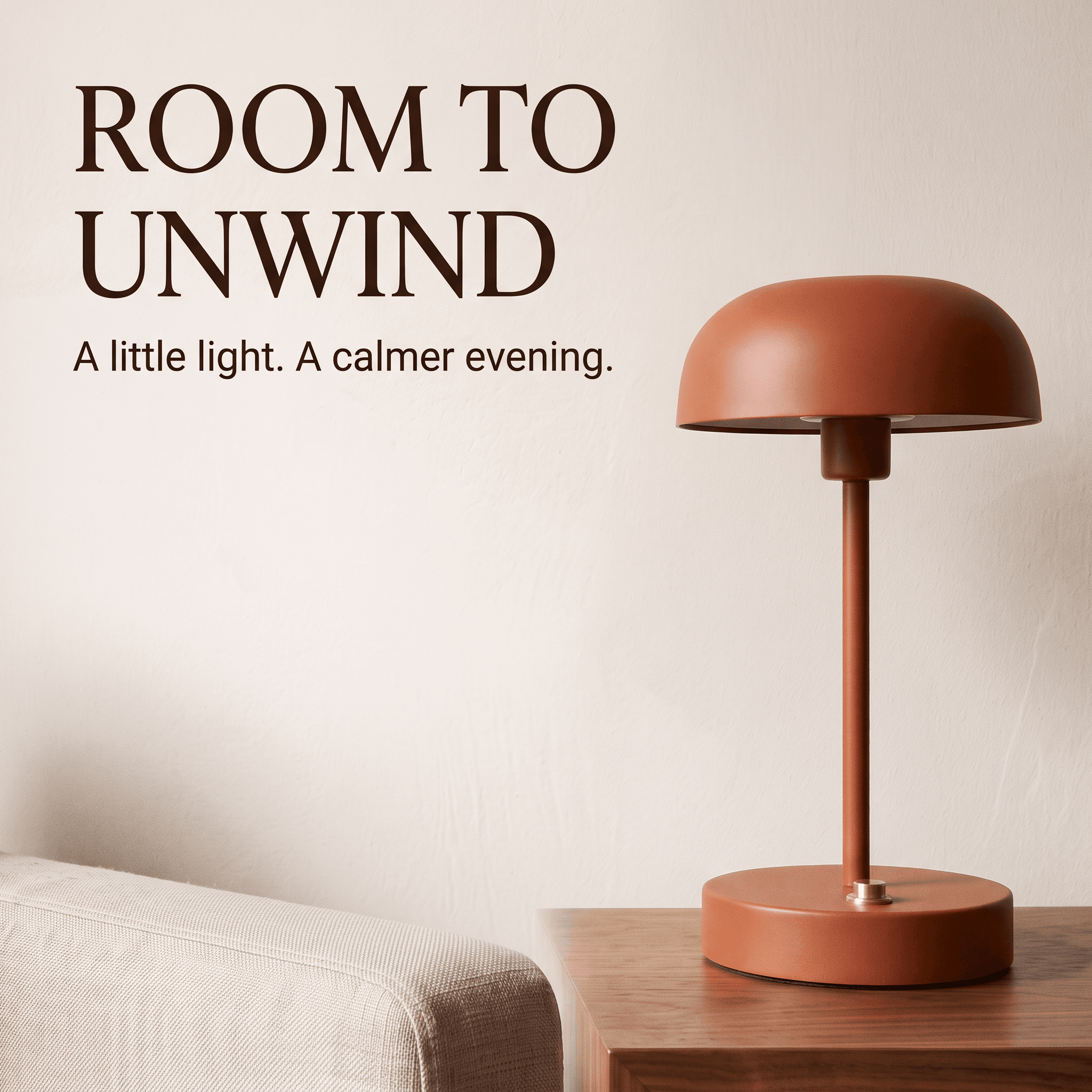
Give the lettering a clear hierarchy
The prompt quotes the exact headline and supporting sentence. It also separates their roles: a large serif headline and a smaller sans-serif line. Placement, color, and margin instructions tell the model how the words should relate to the photograph.
When adapting this prompt, replace the quoted words with your own approved copy. Keep the message short enough for the space available. A longer sentence may require a smaller font, more lines, or a different product position; changing only the words does not guarantee the same layout will still work.
Review the advertisement before saving
In this result, the headline appears on two lines and the supporting sentence is readable beneath it. The lamp remains fully visible on the right, while the chair and table have been recomposed for the square frame. The layout preserves the room’s visual direction rather than simply cropping the landscape image.
Proofread every word, including punctuation in the smaller line. Check whether the headline has the requested line breaks, whether the supporting copy is readable at the intended display size, and whether either text area touches the product or frame edge.
Compare the lamp again with the original reference, not only with the previous scene. A result can preserve the overall mood while changing small product details. For a real campaign, also check that the advertisement makes no visual or written claim your product cannot support.
If the words or typography need exact treatment, use the text-free scene as your starting visual and finish the layout in your design tool. The generated advertisement can guide the composition, while final typesetting gives you control over the font, spacing, and approved copy.
Choose the right image for your next edit
Use the latest result when its main structure is right and the remaining change is small. For example, a satisfactory square advertisement might only need a different headline. Keep that request focused on the copy and state which visual elements to preserve.
Return to an earlier image when the change is more fundamental. If you need a completely different room, start from the clean product reference. If you like the room but need another layout, start from the text-free scene. Each source serves a different purpose; the newest image is not automatically the best input.
Keep the original reference available so you can check the product at every stage, even when the latest result looks close to your intended design.
Download the version that fits your placement
Save the original-resolution file for the image you want to use. Check that its proportions and resolution fit your intended placement.
Before delivery, review the image at its intended viewing size. A headline that looks clear when enlarged may be difficult to read in a small social feed. Confirm that the product remains visible, the text has enough breathing room, and the layout fits your placement without stretching the image.
Start with your own product image or try the lamp prompt, choose Nano Banana 2.1, and build the scene you need. Refine the details that matter and save the result you like.


