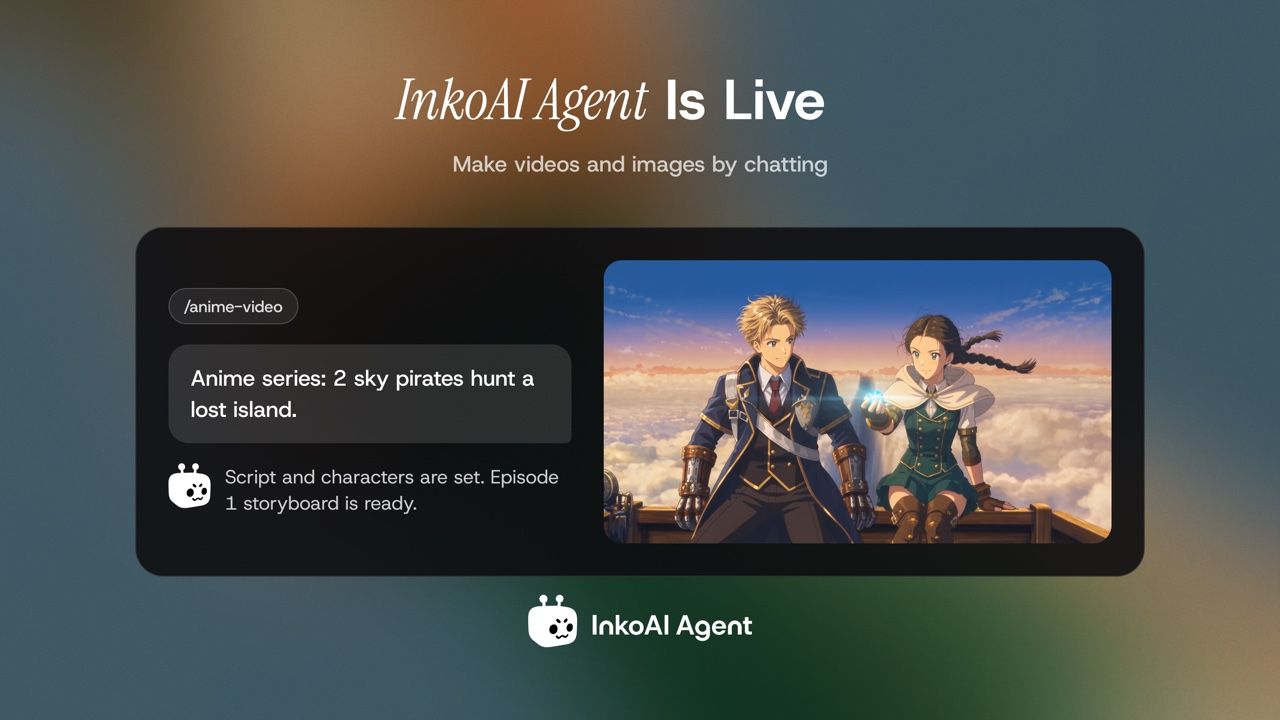
InkoAI Agent, a creative assistant from DomoAI, turns a description in everyday language into images, video clips or a finished short film. It can develop a story idea, write the script, design characters and locations, and prepare the prompts for each shot. The same conversation carries the project through generation and revision, so there’s no need to write separate prompts or reupload reference images on the Create page for every clip.
Four creative Skills support live-action short dramas, anime, narrated stories and cartoons. After each step, review the results and select Confirm to let the agent continue to the next step. In the default Manual mode, every paid generation starts with a choice to approve or cancel after the model and estimated Credits are shown.
What Can InkoAI Agent Do?
Develop an idea into a production plan. A project can start with a sentence, an existing script or a character drawing. The assistant asks about details that affect the result, then develops the material into a script and storyboard. Each storyboard shot has a description and a generation prompt.
Create and reuse visual references. The assistant can design a character from a description, redraw an outfit or animate an existing illustration. A script or drawing can be attached through Files. Typing @ and choosing Assets brings existing work from the DomoAI library into the conversation. Once approved, a character or location image can serve as the reference for several shots.
Request changes in chat. InkoAI Agent can redraw a character, adjust a keyframe or generate a new take of a single shot. The other approved shots stay as they are.
Four Skills for Different Kinds of Stories
| Skill | What it makes |
|---|---|
| Short Drama | A live-action-style short built around characters, performances and dialogue. Spoken dialogue supports lip sync. |
| Anime Video | An anime short or an episode in an anime series. The art style and character designs are confirmed before the shots are generated. Character dialogue also supports lip sync. |
| General Story | A narrated video. The narration carries the story, with realistic, anime or cartoon visuals and ambient sound to accompany it. |
| Cartoon Animation | A 2D or 3D cartoon featuring people, animals, fantasy creatures or objects. The choice of 2D or 3D guides the character and scene designs. |
How Video Generation and Credit Approval Work
A short film starts in the InkoAI Agent workspace with a Skill and a description of the intended video. After the script and storyboard are agreed on, generation proceeds in stages.
- Character and location references. The assistant prepares the missing images and reuses existing assets where available. Details such as clothing, age and setting can be adjusted before the references are approved.
- Keyframes. The approved references guide the still image for each shot. In Keyframes, Modify allows a specific correction and Regenerate requests another version.
- Video clips. The approved keyframes guide the motion in each clip. In Shots, a clip can be reviewed and regenerated independently. The other shots and previous versions remain available.
- Final cut. Select Final Cut to have InkoAI Agent automatically combine the generated shots into one complete video. You can then preview and download it without manually stitching the clips together. If one shot needs another take, that shot can be revised before the next assembly.
Where to find your videos
Videos generated with InkoAI Agent are available in Assets and in the sidebar of the Agent conversation where you created them. They do not appear in the History tab on the Video page.
Chatting and planning currently use no Credits. In Manual mode, you approve paid generations while the agent handles the script, shot prompts and final assembly. The cost card identifies the model, the work proposed and the estimated Credits. Before generating images or videos, you can choose the model, adjust the available quality or resolution settings, and review the estimated Credits. Select Generate to confirm the generation and approve the charge. Cancel returns control to the conversation, and a paid retry requires a new estimate and confirmation.
A Short Drama Example in Three Clips
A Second Chance illustrates the workflow in the Short Drama Skill. Maya returns to her younger life and gets another chance with her mother, Elena. The three recordings show the same project at different stages.
1. Story idea and storyboard. The opening request reads, “Create a story about a girl who is reborn into the past and gets a chance to restart her life.” InkoAI Agent develops it into a script and a five-shot storyboard with dialogue, shot descriptions and a Shot Prompt for each shot.
2. References, keyframes and video clips. Six images establish Maya, Young Maya and Elena, plus the hospital room, childhood bedroom and family kitchen. The model selector and estimated Credits appear before keyframe generation. The five approved keyframes then guide five video clips.
3. Review and final cut. The workspace holds the storyboard, visual assets, keyframes and individual shots. The last recording shows the assembled drama playing in Final Cut.
For more short-drama formats and scene ideas, explore the AI Drama Generator.
Prefer working from another AI assistant? InkoAI Agent provides a guided story-to-film workflow inside DomoAI. To generate images, videos or audio from ChatGPT, Claude, Cursor, Kimi or another compatible agent, connect through DomoAI MCP.
Frequently Asked Questions About InkoAI Agent
Can InkoAI Agent use an existing script or character design?
Yes. A script can be pasted into chat or attached as a PDF, DOCX, TXT or Markdown file. For character designs, Files accepts JPG, PNG and WebP images. Typing @ and choosing Assets brings a saved DomoAI reference into the project. The assistant uses that material to plan the shots and write the generation prompts.
When does InkoAI Agent charge Credits?
Chatting and planning currently use no Credits. In the default Manual mode, the assistant shows the selected model and estimated Credits before each paid generation. Choosing Generate approves the charge. This also applies to generating a missing reference image or requesting another take of a clip.
Can a single shot be redone after the clips are generated?
Yes. The assistant can generate a new version of one shot and keep the earlier take. If a clip fails to generate, that clip can be retried on its own. The other completed shots remain available for the final cut.
Can the next scene start from a frame in an earlier clip?
Yes. InkoAI Agent can extract a frame from a video generated in the conversation or from a DomoAI library video added through Assets. The frame can serve as the opening image of the next clip or as a visual reference for a different camera angle. Extracting the frame uses no Credits. Generating the next clip has its own cost.
Which Skills support dialogue, lip sync and narration?
Short Drama and Anime Video support lip sync for character dialogue. Cartoon Animation also supports spoken dialogue and ambient sound. General Story uses narration to tell the story over the visuals. A film can also be made without sound.