

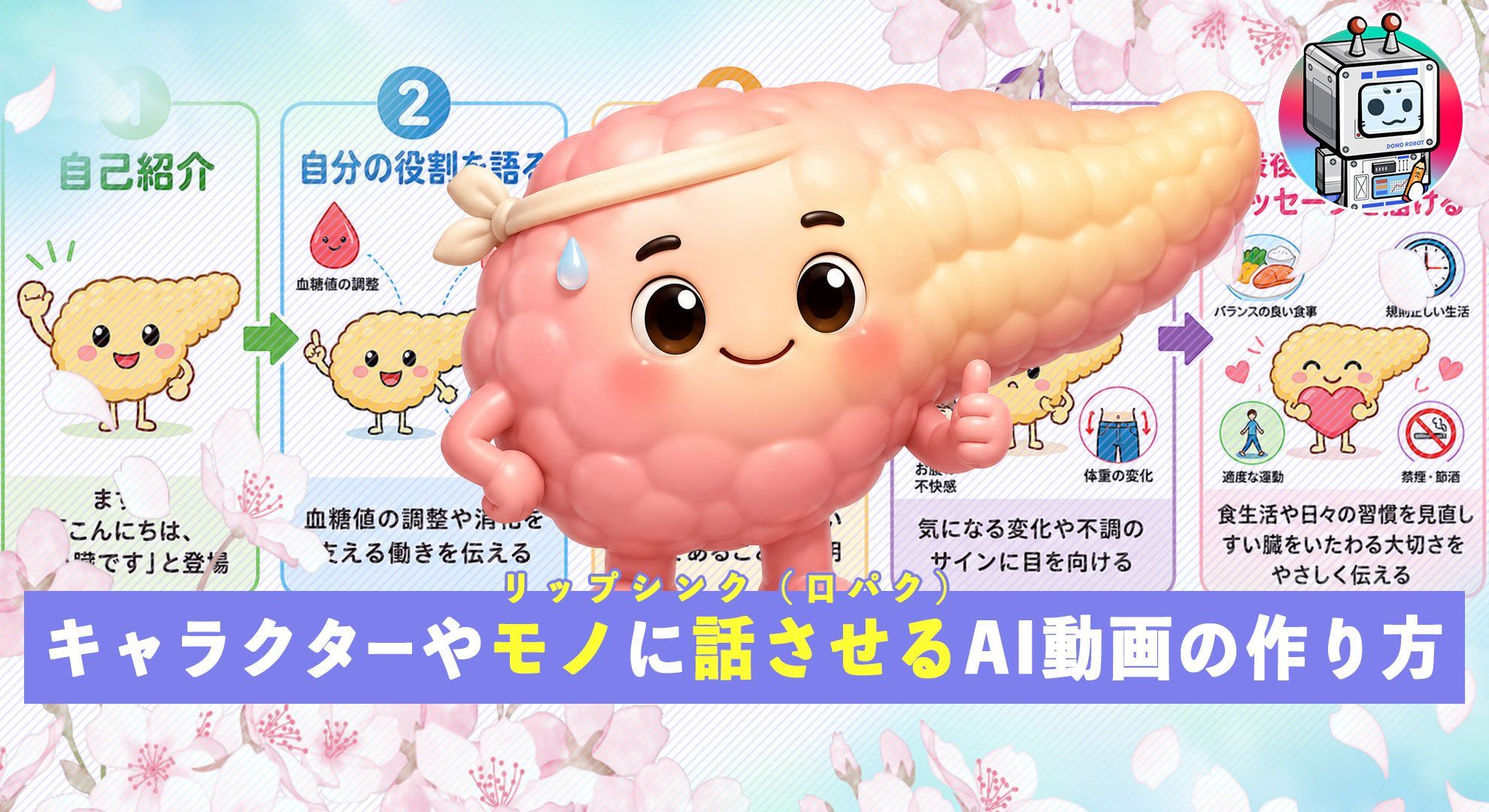
To make an object talk in DomoAI, give it a readable mouth, one short line, and clean speech audio. I would keep the first clip to a single joke or complaint, crop close, and save camera movement for a separate cutaway.
What You Need Before You Start
You only need three assets: one image, a short script, and clean speech audio. Decide what the finished clip should do before you generate anything. A talking coffee mug for a six-second joke needs a different script and crop from a mascot explaining a product feature.
- One readable subject: Use a front-facing character, pet, illustrated mascot, product, or object with a clear mouth area.
- One short script: Write for speech, not for a landing page. Keep sentences simple and easy to perform.
- Clean voice audio: Generate it with DomoAI Text to Speech or upload supported speech audio such as MP3 or WAV.
For a first test, aim for one emotion, one idea, and one camera crop. You can build a longer video from several short takes after the character works.
Create a Face That Can Carry the Performance
If you already have a strong image, use it. Otherwise, create a new subject with DomoAI Text to Image. For an object, give it a simple face that reads at small size: two clear eyes, an obvious mouth, and enough space around the subject for the final aspect ratio.
Use the Multi-Model Image Generator & Editor when the source needs cleanup. DomoAI offers GPT Image 2, Nano Banana 2, and Nano Banana Pro as model choices for image generation and plain-language editing.
Fix problems before animation:
- Remove text or logos that might warp when the face moves.
- Keep the mouth unobstructed by hands, hair, props, or deep shadows.
- Use a close or medium crop when the face is the main action.
- Choose a simple background if you plan to add captions later.
A photorealistic human face is not required. Talking Avatar also fits stylized characters, anime portraits, pets, illustrated mascots, and playful objects.
Pass the Source-Image Test
A talking object does not need a realistic human face. It needs a mouth the viewer can read and a design that leaves room for the performance.
| Check | Pass | Fix before animation |
|---|---|---|
| Mouth | Visible at thumbnail size | Too small, hidden, or merged with texture |
| Product text | Outside the mouth and motion zone | Label sits where the face must deform |
| Prop overlap | No handle, straw, hand, or shadow blocks the face | Move or remove the obstruction |
| Caption space | Clear area above or below the subject | Reframe or extend the canvas |
| Aspect ratio | Matches the final platform | Set the crop before facial placement |
For playful character ideas, compare the Talking Avatar quick app with the AI VTuber Maker. A pet version can branch into the pet-talk workflow collection, while a moving cartoon can continue with the 2D walk-and-talk workflow.
Write a Script That Sounds Natural
Read the script out loud before generating audio. If you run out of breath or stumble over a sentence, shorten it. A useful first script is 15 to 35 words.
Try this simple structure:
- Hook: Say the surprising thing first.
- One useful detail: Explain what the viewer needs to know.
- Close: End with a question, punchline, or next step.
Example for a talking desk lamp:
I have watched you work in the dark for three nights. Turn me on, lower the screen brightness, and give your eyes a break.
Do not overload a short clip with narration, camera action, and several emotions. Record separate lines when the subject needs to change expression or when you want an edit point.
Generate or Upload the Voice
DomoAI Text to Speech supports Single mode for one speaker and Multi mode for two-speaker dialogue. It also supports voice cloning, emotion tags such as [Cheerful], and scripts up to 4,000 characters. For cloned voices, speed control runs from 0.5x to 2.0x.
Generate the voice first, listen for pronunciation and pacing, then send the approved audio into Talking Avatar. You can also upload a supported voice or vocal file.
Keep the audio clean. Music, crowd noise, or strong effects can make speech harder to review. DomoAI does not mix a finished background-music track inside Talking Avatar, so add the full soundtrack after export in CapCut, Premiere Pro, DaVinci Resolve, or another editor.
Animate the Character or Object in Talking Avatar
Open DomoAI Talking Avatar, then add the image or video and the approved audio. Talking Avatar offers standard 5-, 10-, and 20-second durations. Pro users can also use 30- and 60-second Fast Mode options.
Use the separate action or expression prompt for visible performance direction. The script controls what the subject says; this prompt controls how it behaves.
Useful direction includes:
Warm smile, small nod, relaxed eye contact.Surprised expression, quick blink, slight lean toward camera.Calm presenter delivery, subtle head movement, steady gaze.
Start with subtle movement. Large turns, fast gestures, or several actions in one prompt make consistency harder, especially for small objects or illustrated faces.
Keep Dialogue and Action in Separate Fields
| Field | Desk-lamp example |
|---|---|
| Script or audio | ‘I brighten every deadline, and this is the thanks I get?’ |
| Action prompt | Deadpan expression, one slow blink, slight shade tilt, body stays still, camera locked |
My three starter personalities are: a sarcastic product that complains about its job, a friendly mascot that explains one feature, and a deadpan household object reacting to a human habit. I write the line first, then create or upload the voice. Text to Speech is useful when the delivery needs a repeatable emotion or pace.
If a product demonstration matters more than the face, the faceless explainer workflow may be a better next step than adding more avatar motion.
Choose the Right Workflow for the Subject
Talking pets
Use a photo where the animal faces the camera and the muzzle is visible. Avoid a tongue, toy, or paw covering the mouth. For a focused pet workflow, see the talking pet video guide.
Anime and illustrated characters
Keep the face large enough to read, and avoid hair crossing the lips. A clear character sheet or approved portrait helps when you need several clips. Explore more talking avatar ideas for anime, pets, and VTubers.
Products and objects
Decide whether the object itself has a face or whether a mascot should present it. If the product label must remain exact, keep it away from the animated mouth and add legal text, prices, and CTA copy after generation.
Presenters and mascots
Use Screen Keying when you need to composite the speaker over a custom background. This creates a cleaner handoff to CapCut, Premiere Pro, or a similar editor.
Fix Common Talking-Object Problems
The mouth barely moves
Use a closer crop and a source with a more obvious mouth area. Check that the face is not covered by hair, props, shadows, or low-resolution blur.
The performance feels too busy
Shorten the action prompt. Keep one emotion and one gesture for each take. Save larger movements for a separate Image to Video or Character to Video shot.
The audio sounds unclear
Regenerate or re-record the speech without music and strong background noise. Split long dialogue into shorter sections so you can replace one weak line without rebuilding the whole video.
The finished clip feels static
Mix a talking close-up with reaction shots, product cutaways, captions, or short animated scenes. Talking Avatar should handle the speaking moment; the edit should carry the full story.
Frequently Asked Questions
Can DomoAI make an object talk from one image?
Yes. Use a clear image plus generated or uploaded speech audio in Talking Avatar. A visible face or mouth area gives the model a stronger performance target.
Can I make a pet or anime character talk?
Yes. Talking Avatar fits realistic portraits, pets, anime faces, illustrated mascots, and other character-led images. Use a front-facing source with a readable mouth area.
Can I add my own voice?
Yes. You can upload supported speech audio or generate the line with DomoAI Text to Speech, including cloned voices where available.
Can Talking Avatar add background music?
Add the finished music mix after export. Use Talking Avatar for the voice-driven performance, then combine the clip with music and captions in an external editor.
How long can a Talking Avatar clip be?
Standard duration options are 5, 10, and 20 seconds. Pro users can access 30- and 60-second Fast Mode options. Check the current DomoAI pricing page because plan access can change.
Start with a short test, approve the face and voice, then build the final video from the best takes. That keeps revisions focused and avoids spending credits on a long clip before the character works.


