


You want to use AI to make animations or short videos.
It is now easier to get started than it was a few years ago.
Until recently, common obstacles included choosing a generator, signing up for several services, and keeping a character's face from changing between shots.
Today's tools can generate footage from text, animate an image, make a character speak, and combine several shots into a story.
Hello, I'm Ny@Tech.
My background is in web marketing. Since 2024, I have also been testing image and video generators to understand how they can be used in practice.
One of the services that caught my attention is Pollo AI.
Pollo AI brings models such as Google's Veo, Kling AI, Runway, and Seedance together with video production tools in a single platform.
This guide introduces Pollo AI's credit system, basic workflow, and main features, including its agent, for readers starting with AI video.
It also walks through DomoAI's tools and shows how they fit into video production.
Start by understanding the basic workflow and what each service can help you create.
What is Pollo AI?
Pollo AI is a platform for generating images and videos and performing tasks such as lip sync in one service.
Where is Pollo AI based?
Pollo AI is developed and operated by COCOSOFT TECHNOLOGY PTE. LTD., a company based in Singapore.
When using a service based overseas, you may have questions about its data practices or language support.
Pollo AI offers a Japanese website interface, making it easier for Japanese speakers to navigate.
Singapore, where the operator is based, also has a legal framework for handling personal information under the Personal Data Protection Act (PDPA).
I think having this legal foundation provides some reassurance about the concerns that come with using an overseas service.
Japanese articles and videos also show how people use the service and what they have generated.
Choose from multiple AI models
Pollo AI's main appeal is the ability to access several image and video models through one account.
The diagram below illustrates how this differs from using separate services.
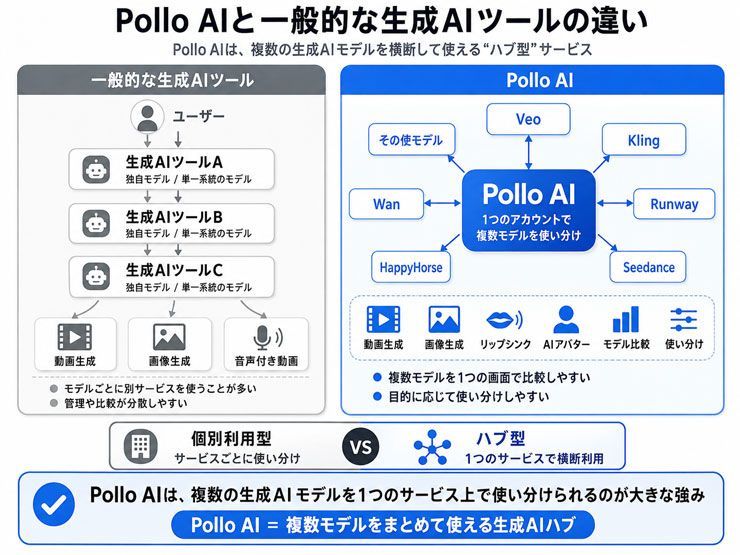
In this way, you can choose from the following major models to suit your purpose and the kind of video you want to create.
| Model | Developer | Features |
|---|---|---|
| Google Veo 3 / Veo 3.1 | Supports native audio generation, creating video and sound together alongside realistic visuals | |
| Kling AI, including Kling 3.0 and Kling V3 Omni | Kling / related development team | Excels at video generation involving character and object movement and camera work, including complex motion |
| Runway | Runway | Can generate footage that looks like a scene from a film and incorporates dynamic camera work |
| Seedance series | ByteDance | Features scene continuity, natural movement, and video generation that follows prompts |
| HappyHorse 1.0 | Alibaba-related development team | Supports generation combining video and audio, as well as multi-shot visuals |
| Wan series | Alibaba / Wan model team | Can be used to make videos with consistent characters and stories spanning multiple shots |
The platform also lists models such as Sora, MiniMax Hailuo, Luma Dream Machine, Pollo's own models, GPT Image, and FLUX.
The same prompt can produce different textures, movement, and camera behavior in different models.
Choose a model according to the result you need, such as realistic footage, animation, or a particular kind of movement.
Trying several models through one platform can help beginners compare results without maintaining separate subscriptions for every service.
Pricing and commercial use
Pollo AI uses a credit system, with a set number of credits provided each month according to the plan you subscribe to.
The pricing plans as of August 2026 are as follows.
| Plan detail | Free | Lite | Pro | Ultra |
|---|---|---|---|---|
| Monthly price, billed monthly | $0 | $15.00 | $29.00 | $139.00 |
| Monthly price with annual billing and a 50% discount | — | $7.50 | $14.50 | $69.50 |
| Credit allocation | 20 credits | 300 credits | 800 credits | 5,000 credits |
| Concurrent generation tasks | 1 | 2 | 3 | 6 |
| Commercial use | No | Yes | Yes | Yes |
Prices, discount rates, and plan details may change as a result of pricing revisions or promotions. The official site says the Free plan includes 20 credits, but when I actually registered, no credits were provided.
One generation can cost very different numbers of credits depending on the model.
For example, if you use all the credits listed above to generate content with the same model, the estimated number of videos or images you can make is as follows.
| Model and generation conditions | Free | Lite | Pro | Ultra |
|---|---|---|---|---|
| Pollo 2.5: 720p, 5 credits per 5 seconds | 4 videos | 60 videos | 160 videos | 1,000 videos |
| Pollo 2: 720p, 10 credits per 10 seconds | 2 videos | 30 videos | 80 videos | 500 videos |
| Seedance 2 Fast: 720p, 60 credits per 5 seconds | Unavailable | 5 videos | 13 videos | 83 videos |
| Pollo Image 2.0: 2 credits per image | 10 images | 150 images | 400 images | 2,500 images |
| Pollo Image 1.6: 4 credits per image | 5 images | 75 images | 200 images | 1,250 images |
| GPT Image 2: 1 credit per image | 20 images | 300 images | 800 images | 5,000 images |
Model choice, duration, and resolution can substantially change how many outputs a credit allocation produces.
Higher-cost video settings can use credits quickly, especially when you generate several alternatives.
Begin with a lower-cost model or setting to test framing and movement. Once the direction is clear, generate the shots that need higher-quality settings.
Commercial-use terms also matter when choosing a plan.
As the table shows, commercial use is not available on the Free plan, but is available on paid plans starting with Lite.
For monetized YouTube videos, advertising, business social accounts, or client work, choose a plan whose terms cover the intended use.
Pollo AI's basic workflow and main tools
Pollo AI supports a Japanese interface.
A link from search results may open the English version instead.
To switch languages, scroll to the bottom of the page and choose Japanese from the language menu.
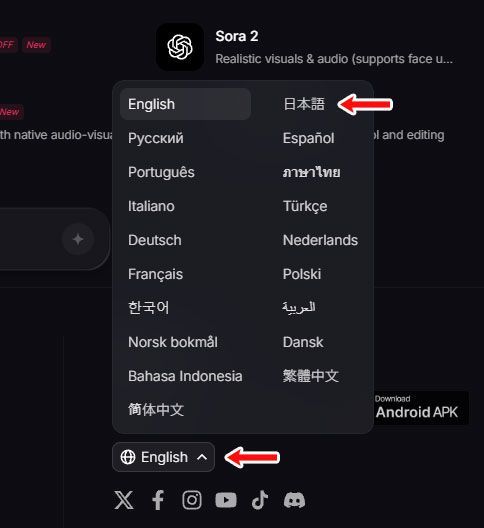
The link below opens the Japanese homepage directly.
How to create a basic video
Although the platform has many tools, its basic video workflow is straightforward.
Start with these four steps.
- Choose a video generation method.
- Select a model, such as Pollo 2.5, Seedance 2.0, or an available HappyHorse version.
- Describe the video in a prompt or upload an image.
- Set duration, resolution, and aspect ratio, then click Generate.
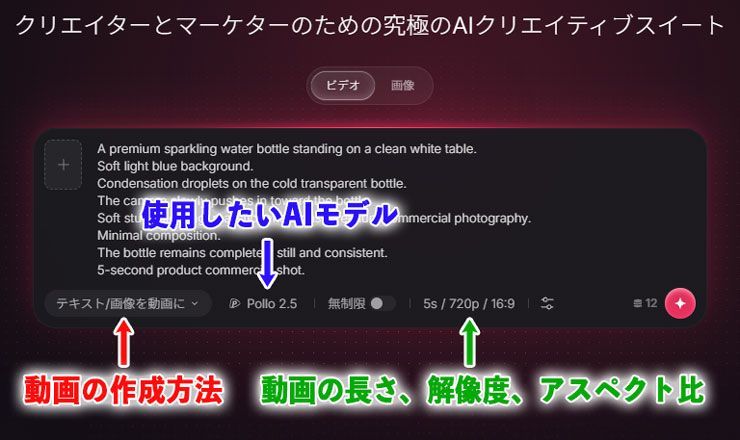
After waiting a few minutes, the video is ready to download or share.
The image below is a GIF version of a video I created as a test.

The August 2026 article covered the following generation modes.
Text or image to video
Describe the footage in a prompt or upload an image to animate. This is a useful place to begin.
Reference to video
This mode generates video from reference images of people, characters, products, and other subjects while maintaining a consistent appearance. It is suited to making the same character appear across multiple scenes.
Frames to video
Supply key images, such as a starting and ending frame, to guide the transition between them. This gives you a way to specify where a shot begins and ends.
Marketing videos
Create videos for advertisements, social posts, and campaigns.
Product videos
Use product images to develop a video explaining an item's features or appeal, for example in an online listing, social post, or advertisement.
Virtual try-on videos
Use images of clothing or accessories to generate footage depicting a model wearing them. This can illustrate a styling idea, although generated footage does not establish actual fit.
Beyond text-to-video generation, Pollo AI offers workflows for character references, advertising, product demonstrations, and virtual try-on.
Create multiple angles with AI Image Shots Generator
Before generating video, decide which scenes and compositions you need.
A single short shot may need little planning.
For a sequence such as
looking at a product → picking it up → smiling at the camera,
generating each shot independently can cause faces, clothing, or backgrounds to change.
AI Image Shots Generator can help you prepare candidate compositions first.
It uses reference images to generate several views with different camera angles and framing.
Preparing front, side, close-up, and wider views of the same person or product gives you material to choose from when planning a sequence.
To open the tool, choose Tools in the left menu.
Select AI Image Tools at the top, then choose AI Image Shots Generator.
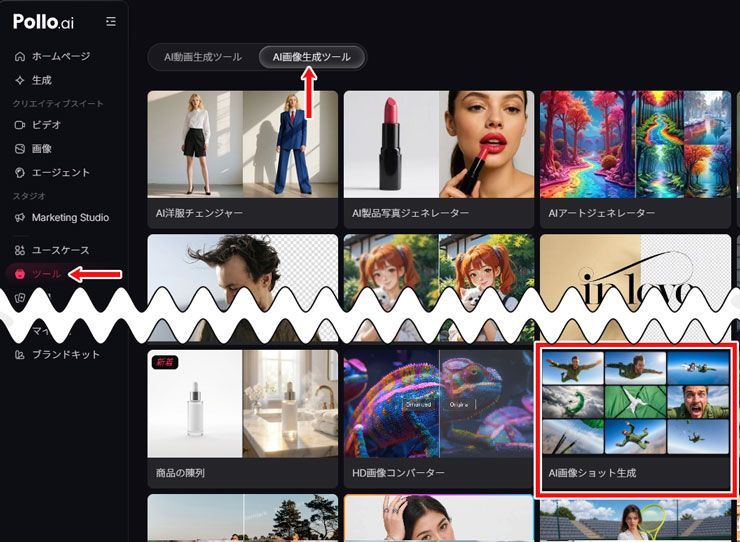
When the AI Image Shots Generator screen appears, upload one to four source images and enter a prompt describing the images you want to create.
Then choose the number of shots.
However, more shots are not always better; each option has the following characteristics.
- 9 shots: The story progression is somewhat weaker, but it is easier to prioritize image quality and detail, with fewer visual errors.
- 25 shots: It is easier to prioritize story progression, but the images are somewhat less clear and have more visual errors.
For this example, I selected nine shots.
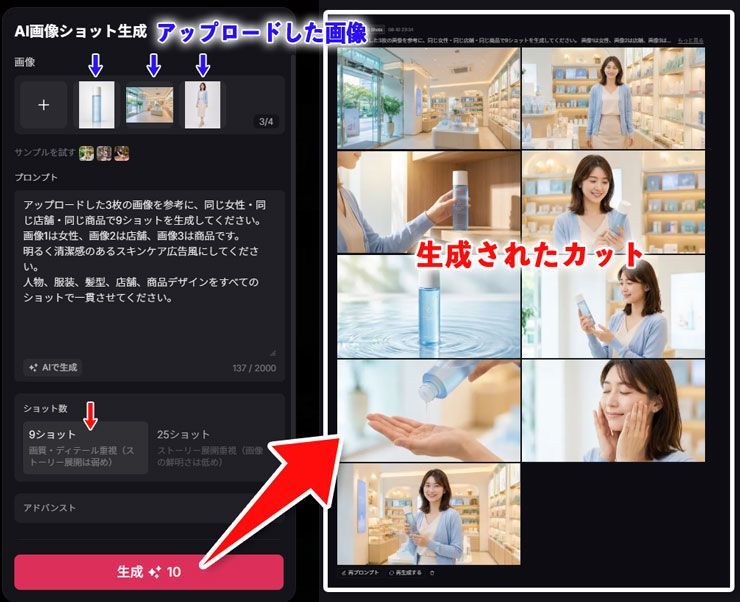
This AI Image Shots Generator appears to be the feature previously offered under the name Pollo Shots.
In August 2026, opening the old /app/shots URL redirected to the Image Shots page.
Choose the images you want, animate them, and assemble the resulting clips in an editor such as Adobe Premiere.
Make a person or character speak with AI Lip Sync
Lip sync is another way to expand what you can do with a video.
It adjusts a person's or character's mouth movement to match an audio track.
Pollo AI lets you upload a video and use text-to-speech or prepared audio to make its subject speak.
The basic workflow is simple.
First, choose Tools in the left menu.
Select AI Video Tools at the top, then open AI Lip Sync.
Upload the video of the person or character and the audio file you want to use.
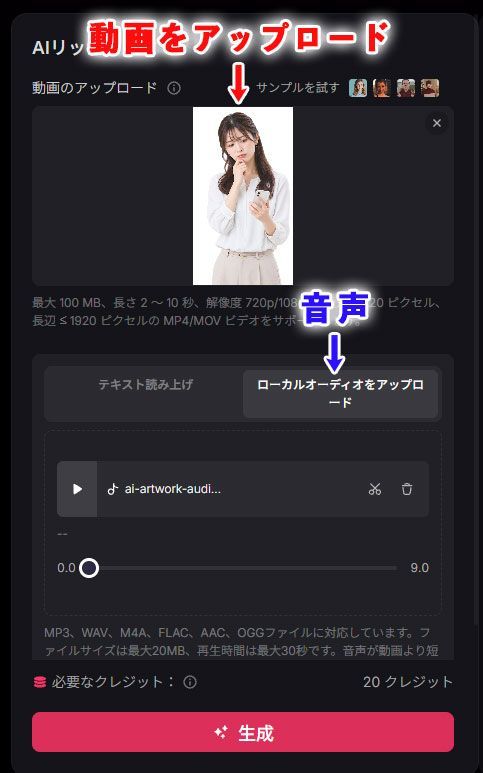
For English, you can enter dialogue as text and have it read aloud without preparing an audio file.
However, at the time of writing, the text-to-speech feature did not support Japanese.
Therefore, if you want the subject to speak Japanese, you need to prepare and upload a Japanese audio file in advance.
For a more convincing result, start with footage in which the subject's face and mouth are clearly visible.
A strong side profile, a hand covering the mouth, or fast movement can make synchronization more difficult.
Begin with a front-facing or slightly angled subject whose face is reasonably large in the frame.
Use Pollo Agent to organize production
Pollo AI also offers Pollo Agent, a video agent with a different workflow from single-clip generation.
In a conventional generation workflow, you prompt one clip, create additional shots, and assemble them as needed.
With Pollo Agent, on the other hand, you describe the kind of video you want to make, and the AI organizes the necessary production steps and creates the finished video for you.
Inputs can include ideas, images, product URLs, scripts, and references, with several stages handled in one conversation.
For example, you can develop an advertisement from a product URL, a story from a script, or a UGC-style ad.
In August 2026, the article listed these Pollo Agent Skills.
- Photo to Video Ad
- URL to Video Ad
- Script to Video Ad
- UGC Video Ad
- Clone Video Ad
- Story Video
The process continues beyond generating one clip from one prompt.
Pollo Agent organizes the supplied information and develops a plan when the project needs several steps.
You can request a different scene or image during production and revise the direction without necessarily restarting the whole project.
The workflow has three broad steps.
- Provide the goal and source material.
- Let the agent analyze the request.
- Review and revise the result.
Here is how I used the agent to create an example video.
First, I selected Agent in the left menu.
I chose Photo to Video Ad and uploaded three images of a plush toy prepared as a fictional product.
I described the intended video in a prompt and clicked Generate.
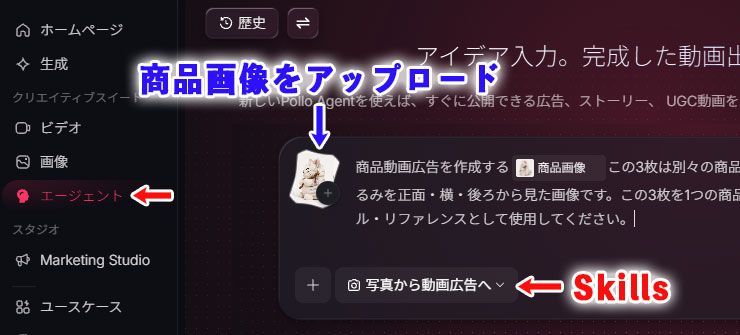
The agent analyzed the product images and suggested possible directions, so I did not need to specify every detail at the start.
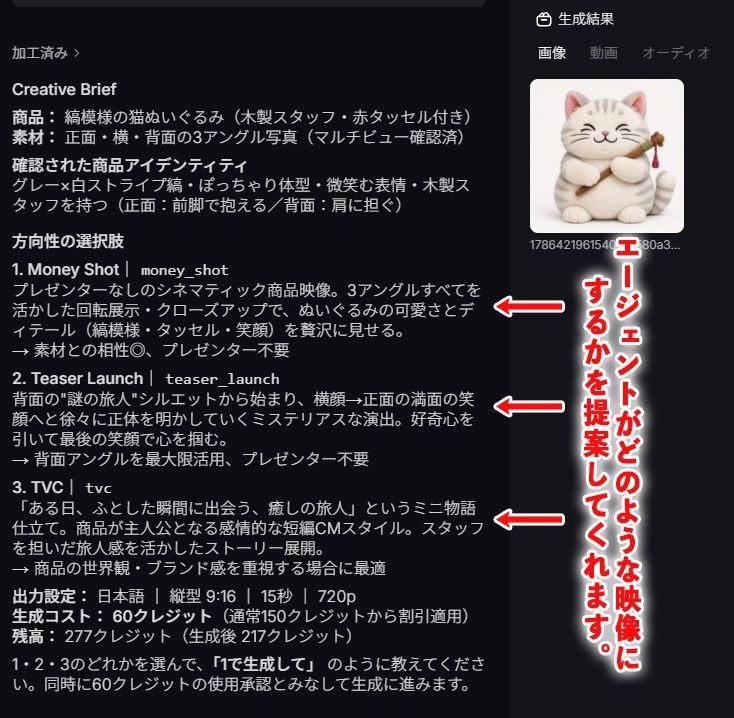
As production continued, it asked questions about the intended footage. I answered according to the direction I wanted.
The following video shows the result of that example.
Think of the standard tools as a way to choose a model and build individual clips, while Pollo Agent lets you develop a production through conversation.
Because you can proceed without planning the model selection or video structure in detail, this feature is easy to use even if you are making AI videos for the first time.
An agent project can consume more credits than a single video generation.
Monitor your balance while generating and revising, especially when testing several alternatives.
For me, this guided process is part of Pollo AI's appeal: it provides a way to begin creating without first mastering every production tool.
DomoAI's workflow and main features
Alongside Pollo AI, DomoAI is highly regarded among AI video creators.
DomoAI offers text- and image-based video generation, Video to Video, and ways to restyle live-action footage as animation.
It also offers lip-sync workflows that match a person's or character's mouth movement to audio.
The following examples introduce its basic workflow and several available features.
The basic image and video workflow in DomoAI
Choose a generation method from the interface, then supply the inputs it needs.
The general process is as follows.
- Choose AI Image or AI Video in the sidebar.
- Enter a prompt or upload the required images or video.
- Select the model or generation method.
- Set aspect ratio, resolution, and other available options.
For this example, I created images first and then used them to generate a video.
Start by preparing the images the video will use.
Select AI Image in DomoAI's sidebar, then choose Image Editing from the menu at the top.
I selected GPT Image 2 and entered a prompt describing the image I wanted.
After setting the aspect ratio and resolution, I clicked Generate.
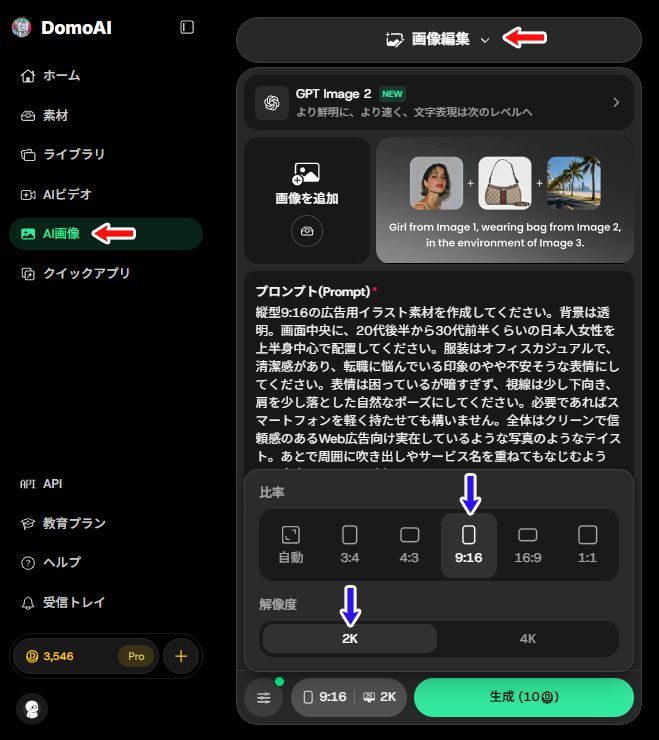
I repeated the process to create three images: a woman, a speech bubble, and a logo.
Generate video from images with Seedance 2.0
Seedance 2.0 is one of the video models used in this DomoAI example.
In DomoAI’s Image to Video feature, you can select Seedance 2.0 or Seedance 2.0 Fast, which prioritizes generation speed.
I used Seedance 2.0 to create an advertisement for a fictional recruitment agency.
The video uses the three images prepared in the previous section.
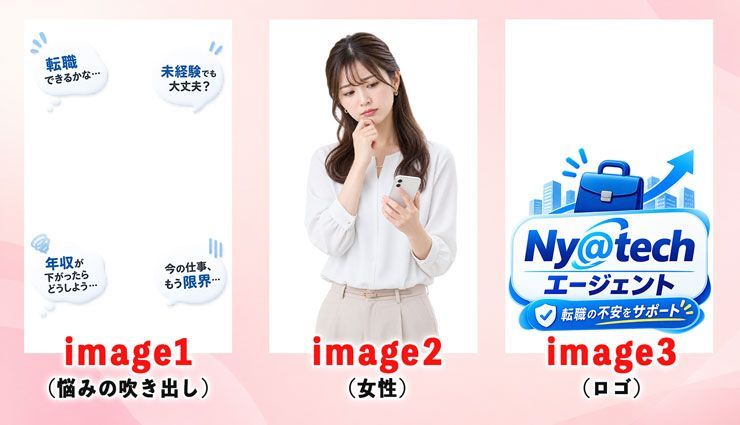
In the prompt, I treated image1 as a foreground layer that opens from the center like automatic doors, moving left and right while fading out to reveal image3 behind it.
The example also used Seedance 2.0's audio generation. I put the spoken lines in quotation marks in the prompt to request narration with the footage.
I prepared the prompt by describing the desired movement and structure to ChatGPT.
To follow the illustrated workflow, select AI Video in the sidebar and choose Image to Video from the menu at the top.
Select Seedance 2.0 and enter a prompt describing the video and movement.
Set the aspect ratio, duration, resolution, and audio option, then click Generate.
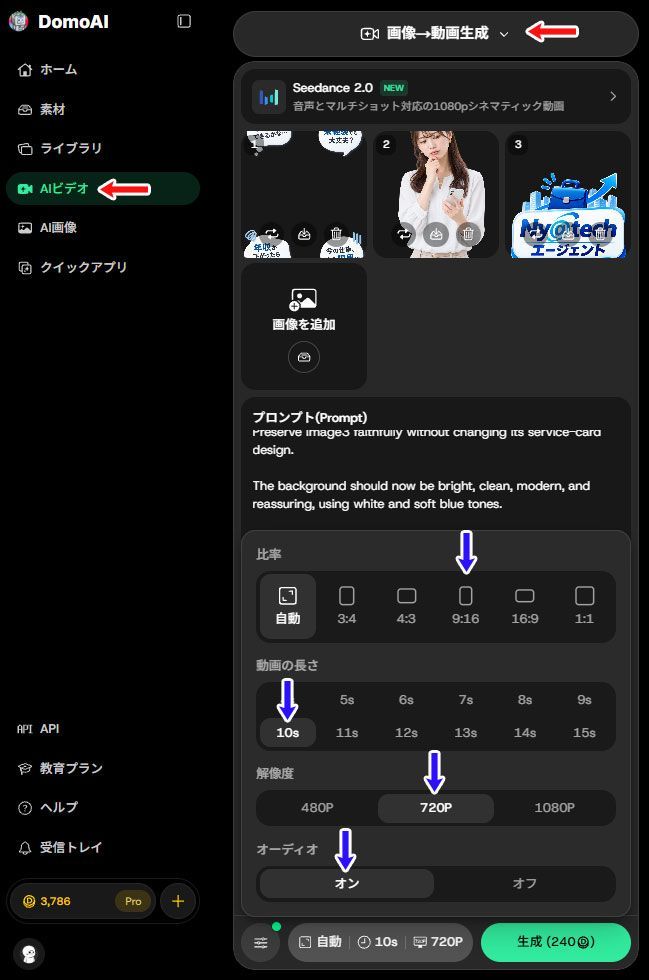
This produced the example shown earlier.
In August 2026, the more advanced Seedance 2.5 also joined DomoAI, making it possible to generate videos up to 30 seconds long.
However, it is currently offered through Omni Reference, so it is used differently from Seedance 2.0 in Image to Video.
Start from a use case with Scenarios
DomoAI also offers Scenarios to help you begin a video project.
These are templates organized around intended outcomes, rather than simply a tool for writing a script.
The Scenarios page includes options for music videos, anime character videos, AI UGC ads, and AI storyboards.
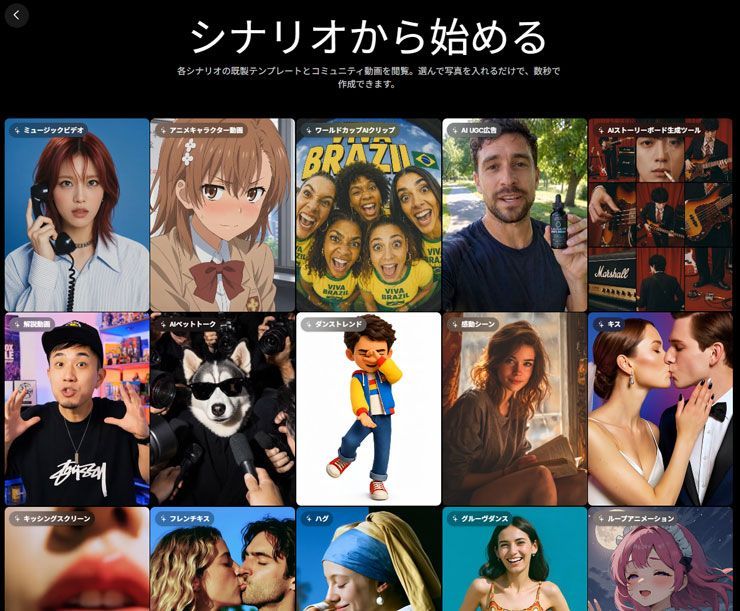
Choose a scenario that matches your goal, then provide the images, video, or other inputs it requests.
Some scenarios also let you adjust the prompt, dialogue, or video content.
For a beginner, deciding what to create can be as difficult as learning to write a prompt.
Looking at a scenario's example output can make the possibilities easier to understand.
Try a template for a first short video, then replace the source images or prompts as you become familiar with the workflow.
Make a character speak with Talking Avatar
DomoAI's Talking Avatar creates mouth movement that follows an audio track.
Combine an image or video with audio to create a lip-sync video of a person or character.
The basic process is as follows.
- Open Talking Avatar, for example from the home screen quick apps.
- Upload an image or video of the person or character.
- Upload the speech audio you want to use.
- Optionally describe expression or body movement in the prompt.
- Set the available duration options and generate.
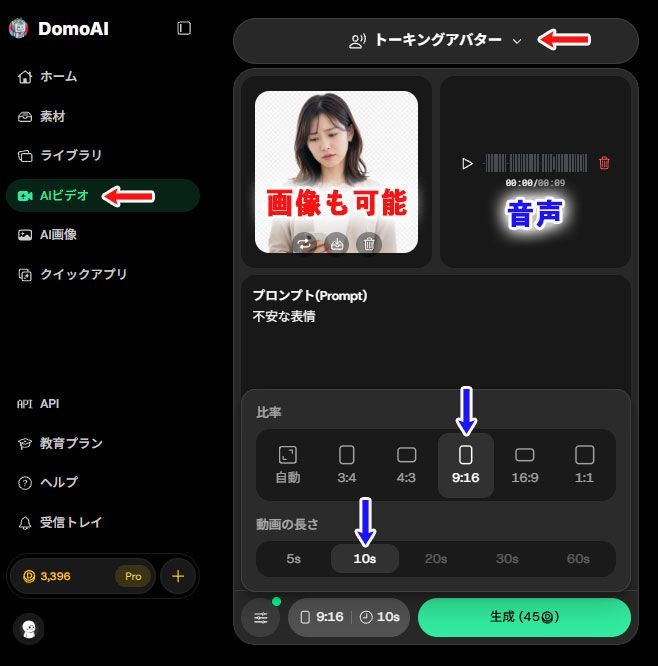
Talking Avatar can start from a single still image as well as a video.
If you want to generate native audio, you can also enter text and create audio using the Text to Speech feature.
It of course supports Japanese and can produce very natural-sounding speech.
These workflows provide several ways to begin making footage without first learning a full production toolset.
Points to consider when creating AI videos
Along with their creative uses, tools such as Pollo AI and DomoAI raise questions about source materials and how outputs are used.
Two areas deserve particular attention.
Check rights to existing works and characters
Take care when using recognizable anime or game characters, particularly in advertising.
Generating a new video does not remove rights associated with the original work, image, or a character's specific visual expression.
Content is not free to use simply because AI made it. If the result resembles an existing copyrighted work, it may be considered copyright infringement.
Japan's Agency for Cultural Affairs publishes guidance on its AI and Copyright page.
Its guidance describes the assessment of AI outputs using the established considerations of similarity and reliance on an existing work.
For a company site, advertisement, monetized video, or client deliverable, assess whether the material is suitable for the intended publication and commercial use.
Avoid deceptive uses of faces and voices
Lip sync can be misused to make a real person appear to say something they never said.
Feeding someone else’s facial photographs or videos into AI, modifying them, and posting them on social media can constitute a serious invasion of privacy or an infringement of portrait or publicity rights, and may lead to legal action.
It was also reported that in April 2026, Japan’s Ministry of Justice established an expert panel to develop new rules on rights infringements involving the unauthorized use of voices and faces by AI. Regulations are expected to become clearer in the future.
A fan project or unpaid social post is not automatically exempt from these considerations.
Use the following practices when planning a production.
- Do not use a real person’s face or voice for lip sync without permission.
- Use your own material or material from someone who has explicitly authorized the use.
- Identify AI-generated footage when appropriate to its context.
- Do not fabricate statements in ways that could mislead people or spread false information.
AI video tools can support creative work.
Creators still need to make informed decisions about the source materials they use and how they present the result.
Frequently asked questions about Pollo AI and DomoAI
Here are answers to common questions about the two services.
Q1. Can I use Pollo AI for free?
A1. As of August 2026, the official pricing page lists 20 credits for the Free plan. However, for some reason, I did not receive those 20 credits when I actually registered an account. Therefore, check your credit balance after registering to see whether you can try the service for free, and consider a paid plan if you want to make videos in earnest.
Q2. Can I try DomoAI for free?
A3. Yes, you can try DomoAI for free. DomoAI offers a free trial, and its official help information as of August 2026 says that you receive 25 credits when you register. You can use those credits to try features such as image and video generation. However, the number of free uses is limited. If you want to keep making videos with DomoAI or use credit-intensive models such as Seedance 2.0, consider a paid plan. DomoAI offers paid plans including Basic, Standard, and Pro.
Q3. Do the services support Japanese?
A3. Both services can be used in Japanese. You can use Japanese interfaces and prompts, though a complex instruction may not always produce the intended result. If useful, translate the prompt into English and compare the outputs. English is not guaranteed to work better; changing the wording or language can simply change how a model interprets the request.
Q4. Can I generate Japanese dialogue or narration?
A4. Yes, but support varies depending on the feature or AI model you use. DomoAI’s Text to Speech supports Japanese, allowing you to create Japanese narration. Seedance 2.0 can also generate video and native audio simultaneously. Pollo AI also offers audio generation models and lip-sync features that support Japanese audio. However, not all video generation models or audio features support Japanese. Check for Japanese audio support when selecting a model.
Q5. What should I check for commercial use?
A5. Read the service and model terms and check the rights to your input materials. AI generation does not grant permission to use existing anime or game characters or real people's photographs. For advertisements, company sites, monetized content, and client work, review rights to the source images, video, and audio as well as the plan's commercial-use conditions.
Q6. Can AI alone create a long-form video?
A6. Neither service has full-scale timeline editing like video editing software. You therefore need to create clips lasting a few seconds to a little over ten seconds and join them together in video editing software.
Q7. Which service should a beginner choose?
A7. Choose according to the workflow you need. Pollo AI offers access to several image and video models and a conversational agent for production. DomoAI provides task-oriented options such as image animation, video restyling, Talking Avatar, and Scenarios. Try a small representative task in each service and compare the interface and results against your own goal.
These questions cover the main decisions to consider when getting started.
Both services offer ways to turn text and visual material into video.
Begin with a short project, compare the available tools and models, and build a workflow that fits what you want to make.


