

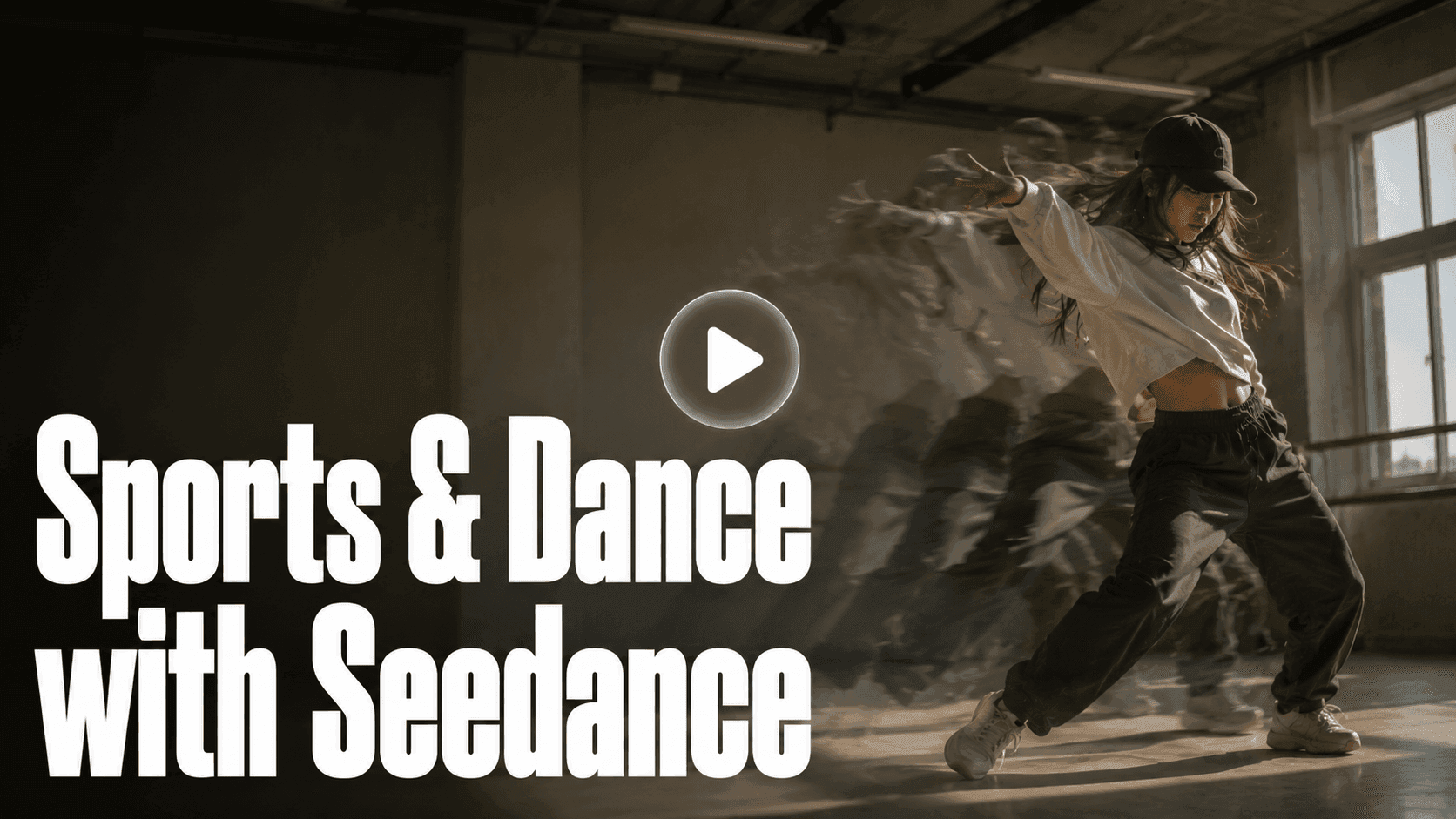
DomoAI integrates Seedance 2.0 across Text to Video, Frames to Video, Character to Video, and Image to Video. If you remember one rule, let the input choose the tool: a still image defines the look, while a licensed reference clip defines the movement path.
What Seedance 2.0 Is Built For (and Where It Struggles)
Seedance 2.0 is built around cinematic motion from a single still image. Its strengths: controlled camera work, atmospheric movement, short multi-shot narratives. Give it a well-composed still and a clear motion prompt, and the output looks directed rather than just animated.
Seedance 2.0 supports native audio when Audio is turned on. Describe useful ambience or effects in the prompt, then add a specific music track in an external editor when needed.
Where it struggles: extreme fast action where limbs move faster than a few frames can track. A boxer throwing a full-speed combination will show limb blur at the peak. Full-body wide shots also lose consistency faster than medium or close crops — the model has less pixel detail to hold when the subject is small in frame.
I keep sports and dance clips bounded: one readable action, one camera intention, and enough framing for the silhouette to stay visible. A wind-up, a turn, or a held landing is easier to review than an entire routine compressed into one prompt.
What it doesn't do: generate music tracks or sustain long movement sequences. Clips run short by design. Plan around that constraint, not against it.
Image to Video or Character to Video: Pick the Right Path
Before you open anything, decide which path fits what you have.
Image to Video (Seedance 2.0) — you have a still image and you want the model to generate the motion from scratch. You control what happens through your text prompt.
Character to Video — you have a reference video showing the exact move you want, and you want your character to perform that move.
Two concrete examples:
- If you have a fan-art of a basketball player and want it to dunk, that is Image to Video.
- If you found a TikTok of a dancer and want your anime character doing that exact move, that is Character to Video.
I use Image to Video when I want the model to invent motion from a still. I use Character to Video when the timing and body path already exist in footage I am allowed to reuse.
Workflow 1: Sports Clip From a Still Image
Step 1: Create or pick your starting image
Your source image needs a clear subject, strong pose, and enough resolution that details hold when motion is added. Low-detail or blurry images produce inconsistent output.
If you are generating the image first, Nano Banana Pro or GPT Image 2 both work well for consistent character detail. Nano Banana Pro accepts up to nine reference images — useful when working with an existing character design.
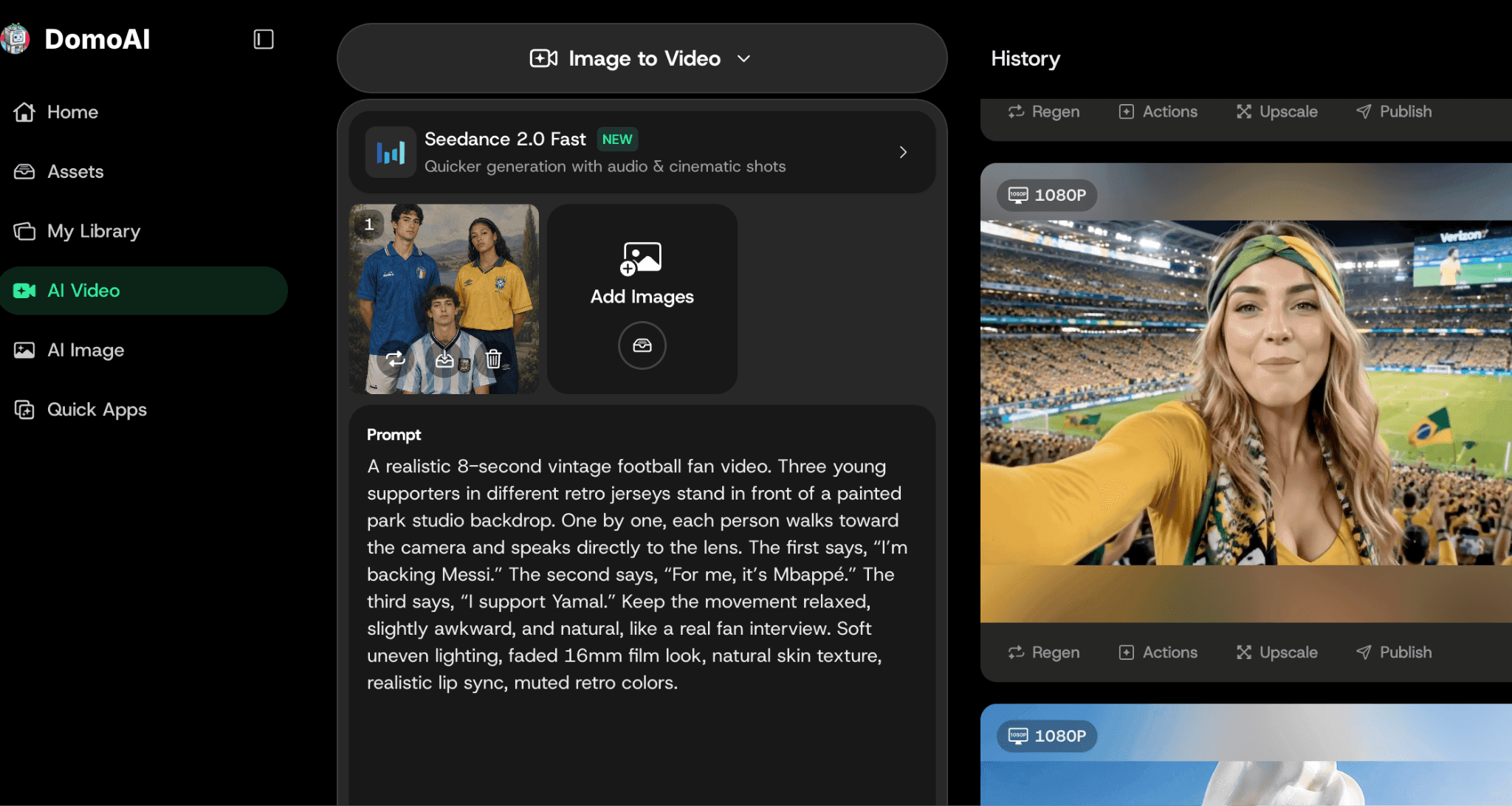
Step 2: Open Image to Video
Go to Image to Video (Animate) and load your image from an upload or the Assets panel.
Select Seedance 2.0 for full quality. Use Seedance 2.0 Fast for early drafts, then switch to the full model for final output. Each generation produces a clip up to 15 seconds at 480p–1080p resolution.
Step 3: Write your motion prompt
Describe the action and the camera separately. A prompt that only names the action — "basketball player dunks" — gives the model less to work with. One that also specifies camera angle, movement speed, and environment gives it more.
Six examples you can use as starting points:
Basketball: "point guard drives baseline, low-angle tracking shot, sneakers squeaking, arena lights, crowd blur in background"
Soccer: "midfielder strikes the ball, high-speed action freeze then slow motion, stadium lights, dramatic angle"
Dance: "dancer spins in city square at night, wide then close, street lights bokeh, fluid body movement"
Gymnastics: "gymnast performs a back handspring, wide to close tracking shot, indoor gymnastics hall lighting, chalk dust, slow motion at peak of move"
Martial arts: "karate practitioner executes a spinning kick, low angle, tatami mat floor, dojo lighting, crisp action freeze at impact"
Hip-hop freestyle: "dancer hits a freeze mid-windmill, concrete floor, urban environment, dramatic overhead angle, neon light, motion blur on spinning limbs"
Seedance 2.0 Fast is the quicker, lower-credit option for drafts. Use it to test the composition and motion direction, then switch to Seedance 2.0 for a final-quality pass. Both modes support native audio where available.
Close crop vs. full body: Seedance 2.0 holds medium and close crops better than full-body wide shots. A thigh-up frame on a dancer stays more consistent than a head-to-toe frame. When you need full body, prompt for "medium-wide" not "extreme wide."
Step 4: Generate and review
Watch the output for three things:
- Does the subject stay consistent from the first frame to the last?
- Does the camera move the way you described?
- Do limbs or extremities distort during fast motion?
If something looks off, note specifically what broke before you re-prompt.
Step 5: Adjust and re-prompt if needed
Common adjustments:
- Limbs blurring on fast moves — add "slow motion" or "fluid motion" to the prompt, or reduce the pace of the described action
- Subject drifting across the clip — tighten the crop on the source image, or specify a locked camera angle in the prompt
- Background overwhelming the subject — add "shallow depth of field" or "background blurred"
Step 6: Collect your keepers
Generate two to three takes per prompt variation. Keep the best two or three, then move to finishing.
Workflow 2: Dance Clip From a Reference Video
Step 1: Find a clean reference video
What makes a reference video work:
- The performer's full body is visible throughout
- The choreography is clear — no sudden camera cuts mid-move
- Camera movement is minimal or stable
- The background is relatively simple
Use a short reference clip that you created, licensed, or have permission to reuse. A single performer, stable camera, and clear body silhouette make motion transfer easier to review.
What makes choreography hard to transfer: Floor work is harder than standing choreography. Breakdancing ground moves and sequences where the performer goes from standing to prone lose consistency faster than upright movement. Spins with multiple full rotations also lose stability mid-turn.
The choreography that transfers most cleanly: standing or walking sequences, upper-body focused movement where the feet stay relatively still, and clips where the performer faces the camera through most of the sequence.
Reference rights: Use footage you created or are licensed to reuse. A clean source has one performer, a stable camera, a simple background, and no heavy post-effects; the platform where you found a clip does not grant reuse rights.
Avoid live concert footage, multi-angle compilation edits, and footage with heavy post-effects applied.
Max 15 seconds — how to split longer routines: Split before you upload, not after. Find a natural pause or beat change in the choreography and cut there — not mid-move. If the character drifts between segments, re-generate the second segment with the same reference image before accepting it.
Step 2: Prepare your character image
The character image should be front-facing or full-body, with a clear outfit and readable face. For anime or stylized characters, Nano Banana Pro's multi-reference input helps lock down consistent design details.
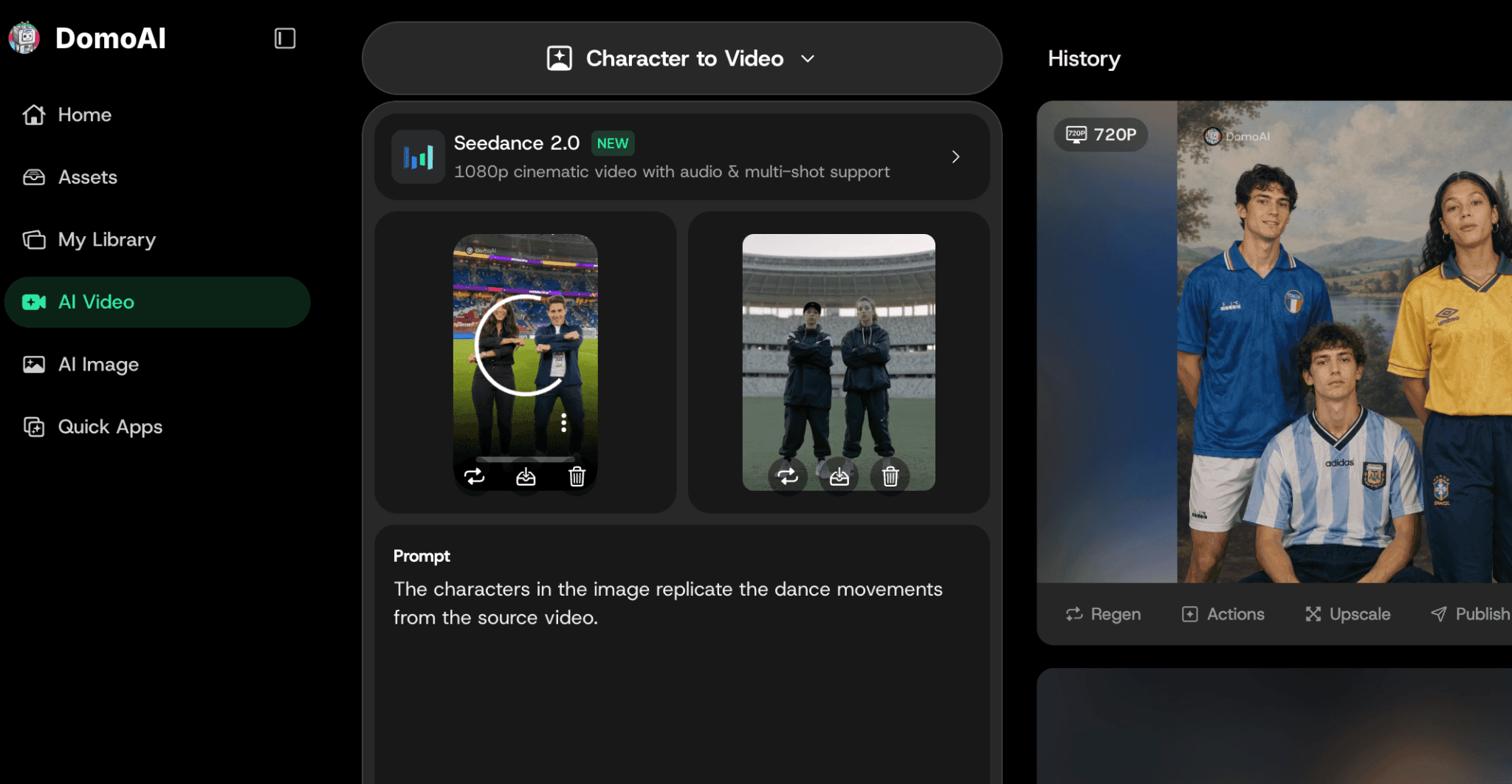
Step 3: Upload both to Character to Video
Go to Character to Video and upload your reference video (MP4, MOV, or AVI) and your character image (JPEG or PNG, up to 10MB). Both must be loaded before you generate.
Step 4: Set Subject Only if needed
The Subject Only toggle controls how much of the original video carries through. On: the model swaps the performer while keeping the background closer to the original. Off: the model restyled the full scene around your character. Turn it on when the reference background is clean and you want it to persist.
Step 5: Generate multiple takes
With Seedance 2.0 selected, Character to Video supports 4–15-second clips at 480p, 720p, or 1080p. DomoAI 2.4.1 uses different limits and can support longer Character to Video generations.
Step 6: Review for stability
Pick takes based on three criteria:
- Silhouette stability — does the character's body shape stay consistent, or does it warp mid-clip?
- Face consistency — does the face hold across the full clip, or does it drift?
- Hand and limb motion quality — fingers and extremities are the hardest for any model to hold; check these specifically before committing to a take
Use a Movement Risk Ladder
I judge the shot by how many body parts, contacts, and direction changes must stay coherent at once. That tells me how strict the reference and review need to be.
| Risk | Example | My setup |
|---|---|---|
| Low | Runner moving in one direction; simple camera follow | One action, clear silhouette, short clip |
| Medium | Dance turn with arm crossing and camera push | Use a clean reference, wider crop, and two review passes |
| High | Fight exchange, floor move, or object handoff | Split into beats; do not ask one generation to solve the whole sequence |
My acceptance scorecard has five checks: face, silhouette, limb path, camera, and audio. I regenerate the failed dimension instead of rewriting every part of the prompt. The Seedance 2.0 Image to Video page explains the broader workflow; the motion-control guide helps with camera language.
For dance, study the pacing in the loopable anime dance workflow or start with the bounded Groove Dance template. For sports atmosphere, the fan-cheers scenario is a useful reference for separating crowd energy from athlete motion.
Combining Both Workflows in One Project
Use Image to Video for establishing shots and atmosphere — a wide stadium shot before the action starts, an aerial pan over a dance floor, a pre-game locker room clip. These are moments where cinematic atmosphere matters more than precise body movement.
Use Character to Video for the performance itself. Motion transfer keeps choreography readable in a way prompt-driven generation can't guarantee.
In practice: generate two or three Image to Video clips for opens and transitions, then your Character to Video segments for performance. Assemble everything in CapCut or Premiere Pro. The two outputs won't match perfectly in motion quality or style — that difference works editorially. Keep Image to Video transitions short. Use the full 15-second limit for performance segments.
One 30-Second Edit Plan
As a starting point, I would use a 5-second opener, two 10-second performance beats, and a 5-second closing reaction or logo-safe frame. That is an editing example, not a Seedance single-clip limit: generate the component clips within the selected model settings, then assemble them on the timeline.
After the cut works, finish with Video Upscaler rather than upscaling every discarded take.
Finishing the Clip
Native audio: With Audio turned on, Seedance 2.0 can generate sound with the motion. Treat ambience and effects as a draft, then add any exact music or custom audio in the editing timeline.
Stitch clips: CapCut, Premiere Pro, and DaVinci Resolve all work. Keep individual clips short and let the edit carry the energy.
Upscale before export: Each generation outputs at 480p–1080p. Run the final clip through Video Upscaler to scale up to 4K. Do this after selecting your keepers, not before.
Export format: 9:16 for Shorts, Reels, and TikTok; 16:9 for YouTube.
Common Issues
Limbs distorting on fast moves: Add "slow motion" or "fluid motion" to your prompt. Describe the action at a slower pace — "winds up for the shot" generates less distortion than "explosive dunk."
Character face drifting: Tighten the crop on the character in your source image. A close-up or medium shot holds face detail better than a wide full-body frame where the face is small.
Reference video not reading well: The most common cause is camera shake or multiple people in frame. Find a clip with one performer, stable camera, and a clear background before adjusting other settings.
FAQ
Is Seedance 2.0 available in DomoAI?
Yes. DomoAI integrates the Seedance 2.0 API, available in Image to Video (Animate) and Character to Video. Seedance 2.0 Fast is also available for quicker test runs.
What is the difference between Image to Video and Character to Video for dance?
Image to Video generates motion from a still image using your text prompt. Character to Video copies motion from a real reference video and applies it to your character. Use Image to Video when you want to direct the movement; use Character to Video when you have exact choreography you want to replicate.
Can it copy exact choreography from a reference video?
Character to Video reads the motion from your reference clip and applies it to your character. Clean references — single performer, stable camera, visible full body — produce the closest match to the original choreography.
Does Seedance 2.0 generate sound?
Yes, when Audio is turned on. Seedance 2.0 can generate ambience and effects with the motion; add exact music or custom audio in an editor when timing matters.
How long can each clip be?
Seedance 2.0 clips can run from 4 to 15 seconds. Other DomoAI models and workflows use different limits, so confirm the selected model before planning longer sequences.
Can I use Seedance 2.0 for full dance routines?
Not in one clip. The 15-second limit is a hard constraint. For a full 2-minute routine, generate multiple fifteen-second Character to Video segments using the same character reference image throughout, then stitch in CapCut or Premiere Pro. Cut at natural pauses — a held pose, a beat drop, a direction change — not mid-move.
What's the best starting image for a sports clip?
High contrast, clear subject, strong action pose. A dynamic still — mid-jump, mid-swing, mid-stride — gives the model motion direction. A neutral standing pose works too but produces more varied output.
Which plan do I need to use Seedance 2.0 in DomoAI?
DomoAI offers a limited free trial. Paid access, credits, and limits vary, so check the current DomoAI pricing page before planning a batch.


