

In 2026, generative AI continues to advance and play an increasingly prominent role in creative work.
For example, India, one of the world’s most prolific film-producing countries, is making progress with AI-assisted filmmaking and multilingual dubbing and localization.
Hello, I’m Ny@Tech, pronounced “Nya-Tech.”
My background is in web marketing, but since 2024 I have focused on the possibilities of generative AI. I now test and research different AI video generation tools every day.
While creating images and videos, I noticed a pattern.
Although AI-generated videos can be high quality, their compositions tend to look similar: characters often face the camera, usually from straight on or a slight angle.
To address this, I tried a workflow in which I first turned a character into a 3D model so I could move the camera freely before proceeding with production.
This time, I tried creating a 3D character model with Tripo AI and finishing it in DomoAI.
Are There Limits to Composition Using Prompts Alone?
AI video tools improve every day, but some compositions remain difficult to reproduce with prompts alone.
I find controlling a character’s gaze and the camera angle particularly difficult.
Do Common Patterns in Training Data Take Priority?
The tendency for characters to look at the camera in generated images and videos may be influenced by patterns in the training data.
Portrait photography and character illustrations commonly use front-facing compositions that attract the viewer’s attention.
AI models may therefore readily learn patterns such as showing a large, mostly front-facing face to make a person look appealing.
As a result, even when a prompt requests a back view, profile, or averted gaze, I think the output may not fully comply and is pulled toward a more frontal composition.
In other words, the familiar presentation patterns a model encountered during training tend to appear in its output.
It may help to think of the AI as generating plausible pictures from combinations of learned image patterns, rather than understanding a person in 3D space as a human would.
This tends to make unusual angles and complex spatial compositions harder to produce as intended.
Which Compositions Are Difficult to Create?
In my experience with generative AI tools, the following compositions are especially hard to reproduce.
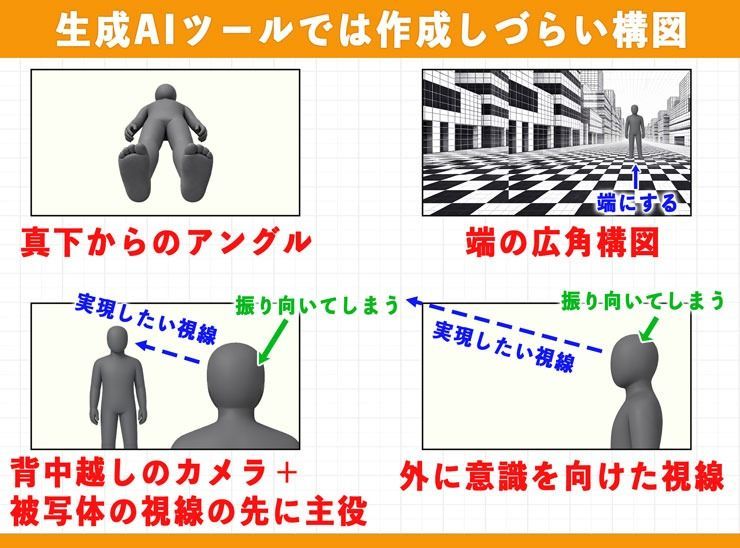
- A view from directly below: An extreme low angle looking up toward the sky from the subject’s feet.
- A wide-angle composition showing spatial depth, especially with the subject placed at the edge of the frame.
- A composition showing a foreground person from behind, with the camera over their back and attention directed toward the main subject beyond them.
- An averted-gaze composition in which the character looks at something beyond the camera rather than at the camera itself.
These compositions differ from the familiar approach of showing the face and eyes to make an impression, and I find them difficult to generate consistently.
Even with detailed prompts, the output often drifts toward a safer, more frontal composition.
Can 3D Services Help Create Compositions?
AI 3D model generation is one way to compensate for these limitations of 2D generation.
For example, services such as TRIPO AI and Hitem3D can create models with three-dimensional forms from a single image or text.
Once you place them in 3D space, you can adjust the camera’s position and angle yourself.
Rotating the 3D model therefore makes it easier to approach your intended composition, including views from directly below that were difficult to reproduce through prompts alone.
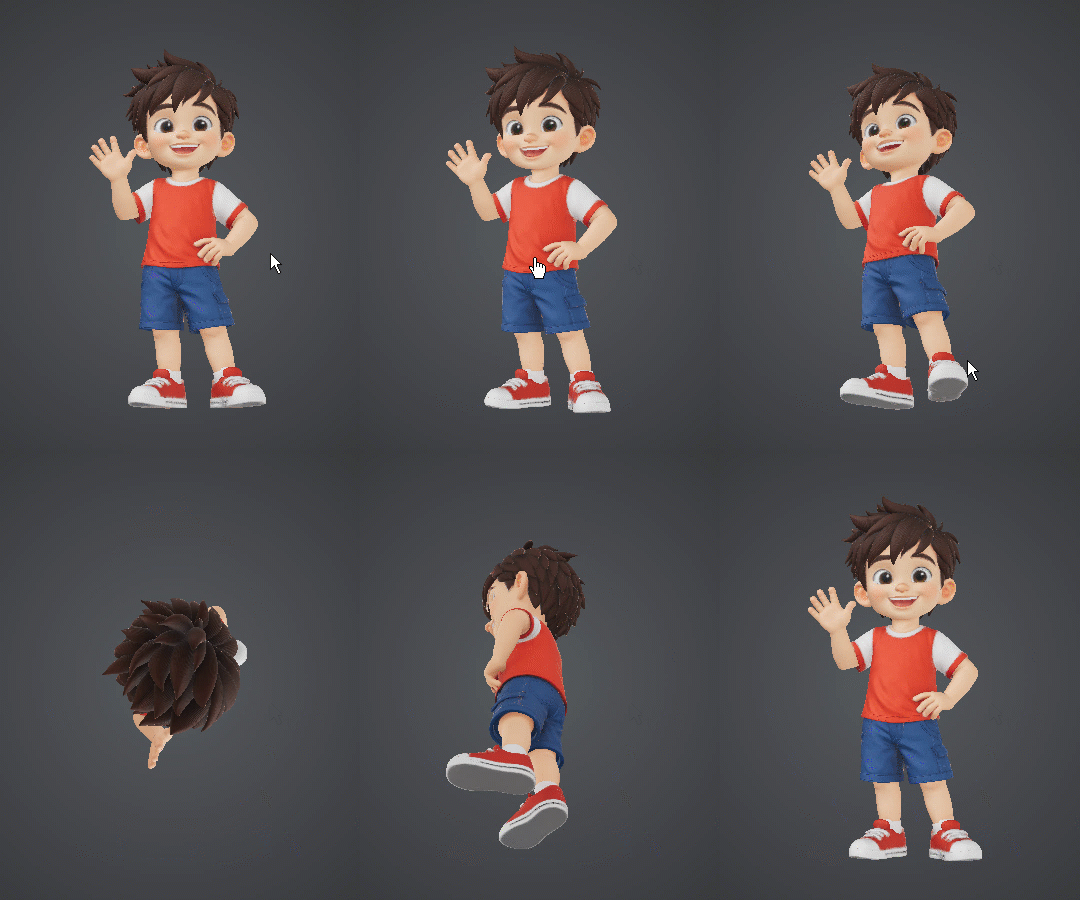
I thought that dividing the work—creating compositions in 3D and finishing them with a 2D generative AI such as DomoAI—might make difficult compositions more reliable to produce.
An Overview of TRIPO AI
TRIPO AI is reportedly a 3D generation platform developed by VAST, an AI startup originating in China.
What Kind of Service Is TRIPO AI?
It is a service for generating 3D models from text or images.
Generated models can be exported in formats including FBX, OBJ, GLB, STL, and 3MF, allowing you to adjust them in 3D software such as Blender or use them as data for 3D printing.
Instead of modeling everything manually from scratch, you can create a 3D foundation in TRIPO AI and make the necessary adjustments afterward.
In March 2026, the company announced $50 million in funding (see reference).
Reports mention names including Alibaba and Baidu Ventures, suggesting it is expanding its development foundation.
Reference: Tripo AI Announces $50 Million in Funding and New Models for Production-Ready 3D Generation
TRIPO AI Pricing and Commercial Use
TRIPO AI uses a credit-based pricing system with a free plan and several paid plans.
These prices are current as of April 2026 and may change due to exchange rates or other factors.
| Basic | Professional | Advanced | Premium | |
|---|---|---|---|---|
| Monthly price | Free | ¥3,000 | ¥7,500 | ¥20,000 |
| Annual billing | ─ | ¥21,600 (¥1,800/month) | ¥54,000 (¥4,500/month) | ¥144,000 (¥12,000/month) |
| Monthly credits | 300 | 3,000 | 8,000 | 25,000 |
| Concurrent tasks | 1 | 10 | 15 | 20 |
| Model visibility | Public | Private | Private | Private |
| Commercial use | Not recommended | Allowed | Allowed | Allowed |
| History retention | 1 day | 7 days | 30 days | Permanent |
| Number of saved models | 20 | Unlimited | Unlimited | Unlimited |
| Downloads | Limited | Unlimited | Unlimited | Unlimited |
Models created on the free Basic plan are listed in a public directory. If you are creating confidential characters, you need a paid plan such as Professional or higher.
The TRIPO AI Features Used in This Article
TRIPO AI can create data for 3D printing or be used alongside external software such as Blender and Unity.
Many people likely use it this way: generating 3D models from images, exporting them in formats such as STL, OBJ, or FBX, and using them for design, game development, or 3D projects.
This article, however, explores a different use.
The focus here is on using image-to-3D generation to build a foundation for compositions that are difficult to produce with prompts alone, then using those assets in DomoAI.
The division of roles can be illustrated as follows.
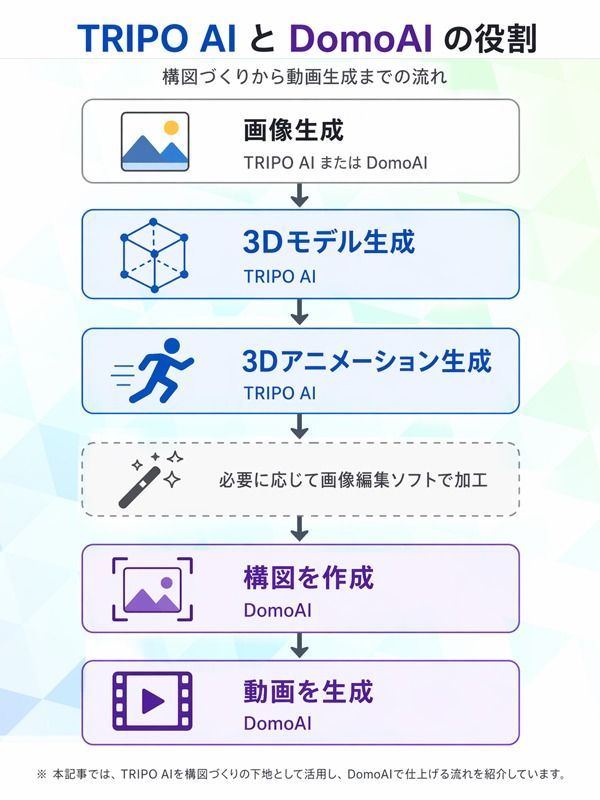
I’ll focus on the workflow from creating a 3D model from an image in TRIPO AI to passing the result to DomoAI.
TRIPO AI’s Basic Features
A major feature of TRIPO AI is its ability to quickly generate a starting 3D model from text or images.
Here is an overview of the basics for anyone who has not tried TRIPO AI before.
The Basic TRIPO AI Workflow
The basic workflow is as follows.
- Open TRIPO AI, which can be used in a browser.
- Provide text or upload an image to generate an image.
- Generate a 3D model.
- Rotate the model to inspect it.
- Export it in the format you need.
That is the basic process of creating a 3D model.
This article covers creating a 3D model from an image and preparing it for use in composition.
Let’s go through the actual steps.
Generate an Image
First, select 3D Workspace > Image Generation from the menu at the top.
You can generate an image by entering a text prompt or uploading a reference image.
As of April 2026, the following five image generation models are available.
- Nano Banana 2 (paid plans only)
- Nano Banana Pro (paid plans only)
- Nano Banana
- GPT Image 1.5 (paid plans only)
- Midjourney V7 (paid plans only)
For this example, I selected Nano Banana 2 and asked it to create a futuristic cat robot.
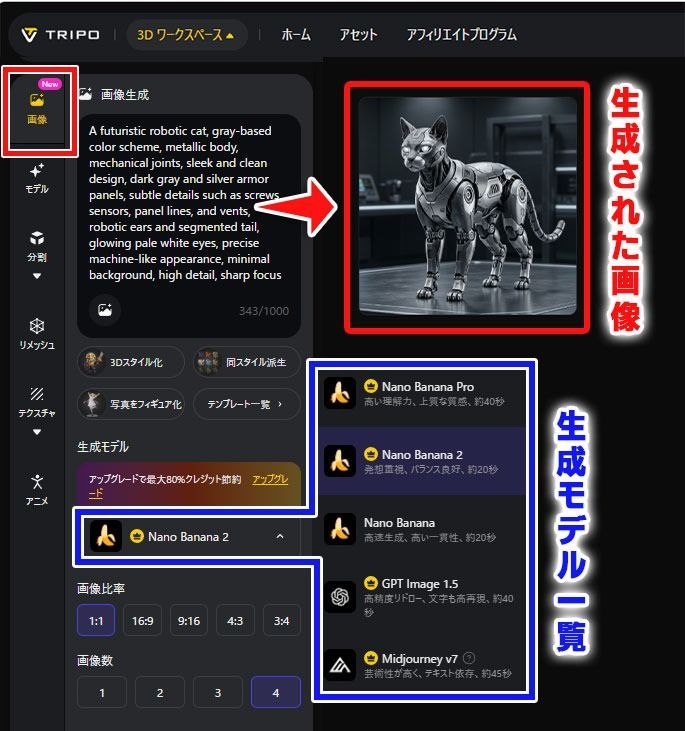
Another option is to select Model from the left-hand menu, upload a character image, and generate multiple views.
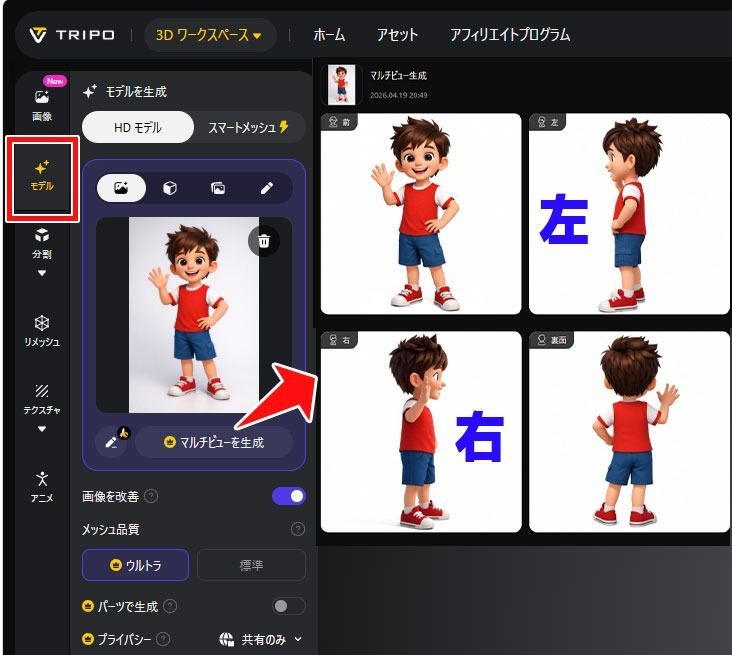
As you can see, the arm poses in the left and right views remain logically consistent with the information in the front image. I think this is a strength of a tool specializing in 3D models.
Generate a 3D Model
You can generate a 3D model from an image you created or uploaded.
Here, I’ll use the multiview images created earlier rather than generating a model from a single image.
Providing information from multiple angles should make it easier to reduce shape errors than generating from only one image.
First, choose Smart Topology Mesh for the generated multiview images.
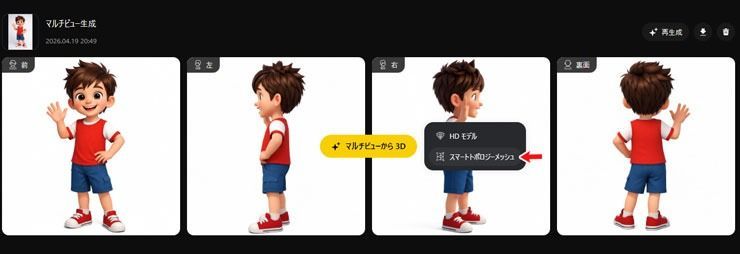
Then click Generate Model to begin creating the 3D model.
You can choose between Smart Topology Mesh and HD Model. Smart Topology Mesh seems better suited to animation.
Reference: Smart Mesh Topology for Holes, Cutouts, and Vents
The 3D model has now been generated, and you can move the character up, down, left, and right.
For example, rotating this model to an angle you want and capturing it makes it easier to create images or animation from that angle when guiding composition in DomoAI.
Turn It into 3D Animation
Next, let’s add movement to the 3D model.
To animate a 3D model, first perform rigging.
Rigging assigns a skeleton and weight information to the model so animation can be added afterward.
Select Animation from the left-hand menu, choose Human or Animal for the AI model, and click Auto Rigging.
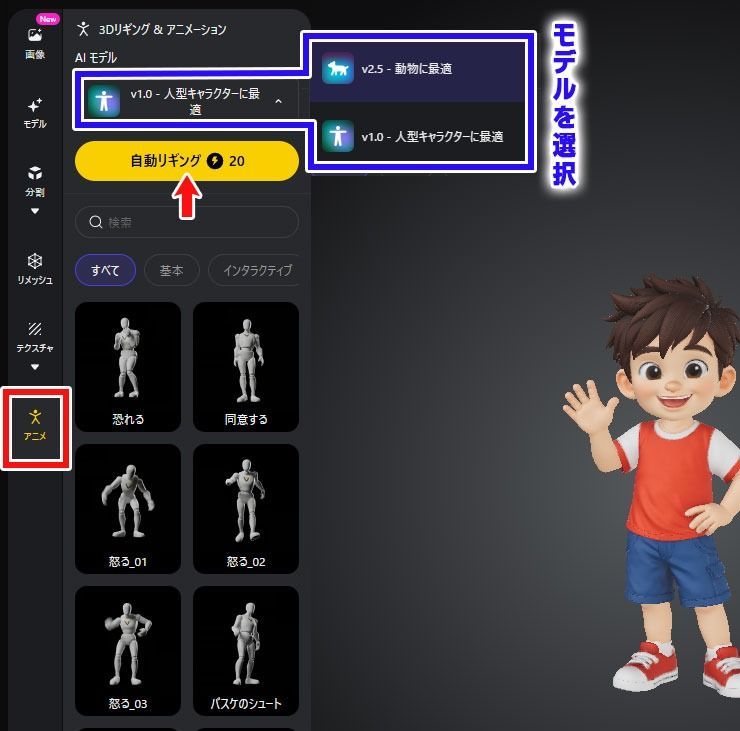
Once rigging is complete, animation presets become available. Choose a movement from the provided templates to preview it as 3D animation.
There are some points to watch out for.
Depending on the model’s shape, arms or hands that are too close to the torso, or parts that touch too closely, can cause deformation when animated.
In this example, one hand was resting on the hip, and the hand deformed unnaturally when I animated the model.
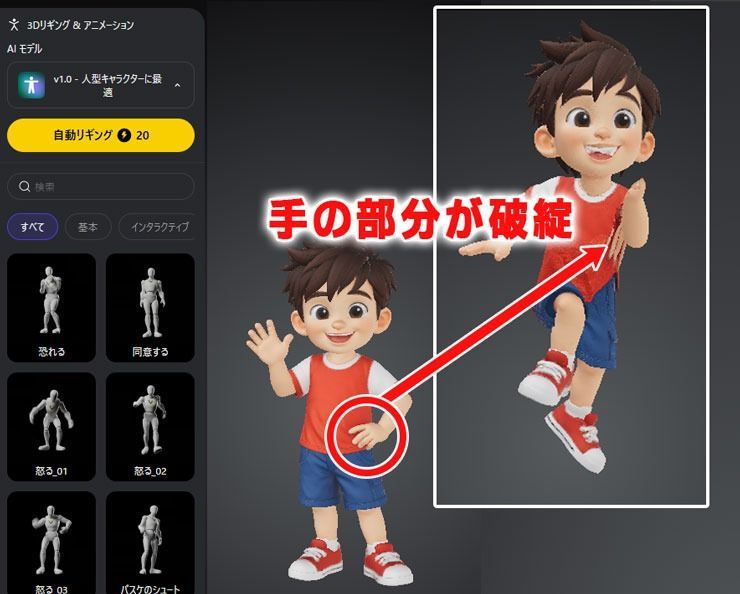
In such cases, creating the 3D model in a T-pose from the start makes it easier to animate later.
To create a T-pose, open Image in the left-hand menu, go to 3D Stylization, choose the T-Pose template, and generate the image.
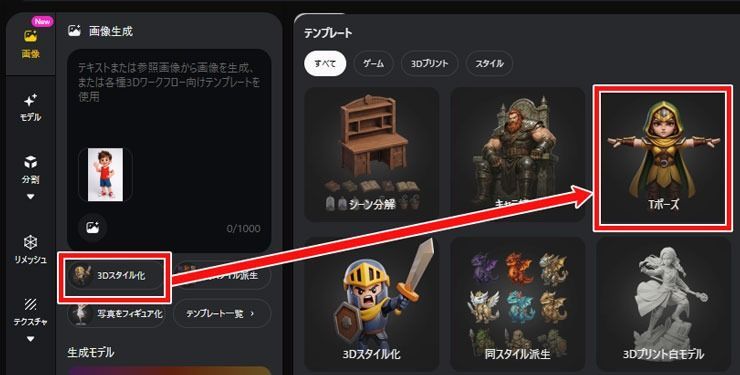
After that, follow the same steps described earlier.
- Generate multiple views.
- Choose Smart Topology Mesh and create the 3D model.
- Run automatic rigging.
- Select an animation template.
Below is the resulting animation converted into a GIF.
I reduced the number of frames to keep the image file small, so the actual animation moves a little more smoothly.
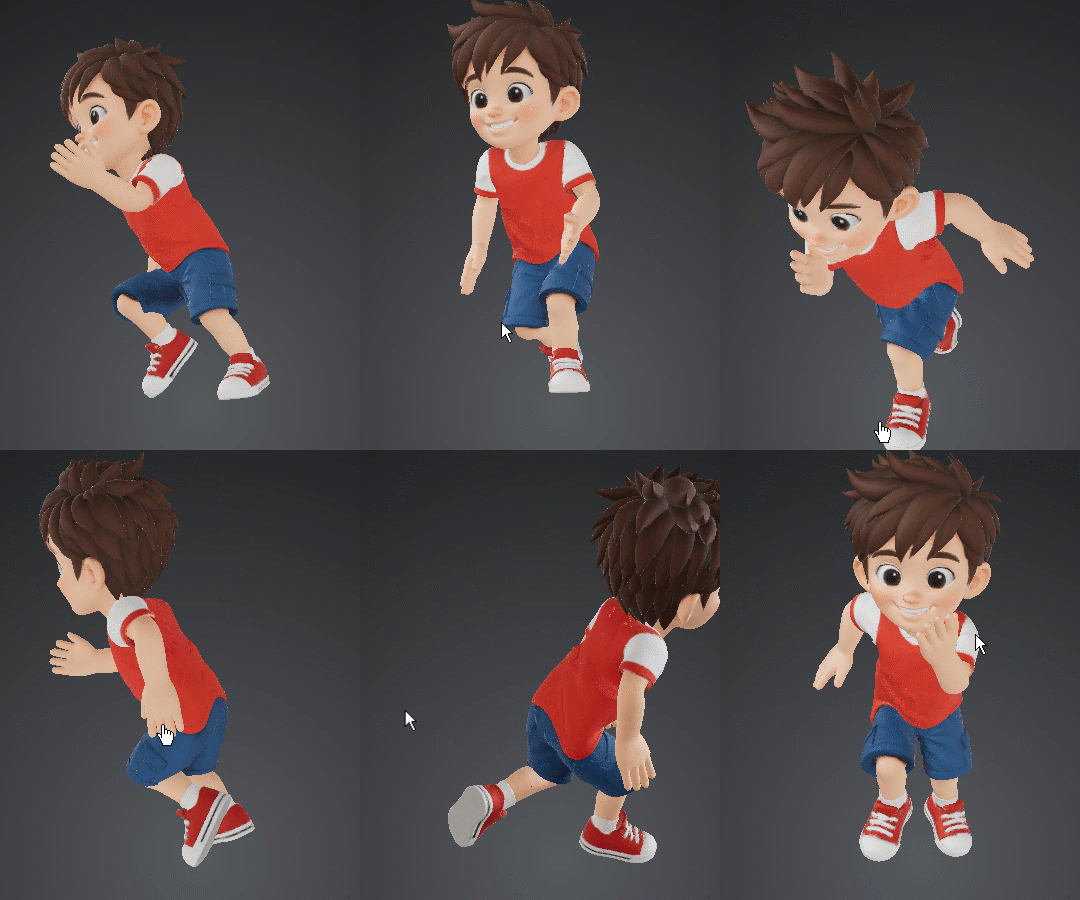
There are about 100 animation templates available, including running, spinning, and singing.
This lets you create compositions featuring a variety of movements.
TRIPO AI Export Formats
Generated 3D models support the following standard file formats for compatibility with major 3D production software.
- USD: A format also used in film and video production.
- FBX: Preserves animation information and is used for importing into Unity, Blender, Maya, and other software.
- OBJ/STL: Mainly used for physical model output and 3D printing that does not require texture information.
- GLB: A format optimized for web-based 3D and AR/VR applications.
- 3MF: One of the formats used for 3D printing.
Keep in mind that TRIPO AI is a tool for working with 3D data. You cannot download animation directly as an MP4 video.
To obtain a high-quality animation video, you need to export it in a format such as FBX and render it in an external tool such as Blender.
For composition references like the ones in this article, however, simply rotating the model to your preferred angle and taking a screenshot may be enough.
How DomoAI and TRIPO AI Can Work Together
Let’s look at how you can use images and 3D models made in TRIPO AI within DomoAI.
Create Images in DomoAI
DomoAI’s Image Editing feature can create source images for animation.
As of April 2026, you can create and edit images using Nano Banana 2 and Nano Banana Pro.
When making animation in DomoAI, you may therefore often start by using image generation or editing to create the shots you need.
However, compositions looking up from below or using extreme angles can be difficult to produce as intended with prompts alone.
For example, the comparison images below were created using the same prompt.
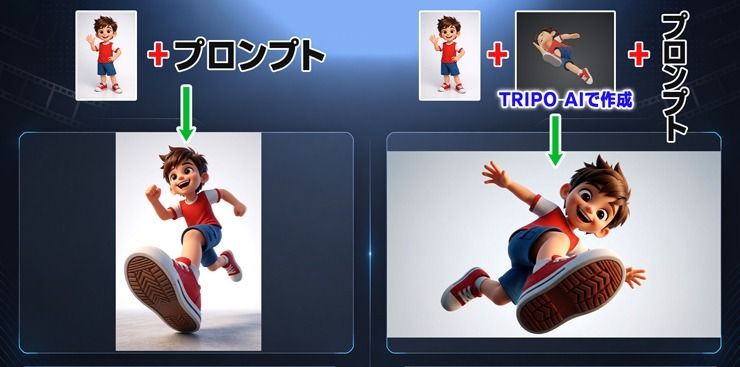
Simply having a reference image for the composition makes it easier to realize shots that are normally difficult to create using only prompts.
Animate in DomoAI with Frames to Video
Among DomoAI’s many features, Frames to Video is particularly useful.
Simply upload multiple images as keyframes, and the AI smoothly interpolates between them and automatically connects them into one video clip.
This feature has three main advantages.
- You can specify the beginning, end, and intermediate scenes with images, helping prevent movement from going in an unintended direction.
- Using multiple images of the same character makes it easier to maintain consistent faces and clothing.
- Because it works by connecting keyframes, it is easy to build not only short shots but also somewhat longer sequences.
For this example, I’ll connect five images into a video.
All the source images were created within DomoAI. For images three through five, I first built the compositional foundation in TRIPO AI and then uploaded it to DomoAI as a reference.
I found the third and fourth images particularly difficult to create through text instructions alone.
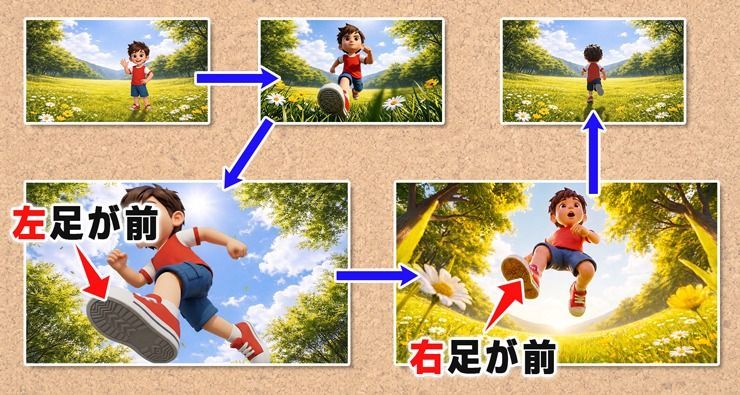
The character’s left foot is forward in the third image, while the right foot is forward in the fourth.
At least in my tests, changes in pose involving switching the left and right feet were difficult to produce consistently with text prompts alone.
You can also use stick-figure or human-silhouette services as composition references, but in complex compositions the output tended to follow the stick-figure silhouette and distort the character.
TRIPO AI’s 3D models contain more information resembling the actual character, which made it easier to obtain stable results with less distortion.
Let’s now try Frames to Video.
First, turn on Multi-Keyframe mode and upload the five images created earlier.
You can also retrieve saved assets to use.
A convenient feature of this mode is that you can set the video duration for each transition between images.
Here, I set the timing as Image A → (2 seconds) → Image B → (2 seconds) → Image C, and entered a prompt for each segment describing the movement connecting the images.
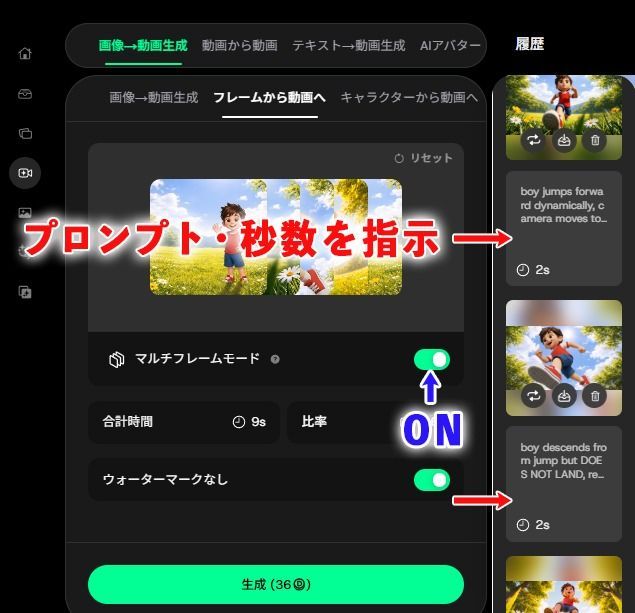
To consistently create the video you intend with this feature, it is important to use the same image size for every upload.
When image sizes differed, the AI sometimes filled in the empty space, producing unintended footage.
Below is the video generated with those settings, converted into a GIF.

As intended, the character switched feet in midair and landed.
An Attempt to Convert the Style of TRIPO AI Animation That Did Not Work Well
DomoAI’s Video to Anime feature can transform videos into preset styles, such as Japanese anime or 3D cartoon styles.
I thought recording the animation playing in TRIPO AI’s browser, uploading it to DomoAI, and converting its style might further expand the possibilities for animation.
When I tried it, however, the method did not work as well as I had hoped.
The following image is a GIF of the style-converted video.
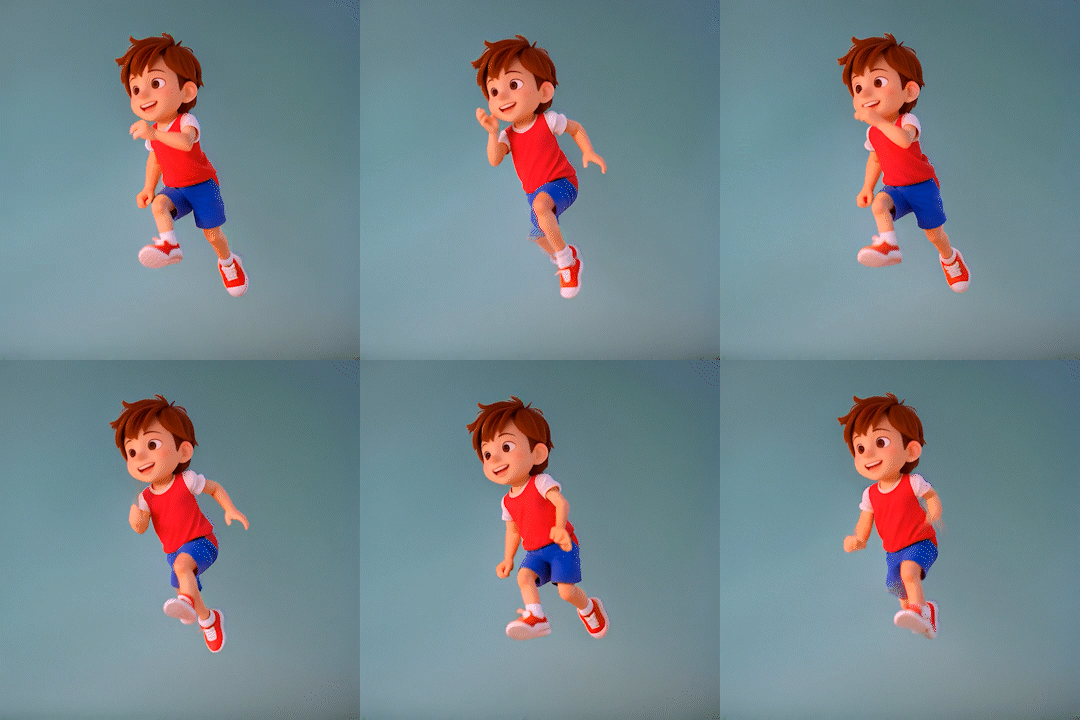
At first glance, the GIF may not seem especially problematic, but inspecting it frame by frame revealed significant deformation in areas such as the hands.
I suspect DomoAI’s style conversion works by retaining some of the source video’s outlines, motion, and shapes while adding a new appearance over them.
If unnatural elements remain in the source animation, this can cause problems such as:
• Unnatural bends in the limbs remaining conspicuous.
• Style conversion following interpenetrating or distorted shapes.
• Awkward movement becoming even more pronounced.
My impression was that the roughness in the TRIPO AI animation became even more noticeable after processing in DomoAI.
Of course, importing the animation into Blender or another tool and adjusting it before use might have produced a different result.
I did not explore that further, because putting in that much work would move beyond this article’s aim of testing an easy way to create compositions for animation production.
Although this article focuses on animation, I think TRIPO AI is also useful for creating objects such as spaceships and battleships, not just people.
It could be interesting to create assets like these and develop them into VFX-style visuals in DomoAI.
Both tools strongly demonstrate the progress of generative AI, so try them if you are interested.
Conclusion and Frequently Asked Questions
Finally, here are answers to common questions about the features introduced here and video generation.
Q1. Can models created in TRIPO AI be used commercially?
A1. Yes, commercial use is permitted with a paid plan such as Professional or higher. Models created on the free Basic plan are subject to a CC BY 4.0 license, requiring attribution and restricting commercial use.
Q2. DomoAI can already create side and back views. What is the advantage of using TRIPO AI?
A2. DomoAI can create side and back views on its own, but I found that first building a 3D foundation in TRIPO AI made it easier to obtain a specific angle consistently.
Views from directly below or from a high oblique angle can be hard to produce exactly as intended using prompts alone. TRIPO AI lets you rotate the model, check the composition, and pass that image to DomoAI. Being able to create a composition reference first is a major advantage.
Q3. Can TRIPO AI’s background color be changed?
A3. From what I could confirm, it does not appear possible to change the background color.
Q4. Which DomoAI plan should I choose?
A4. The free or Basic plan is sufficient if you only want to try it. For serious video generation, I recommend Standard or Pro for their higher credit allowances and unlimited generation in Relax mode.
Q5. Can content created in DomoAI be used commercially?
A5. Yes. On paid plans, generated content generally belongs to the user and may be used commercially. This does not mean anything can be used without conditions. The terms require commercial use to comply with the law, third-party rights, and contractual obligations, and place responsibility for checking this on the user.
Q6. Do both services support Japanese?
A6. Yes, both services support Japanese. However, depending on the content, English prompts can sometimes convey fine compositional details and nuances more reliably.
That concludes the frequently asked questions.
Many generative AI tools and services are now available, each with its own strengths and weaknesses.
Combining tools instead of forcing one tool to do everything may sometimes make it easier to achieve expressions that were previously difficult to reproduce.
TRIPO AI is fundamentally a service for generating 3D models from text or images.
This article extends that purpose slightly, suggesting 3D as a way to supplement compositions that are difficult to create using prompts alone.
I hope you read it as one example of an applied workflow.
Of course, DomoAI alone is fully capable of producing high-quality videos and animation.
Start by trying a tool such as DomoAI and experiencing the latest AI video generation for yourself.


