

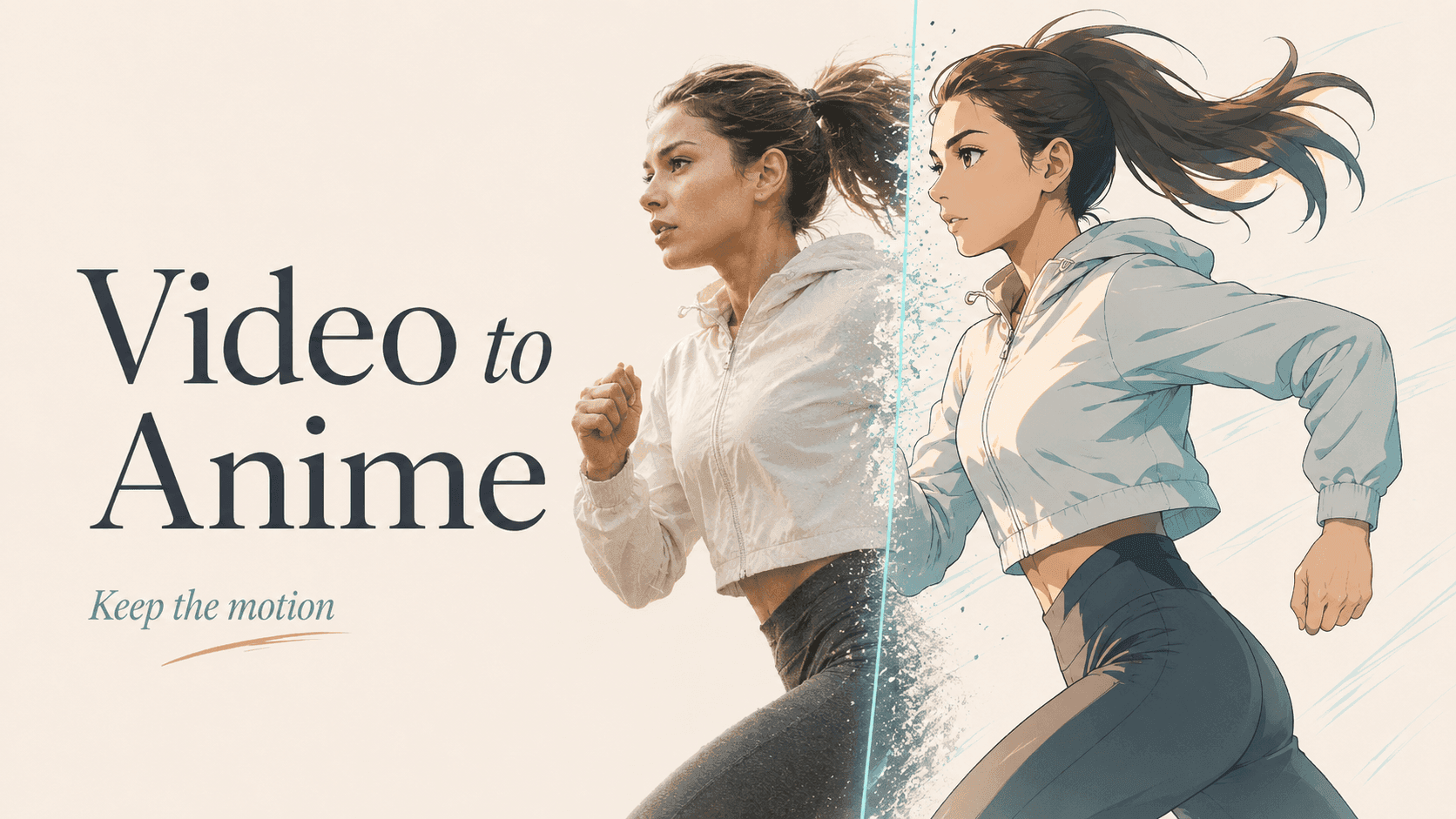
To turn a real video into anime, keep the recorded performance and change the visual treatment with Video to Video. Start with a clear clip, choose an anime style, and decide whether to restyle the subject or the full frame. The key is to protect the motion already present instead of prompting a new performance.
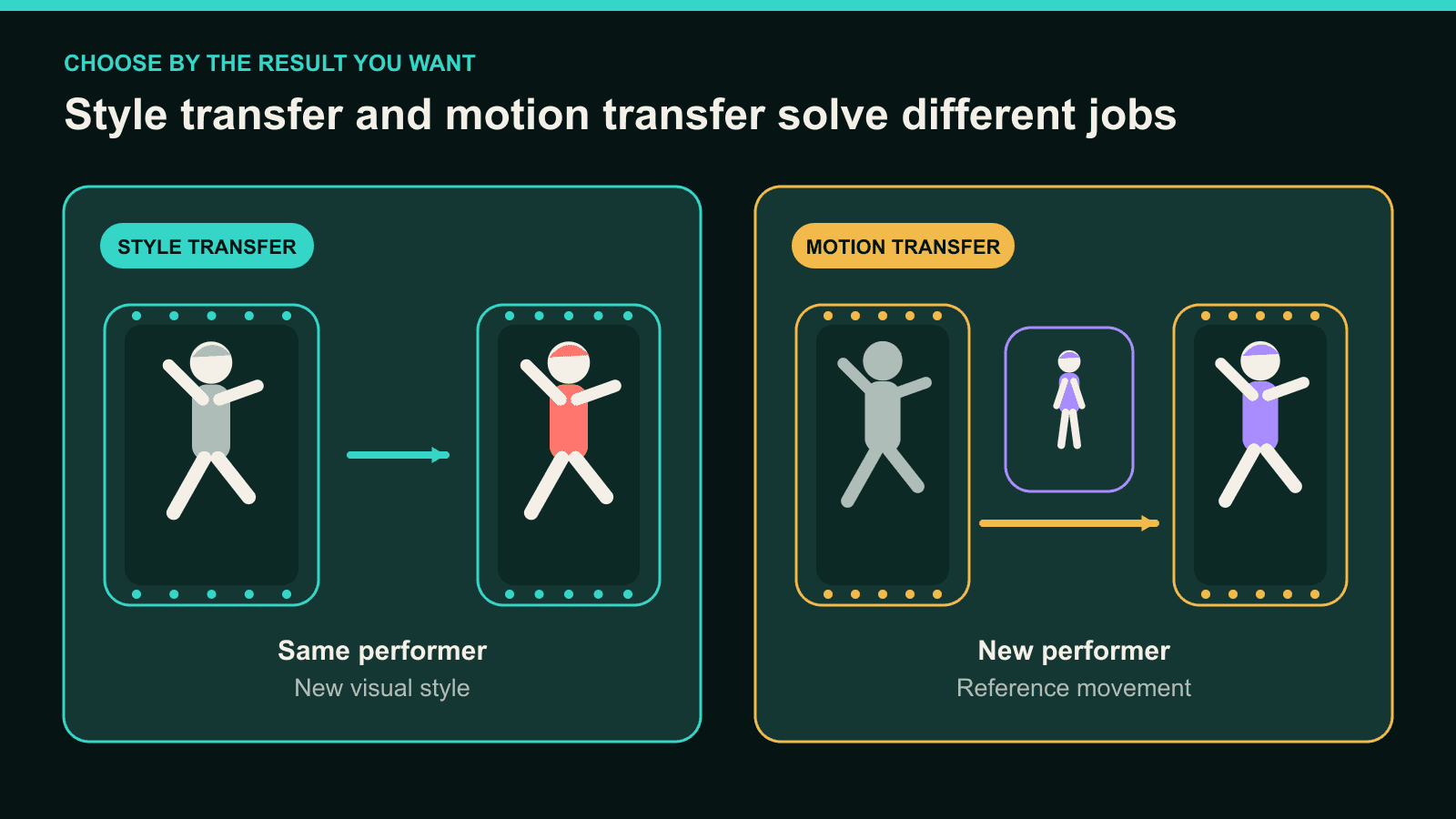
That last distinction matters. This workflow is style transfer. The person, timing, and camera composition come from your footage. You are changing how the clip looks, not asking another character to copy its movement.
What Video to Video Actually Changes
Video to Video creates a styled version of an existing clip. It uses the recorded movement as the foundation while redrawing the visual world frame by frame.
Think of the source video as the choreography and edit. The selected style controls the line work, shading, palette, texture, and level of detail.
This is more than a color filter. A filter usually sits over the original pixels. A generative restyle can reinterpret faces, clothing, props, and background shapes.
The main action should remain readable, but small details may change. Always review the moving result, not one attractive still.
Use a different workflow when your goal is character replacement. Character to Video uses a character image as the new performer and a video as the motion reference.
The decision is simple:
| Your goal | Use | What stays central |
|---|---|---|
| Keep the performer and turn the clip into anime | Video to Video | Source performer, action, timing, and composition |
| Make your own character perform the movement | Character to Video | Reference movement and the new character design |
Prepare Footage for Anime Restyling
Start with footage where the main action reads without pausing. Video to Video accepts MP4, MOV, and AVI files up to 10 seconds.
A good first clip has one visible subject, clear lighting, and a stable camera. A talking close-up, a short walk, or one dance phrase gives you enough motion to judge the restyle.
Fast pans and heavy motion blur give the generator less clear visual information. The same applies when hands leave the frame or another person crosses the subject.
Trim the clip at a natural action boundary. Do not squeeze a longer sequence into ten seconds by changing its speed. That alters the performance you are trying to keep.
Before uploading, choose three motion landmarks. For a walking shot, you might mark the first step, the turn, and the final look toward camera.
Use those landmarks when comparing the source and anime version. If the same beats remain recognizable, the visual restyle has kept the part that matters most.
Built-In Anime Styles or Fusion: Which Route Fits?
Use a built-in style when one of the available looks already matches your project. DomoAI offers more than 40 Video to Video styles, including over 20 anime styles.
Look beyond the thumbnail palette. Compare line weight, shadow shape, facial detail, and background treatment. A high-detail portrait style may suit a close-up but become noisy during fast full-body motion.
Model choice also follows framing. V6.0 is optimized for half-body and close-up portraits. It is not suitable for full-body shots.
Use Fusion when you need a custom visual direction. Fusion accepts a text prompt or a reference image.
Describe a coherent treatment instead of naming a studio, franchise, or living artist. Keep the prompt focused on the visual world. The recorded clip already supplies the action.
Fusion direction for a street portrait
Paste this into Fusion, then replace the clothing and setting details with your own:
Hand-painted 1990s-inspired anime treatment with clean black ink outlines and
two-tone cel shading. Keep the subject's navy jacket with white trim. Use a warm
late-afternoon palette, natural facial proportions, and a simplified painted city
background. Keep the same line weight, jacket colors, and shadow treatment across
the full clip. No new text, logos, or watermark.
The prompt has one job: define the look. It does not tell the person to perform a new movement.
For a multi-clip edit, save the exact style choice, Fusion reference, and prompt. Reuse them instead of describing the same look from memory.
Subject Only or Full-Frame Restyling?
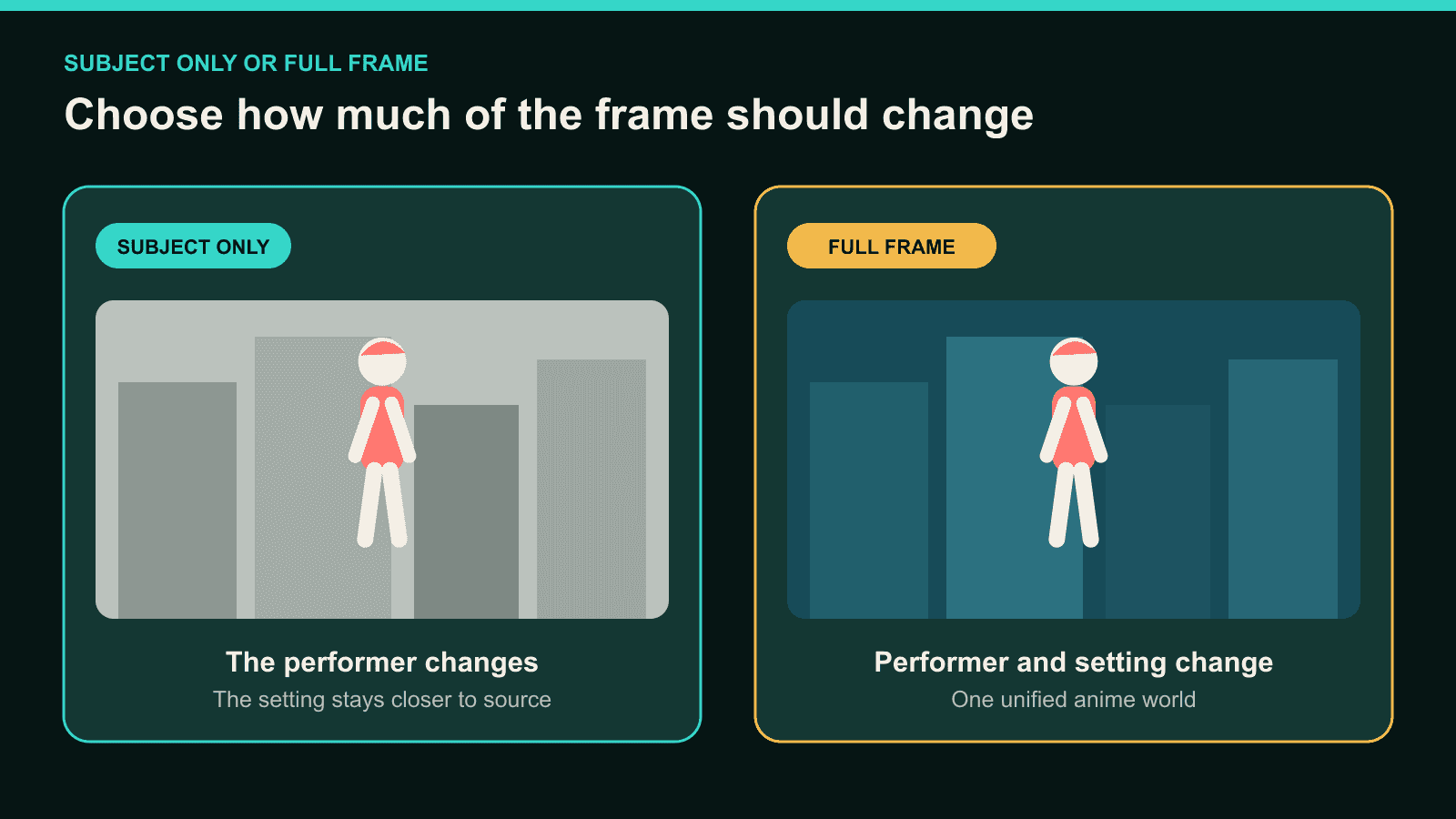
Choose Subject Only when the person needs the anime treatment but the location should stay closer to the original. Restyle the full frame when the environment belongs inside the anime world.
| Shot situation | Better starting choice | What to review |
|---|---|---|
| Creator speaking in a branded room | Subject Only | Hair edges, sleeves, nearby props, background text |
| Cosplay clip in a plain studio | Subject Only | Boundary around the costume and moving limbs |
| Travel scene where the street matters | Full-frame restyle | Buildings, signs, horizon lines, and moving people |
| Narrative shot with one designed world | Full-frame restyle | Whether foreground and background share one visual treatment |
Subject Only does not freeze the background pixel for pixel. Moving edges, shadows, and nearby objects can still change.
Inspect every overlap. Hair crossing a wall, a hand passing a table, or a sleeve covering a prop can make the subject boundary less clear.
Full-frame restyling creates a more unified world, but it also gives the model more details to reinterpret. Use it when the setting contributes to the result.
Keep the Motion and Style Consistent
Review the clip in motion before examining individual frames. First ask whether the main performance still reads like the source.
Compare the motion landmarks you marked earlier. Check direction, timing, body position, and contact with the ground or props.
Then check style continuity. Follow the same jacket, face outline, and background element from the beginning to the end.
Do not change the source, style, model, and Subject Only setting at once. Identify the visible problem, then change the input most closely connected to it.
For example, switch away from V6.0 when a full-body action needs clear legs and feet. Use a clearer source segment when motion blur hides the face during a turn.
If the movement works but the visual treatment shifts, keep the source and refine the style direction. Repeat the defining palette, line work, and clothing colors.
This approach will not remove normal generation variation. It does make each retry easier to diagnose.
Turn a Longer Video Into One Anime Edit
Split footage longer than 10 seconds into short shots before restyling. Cut at completed gestures, camera changes, pauses, or natural beats.
Keep a small continuity record for the whole edit:
- Built-in style or Fusion reference.
- Exact Fusion prompt.
- Model choice for each framing type.
- Subject Only or full-frame choice.
- Source crop and output framing.
Use the same visual vocabulary across related clips. If one segment needs V6.0 for a close-up, do not assume it also fits the following full-body shot.
Assemble the selected clips in CapCut, Premiere Pro, DaVinci Resolve, or another editor. Reapply the original audio or final soundtrack there.
Watch the assembled sequence without pausing. A clothing or palette change that felt small in isolation may become obvious at a cut.
Revise the conflicting segment instead of rerunning every shot. Once the visual result works, you can upscale the final anime clip for delivery.
Common Anime Restyle Problems
Use this table to decide what to inspect first. Treat each row as a diagnosis path, not a promised fix.
| What you see | Check first | Useful next move |
|---|---|---|
| Face changes during a turn | Blur and face size in the source | Trim to a clearer moment or use a closer crop |
| Hands become unreadable | Hand visibility and object contact | Choose a cleaner take or cut around the blocked gesture |
| Clothing colors shift | Style direction and garment detail | Repeat the key colors and simplify the visual treatment |
| Background flickers near the subject | Subject boundary and scene complexity | Test Subject Only or shorten the overlapping movement |
| Full-body action loses the legs | Framing and model choice | Use a model other than V6.0 for the full-body shot |
| One segment clashes with the rest | Saved style and Fusion settings | Match the established reference and exact prompt |
Do not use upscaling as a structural repair. It can improve resolution and visible detail. It cannot restore a missing gesture or correct changed movement.
If your starting point is a still drawing, animate a manga panel instead. You can also explore workflows for anime creators when the project needs original characters and scenes.
Questions About Turning Video Into Anime
Will Video to Video keep the original movement?
Video to Video uses the source performance as its movement guide. The broad action should remain recognizable, while smaller gestures and visual details may still change.
Is Video to Video the same as an anime filter?
No. A filter usually changes color or texture over existing pixels. Video to Video generates a new styled version, so shapes and details can also change.
Can I keep the original background?
Subject Only keeps the style change focused on the main subject. It does not guarantee a pixel-identical background, so inspect edges and nearby objects.
Can I use my own anime character instead of the performer?
Yes, but use Character to Video for that goal. It pairs your character image with the movement from an authorized reference video.
How do I convert a video longer than 10 seconds?
Split it into clips of 10 seconds or less at natural edit points. Reuse the same visual direction, then assemble the selected results externally.
Anime conversion works best when you treat it as a restyling problem. Keep the source performance clear, choose one visual system, and change only the part that breaks.
Open Video to Video and restyle one short clip you own.


