
How to Make Stop Motion Animation with GPT Image 2.5

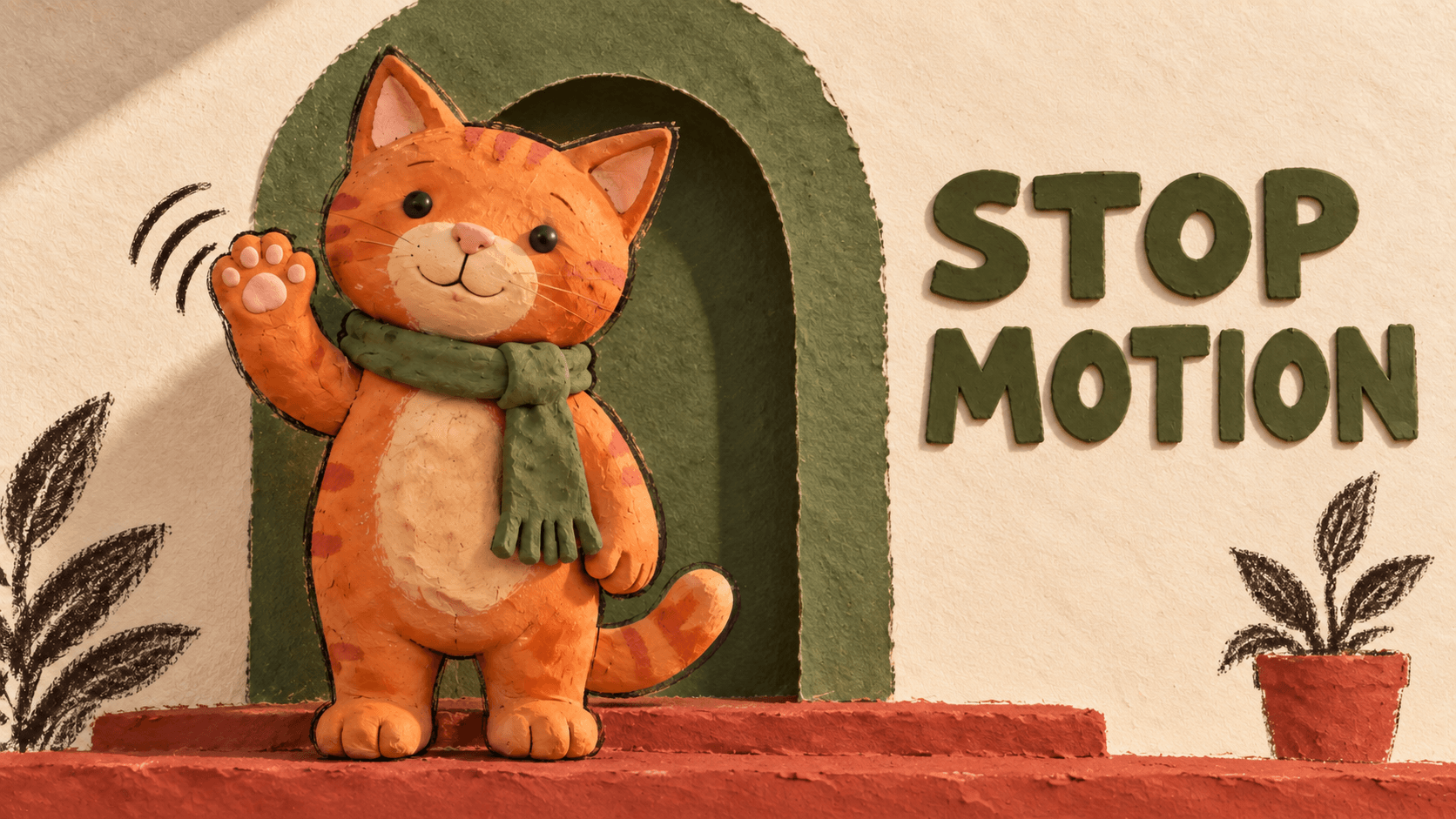
To make stop motion animation with GPT Image 2.5, generate a character reference and a 4×4 sheet of consecutive poses. Split the sheet into 16 frames, then assemble a looping GIF with consistent framing and timing.
For this example, an orange clay cat raises one paw, waves, and lowers it. The clay texture and miniature set give it a handmade appearance. The feet and body stay still while the paw supplies the movement.
Use the complete prompt below to plan the sequence. Then follow the export steps to turn the images into a GIF you can save and share.

Generated frame sequence, assembled into a 512×512 GIF: 16 frames, 100ms per frame, 1.6 seconds, infinite looping.
Set Up the Image and GIF Workflow
Open DomoAI’s Multi-Model Image Generator & Editor and choose GPT Image 2.5. Set the resolution to 2K and the aspect ratio to 1:1.
Use Relax Mode on an eligible DomoAI plan while refining the poses and sprite sheet. GPT Image 2.5 supports Relax at 2K with zero to nine input images, so eligible retries use no credits. Queues may take longer than Fast Mode. For 4K or ten or more input images, use Fast Mode with credits.
The input limit counts uploaded images. Your 16-cell sprite sheet is one output image.
The image model supplies the stills. This tutorial uses Ezgif to cut the sheet and assemble the animation, so you can finish in your browser.
Aim for 16 frames at 100ms each, giving a 1.6-second loop on a 512×512 canvas. These are settings for this example; you can adjust them for another action.
A small loop gives you a manageable first AI animation project: one subject, a fixed camera, and one movement to check.
Give the Character One Clear Action
Choose a material, a setting, and a movement before generating Image 1. For the cat, use matte clay, warm lighting, and an olive-green arched doorway above a terracotta step.
Fill the template’s six fields with this example, or replace them with your own. You’ll reuse the fields for the master image and sprite sheet:
Idea: An original orange clay cat gives one friendly wave.
Style: Handcrafted clay stop-motion look, matte clay, subtle sculpted texture,
warm soft lighting, and a handmade miniature doorway set.
References: [Upload your character reference, or use none.]
Preserve the orange tabby stripes, round head, triangular pink inner ears,
black bead eyes, pink nose, cream muzzle and belly, and curled striped tail.
Keep the olive-green clay scarf, its knot, and its long fringed end.
Action: Keep both feet planted. Raise the right paw on the viewer's left,
make one small side-to-side wave, then gradually lower it.
Keep the torso, left paw, tail, and scarf still.
Text: none
Background: Olive-green arched doorway, cream textured wall, terracotta step,
and the same drawn plants and right-side plant pot. Keep the set and shadows fixed.
Use a locked front-facing camera, full-body square framing, and space around the paw.
For Image 1, lower both forepaws beside the body and remove drawn motion marks.
For another look, describe the material and lighting in your image prompt. Felt, paper cutouts, and clay need different surface details, even when the action stays the same.
If you have a character reference, upload it when generating the opening pose. Check the new image against that reference before approving it.
Keep the first movement modest. A wave mainly changes one limb. Walking also requires alternating foot contact and weight transfer, so it introduces more ways for the body to slide.
Copy the Complete 16-Frame Prompt
Replace the six fields in this complete workflow template. For DomoAI, submit its image-generation sections separately, as shown below. Complete the GIF assembly instructions in Ezgif.
One character — 16-frame loop
Use GPT Image 2.5 to turn this idea into a smooth, seamlessly looping GIF.

Idea: [your idea]
Style: [visual style]
References: [uploaded references and details to preserve, or none]
Action: [the main looping action]
Text: [exact text, or none]
Background: [background]

1. CREATE IMAGE 1
Generate one square master reference showing the subject in its opening pose. Preserve the specified identity, proportions, materials, colors, and distinctive details. Leave enough space for the complete action. Create one still image, not a collage.

2. PLAN ONE CONTINUOUS MOTION
Based on Image 1, describe 16 consecutive poses forming one complete loop.

Keep the action simple enough for 16 frames. Allocate frames according to how much movement occurs, reserving enough frames for a gradual recovery. Simplify secondary actions if necessary.

Each pose must develop naturally from the previous one. Explicitly describe moving parts, direction, contact points, and weight transfer. Use small, connected changes in position and angle. Avoid sudden pose changes, unexplained movement, or an abrupt reset.

Use smooth acceleration and deceleration for character actions, or constant angular speed for a continuous rotation.

Frame 16 must lead naturally into frame 1 as the next motion step, without an extra duplicate endpoint.

3. GENERATE THE FRAMES
Use Image 1 as the authoritative reference. Generate one square 4×4 sprite sheet containing exactly 16 equal square cells, ordered left to right, top to bottom.

Treat the frames as consecutive samples of ONE motion, not separate illustrations. Continue smoothly across row boundaries: 04→05, 08→09, and 12→13. Do not restart the action at each row.

Keep identity, proportions, appearance, style, subject scale, camera, lighting, and background consistent. Preserve stationary anchors while allowing the intended movement. Accessories and surface details must move with the subject.

Leave safe whitespace inside every cell. Keep all content within its own cell. No grid lines, borders, or frame numbers.

If text is specified, include the exact same text in every frame with consistent typography, size, color, and position.

4. CREATE THE GIF
Split the sheet into 16 square frames. Trim excess whitespace using ONE shared crop that contains the entire motion. Do not independently recenter or resize frames.

Combine them into a 512×512 animated GIF: 100 milliseconds per frame, 1.6 seconds total, infinite looping, and consistent colors.

5. CHECK AND DELIVER
Check every adjacent-frame transition, especially row boundaries, recovery poses, and frame 16→01. Repair sudden jumps, unstable geometry, sliding contact points, flicker, or cropping.

Deliver Image 1, the sprite sheet, and the completed animated GIF. Do not stop at the sprite sheet or present a still image as a finished GIF.
Generate the master reference
Paste the six filled fields and the full 1. CREATE IMAGE 1 section into the image prompt. Generate the square master and check its face, material, scarf, and opening pose. Leave enough room for the paw’s full movement.
Save the approved result as Image 1. Use it as the character reference for the sprite sheet and later repairs.

Image 1: the supplied cat adapted to a square opening pose. Preserve its stripes, cream belly, fringed scarf, and doorway set.
Plan the Wave, Then Generate the Sheet
Give the paw time to come down. The last pose should sit close enough to the opening pose for the next movement to make sense.
Use this pose plan for the cat’s wave. If you choose another action, rewrite the 16 poses before generating:
| Frame | Right-paw movement |
|---|---|
| 01 | Rest beside the body |
| 02 | Lift slightly away from the body |
| 03 | Rise in front of the lower torso |
| 04 | Reach the lower chest |
| 05 | Rise toward the shoulder |
| 06 | Reach the waving position beside the face |
| 07 | Move outward through a small arc |
| 08 | Reach the outermost position and slow down |
| 09 | Move inward along the same arc |
| 10 | Return near the face and begin lowering |
| 11 | Drop below the waving position |
| 12 | Lower past the shoulder |
| 13 | Pass the chest |
| 14 | Reach the lower torso and slow down |
| 15 | Approach the resting position |
| 16 | Remain just above frame 01’s position |
Keep the feet, body, camera, and floor shadow steady. Give the return enough poses to bring the paw back toward rest.
Generate the 4×4 sprite sheet
Upload Image 1 as the reference for the next generation. Keep the six filled fields, but change References to Image 1. Combine those fields, the 3. GENERATE THE FRAMES section, and your 16-pose plan in one image prompt.
Start the prompt with this instruction:
Generate one 4x4 sprite sheet using the attached Image 1 and the following
16-frame pose plan. Create the sheet as one square image.
Keep 1:1 and 2K selected, then generate the sheet. Read its poses from left to right across each row. Check 04→05, 08→09, and 12→13 for an unexpected restart.
If the wave feels rushed, reduce its range or remove a secondary action before generating another version.

Read the 16 poses from left to right, then top to bottom. The paw rises, waves, and returns.
Cut the Sheet and Export the GIF
Download the original sprite sheet. Confirm four equal rows and four equal columns before cutting.
For a borderless W×H sheet, each frame measures W/4×H/4. A 2048×2048 sheet would yield 512×512 cells before cropping. Check the downloaded file’s actual dimensions. Cropping reduces the available pixels; resizing back to 512×512 does not restore that detail.
Split and order the frames
Upload the sheet to the Ezgif sprite cutter. Enter four columns and four rows, or the matching tile dimensions.
If evenly spaced cells have margins or gutters, adjust the cutter’s offsets and spacing. If the cells themselves vary in size or overlap, correct the generated layout first. Resizing each crop separately can make the character change scale between frames.
Inspect the 16 slices, then download them. Keep the full square cells for the first assembly and name them frame-01.png through frame-16.png.
Set the frame delay
Upload the frames to the GIF maker. It orders files alphabetically by default, so the leading zero keeps the sequence in order.
Set the delay to 10. Ezgif measures delay in hundredths of a second, making 10 equal to 100ms. Select infinite repetition and leave crossfade off, since it adds intermediate frames.
Generate the GIF and watch the full wave. The intended duration is 16 × 0.1 seconds = 1.6 seconds.
Crop the whole animation once
Choose a square crop that contains the cat and the paw’s highest and widest positions. Leave a little space around the movement.
Use the animated-image crop tool to apply that rectangle across the GIF. Enter the top, left, width, and height, or draw a square selection.
This browser route assembles the cells before cropping. It keeps the prompt’s shared-crop rule by applying the same rectangle to every frame.
Avoid centering each frame around its current silhouette. The raised paw changes that silhouette, which can shift the whole cat between frames.
Resize the square animation to 512×512 with the animated-image resizer. If the original cells already frame the action well, keep their full crop.

This set fills the square, so the example keeps each full cell. Use the same frame window throughout the loop.
Download the GIF and check the final dimensions, timing, and loop. Keep the PNG frames so you can compare the source images with the exported animation.
Fix the Transition That Breaks the Loop
Watch at least three loops, then inspect any jump frame by frame. Start with the three row boundaries and 16→01.

Compare frames 15, 16, 01, and 02 to check the return and the next lift.
| Problem | What to check | Next action |
|---|---|---|
| The wave starts over mid-loop | Row boundaries | Repair the pose that interrupts the movement |
| The ending snaps back | Return poses and 16→01 | Reduce the motion range or improve the return |
| The whole cat slides | Foot positions and crop coordinates | Fix the source anchor or apply one shared crop |
| Color flashes between frames | Original PNGs versus GIF | Locate whether the change starts in generation or export |
For example, frame 09 should continue inward from frame 08. If it drops the paw to the opening pose, try this edit with Image 1 and the current sheet attached:
Repair frame 09, the first cell in the third row.
Continue the cat's right paw inward from frame 08's outermost position.
Keep it near face height, with the same arm length and paw shape.
Use Image 1 for identity, clay texture, colors, and the green scarf.
Keep the feet, torso, camera, lighting, and background fixed.
Preserve the other frames and the exact 4x4 layout.
Check the rest of the sheet after the edit. If good cells change, repair the extracted frame separately and replace it in the sequence.
If repeated grid attempts keep distorting the character, try generating the problem poses as individual images. Attach Image 1 for identity and the neighboring frames for motion. Keep the same canvas, subject scale, and foot positions, then check the joins again.
For color flicker, compare the PNGs with the first assembled GIF. If the PNGs vary, repair the affected frames against Image 1. If a later crop or resize introduces the flicker, repeat that step from the last good export. Keep the source frames unchanged while troubleshooting an export problem.
Stop Motion GIF Questions
Does GPT Image 2.5 generate the GIF itself?
GPT Image 2.5 generates and edits still images, as described in OpenAI’s model documentation. This tutorial uses DomoAI for the reference and sprite sheet, then Ezgif to assemble the animated file.
Can I use my own character?
Yes. Upload the reference and replace the example’s appearance, style, and action fields. Approve Image 1 before generating the sequence, then use it to check the later poses.
Does frame 16 need to match frame 1 exactly?
No. Frame 16 should lead into frame 1 as the next movement. An extra duplicate can add a pause while leaving the underlying jump unresolved.
Can I change the frame count or speed?
Yes. Update the pose plan, grid, and timing together. At 100ms per frame, 16 frames last 1.6 seconds. A faster delay changes playback speed but does not repair missing or incorrect poses.
Save the master, sheet, frames, GIF, and filled prompt as a reusable character asset set. Start with one small action, check its return, and use the approved reference for your next loop.