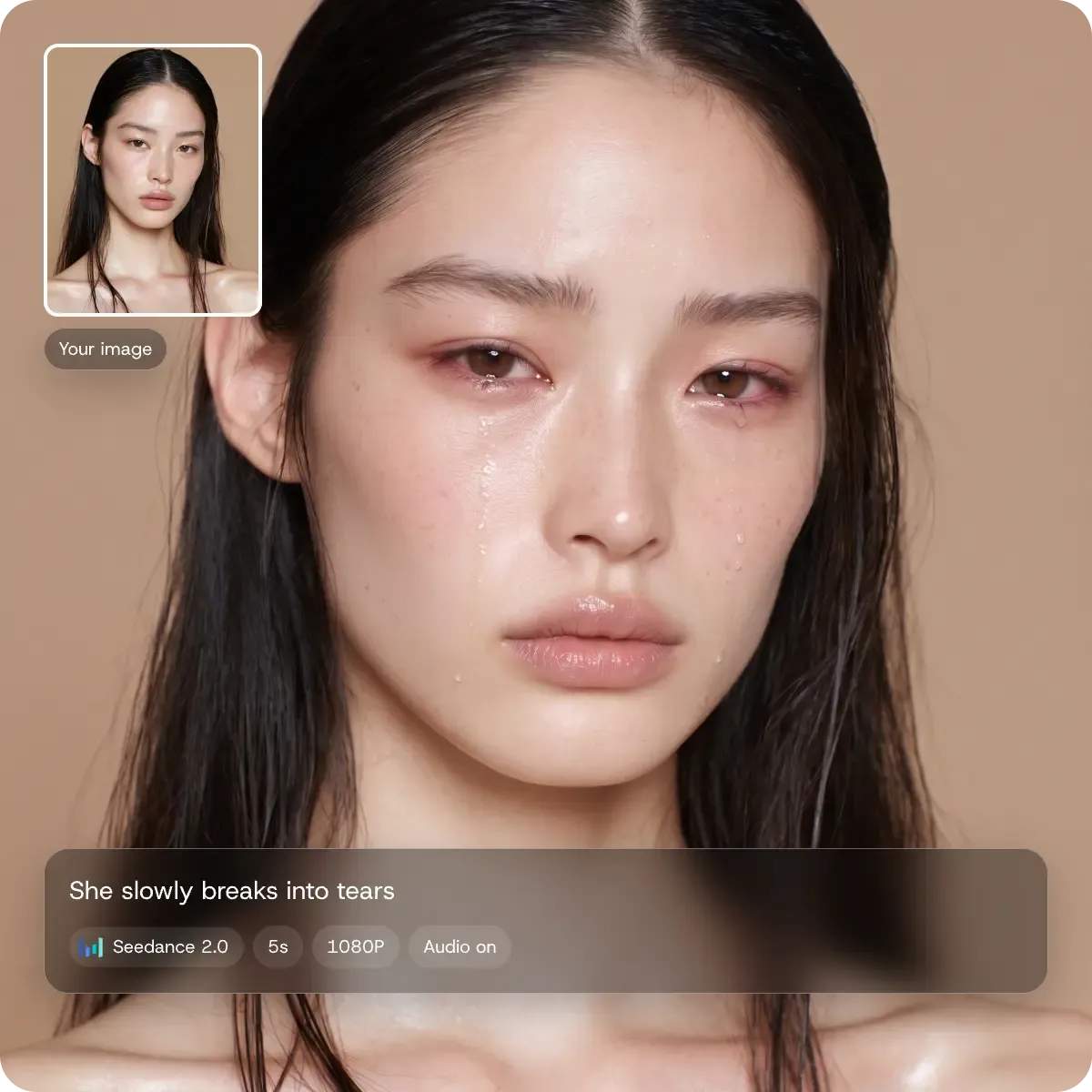
Image to Video AI Generator

An image to video AI generator turns one still image into a short clip. Upload the image, describe one motion, pick a model and sound on or off, then generate. Start free.
Animate your image

#7

AI Discord Server

70+

AI Video Models

5,000,000+

Global Users

Civitai
Discord
TV Asahi
Andressen
Voicy
ESTEBANDIBA
ESTEBANDIBA

2693K

EMDOTTECH
EMDOTTECH

1768K

SEB.DRAWS.THINGS
SEB.DRAWS.THINGS

1559K

DENY KING
DENY KING

1340K

PLANET AI
PLANET AI

377K

MIKIMIKIWEB
MIKIMIKIWEB

288K

SHEDOESAI
SHEDOESAI

484K

ATEF ATAYA
ATEF ATAYA

288K

SUBOSE S
SUBOSE S

914K

MR REIS
MR REIS

669K

Why Create Image to Video with DomoAI

A still image going in and a video coming out of DomoAI image to video

2 Model Lines, One Dropdown

DomoAI's own model and ByteDance's Seedance sit in one dropdown on the same page, so you compare them on the same image and prompt.

Sound, Length and HD Output

Turn audio on or off on models that support it, choose how long the clip runs, and download in HD. No separate audio step.

Up to 9 Input Images

Feed several images into one generation: one for the subject, one for the setting, one for a prop. Not every model accepts more than one, so pick one that does.

One Workflow, No Re-upload

Make the image in DomoAI, animate it, then drag the clip from the History panel into Video Upscaler (1080p, 2K or 4K), Talking Avatar, or Omni Reference as a video reference for the next shot. No export, no re-upload.

Templates That Need No Prompt

The AI Hug template animates an embrace between two people in one photo, and the 360 View template needs no prompt either. Upload the photo and generate.

Turn an Image into a Video in 3 Steps

STEP 1

Upload the Image

Open the photo to video tool and drop in a JPG, JPEG, PNG or WEBP file up to 20 MB, or pick an image you made in DomoAI from the History panel.

STEP 2

Describe One Motion

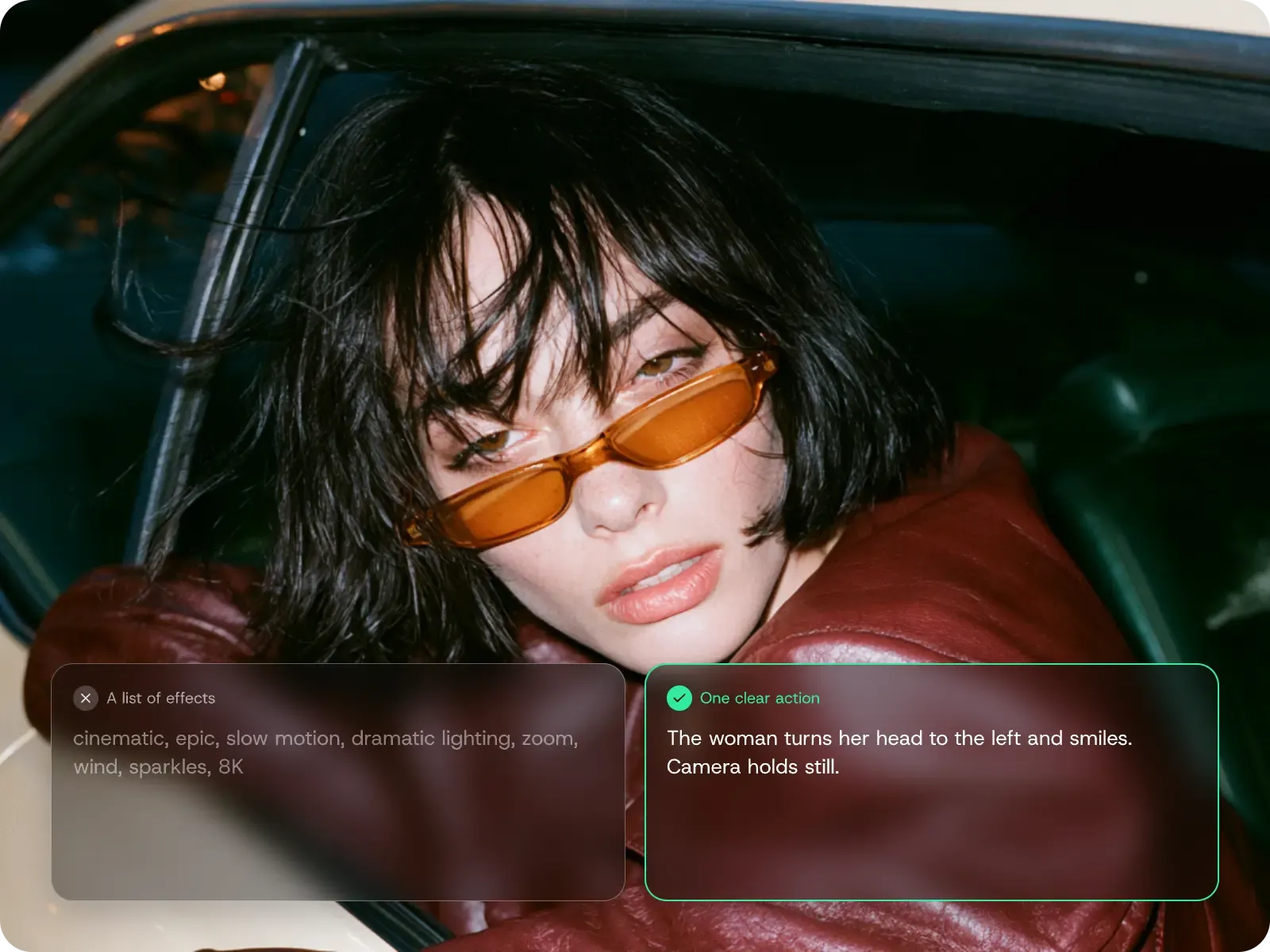
Write what moves and where it ends. Example: "The woman turns her head to the left and smiles. Camera holds still."

STEP 3

Pick Model and Settings, Then Generate

Pick a model, a length, an aspect ratio and sound on or off. Generate, then download the clip or drag it from History into the next tool.

Pick the Right Model and Settings

DomoAI 2.5

Duration: 4 to 15 s. Resolution: 720P. Audio: on / off. Credits: 2 per second (10 credits for 5 s, 30 for 15 s). Relax Mode: available on Standard and above. Best for: testing prompts or many clips; a tenth of Seedance 2.0 Fast's cost.

DomoAI 2.4.1 Fast / Advanced

Duration: 5 or 10 s. Resolution: 720P. Audio: no. Credits: see in-tool price. Relax Mode: Fast and 5 s Advanced on Standard and above; 10 s Advanced is Fast Mode only. Best for: a short clip with no audio at the lowest cost (Fast).

Seedance 2.0 Fast (ByteDance)

Duration: 4 to 15 s. Resolution: 480P / 720P. Audio: on / off. Input: up to 9 images. Credits: 100 credits for 5 s at 720P. Relax Mode: no, Fast Mode only.

Seedance 2.0 (ByteDance)

Duration: 4 to 15 s. Resolution: 480P / 720P / 1080P. Audio: on / off. Input: up to 9 images. Credits: 12 to 56 per second by resolution. Relax Mode: no, Fast Mode only. Best for: a hero clip at 1080P or a multi-shot scene.

How to Write a Motion Prompt That Works

Image to Video Prompt Examples

Prompts are direction, not a shot list. Copy one, swap in your subject; the multi-image card needs a model that accepts several images. Read writing one clear action and how to choose a photo that survives motion.

One Action per Clip

The sneaker rotates a full 360 degrees on the spot. Studio lighting stays constant.

Start from a Character Sheet

Use the anime character from the sheet, same hair, outfit and colors. She turns toward the camera and waves. Camera holds still.

Describe Visible Change on Faces

The woman turns her head to the left and smiles. Camera holds still.

Give Each Image One Job

Image 1 is the woman, Image 2 is the kitchen and camera angle, Image 3 is the mug. She lifts the mug and drinks. Camera holds still.
DomoAI vs. Traditional Animation Tools

DomoAI vs. Traditional Animation Tools
TaskTraditional Animation ToolsDomoAI
OC ConsistencyModel sheet, redrawn by hand in every shotCharacter image or video as the reference, on most models
Style OptionsOne style, set by the art you draw70+ styles (40+ anime), or customize with text, image or video references
Motion from ReferenceRotoscope the reference frame by frameMake your OC dance or copy a reference video's motion
WorkflowSeparate apps for drawing, animating and compositingCreate, edit, animate, upscale or lip-sync without export or re-upload
SoundRecorded or sourced separately, then synced by handSound on or off per clip, on models with audio

What Creators Make with It

Shorts and Reels Openers

Animate a thumbnail or a still from your footage so the first second moves.

Product Pages and Ads

Rotate, reveal or zoom on a packshot. Clean the image first with DomoAI's image editor, then animate it.

Comics, Illustrations and Original Characters

Add a wave, a blink or a cape in the wind to a drawing. Generate the source art in Text to Image and send it straight to Image to Video.

Music Video Shots

Animate key frames from a storyboard and cut them together.

Frequently Asked Questions

What is an image to video AI generator?
An image to video AI generator turns one image into a short clip: the model reads the picture, follows your text prompt, and renders motion from that frame. On DomoAI you upload the image, write the prompt, choose a model and set audio on or off. It is not an editor: there is no camera timeline, and one generation makes one clip. Last verified: October 23, 2026.
How do I turn an image into a video with AI?
Upload a JPG, PNG or WEBP image, write one sentence that describes the motion, choose a model and duration, and click generate. The clip appears in your History panel for download or further editing.
Is DomoAI's image to video generator free?
You can start free. DomoAI offers a free trial with daily use limits per tool, and every newly registered user receives 30 credits. Paid plans start at $9 per month billed yearly; see the pricing page for current rates and credit allowances.
Which model should I choose for image to video?
Choose DomoAI 2.5 for cheap, repeatable clips with audio: 10 credits for 5 seconds. Choose Seedance 2.0 when you need 1080P or a multi-shot scene. Choose DomoAI 2.4.1 Fast for a quick 5 or 10 second clip without audio.
Can I use the videos commercially, and is there a watermark?
Paid plans export without a watermark and include full commercial rights to your output. Check the current plan details on the pricing page before publishing client work.
How long can an image to video clip be?
Up to 15 seconds per generation on DomoAI 2.5, Seedance 2.0 and Seedance 2.0 Fast; 5 or 10 seconds on DomoAI 2.4.1. For longer videos, chain clips with Frames to Video or cut them together in an editor.
Can I use more than one image?
Yes, with Seedance 2.0 or Seedance 2.0 Fast, which accept up to 9 input images per generation. DomoAI 2.5 and DomoAI 2.4.1 take one image each, as JPG, JPEG, PNG or WEBP up to 20 MB.
Does image to video AI have sound?
It depends on the model. DomoAI 2.5, Seedance 2.0 and Seedance 2.0 Fast generate audio, with an on / off switch. DomoAI 2.4.1 Fast and Advanced output video with no audio track.
Can I control the camera frame by frame in image to video?
No. DomoAI has no manual camera timeline or keyframe editor for image to video. Camera motion comes from your prompt, a template, or the model's settings. For keyframe-level control, generate the clip here, then finish it in a video editor.
Does DomoAI 2.5 make 1080P video?
No. DomoAI 2.5 is fixed at 720P with no resolution selector. For 1080P in one generation, pick Seedance 2.0 in the same dropdown. Or generate at 720P on DomoAI 2.5 and run the clip through Video Upscaler for 1080p, 2K or 4K.

5M+ Creators Millions of Viral Videos

Generate, stylize, and upscale in one place

Transform your animation workflow with DomoAI. No credit card required.