

AI face swap replaces one person's face with another in a photo using facial landmark detection and blending. Most tools stop there. This guide shows you how to swap faces and turn the result into a talking video with lip-synced speech — all in one platform, no app-hopping required.
I've tested dozens of face swap tools over the past year. The biggest lesson: the swap itself is easy. What separates good content from forgettable content is what you do after the swap — animation, voice, style, and polish. That's what this guide focuses on.
What Is AI Face Swap and How Does It Work?
AI face swap is digital face replacement powered by machine learning. The technology identifies facial landmarks — eyes, nose, mouth, jawline — and maps them between two photos. It then blends the replacement face onto the target image, matching skin tone, lighting, and shadow.
Here's what happens under the hood:
- The AI scans both photos and maps facial geometry
- It analyzes lighting direction, skin color, and head angle
- It warps the replacement face to fit the target's proportions
- Advanced blending smooths edges and matches shadows
The results have improved dramatically. What used to look like a bad Photoshop job now produces clean, natural swaps that hold up even on close inspection — as long as you start with good source photos.
Static face swap vs. talking photos: Static swaps work on still images — good for memes, thumbnails, and profile pictures. Talking photo generators go further by animating the swapped face with realistic mouth movement and expressions synced to audio. That's the difference between a funny image and a piece of content that stops someone mid-scroll.
Best AI Face Swap Tools Worth Using
After testing dozens of tools, three stood out for different reasons. I'm leading with the one I use most, followed by two solid alternatives.
DomoAI — Best for the Full Creative Workflow
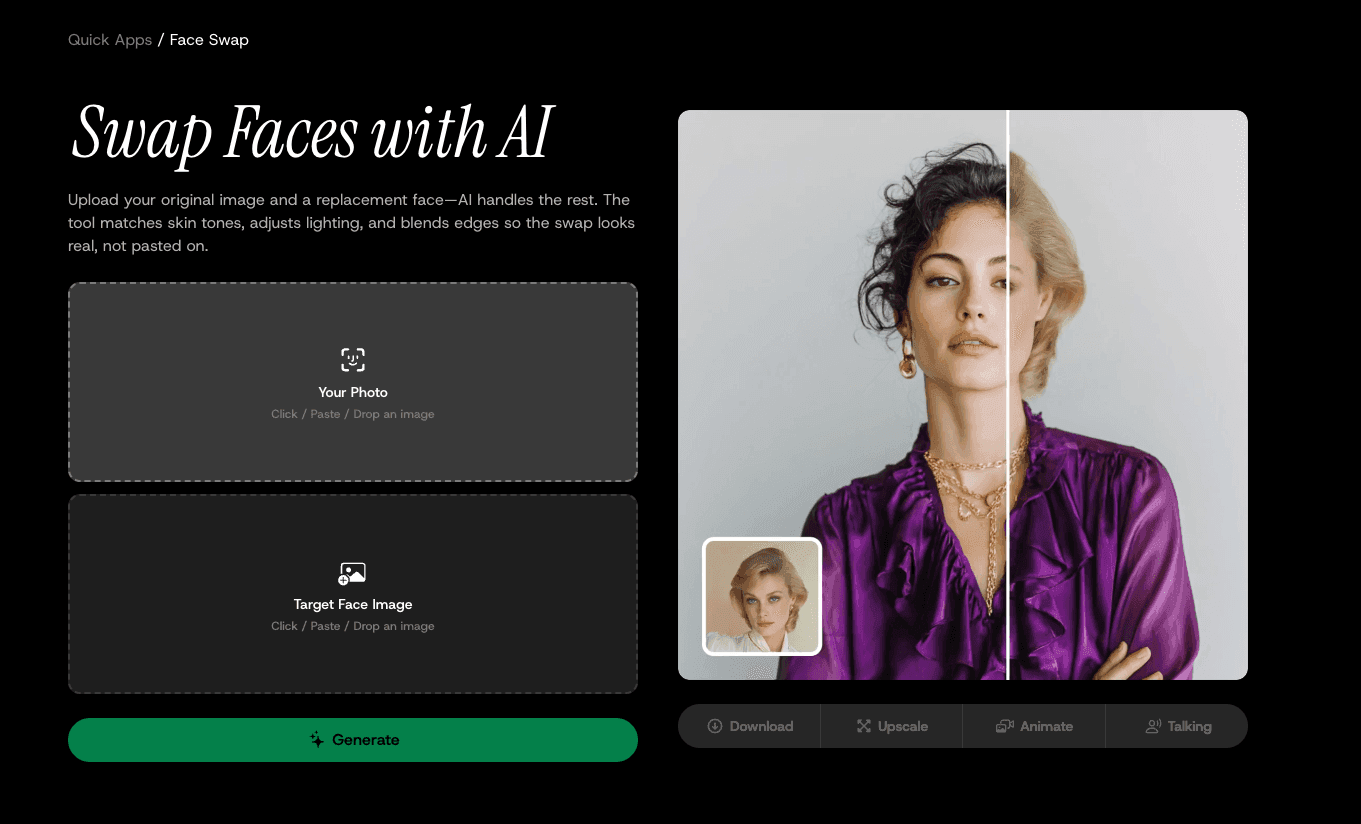
This is the tool I keep coming back to. Not because the face swap is wildly different from competitors — most AI face swaps look similar at this point — but because of what happens after the swap.
DomoAI's Face Swap lives inside Nano Banana Pro. After swapping, you can adjust colors, remove backgrounds, touch up details, or apply other edits with text prompts. That alone saves time. But the real advantage is the pipeline: from the face swap result, you can go directly to talking avatar, image-to-video animation, 50+ style transfers, or 4K upscaling — without downloading, re-uploading, or opening another app.
Action buttons sit right beneath your face swap result: Download, Upscale, Animate, Talking. That's four next steps from one output.
What it costs: Free credits for new users. Paid plans start at $9.99/month. Standard plan ($27.99/month) includes Relax Mode for unlimited generations.
Best for: Creators who want to swap a face and then do something with it — animate it, make it talk, restyle it to anime, or upscale for YouTube.
Reface — Best for Quick Mobile Swaps
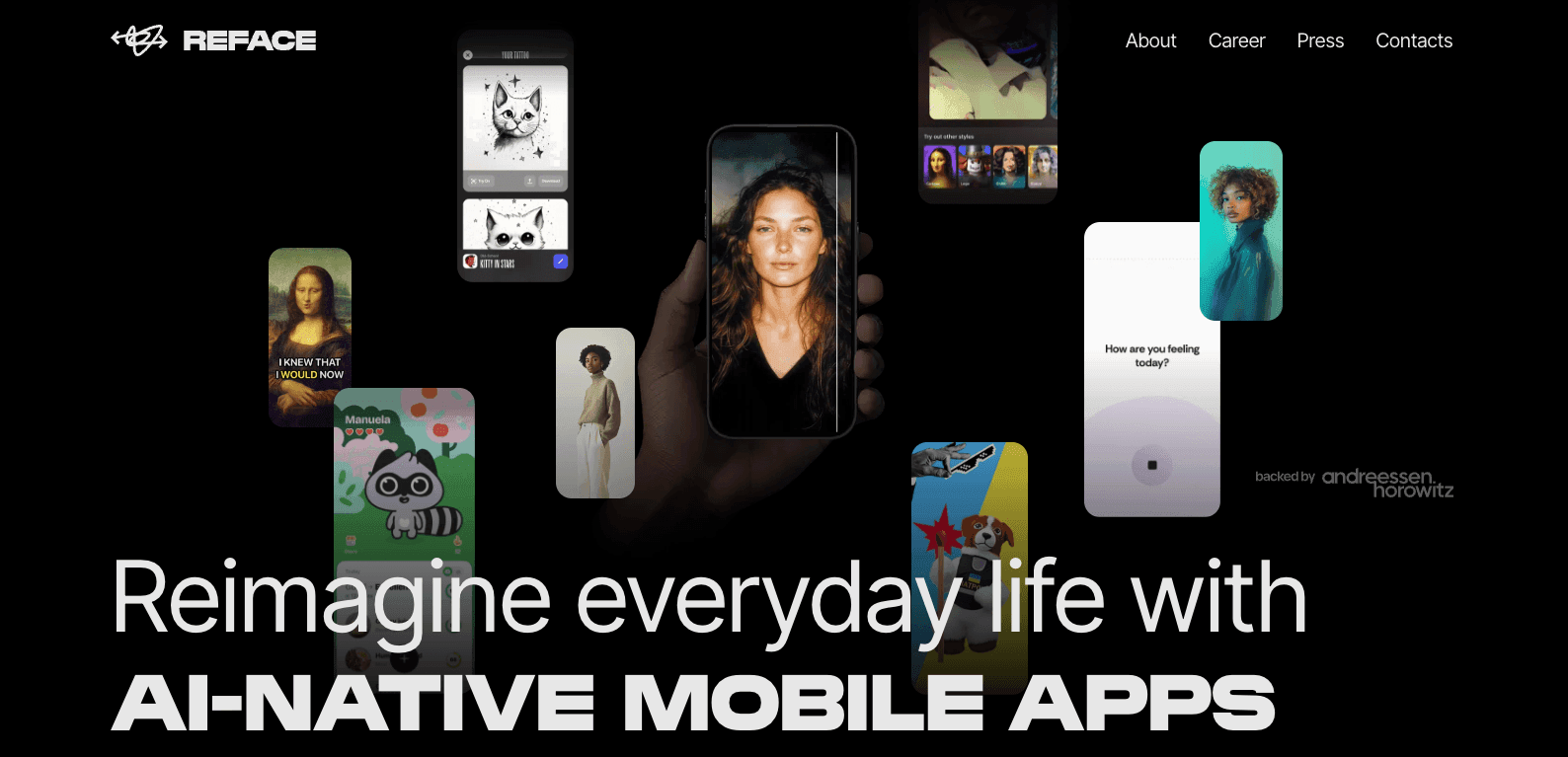
Reface built its reputation on speed and templates. The app has 100M+ downloads and a massive library of pre-made movie scenes, music videos, and memes you can swap into. Upload a selfie, pick a template, and you're done in seconds.
I reach for Reface when I need something fast for Instagram Stories or group chats — it's built for casual sharing, not production. The trade-off is clear: you get speed and convenience but no animation pipeline, no style transfer, no talking avatars, and no upscaling.
What it costs: Free with watermark. Pro from $2.49/week (~$10/month).
Best for: Casual users who want quick, shareable face swaps on mobile.
InsightFace / Picsi.AI — Best for Batch Processing
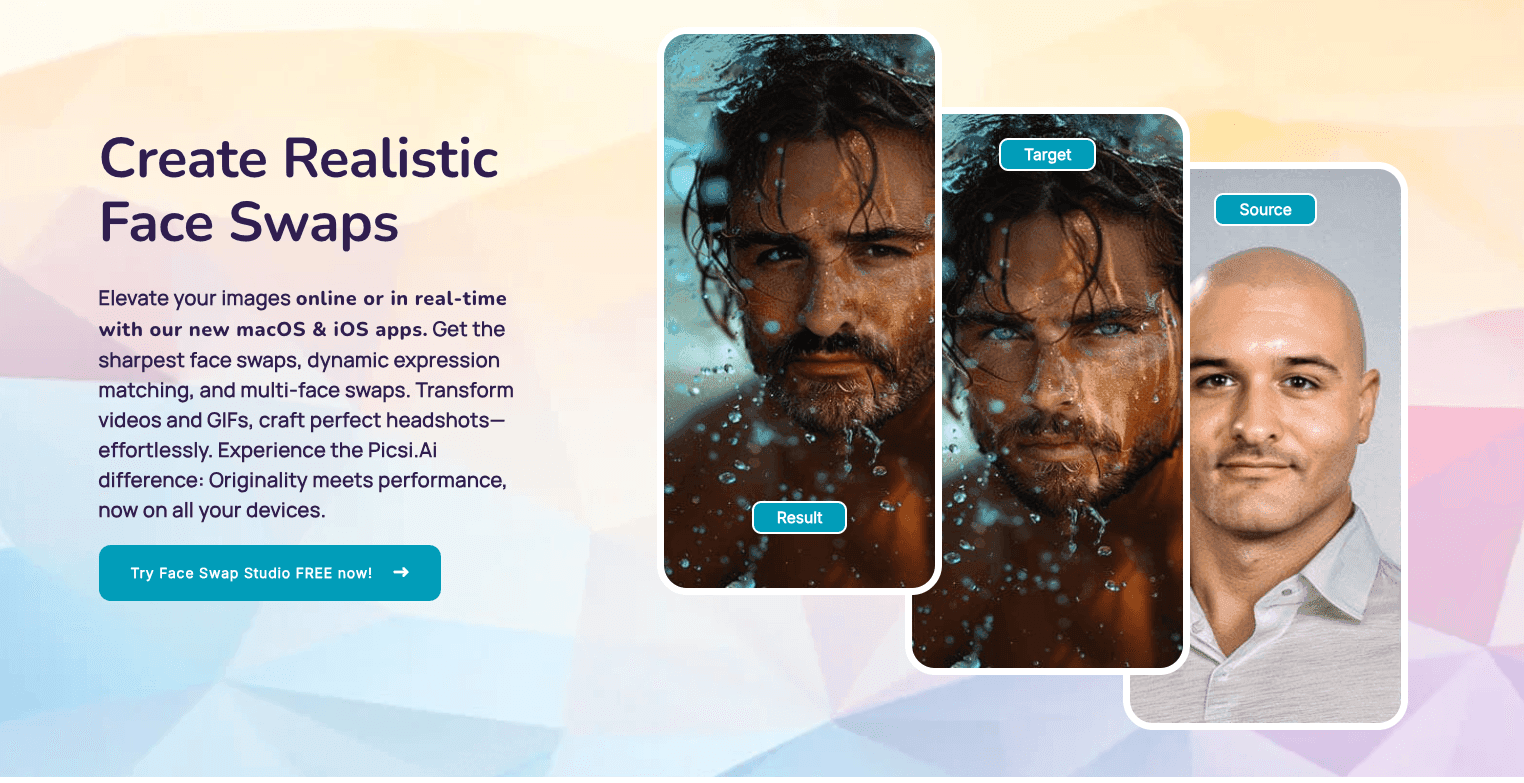
When I need to process dozens (or hundreds) of face swaps for a campaign, InsightFace is the tool I use. It offers API integration and consistent quality at scale. The learning curve is steeper — it took me about a week to get comfortable with the advanced controls — but the precision and batch capability are worth it for professional work.
What it costs: Free open-source version available. API pricing varies.
Best for: Developers, agencies, and anyone processing face swaps in bulk.
Step-by-Step: Face Swap, Then Make It Talk
This is the core workflow. Each step builds on the last, and everything happens inside DomoAI without switching tools.
What You Need Before Starting
- A base photo — the image where you want to replace the face. Front-facing, well-lit, at least 512×512 pixels.
- A target face image — the face you want to swap in. Same rules: clear, front-facing, good resolution.
- Audio (optional) — for the talking avatar step. A voice recording (MP3, WAV, M4A up to 80MB) or a script for text-to-speech.
- A DomoAI account — free tier gives you credits to test the full pipeline.
Part 1: Swap the Face
Open the Face Swap AI Generator.
Upload your base photo. Drop it into the "Your Photo" zone. This is the image where the face gets replaced.
Upload the target face. Drop it into the "Target Face Image" zone. This is the face you want to use.
Click Generate. The AI maps facial landmarks between both images, matches skin tone, adjusts lighting, and blends edges. Processing takes under 10 seconds.
Review and decide your next step. Below your result, you'll see four buttons: Download, Upscale, Animate, and Talking. You can grab the image now or keep building.
Tips That Actually Make a Difference
These aren't generic advice — they're the things I wish someone had told me when I started:
- Match the angle between photos. A front-facing source paired with a side-profile target creates awkward distortion. Keep both photos at similar head angles.
- Lighting consistency matters more than resolution. An outdoor-lit source + flash-lit target = visible mismatch. Similar lighting conditions beat higher pixel counts every time.
- Stick to real photos. Face swap works best with photographs. Illustrated, cartoon, or heavily stylized faces produce inconsistent results. For anime-style output, do the swap first on real photos, then apply style transfer afterward.
- Generate multiple versions. I always run 2–3 swaps and pick the best one. Small variations in the AI's processing can produce noticeably different results.
- Save your originals. Always keep unedited copies. You'll want them when you come back to try new styles or animations later.
Part 2: Make the Face Swap Talk
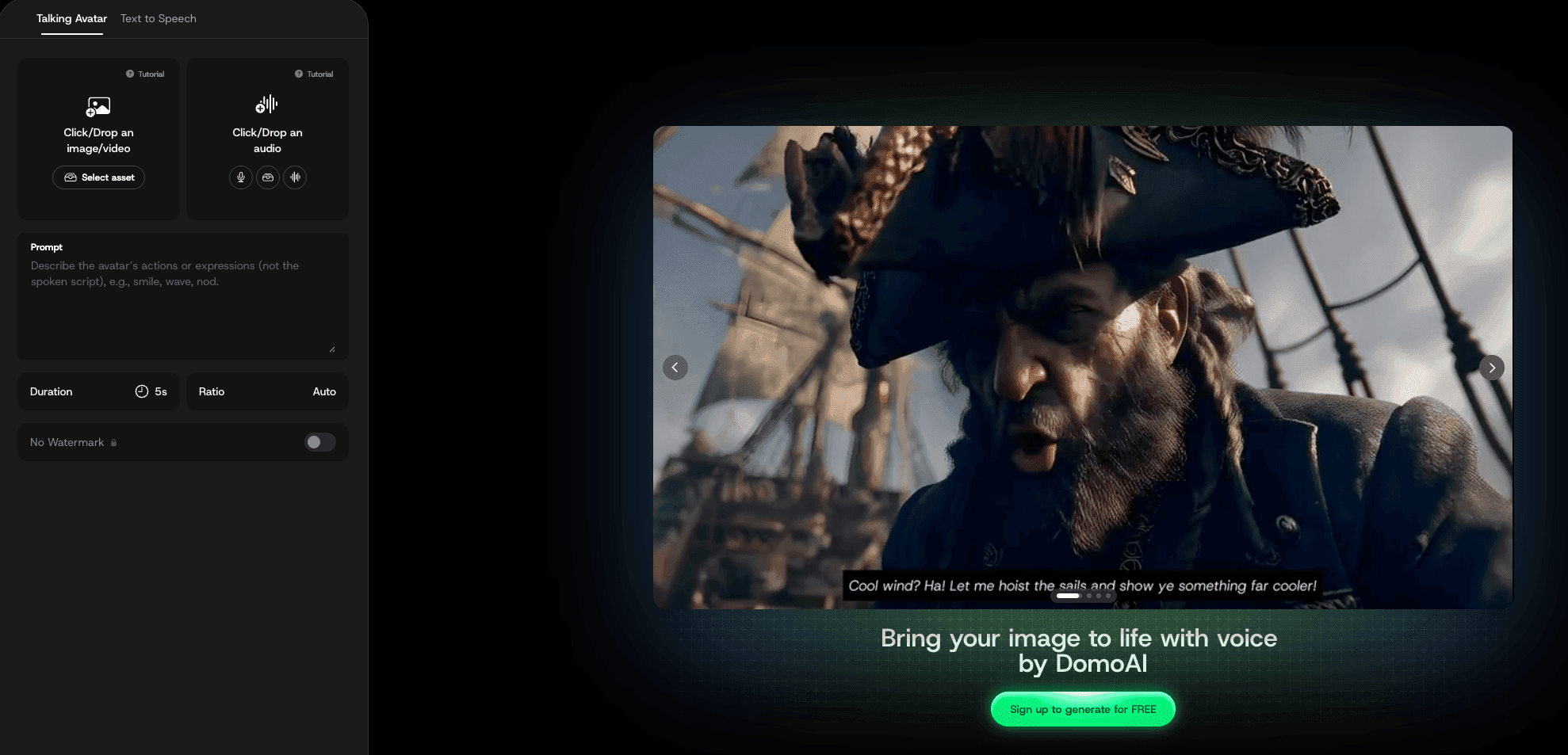
This is the step most face swap tools can't do. Click the "Talking" button beneath your face swap result. This sends the image directly to DomoAI's AI Talking Photo Generator — no download and re-upload needed.
Choose Your Audio Input
Option A — Upload your own voice. Record a voice clip or use existing audio. Supported formats: MP3, WAV, M4A (up to 80MB). Best when you want a specific voice, accent, or tone.
Option B — Use text-to-speech. Type your script and let AI generate the voice. Choose from male, female, and character voice types with 6 emotion settings and 6 tonal variations. "Professional narrator" works for explainers; "playful character" works for social content.
Generate and Review
Click generate. The AI animates the face with realistic mouth movements synced to your audio. It doesn't just move the mouth — it adds micro-expressions, subtle eyebrow raises, and natural head movement.
Processing time: a 5-second clip takes about 60 seconds. Longer videos (up to 60 seconds of audio) may take 10–15 minutes during peak hours. Output is 1080p.
My timing tips for natural results:
- Keep clips under 30 seconds for the cleanest lip sync
- Clear audio without background noise produces tighter sync
- Match the speaking pace to the character — a face-swapped grandma shouldn't sound like a fast-talking podcaster
- Neutral or slightly smiling expressions in the source photo work best; extreme expressions can break the illusion
Part 3: Animate the Photo (Alternative Path)
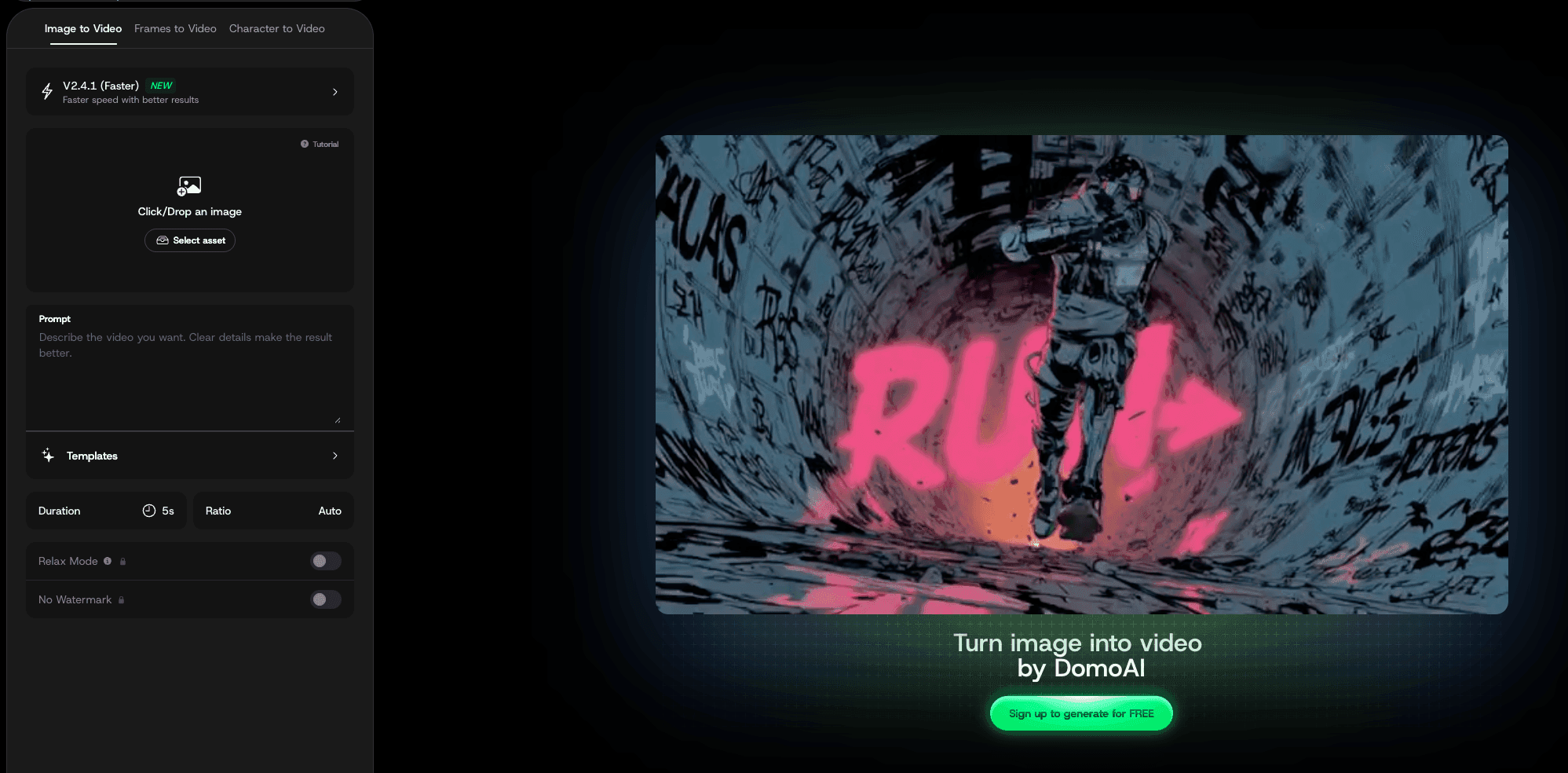
Not every project needs speech. Sometimes you just want the face-swapped photo to move — a head turn, a smile, a glance to the side.
Click "Animate" instead of "Talking." This sends your image to DomoAI's Image to Video tool.
Add a short text prompt to describe the motion:
- "The person turns their head slowly and smiles"
- "Wind blows through hair, natural lighting"
- "The character looks to the left, then back to camera"
The AI generates a 5–10 second video with smooth, natural motion. The face swap identity stays consistent throughout — no warping or drift.
A face-swapped photo that moves stops scrolling faster than a static image. For TikTok and Reels, this is the difference between a post that gets viewed and one that gets shared.
Part 4: Apply Style Transfer (Optional)
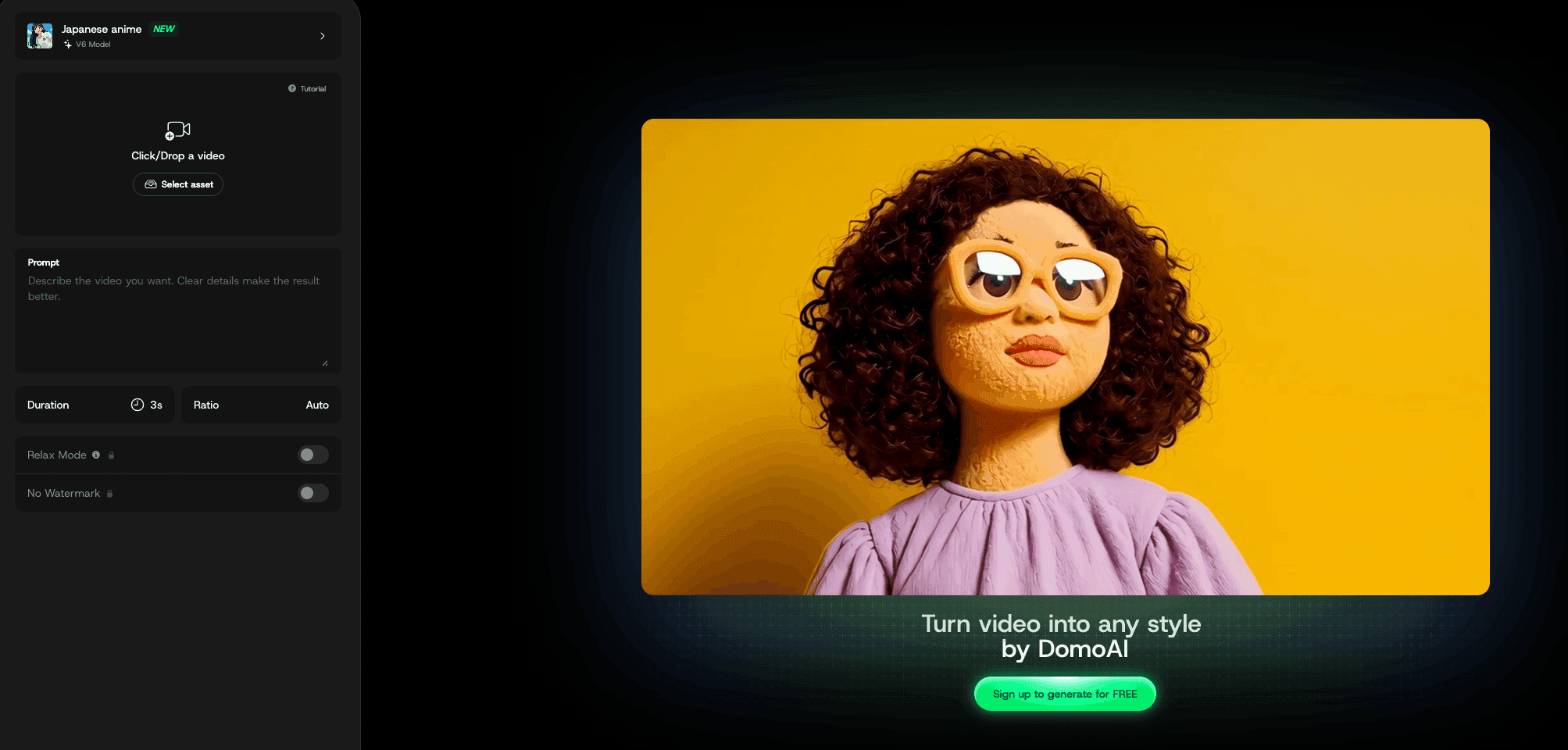
This is where things get creative. Your face-swapped video — whether it's a talking avatar or an animated clip — can be transformed into a completely different visual style.
Use Video to Video Style Transfer with 50+ styles available:
- Japanese anime — clean lines, expressive eyes, vibrant color
- Ghibli-inspired — soft, painterly, nostalgic warmth
- Cinematic realistic — film grain, dramatic lighting, movie-poster feel
- Pixel art — retro gaming aesthetic
- Ukiyo-e — traditional Japanese woodblock print style
Upload your video, pick a style (or upload a reference image), and generate. The AI transforms the visuals while keeping the original motion and lip sync intact. Your talking avatar stays in sync; your animation keeps its timing.
I find this step especially useful for creators who want a consistent visual identity. Apply the same anime style across all your face swap content, and your feed looks cohesive instead of random.
Part 5: Upscale to 4K
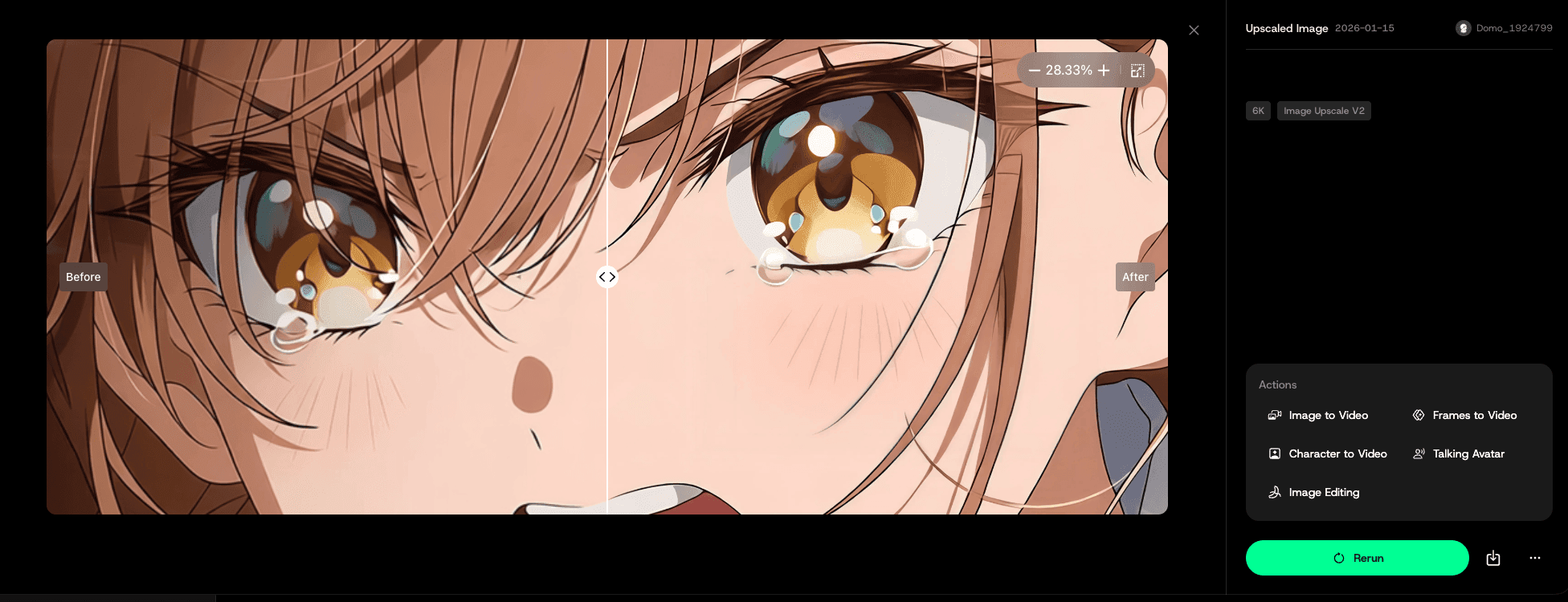
If you're posting to YouTube or using the video on a larger screen, run the final output through the Video Upscaler. DomoAI enhances resolution up to 4K without adding artifacts.
This step is especially helpful after style transfer, which can soften fine details during conversion. The upscaler sharpens everything back without losing the stylistic look.
For still images, use the AI Image Upscaler instead — same concept, optimized for photos.
The Complete Workflow at a Glance
Here's how all five steps connect:
| Step | What Happens | DomoAI Tool |
|---|---|---|
| 1. Face Swap | Replace face in photo | Face Swap AI Generator |
| 2a. Make It Talk | Add lip-synced speech | AI Talking Photo Generator |
| 2b. Animate It | Add natural movement | Image to Video |
| 3. Style Transfer | Convert to anime, Ghibli, cinematic, etc. | Video to Video Style Transfer |
| 4. Upscale | Enhance to 4K | Video Upscaler |
With standalone face swap tools, you get step 1. Then you export, open a different app for animation, another for lip sync, another for style transfer, another for upscaling. Each has its own subscription, learning curve, and upload limits.
DomoAI handles all five steps without leaving the platform. The face swap result feeds directly into every other tool through the action buttons beneath your output.
Creative Ideas That Get Results
These are content formats I've tested that consistently perform well:
Historical Figures, Modern Settings
Swap Einstein into a coffee shop. Have Napoleon review a French restaurant. Make Shakespeare react to modern slang. These combine education with entertainment and tend to get shared beyond your usual audience. The talking avatar feature makes this format hit harder — a still image of "Einstein at Starbucks" is funny, but Einstein ordering a latte with his own voice is content people send to friends.
Play Every Character Yourself
Face swap lets you play multiple characters in a single piece of content. Swap your face onto different bodies, generate separate talking clips for each "character," and edit them into a conversation. No actors, no scheduling, no complex setups.
Brand Mascots That Speak
I've seen small businesses create talking mascot characters using face swap + talking avatar. A local bakery turned a croissant illustration into a speaking character for their Instagram. It sounds silly, but animated brand characters get attention in a feed full of static product photos.
Music Videos on a Zero Budget
Generate music in Suno, create vocals in ElevenLabs, face swap your character onto a portrait, then sync lips with DomoAI's talking avatar. Apply anime style transfer for visual identity. The entire pipeline — writing, recording, visuals, lip sync, styling — costs less than a single hour of traditional studio time.
Memes That Move
Static memes are everywhere. A face-swapped meme that talks and moves stands out in a feed. Swap a face, add a 5-second voice line, export as a short video, and post. The extra effort is minimal; the engagement difference is noticeable.
Advanced Techniques for Better Results
Matching Skin Tones and Lighting Post-Swap
This was my biggest challenge early on. The face swap handles most blending automatically, but sometimes the result needs refinement:
- Use Nano Banana Pro's color correction after the swap — adjust highlights and shadows separately
- Add a subtle blur to edges where blending looks sharp
- Apply a unified color grade to the entire image so the face and background feel cohesive
- If you're doing multiple face swaps in a series, save your color adjustments as a workflow template for consistency
Creating Consistent Results Across Multiple Photos
If you're building a content series (say, "Historical Figures Review Modern Food"), you need consistency across posts:
- Use the same lighting setup for all source photos
- Keep angles and distance similar
- Apply identical style transfer settings to every video
- Process in batches using the same prompts for animation
This consistency is what makes a series feel like a brand instead of a collection of random experiments.
Working Around Current Limits
Face swap currently works best with single-face photos. For group photos, process one face at a time, then composite the results in an editor. Multi-face support may come in future updates.
For video face swap (replacing faces in existing footage rather than animating a photo), use Character to Video instead. This tool swaps the entire character appearance while preserving motion from the source video — it's a different workflow than photo face swap.
Troubleshooting Common Problems
Unnatural Edges or Visible Seams
The fix: Your source images likely have very different lighting. Pre-edit both photos to similar brightness and color temperature before uploading. If seams persist, use Nano Banana Pro's editing tools to blur and blend the edges after the swap.
Blurry or Soft Results
The fix: Start with higher resolution images — 1024×1024 minimum for clean results. If the output still feels soft, run it through the AI Image Upscaler before animating or adding speech.
Lip Sync Feels Off
The fix: Check your audio quality. Background noise, music, and overlapping voices confuse the sync engine. Use clean, isolated speech. If you're using text-to-speech, slow the speaking rate slightly — faster speech compresses mouth movements and can look unnatural.
Style Transfer Changes the Face Too Much
The fix: Some styles (especially heavy anime or pixel art) alter facial features significantly. Try a less extreme style first, or apply style transfer to the background and body only while keeping the face closer to realistic.
Processing Takes Too Long
The fix: Peak hours affect processing speed. A 5-second talking avatar clip should take about 60 seconds. If it's taking longer, try generating during off-peak hours. Longer clips (30–60 seconds) naturally take more time — plan for 10–15 minutes.
Safety and Ethics
These aren't optional guidelines. Misusing face swap technology can cause real harm.
Always get consent. Never use someone's photo for face swap without their explicit permission. Even for jokes between friends, get approval before posting publicly. "I thought they'd find it funny" doesn't hold up when content goes viral in directions you didn't expect.
Disclose AI use. I always tag face-swapped content as AI-generated. Many platforms now require this, and audiences appreciate the transparency. Disclosure doesn't reduce engagement — it actually builds trust.
Content to avoid:
- Anything that could damage someone's reputation
- Political deepfakes or misleading news content
- Non-consensual intimate imagery
- Content targeting or involving minors
- Impersonation for fraud or deception
Legal context: Copyright laws still apply to swapped content. Commercial use requires proper licenses for any faces and voices used. Some jurisdictions have specific deepfake regulations. Platform policies vary — check the terms of service for each platform where you post.
How to spot AI-generated face swaps: Look for unnatural eye movements, inconsistent lighting between the face and neck, hair that doesn't move naturally at the edges, and audio that doesn't quite match lip movements. As the tools improve, these tells get subtler — which makes disclosure even more important.
What's Coming Next in Face Swap Technology
A few trends I'm watching closely:
Real-time face swapping for live streams. It's already possible in limited contexts. By late 2026, expect tools that handle live face swap at broadcast quality with minimal latency.
Voice cloning + face swap as a single step. Right now, you face swap a photo and then add speech separately. The next generation of tools will likely combine these — upload a face, type a script, and get a talking video in one click.
Multi-angle consistency. Current face swaps work best with front-facing photos. New models are learning to maintain face identity across different angles, which will open up more dynamic animation possibilities.
AI-native virtual influencers. Brands are already producing thousands of personalized ad variations using video-to-video style transfer. As face swap quality reaches photorealistic levels, virtual characters that exist only as AI-generated content will become standard in marketing.
The tools are mature enough to produce professional results today, but the technology is still evolving fast. Learning the workflow now — swap, animate, style, upscale — means you're ready when the next wave of features lands.
Frequently Asked Questions
Is AI face swapping legal?
Yes, for personal and creative use with proper consent. Commercial use may require additional licenses depending on your jurisdiction. Using face swap to impersonate, deceive, or create non-consensual content violates both platform terms and, in many places, the law.
How much does face swap technology cost?
You can start free. DomoAI gives new users free credits to test the full pipeline. Paid plans start at $9.99/month, and the Standard plan ($27.99/month) includes Relax Mode for unlimited generations. Reface starts around $2.49/week. InsightFace's open-source version is free.
Can people tell when a face has been swapped?
With good source images and proper technique, results are very realistic. But I always disclose when content is AI-generated — it's the right thing to do, and increasingly it's required by platforms and regulators.
What makes a good source photo for face swapping?
Clear lighting, front-facing angle, high resolution (at least 512×512 pixels), and minimal obstructions like sunglasses or hands near the face. Matching lighting conditions between the two photos matters more than matching resolution.
Can I use face swap for video content?
DomoAI's face swap tool works on still photos. For video face replacement, use Character to Video, which swaps the entire character appearance while preserving motion from the source video. For making a face-swapped photo move, use the Animate or Talking features — that's the workflow covered in this guide.
Can I create anime-style talking avatars?
Yes. Two approaches work: start with an anime portrait for the talking avatar, or create a realistic talking video first and apply anime style transfer using Video to Video. Both keep the lip sync intact.
What's the maximum video length for talking avatars?
Audio files up to 80MB are supported. A 5-second clip processes in about 60 seconds. Videos up to 60 seconds work well, with longer clips taking 10–15 minutes during peak hours.
Is there a difference between face swap and deepfakes?
Face swap works on still images in seconds and requires just two photos. Deepfakes apply to video, require training on multiple images, and involve more complex processing. For most creative projects, face swap is simpler, faster, and sufficient.
Can I use face-swapped content commercially?
All content generated in DomoAI is available for commercial use. Make sure you have appropriate rights to any faces and voices used in your source material.
Which tool should a beginner start with?
DomoAI if you want the full pipeline (swap → talk → animate → style → upscale) in one place. Reface if you just want quick mobile face swaps for fun. The learning curve for both is minimal — you'll produce usable output on your first try.
Start Creating
The fastest way to learn this workflow is to try it. Open the Face Swap AI Generator, swap a face, and follow the action buttons to talking avatar, animation, or style transfer.
You don't need to plan the full pipeline in advance. Each step presents the next option naturally. Swap a face. See the result. Decide if you want it to talk, move, change style, or just download it as-is.
That flexibility — starting simple and adding layers only when you want them — is the difference between a face swap tool and a creative platform.


