

In recent years, advances in generative AI have dramatically lowered the barrier to video production, ushering in an era when anyone can easily create animated videos.
Hello, I’m Ny@Tech, pronounced NyaTech.
I originally spent many years working in web marketing. Around 2024, I became interested in the possibilities of generative AI and began working with image-generation AI, AI music tools, and AI video generation.
I am currently exploring workflows for creating AI music videos.
In September 2025, in an event symbolizing AI’s progress, OpenAI, the developer of ChatGPT, announced its latest video-generation model, Sora 2.
Meta, Google, and others have also been releasing video-generation tools one after another, making video generation a new arena of competition in the AI industry.
Among them, DomoAI is attracting particular attention for generating high-quality animated footage in just a few minutes.
DomoAI is a next-generation AI video tool developed by a Singaporean company in 2023. It lets users create professional-looking footage in minutes without specialist skills.
Generative AI, including DomoAI, has made it possible for anyone to create high-quality music videos.
In this article, I draw on my web-marketing background to explain the steps and tips for producing a music video with AI tools, in a way beginners can easily understand.
Creating with AI: The Music Video Production Workflow
Let’s look at the process of making a music video with generative AI.
Music video production can be organized into four main steps.
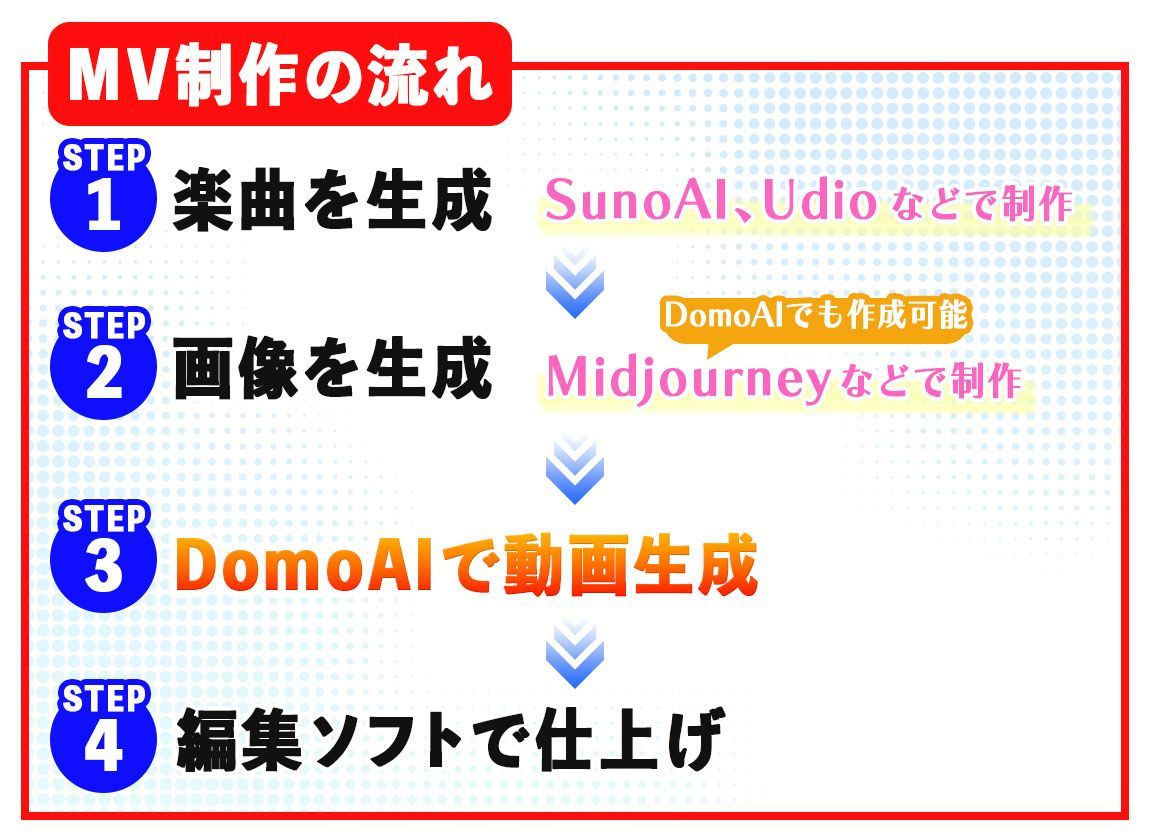
1. Create the Music
First, prepare the music that will form the basis of the video.
If you already have a recording of your own composition, you can use it, but many people probably do not have an original song.
In that case, an AI composition tool can create an original song in just a few minutes.
For example, Suno can generate emotionally expressive music simply from lyrics and a genre.
2. Prepare Image Assets: Collect Material and Use Generative AI
Prepare images by photographing real scenery, props, and generally useful shots yourself or using asset sites such as Adobe Stock.
Generative AI can also broaden your creative range when making fantastical backgrounds and character visuals that establish the distinctive world and story of a music video.
For example, the following kinds of scenes work well with AI image-generation tools:
- Imaginary backgrounds that match the world of the lyrics.
- Anime characters who could play the lead in the story.
- Abstract shots used to establish the atmosphere, such as particles of light or compressed spaces.
Midjourney, Stable Diffusion, or DomoAI’s Text to Image feature can turn these visuals into a world that fits the lyrics.
3. Generate Video: Turn the Images into Footage with AI
Use DomoAI to generate video clips from the image assets you have prepared.
DomoAI’s Image to Video feature makes it easy to create footage by adding movement to still images.
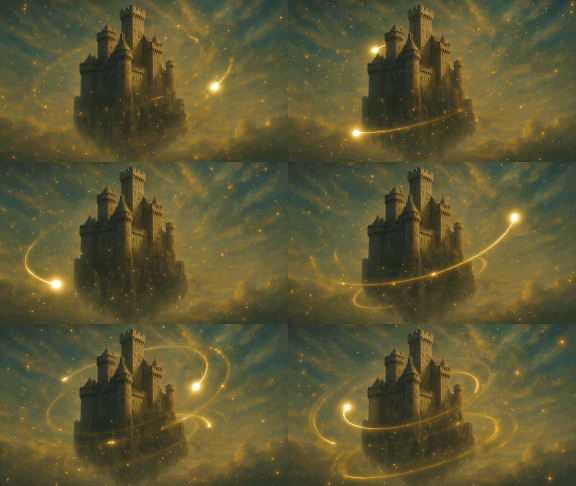
You can also use AI Avatar (Talking Avatar) to add lip sync to a character image and recreate movements that make the character look as though it is singing.
The basic music-video workflow is to generate multiple shots for different sections of the song and use the appropriate footage for each scene.
4. Edit and Finish
Finally, join the generated clips together to finish the music video.
This does not require complicated operations. Use a video editor or app to work through steps like these:
- Import the music file.
- Place images and videos to match the timing of the song.
- Cut unnecessary sections.
- Add on-screen text and effects as needed.
Export the result, and you are done.
The following sections explain specific points that will help this workflow run smoothly.
The Assets and Image Concepts You Need for a Music Video
To keep production running smoothly, it is important to picture the shots you will need in advance and prepare suitable assets.
Having the following six types of material ready adds variety to the footage and reduces the number of decisions you face while making the video.
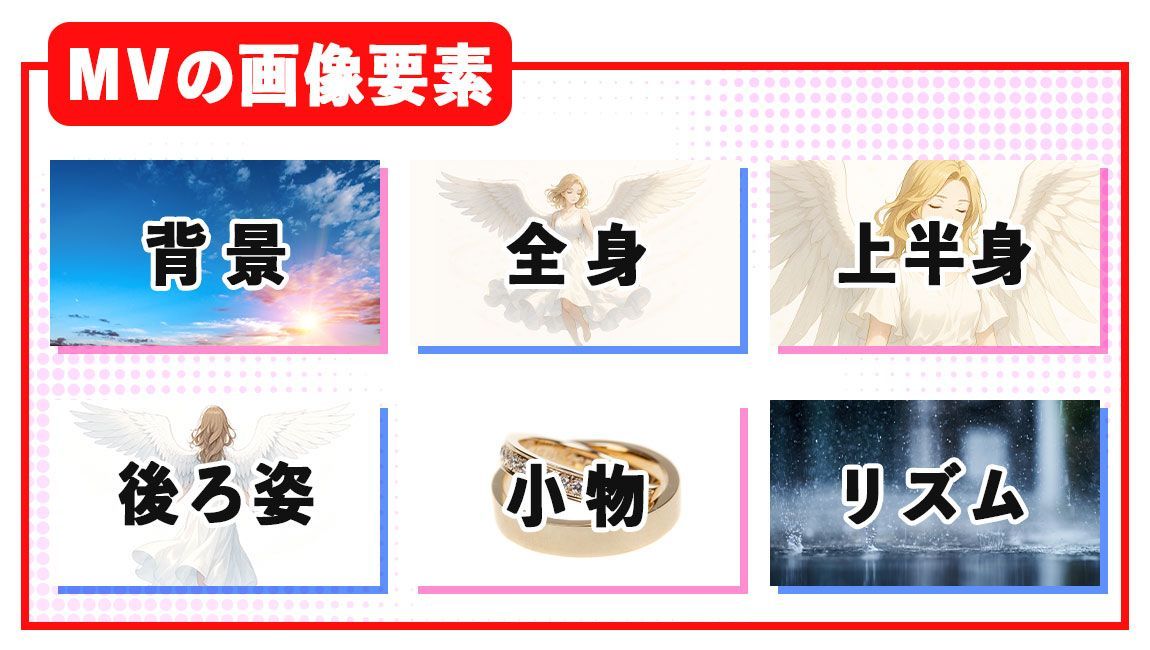
Backgrounds
These are landscapes and background images that form the basis for communicating the song’s world.
Choose locations that suit the lyrics and musical style, such as a beach at sunset, a city at night, a futuristic city, or outer space.
Full-Body Shots: Long Shots
These shots show a character or person from head to toe.
They work well in introductions and instrumental breaks, where you want to convey the atmosphere of the song.
Combining them with a background communicates whether the setting is a stage, a city, or a fantasy world, helping viewers imagine the central world of the music video.
Upper-Body Close-Ups: Bust Shots
These are close shots from the chest upward, or shots where facial expressions are easy to see.
During the chorus or other emotional moments, inserting an upper-body close-up focused on the character’s expression encourages viewers to connect emotionally.
Combining this with AI Avatar (Talking Avatar) also makes it possible to present the character as though they are really singing.
Rear Views
These shots capture the subject from behind.
A person’s back or silhouette from behind is effective for creating melancholy and a lingering impression.
Depending on the song, deliberately avoiding the face and inserting a shot from behind can add a sense of story.
Props: Detail Shots
Showing props related to the song or scene can encourage viewers to imagine the story.
For a theme of love, for example, showing symbolic items mentioned in the lyrics—a bouquet, ring, letter, or matching glasses—adds depth and contrast to the footage.
Shots That Visualize Rhythm
These are assets that help viewers visually feel the beat or rhythm of the music.
For example, shapes moving with the sound, flashing lights, and abstract particle animations can synchronize the visuals and audio to emphasize energy and groove.
Another technique is to layer thunder, a heartbeat, flashing traffic lights, a clock’s second hand, or an equalizer animation over the background.*
*An effect that visually displays the movement of music waveforms or frequencies, from low to high, as graphics.
Privacy Protection
When uploading images or audio files to AI services such as DomoAI, you might worry whether the data will be used without permission or shared with third parties.
However, DomoAI’s terms of use explicitly state that images and videos uploaded by users are not stored or shared for purposes other than AI processing.
*There is also a Ghost Mode feature that generates videos without retaining a history.
Preparing the types of assets described above makes transitions between scenes smoother and helps create a structure that keeps viewers interested.
Planning the scenes first, as explained next, also clarifies the types and number of assets you need, preventing unnecessary generations and repeated searches.
Preparation Before Production: Music Editing and Scene Planning
After preparing the assets, doing the planning work before generating footage makes production smoother.
At this stage, listen carefully to the music and plan which visuals will appear at which moments.
First, import the music into a video editor or app and add markers at the points where scenes should change, or divide the song into sections.
Then, following the lyrics and musical structure, color-code or note the desired scenes—for example, a background for this section and a character close-up here. This makes it easy to see which assets need to be generated or placed.
Timing scene changes to the audio waveform, such as beats or musical peaks, also gives the footage a natural tempo and a pleasant sense that the visuals are riding on the sound.
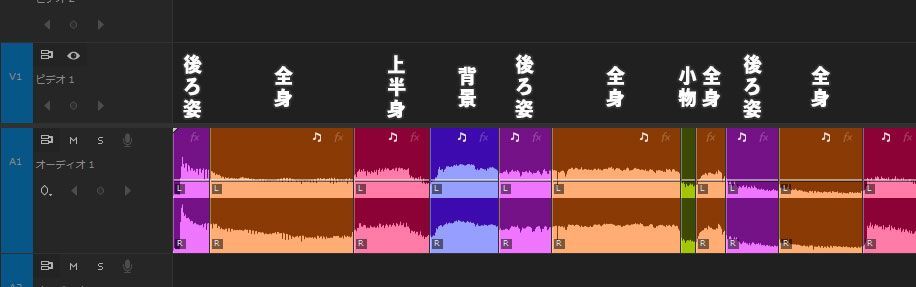
Example Visual Plans for a Music Video’s Structure
To make scene planning easier to picture, here are examples of which images and footage to use in different sections of a typical music video.
Scene Type
Visual Purpose and Use
Instrumental scenes: introduction and interlude
During the introduction and instrumental breaks, use landscape shots or visuals that express the rhythm to suggest the song’s atmosphere.
Verse and pre-chorus
Show the singer in full-body or upper-body close-up shots, with expressions that match the lyrics.
Chorus
As the musical peak, the chorus combines character close-ups with effects such as light particles and camera movement.
Outro and ending
Close with lingering images, such as a person seen from behind or a sunset.
Planning visuals by lyric and song section helps prevent missing assets and removes uncertainty later about which shot should go where.
Establishing the structure in advance also clarifies the list of shots to generate with AI, reducing unnecessary generations and making production more efficient.
An Introduction to DomoAI’s Basic Features
Now it is time to create the footage with DomoAI.
This section explains DomoAI’s basic features and how to use them for music videos.
DomoAI has many features, but the three main ones to understand for music-video production are styles and templates, AI Avatar (Talking Avatar), and screen keying (chroma key compositing).
Let’s look at each in detail.
Try a Variety of Visual Expressions with Styles and Templates
DomoAI lets you choose an appearance called a style or model.
There are more than 30 visual styles, including anime, realistic, oil painting, and 3D cartoon looks, which change the atmosphere of the generated result.
Style settings can be used with:
- Video to Video, which creates video from video.
- Text to Image, which generates images from text.
These are the features that support choosing a style.
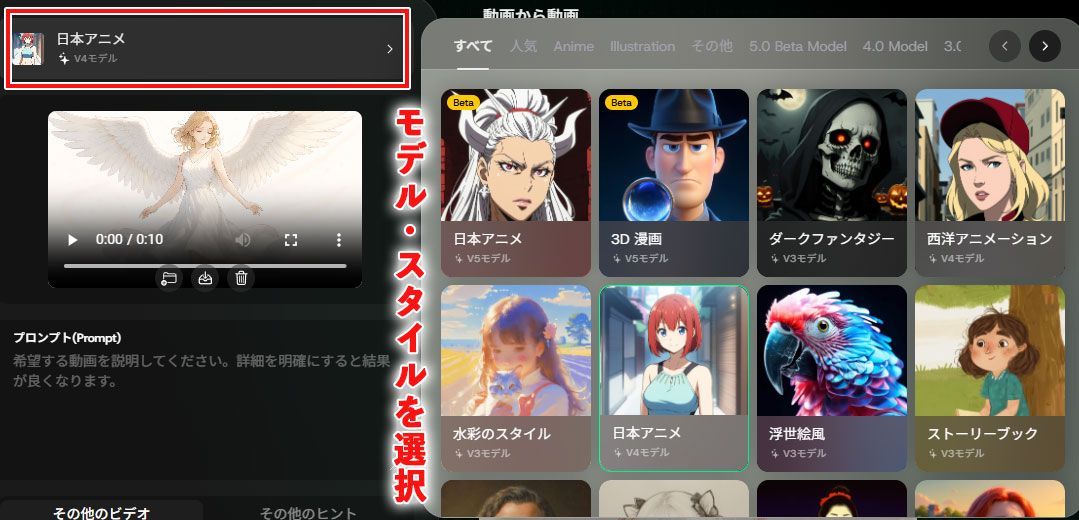
Selecting these styles lets you change the look of the footage to suit the song’s genre and atmosphere.
Try visuals that complement the music, such as Japanese anime for J-pop or watercolor and oil-painting styles for a gentle ballad.
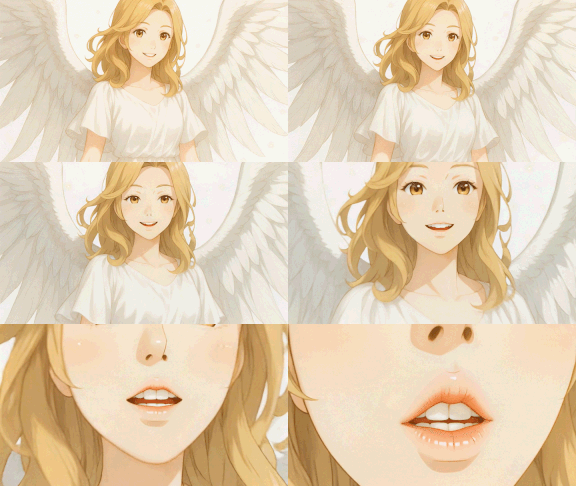
Make a Character Sing with AI Avatar (Talking Avatar)
The next feature is AI Avatar (Talking Avatar).
This popular DomoAI feature adds mouth movements, or lip sync, and changes in expression to a character in a still image, making it appear to speak or sing.
For example, upload an illustration or photo of your character and a vocal track generated with Suno or another tool to create footage that looks as though the character is singing.
The operation is simple:
- Select AI Avatar (Talking Avatar) from the menu.
- Upload the image you want to animate on the left and the audio you want it to sing on the right.
That is all you need to do.
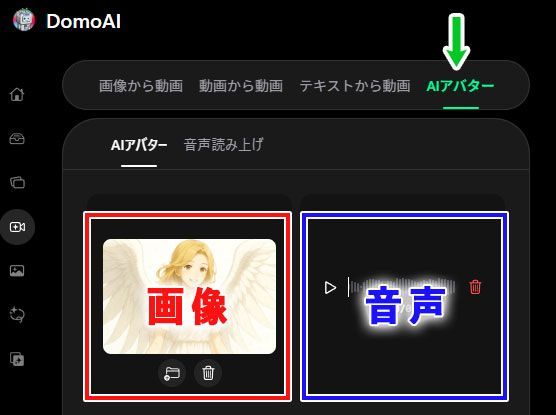
One important point is to upload audio containing only the vocals.
If instruments are mixed into the audio, lip sync may react to the accompaniment as well, producing unintended mouth movements.
Adding emotional instructions such as “smile” or “sorrow” to the prompt can also add changes in expression to the lip sync.


This feature can bring the characters in your music video to life and create performances that draw viewers in.
Freely Combine Footage with Screen Keying
Screen keying, generally called chroma key compositing, makes a specific background color transparent afterward so that it can be replaced with another background or video.
For example, when generating a singing character with the AI Avatar (Talking Avatar) feature introduced earlier, setting the background to green or another solid color lets you combine it with different background footage later.
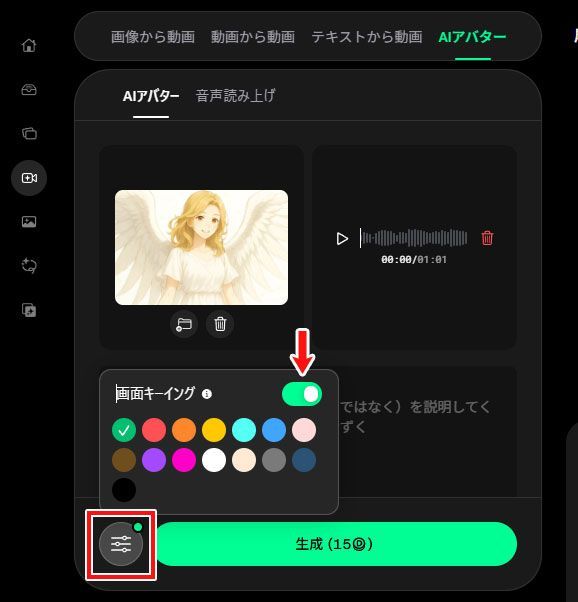
To use it, turn on the “Screen Keying” toggle when generating the character video in DomoAI, then select the background color, usually green.
DomoAI | Screen Keying Feature
Import the image or video you want as the background into a video editor. Place the green-background character video above it and remove the green with chroma key compositing. This produces a composite in which the character blends into the background.
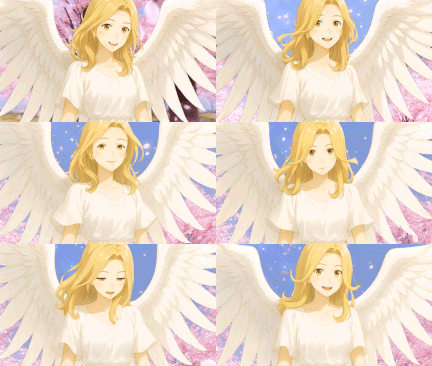
Using chroma key in this way also lets you combine separately generated AI videos into a single scene.
It is a technique whose possibilities grow with your creativity, so give it a try.
Templates That Add Movement to Footage
Camera work, including movement and angles, is an important part of making footage appealing.
Live-action filming creates a sense of presence by moving the camera. In DomoAI, templates and carefully written prompts can add movement to characters and backgrounds.
For example, Image to Video templates let you select movements such as zooming in or craning upward, as well as actions such as kisses and hugs.
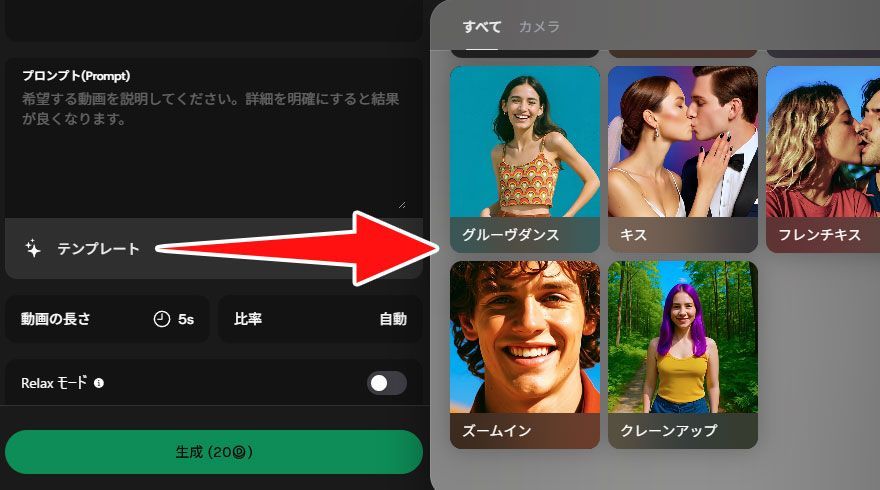
Because these are created as moving footage during generation, the perspective of the subject and background is calculated naturally, giving a sense of depth like a filmed video.
Examples of Camera-Movement Instructions in Prompts
Including camera-work instructions in a prompt can help AI interpret your intention and reflect it as a moving viewpoint in the footage.
Here are some examples of camera-work instructions to help you write prompts.
| Prompt | Explanation | Example Combination |
|---|---|---|
| zoom in | Zoom in toward the subject. | slow zoom in on the character’s face |
| zoom out | Zoom out to show the whole scene. | fast zoom out to show the cityscape |
| pan left | Move left. | smooth pan left across the room |
| pan right | Move right. | pan right to reveal another character |
| tilt up | Tilt the camera upward. | tilt up from the ground to the sky |
| tilt down | Tilt the camera downward. | tilt down to focus on the object |
| dolly in | Move the camera itself forward toward the subject. | dolly in towards the door dramatically |
| dolly out | Move the camera backward away from the subject. | slow dolly out to reveal the landscape |
| tracking shot | Follow parallel to the subject. | tracking shot following the runner |
| follow shot | A viewpoint that follows the subject. | follow shot behind the car |
| crane up | Rise as though on a crane. | crane up to reveal the crowd |
| crane down | Descend as though on a crane. | crane down to show the details |
| bird’s-eye view | A view directly from above. | bird’s-eye view of the battlefield |
| 360-degree move | Rotate through a full 360 degrees. | smooth 360-degree move around the character |
| handheld shaky cam | Shaking like a handheld camera. | handheld shaky cam during the chase |
| steadycam shot | Stable, smooth movement. | steadycam shot walking through the hallway |
| rack focus | Shift focus from the foreground to the background. | rack focus from the flower to the person |
| slow motion camera move | Movement resembling slow motion. | slow motion camera move during the fight |
How a prompt’s camera-work instructions appear varies greatly depending on the composition and subject of the source image.
If the movement is not what you intended, try changing the image itself or gradually adjusting the wording of the prompt.
The Standard Plan and higher include Relax mode, which lets you run generation tests repeatedly without consuming credits. Experiment to create your ideal music-video scenes.
Copyright and Ethics in AI Video Production
So far, we have looked at methods for creating images and video with AI, but there are important points you must always keep in mind.
These are copyright and ethics, including fake content.
Copyright
The copyright in videos and images generated with DomoAI generally belongs to the user who generated them.
That means you can also use content you make with AI commercially.
However, there is an important point to watch: the material you feed into the AI.
- Using images of well-known anime characters without permission.
- Taking photos of celebrities without permission and feeding them into AI for training.
- Using trademarks or brand elements without permission.
These actions infringe copyright, portrait rights, or trademark rights and are also prohibited by the terms of use.
Ethics: Fake Content
As AI video technology advances, cases of malicious use of fake videos, or deepfakes, are increasing worldwide.
Reports from different countries include making real people say words they never said or creating footage of events that never happened for use in fraud.
In particular, I believe generating and spreading false news footage with AI to deliberately deceive people is malicious information manipulation disguised as creativity and should never be tolerated.
If a video could mislead viewers, I believe a responsible creator should add a clear statement such as “This video was synthesized using AI.”
Conclusion
Music-video production once required specialist knowledge, but generative AI tools such as Suno, Midjourney, and DomoAI have dramatically lowered the barrier.
We now live in an era when anyone can compose their own music, combine it with original footage, and share it.
Take this opportunity to try creating a music video with AI.
The key to avoiding discouragement is to start with a simple structure without overthinking it.


