

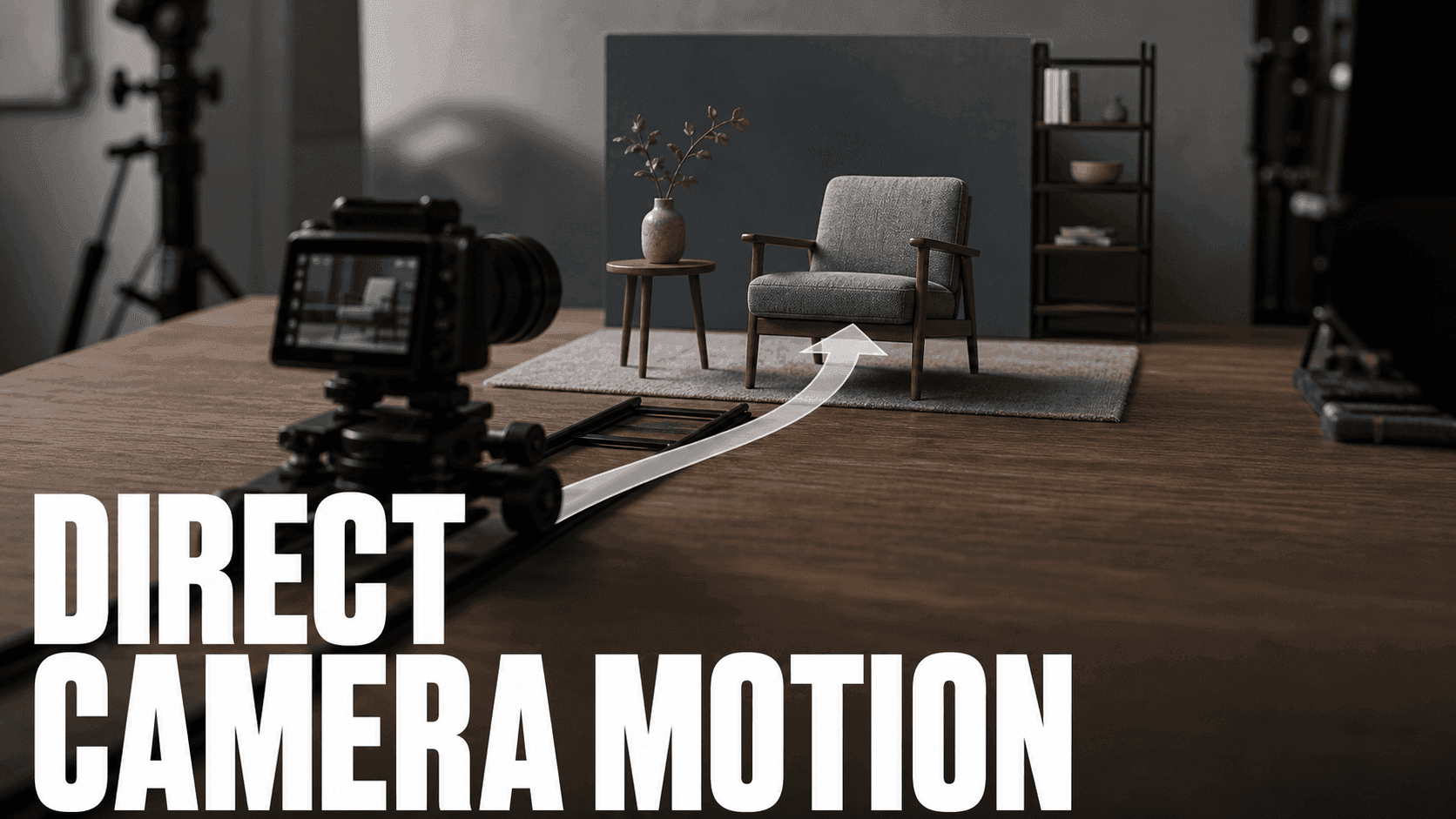
Direct AI video camera motion by choosing the control method before writing the prompt. I use Image to Video for one simple move, Frames to Video when the ending composition matters, and Character to Video when performance matters more than the lens. Sometimes the right move is no move.
Camera prompts fail when they mix too many jobs. "Make it cinematic" does not tell the model where the camera starts, where it moves, or what should stay stable.
Start With One Camera Intention Per Shot
For a simple clip, start with one camera move: a push-in, side track, crane up, orbit, handheld drift, or locked camera. This remains the most reliable way to test subject stability.
Seedance 2.0 can also direct timed multi-shot beats inside one 4–15 second generation. Give each beat one clear camera intention, for example: CAM 1 (0–3s): locked establishing shot; CAM 2 (3–7s): slow push-in; CAM 3 (7–11s): close-up detail. If endpoint composition matters more than timing, use Frames to Video.
Use Camera Prompts For Simple Motion
Use a camera prompt when the shot has one clear move:
- Slow push-in.
- Side tracking shot.
- Locked-off shot.
- Crane up.
- Orbit around product.
- Handheld-style drift.
Prompt example:
Image-to-video, 5s, 16:9. Use the uploaded character still as the first frame. Camera starts in a medium shot at chest height and slowly pushes toward a close-up. Character remains centered, face front-facing, background softly blurs, warm side light stays from the left. No camera shake, no subject drift, no face deformation.
Use Image to Video with Seedance 2.0 when one strong still should become a moving shot with cinematic motion.
Use Keyframes For Planned Start And End Points
Use Frames to Video when the shot needs to move between specific compositions.
Good use cases:
- Wide shot to close-up.
- Product before/after.
- Character enters a new pose.
- Storyboard panel to storyboard panel.
- Location reveal.
The keyframes do the structural work. The prompt explains the motion between them.
Use Reference Motion For Performance
Use reference motion when the movement matters more than the camera:
- Dance.
- Walk cycle.
- Gesture.
- Athletic move.
- Mascot performance.
Use Character to Video when you want to preserve movement from a reference video while changing the character.
Lock The Camera When Stability Matters
Not every shot needs motion. Lock the camera when the subject is already doing enough.
Use locked shots for talking avatars, product detail frames, quiet emotional beats, and scenes where the background must stay stable.
Camera Language That Actually Helps
Use camera terms that describe position and direction, not taste.
Weak:
Make it cinematic with dynamic movement.
Better:
Image-to-video, 5s, 16:9. Use the uploaded still as the first frame. Camera starts at waist height about three feet in front of the character, then slowly pushes toward a chest-up close-up. Character remains centered and front-facing. Background window stays on the left, lighting direction stays consistent. No camera shake, no subject drift, no face deformation.
The second prompt tells the model:
- Where the camera starts.
- Where it moves.
- What remains stable.
- What not to do.
Add positive constraints before negative ones. For example: "product label stays centered," "window remains on the left," or "character face remains front-facing." Those instructions tell the model what to preserve, not only what to avoid.
Match The Move To The Scene
Use a push-in when the emotion matters. Use a side track when the character or product moves across space. Use a crane-up when the reveal is vertical. Use an orbit only when the subject is simple enough to survive the rotation.
For product shots, avoid orbiting too far. Labels and packaging can deform if the model has to invent the unseen side. A small side drift often works better.
For anime or character shots, keep the face visible. Extreme camera changes can alter the identity.
If you need to compare motion methods before choosing a tool, Best AI Video Tool by Workflow is a useful companion. When the camera move belongs to a planned production board, AI Storyboard Generator is the scenario anchor. For action examples, Epic Chase Scene shows why camera direction, subject motion, and shot purpose should be planned together. For longer narrative projects, Filmmaker Solution fits multi-shot planning.
Use a Camera Complexity Budget
My first draft gets one camera action, one subject action, and one environment motion per beat. If I need more, I split the idea into timed CAM segments or a second clip.
[start framing] + [camera path] + [end framing] + [stability lock] + [avoid list]
Medium shot at eye level; slow arc right ending in a close-up; subject stays centered; label remains readable; no roll, no sudden zoom, no perspective flip.
| Failure signature | Likely overload | What I change first |
|---|---|---|
| Background parallax breaks | Camera path and environment motion compete | Lock the environment or reduce the path |
| Face identity changes | Move is too close or too complex | Widen the framing and simplify motion |
| Product label bends | Object rotates while camera also moves | Lock the product and move only the camera |
| Subject slides | Pose and camera path lack a clear anchor | Specify the start and end framing |
| Perspective flips | Prompt contains conflicting direction words | Keep one spatial direction |
Use the motion-control guide for more camera vocabulary and the AI storyboarding workflow when a sequence needs planned coverage. For quick, bounded motion references, compare the Crane Up template and Zoom In template before writing a longer custom prompt.
Camera Test Plan By Scene Type
Test camera motion with one small clip before building the full edit. A good test asks one question: can the subject stay stable while the camera performs one job?
| Scene type | First camera test | Pass condition |
|---|---|---|
| Product detail | Locked shot, then slow push-in | Label stays readable and product shape does not bend |
| Character emotion | Medium shot to close-up | Face, hair, and outfit stay recognizable |
| Room or set reveal | Doorway move-in or small crane up | Furniture keeps the same left/right layout |
| Action beat | Short side track or follow shot | Subject motion reads clearly without camera drift |
If the test fails, simplify the camera before changing the model or the whole prompt. Most camera problems come from asking for a move, a subject action, a style shift, and a set change in the same five seconds.
Prompt Blocks By Use Case
Product reveal:
Image-to-video, 5s, 9:16. Use the uploaded product still as the first frame. Camera starts locked at table height, then makes a slow push toward the product label. Product remains centered, label stays readable, soft light stays from the left, background stays blurred. No generated text, no fake logo, no product deformation.
Character emotion:
Image-to-video, 5s, 16:9. Use the uploaded character still as the first frame. Camera starts in a medium shot and slowly pushes to a close-up. Character face remains centered, hair moves slightly, warm light from the window stays consistent. No face drift, no extra characters, no abrupt camera jump.
Scene reveal:
Image-to-video, 5s, 16:9. Use the uploaded room still as the first frame. Camera begins behind the doorway and slowly moves into the room. Desk stays on the left, bed stays on the right, character remains near the center rug, warm light direction stays stable. No layout change, no new furniture, no generated text.
Use A Camera Shot List
Before generating, write the camera move in one line. A shot list keeps the prompt from turning into a pile of cinematic words.
Example shot list:
| Shot | Subject | Camera move | Stability lock |
|---|---|---|---|
| 1 | Product on table | Slow push-in | Product label stays centered |
| 2 | Character reaction | Medium shot to close-up | Face and hair stay the same |
| 3 | Room reveal | Doorway move-in | Desk left, bed right, window back |
| 4 | Outfit detail | Macro side drift | Fabric color and zipper unchanged |
Turn each row into a prompt. If a row has more than one camera move, split it into two clips. AI video usually handles one clear camera intention better than a long instruction with push, orbit, tilt, zoom, and rack focus all at once.
When To Use Frames To Video Instead
Camera prompts are useful when the subject can stay mostly the same. Use Frames to Video when the composition needs a planned start and end.
Choose the Frames to Video model by control type. Seedance 2.0 and Seedance 2.0 Fast use a start frame plus an end frame. DomoAI 2.4.1 supports 2–8 keyframes, per-segment motion prompts, and longer multi-frame sequences.
Choose Frames to Video for:
- A character walking from one pose into another.
- A product moving from package to final setup.
- A room changing from wide reveal to close-up detail.
- A trailer shot where the opening frame and ending frame both matter.
- A storyboard where the shot must hit a specific peak image.
For example, "camera moves from hallway into bedroom" may work as a prompt, but "START frame: hallway view, END frame: character sitting on bed near window" gives the model clearer boundaries. The more specific the final composition, the more useful keyframes become.
When To Avoid Camera Motion
Sometimes the right camera direction is no motion. Use a locked camera when the viewer needs to inspect a product label, read a character expression, compare before and after, or focus on lip sync. A moving camera can make a weak visual feel busier, but it rarely fixes the weak visual.
Use a locked shot for the first version. Add motion only after the subject, layout, and style are correct. This is especially helpful for product pages, UGC ads, and talking avatar clips where clarity matters more than cinematic movement.
Camera Motion Fixes
Most weak camera clips need less movement, not a longer prompt. Fix the shot by choosing one camera job and one stability rule.
The camera moves too much
Name one move only. Add "camera locked" or "slow push-in" instead of stacking several camera terms.
The shot needs two camera moves
Do not overload one undivided prompt with several camera moves. Split the plan into timed CAM beats or separate clips; use Frames to Video when the opening and ending compositions must be fixed.
The subject drifts
Repeat the subject position. Add "subject remains centered" or "product stays fixed on table."
The shot loses perspective
Use spatial words: foreground, background, left, right, above, below, doorway, window, table edge.
The action needs a start and end pose
Use Frames to Video instead of one still plus a long motion prompt.
FAQ
What is the easiest AI camera motion to control?
A slow push-in or locked camera is easiest. Complex moves need more structure or keyframes.
When should I use keyframes?
Use keyframes when the beginning and ending composition both matter.
Can DomoAI copy motion from a reference?
Yes. Character to Video can preserve movement from a reference video while changing the character.
Should every AI video use camera motion?
No. Locked shots often work better for product details, dialogue, and lip-sync scenes.
Choose the camera method first, then write the prompt.


