

Choose GPT Image 2.5 Flare for everyday image creation, and try Sunburst when a picture needs careful revisions. Keep GPT Image 2 for projects where you already like the results. On DomoAI, both 2.5 versions have the same base 2K credit cost as GPT Image 2, while their base 4K cost is lower.
The choice becomes easier when you start with the job. Making several ideas for a social post calls for a different approach from changing the background of a product image that a client has already approved. Your model should help you finish that particular job.
GPT Image 2.5 vs GPT Image 2 at a glance
GPT Image 2.5 comes in two versions: Flare and Sunburst. Both create images from text and edit uploaded images. GPT Image 2 also handles both tasks and remains available in DomoAI.
| What you need to know | GPT Image 2 | GPT Image 2.5 Flare | GPT Image 2.5 Sunburst |
|---|---|---|---|
| A practical reason to choose it | Continue a project whose results you already like | Make everyday images and explore ideas quickly | Revise images that need close attention to specific details |
| Create images from text | Yes | Yes | Yes |
| Edit an uploaded image | Yes | Yes | Yes |
| Generation speed | Baseline for OpenAI's Flare comparison | OpenAI reports 50% lower latency than GPT Image 2 | Takes longer than Flare |
| Base 2K cost on DomoAI | 10 credits | 10 credits | 10 credits |
| Base 4K cost on DomoAI | 25 credits | 15 credits | 15 credits |
| Relax Mode | 2K on eligible plans | 2K, with up to nine input images | 2K, with up to nine input images |
For GPT Image 2.5, the base price includes zero to three reference images. Additional references increase the credit charge; the examples below show how that works. Check the amount displayed on Generate before submitting a job.
OpenAI describes Flare as its fast everyday option and Sunburst as its most capable image generation and editing model. Those priorities give you a sensible place to start. The image you need to deliver should decide whether you stay with that choice.
What has changed that you will actually notice?
More useful control when you change an existing picture
The most useful improvement is often a small one: getting the change you asked for while keeping the parts you already liked. OpenAI's Images 2.5 announcement describes better preservation of reference subjects and more reliable instructions across repeated edits.
Imagine you have a product photo with the bottle centered and the label facing the camera. You want a sandy background for a summer campaign. A usable result needs the new setting, but it also needs the correct bottle shape, cap, label, and position.
That gives you a clear reason to try 2.5. Open the original and the edited version side by side. Look at the product before deciding whether the background is attractive enough. A picture that changes the item being advertised will create more work later.
For a real product whose packaging must match exactly, keep the original product cutout and place it over a separately generated background in an image editor. This is particularly useful for small label text, logos, and packaging details that cannot change.
Fewer delays while you explore an idea
Flare is the version to try when waiting between images slows down your decisions. OpenAI reports 50% lower generation latency than GPT Image 2. This is a model comparison; waiting time on DomoAI also depends on the generation mode, queue, and settings.
Consider a cover for a travel post. You might try a close view of a person, a wide landscape, and a scene seen through a train window. At this stage, you need enough options to choose a direction. Faster generation is useful because every result helps you decide what to do next.
Once you have a direction, stop changing several things at once. Keep the composition you chose and work on the remaining issue. Switching models, backgrounds, colors, and instructions together makes it harder to tell which change helped.
A reason to try the new model without rebuilding everything
You can begin with a prompt or reference image you already use. Give the new model the same task and compare the results at the size you intend to publish.
For a square social post, ask whether the subject is easy to recognize on a phone. For a shop banner, check whether the crop leaves room for the heading. For a series of illustrations, compare the new image with the rest of the series.
Write down the one problem you want the change to solve before generating. “I need three usable cover ideas sooner” is a useful goal. So is “I need to replace the background without changing the product.” Either gives you a better test than simply asking for a nicer image.
What can you make with GPT Image 2.5?
The portraits, product scenes, and illustrations below were featured in DomoAI's GPT Image 2.5 showcase. Use them to think about the kind of image your next project needs.
Portraits and social graphics
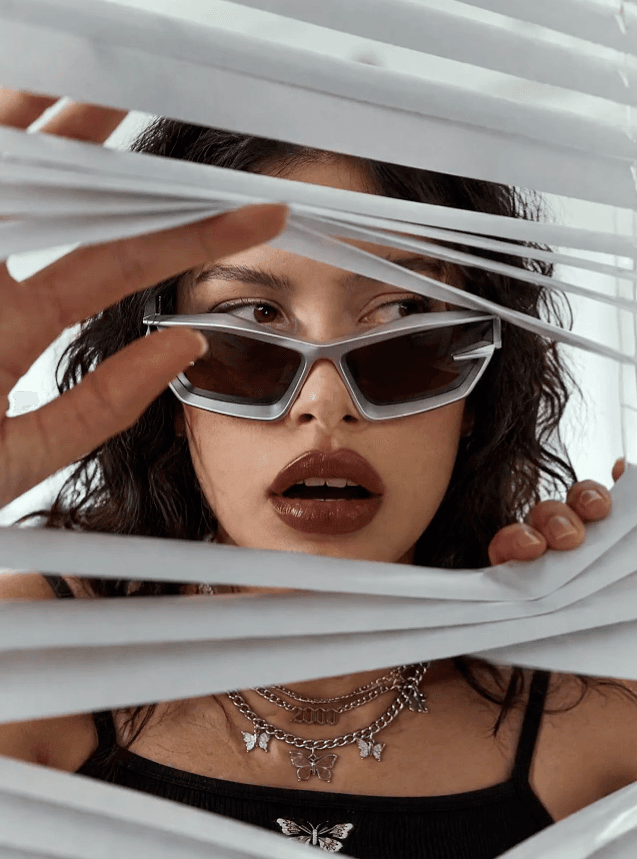
GPT Image 2.5 portrait example from DomoAI's official video.
The portrait above has a clear idea: a person looks through the blinds toward the viewer. The sunglasses and hand help make the pose recognizable. It is a useful example of a picture that could lead a fashion post or an editorial-style social graphic.
For this kind of new image, start with Flare and decide whether the pose and crop suit your post. If you need a heading over the picture, plan where it will go before generating. A close portrait with details across the whole frame may leave little readable space for text.
Before publishing, inspect the fingers, the glasses, and the places where the face meets the blinds. If you are using a reference person, also compare their features with the original. A successful expression matters less if the result no longer looks like the intended person.
Product scenes
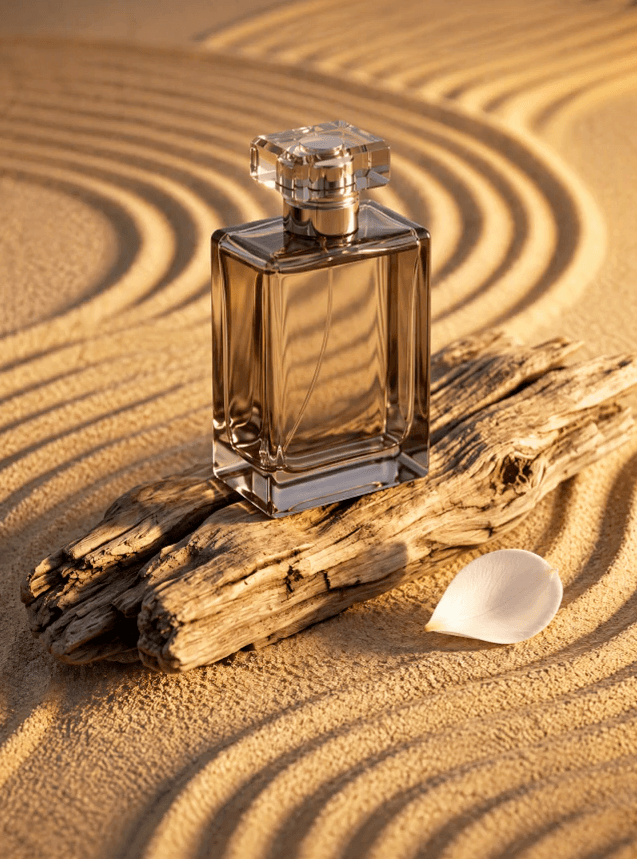
GPT Image 2.5 product-scene example from DomoAI's official video.
The perfume example gives the product a setting: a bottle sits on driftwood, surrounded by sand. This is a concrete direction you could use when planning a summer product campaign or a mood board for a shoot.
If you are exploring possible settings for a fictional product, Flare is a reasonable starting point. You can compare a beach scene, a bathroom shelf, or a plain studio arrangement before developing one.
If you are working with an existing product photo, try Sunburst for the revision. List the details that identify the product, such as the cap, bottle proportions, label placement, and packaging color. Check them in the result before moving on to props or decorations.
For a campaign with several products, choose the setting before making every image. Decide where the product should sit, how much space the headline needs, and which props belong in the scene. Use those decisions across the set.
Character illustrations
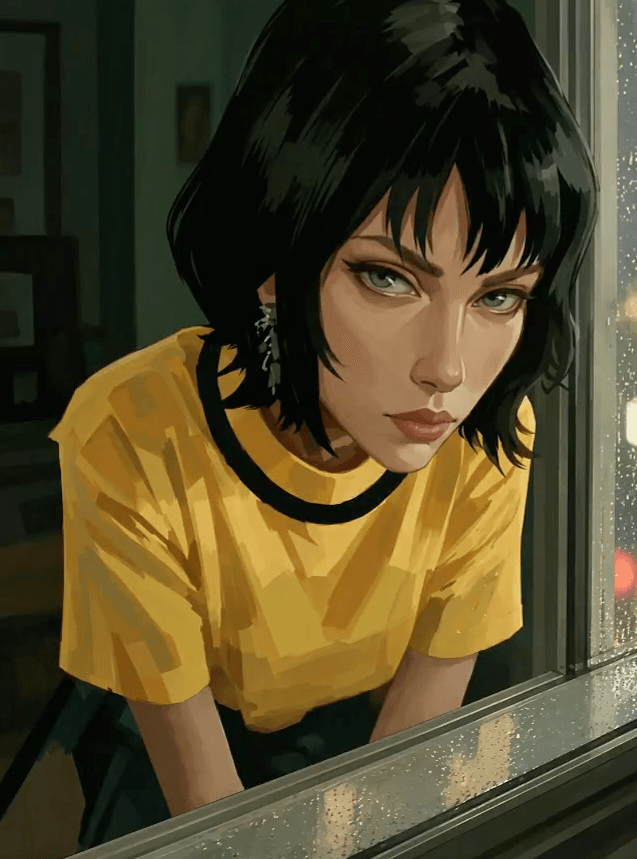
GPT Image 2.5 character illustration from DomoAI's official video.
The yellow-shirt illustration offers a different use: a character portrait for a story, game concept, or illustrated post. The tight crop keeps attention on the face and gives the scene a clear point of view.
Flare is a useful first choice when you are still deciding on a character's appearance. Try the hairstyle, outfit, and expression you need before building a longer series around the character.
Once the design is settled, save a clear reference. For a later scene, identify the features that should carry over: hair length, clothing, face shape, and any distinctive accessories. Sunburst is worth trying when you need careful revisions to an existing design.
Judge a series together. A single illustration can look good on its own while feeling out of place beside the other images. Consistent clothing and recognizable features are more useful than adding extra detail to just one panel.
Flare or Sunburst: choose by the work you need to finish
Choose Flare when you are exploring several possibilities
Flare fits the stage where the picture can still change substantially. You may be trying different subjects for a cover, choosing a setting for a product scene, or working out the appearance of a new character.
Give each attempt a purpose. For example, keep the same subject and compare a close crop with a wider view. Then keep the stronger composition and try a different background. This gives you options that are easier to judge than a collection of unrelated pictures.
Flare also edits images. You do not have to move to Sunburst for every background replacement or color change. If Flare gives you the revision you need and the important details still look right, you can finish the task there.
Its speed is less helpful when you have already settled the picture and need one difficult correction. In that situation, generating more variations can leave you with more choices but no usable final image.
Choose Sunburst when the change needs to be specific
Sunburst is worth trying when most of the image is approved and only a small part needs to change. Examples include moving a prop, replacing a background, changing an outfit, or revising a campaign image without losing its established look.
A good request names both the change and the details to keep. “Make it more professional” gives the model little direction. “Replace the busy background with a plain cream wall; keep the person, clothing, pose, and crop” describes a result you can check.
For a product-background edit, upload the original product image. Here is a suggested instruction to adapt:
Replace the background with pale sand and a small piece of driftwood behind the bottle. Keep the bottle's shape, cap, label wording, colors, size, and position unchanged. Do not add any extra products or text.Compare the new picture with the original before accepting it. If the cap or label changes, return to the last acceptable version and narrow the request. Continuing from an incorrect version can carry the same problem into later edits.
Sunburst takes longer than Flare, so use it where that extra wait has a clear purpose. It is a less useful default for a quick mood board where you expect to discard most of the pictures.
Keep GPT Image 2 when your current project already works
An existing project may depend on a particular appearance: a set of cover images, a character series, or a layout that already matches the rest of a campaign. Moving to another model can change the result even when you reuse the same prompt.
Finish a time-sensitive series with the setup that is already working. Try 2.5 on one separate image before moving the rest of the project. Compare that image with the approved set, including its crop, colors, and character appearance.
The GPT Image 2 on DomoAI guide covers the older model's generation and editing uses. Keeping it available is useful when continuity matters more than changing tools immediately.
For a new project with no established look, Flare is an easier place to begin. For an existing project with a specific editing problem, test Sunburst on that problem first.
What about posters, text, and labels?
A poster needs correct information as well as an appealing image. An event name, discount, date, or web address can make the entire design unusable if it is wrong.
Supply the final wording before generating. For a small sale poster, that might mean one headline, one offer, and one date. Decide which line should be largest and where the other two should appear. OpenAI's image prompting guidance includes approaches for placing text and preserving details during edits.
When comparing models on a poster task, give them the same wording and layout requirements. Otherwise, you may be comparing two different designs rather than their handling of the same job.
Check the result in this order:
- Read every word and number. Check spelling, prices, dates, punctuation, and any extra copy the model added.
- Check the reading order. The main offer should be easy to find, and the date should clearly belong to the correct event.
- View it at its final size. A headline that looks clear in a large preview may be difficult to read in a phone feed.
If you need exact typefaces, frequently changing prices, or editable text, generate the illustration or background first and add the copy in your design tool. You can then update a date without regenerating the whole poster.
For product labels, check the text separately from the scene. A convincing bottle and a well-composed background do not establish that the packaging is accurate. Use the original label or product cutout when the printed details must match the real item.
How much does GPT Image 2.5 cost on DomoAI?
Flare and Sunburst use the same credit pricing at matching settings. You can choose between them based on the task without paying a separate premium for Sunburst.
At the base settings, GPT Image 2.5 costs 10 credits at 2K and 15 credits at 4K. GPT Image 2 costs 10 credits at 2K and 25 credits at 4K. For 2.5, zero to three input images are included in the base charge; each additional input image adds two credits.
| Reference images uploaded | GPT Image 2.5 at 2K | GPT Image 2.5 at 4K |
|---|---|---|
| 0–3 | 10 credits | 15 credits |
| 4 | 12 credits | 17 credits |
| 6 | 16 credits | 21 credits |
| 9 | 22 credits | 27 credits |
These rates apply to credit-billed generation. The amount shown on Generate is the final check for your selected settings.
Example: one product photo and one style reference
Suppose you upload a product photo and an image showing the setting you want. That is two references, so the request stays within the base allowance. Either Flare or Sunburst costs 10 credits at 2K or 15 credits at 4K.
For a base 4K job, the difference from GPT Image 2 is 10 credits: 15 instead of 25. Across ten such generations, that is 150 credits instead of 250, a saving of 100 credits. That calculation assumes the same base conditions for every generation; retries still count.
Example: six reference images
With six references, three images fall outside the included allowance. Those three add six credits, bringing the cost to 16 credits at 2K or 21 credits at 4K.
Before uploading several images, decide what each one contributes. You might need one to identify a product, another for the background, and a third for the composition. Remove duplicate or conflicting references if they do not help explain the result you want.
This makes the request easier to understand and avoids paying for extra inputs without a clear purpose. Keep the references that are necessary to the job, especially when they contain details the final image must preserve.
How Relax Mode changes the calculation
Relax Mode is available on eligible plans starting at Standard. For GPT Image 2.5, it covers 2K output with up to nine input images and does not spend credits. Selecting 4K or using more than nine inputs moves the request outside those conditions. The current GPT Image 2.5 model page sets out these limits.
Relax is useful when you can wait for results. You might use it for image ideas that you will review later, rather than for a revision needed during a live meeting. Fast Mode gives generation higher priority and uses credits.
Choose the mode separately from the model. Flare and Sunburst describe which model makes the image; Fast and Relax describe how the eligible job is processed and charged.
For access, DomoAI lists GPT Image 2.5 on Basic as well as higher paid tiers. Relax starts at Standard. Review the DomoAI plan options according to how often you generate and whether you can use Relax; choosing Sunburst alone is not a reason to buy a higher tier.
How to decide whether switching is worth it
Use a small task from your real work. A familiar input makes it easier to recognize an improvement and notice a new problem.
For social posts: take a prompt you recently used for a cover and run it with Flare. Compare whether the subject fits the crop and whether you have room for the title. Decide whether it gets you to a usable option with less waiting.
For product edits: choose an image where the product is already correct. Ask Sunburst for one background change. Compare the product against the original before judging the new setting. This tests the part of the job that would otherwise need careful cleanup.
For an illustration series: use the same character reference and ask for one new scene. Put the result beside the existing images. If the character or style changes enough to disrupt the series, keep the current model for that project.
For regular 4K work: calculate the cost using your usual reference count. The lower base price is useful when you normally upload up to three images. Larger reference sets need their own calculation, and 4K does not qualify for GPT Image 2.5 Relax generation.
Look at the full task, including corrections. An image that appears sooner but needs several repairs may take longer to finish. An attractive image that changes a product label may be unsuitable for the job. The useful result is the one you can actually approve and use.
Save the prompt, input images, chosen model, and accepted output together. That gives you a repeatable starting point for the next job and makes it easier to understand what changed if you try another model later.
If you are starting fresh, begin with Flare. Move to Sunburst when a specific revision needs more care. Keep GPT Image 2 where it already gives you a look you want to maintain. Open the Multi-Model Image Generator & Editor and try the model on one image you actually need.


