
Step 1: Choose Your Model
Open the Image Generator & Editor. Choose GPT Image 2.5 Flare for everyday image creation or Sunburst for precise editing. Upload a reference image if you want to start with an existing subject or design.
Turn a photo into a new profile picture, draw a character, or design a poster for your next event. GPT Image 2.5 in DomoAI creates and edits from a prompt or a reference image. Flare is the fast everyday option; Sunburst holds detail across several rounds of edits.
#7
Discord Server Globally
70+
AI Video Styles
5,000,000+
Active Users
Images created and edited with GPT Image 2.5 in DomoAI, featuring portraits, character illustrations, posters, and product visuals.
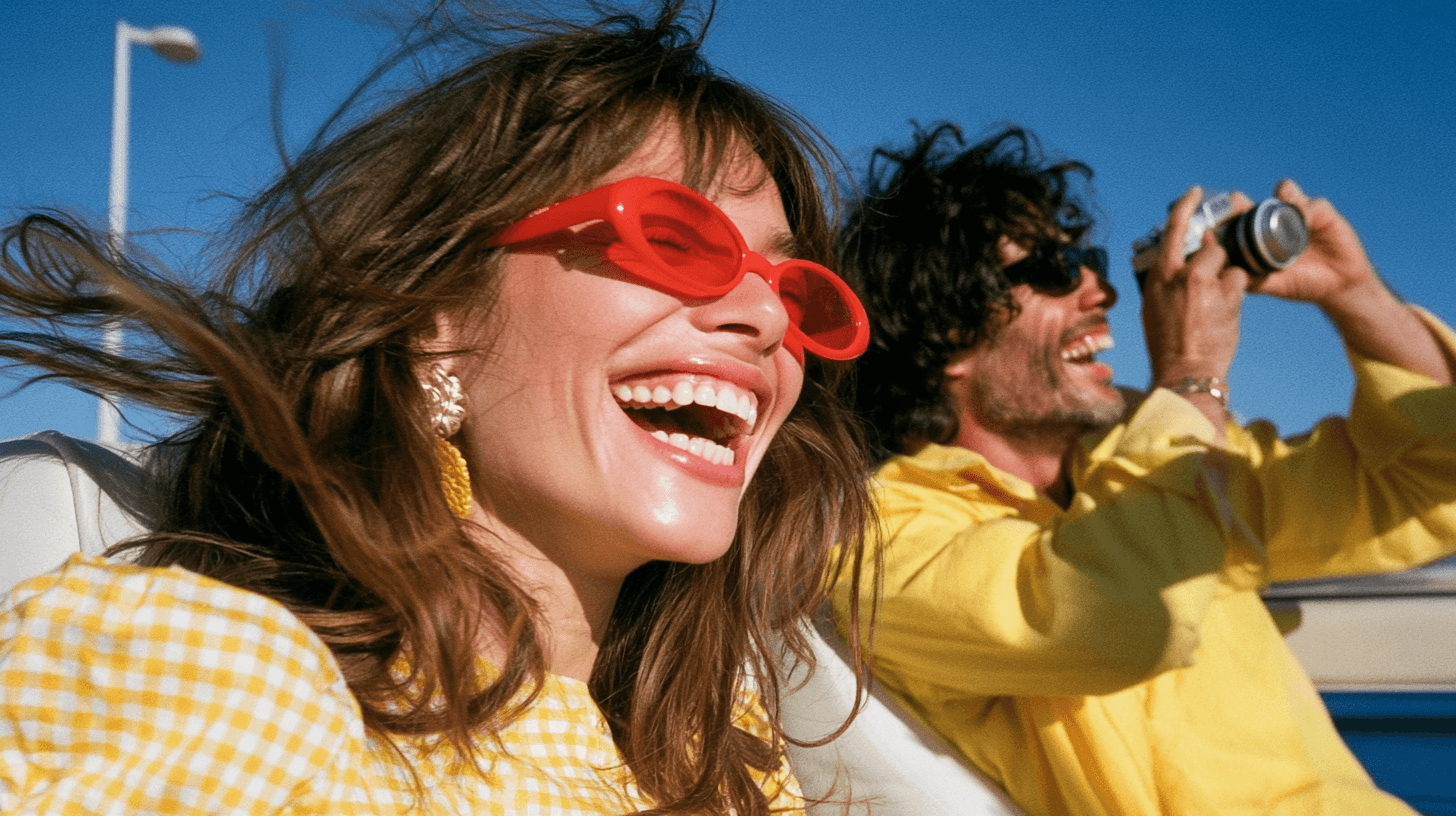 Photorealistic Portraits
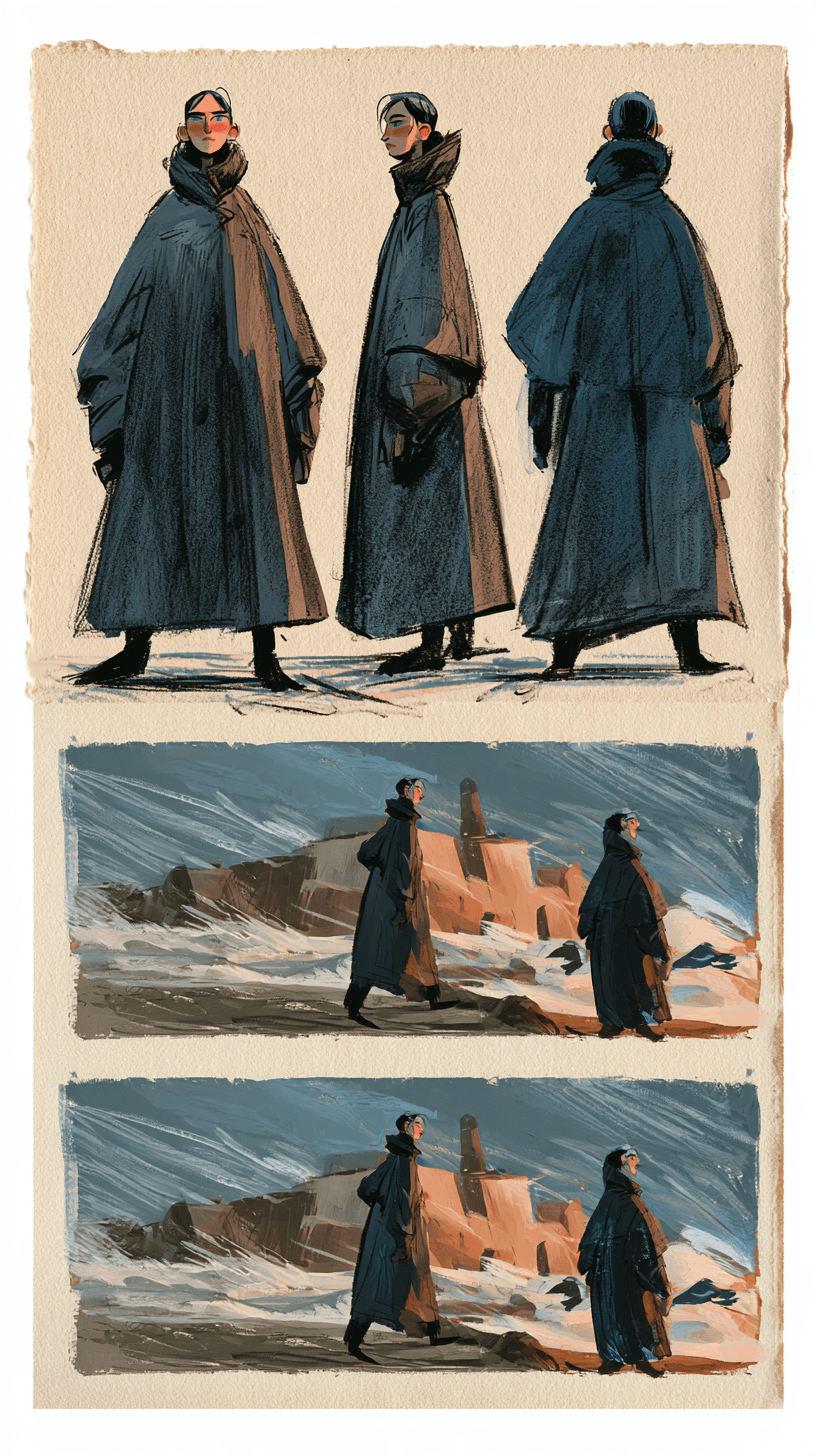 Character Sheets & Storyboards
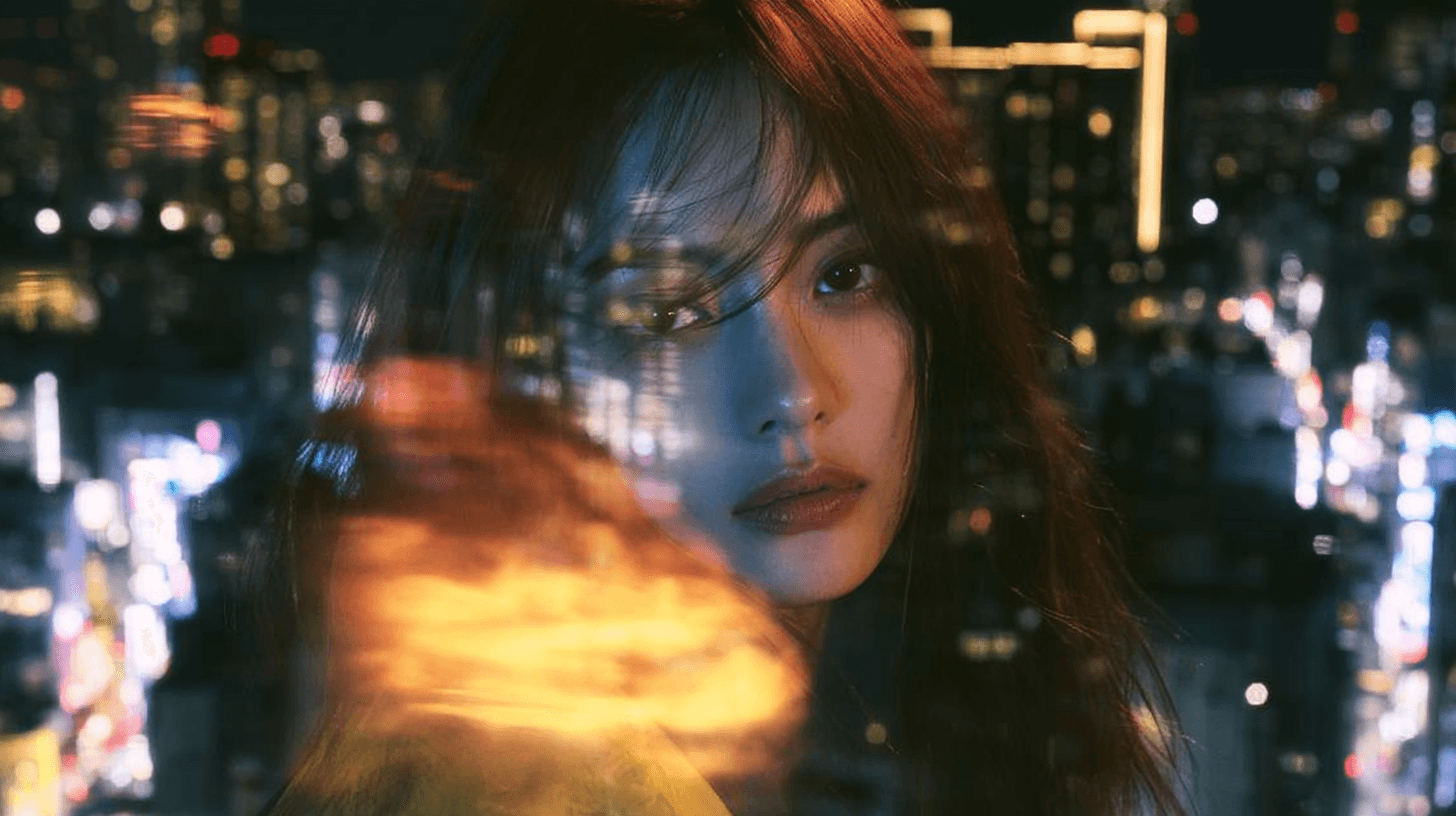 Portrait Restyling
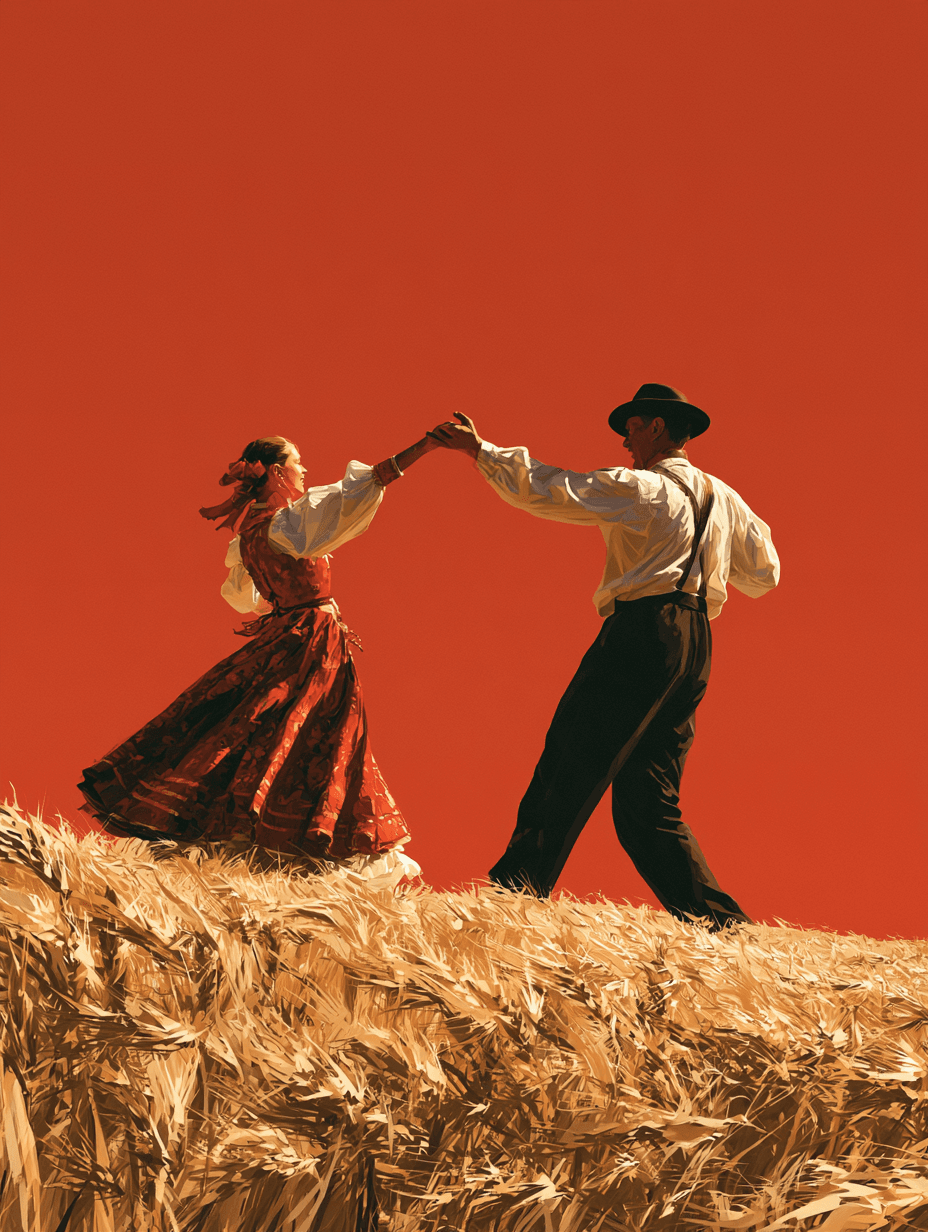 Posters & Typography
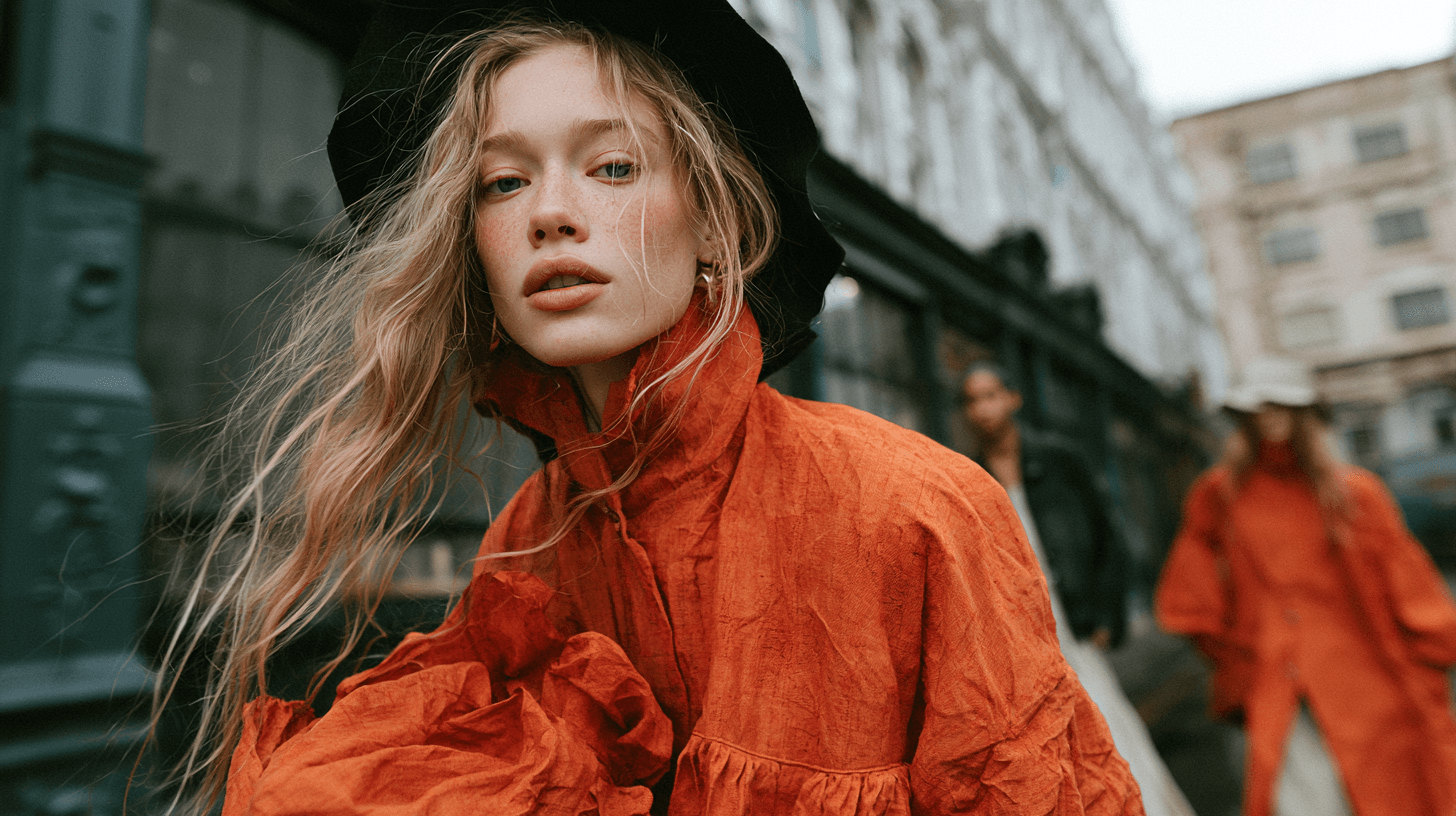 Product Photos & Background Edits
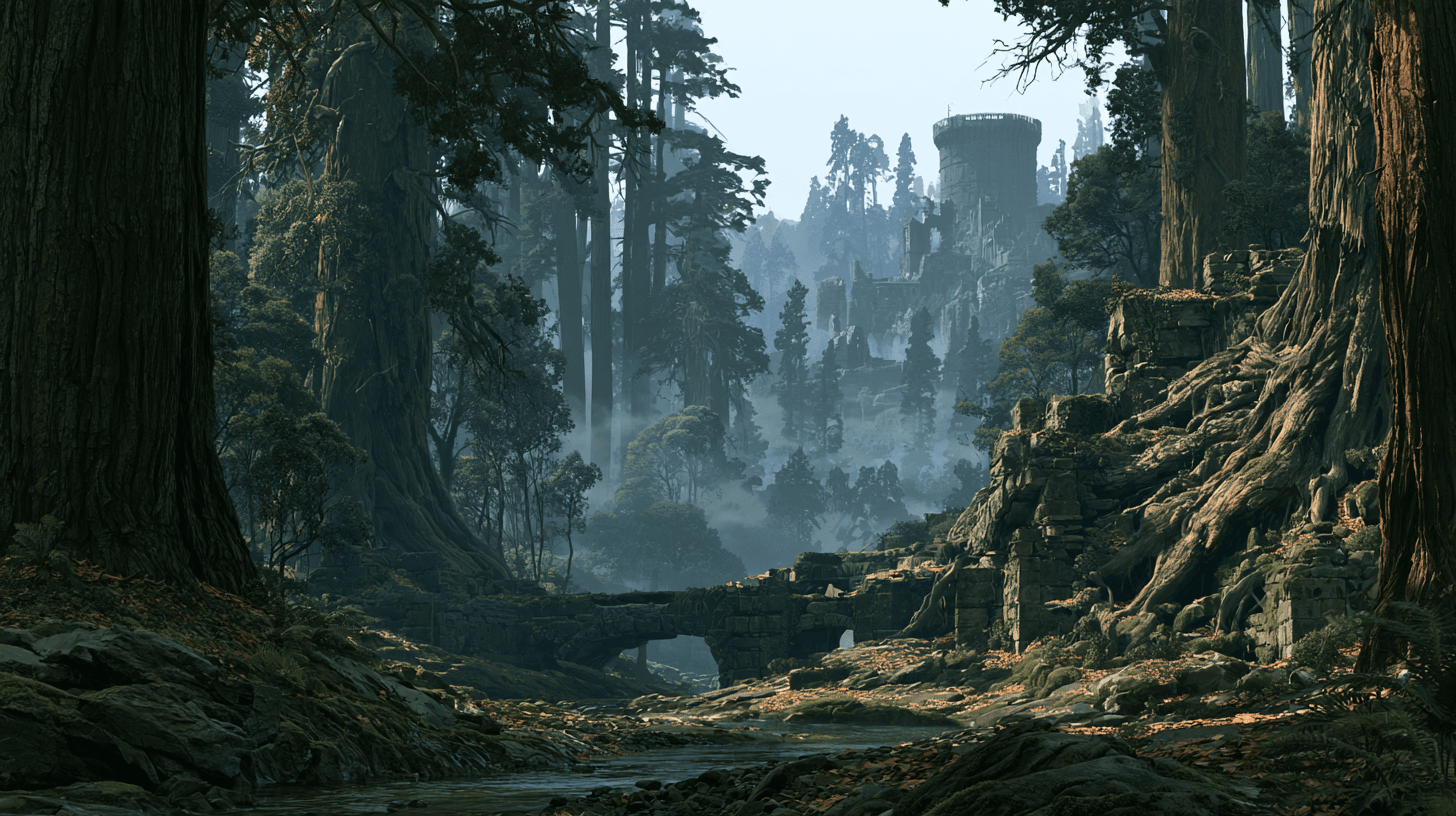
 Illustrations & Handcrafted Styles
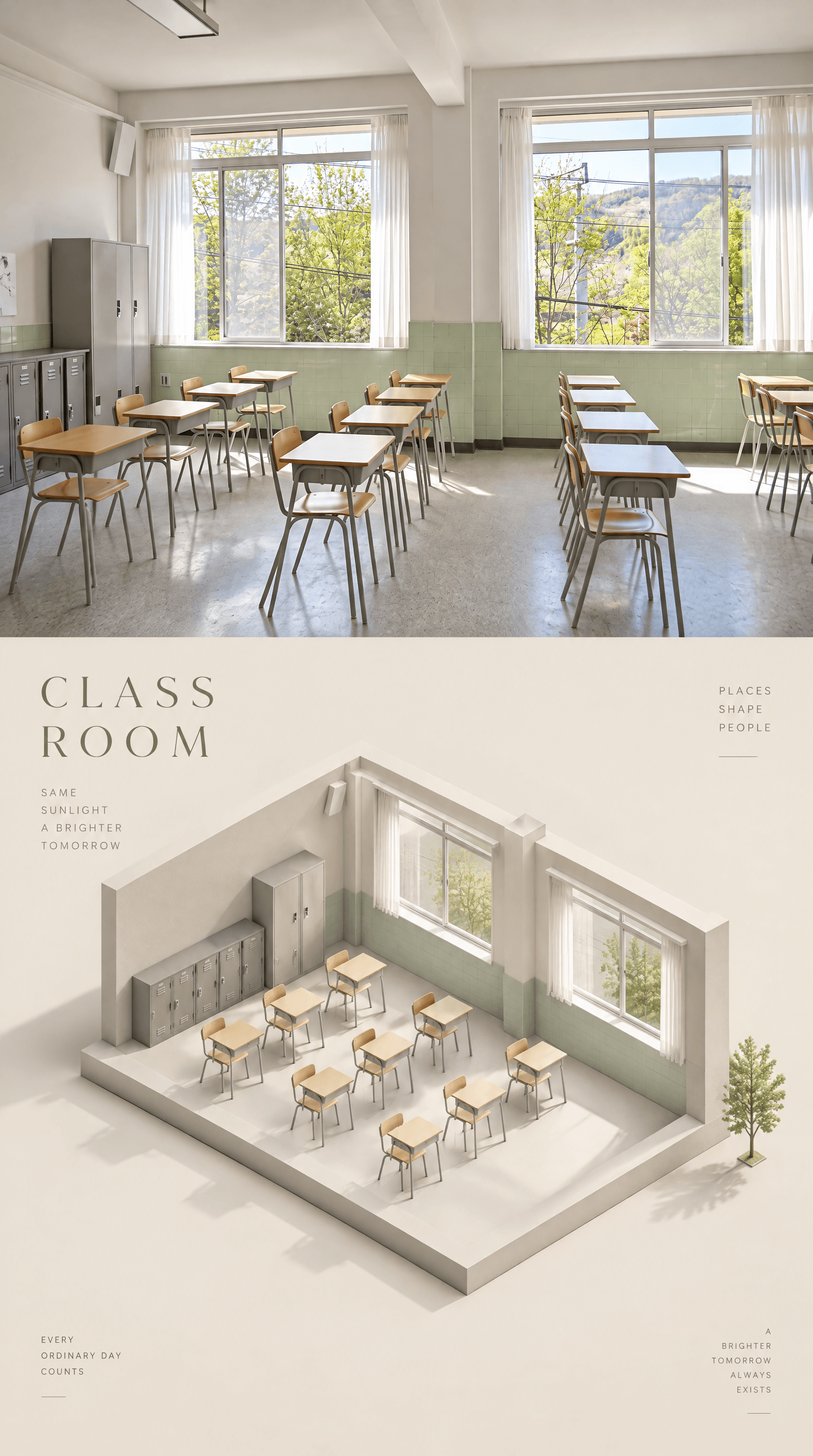
 Infographics & Visual Guides
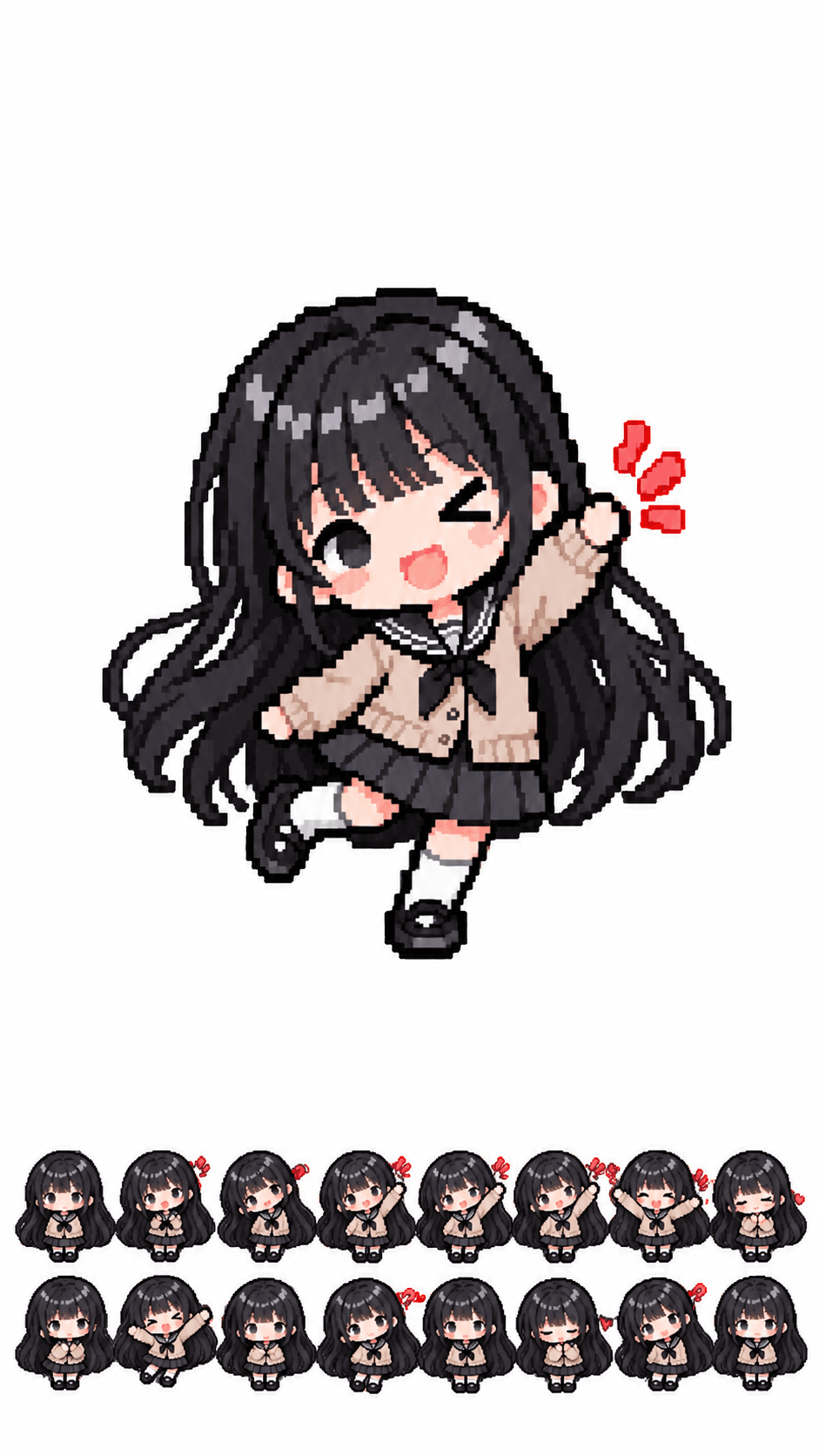 Pixel-Art Characters & Action Sheets
Start with a prompt or a photo. Choose your model, describe the result, and make your first image.
Open the Image Generator & Editor. Choose GPT Image 2.5 Flare for everyday image creation or Sunburst for precise editing. Upload a reference image if you want to start with an existing subject or design.
Describe the subject, style, and composition. For edits, explain what to change and what to preserve. Put any text you want in the image in quotation marks, then choose your aspect ratio and resolution.
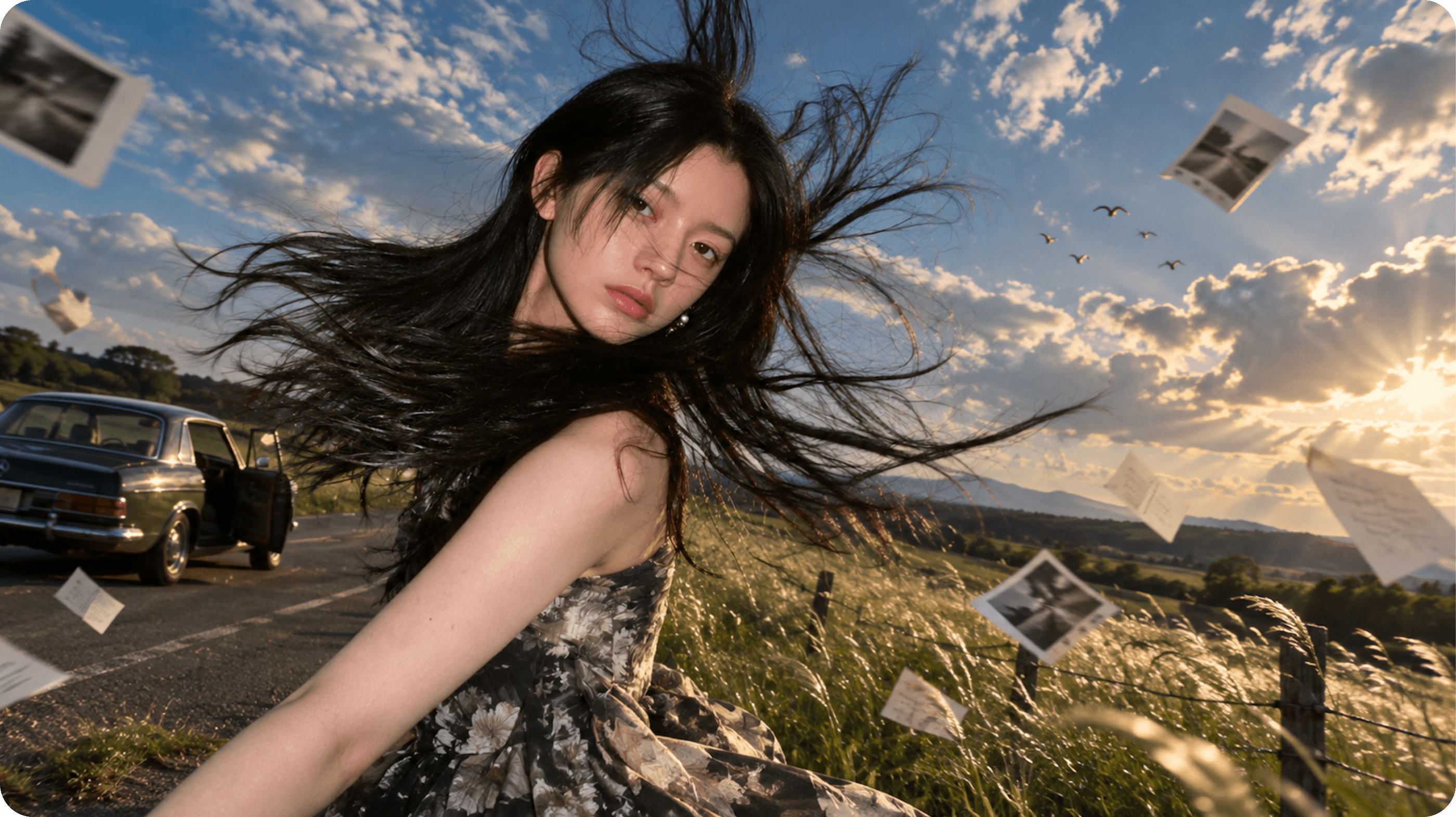
Generate your image, then review its composition, details, and any text against your prompt. Save your preferred version. To make further edits, upload it as a new reference and describe one focused change at a time.
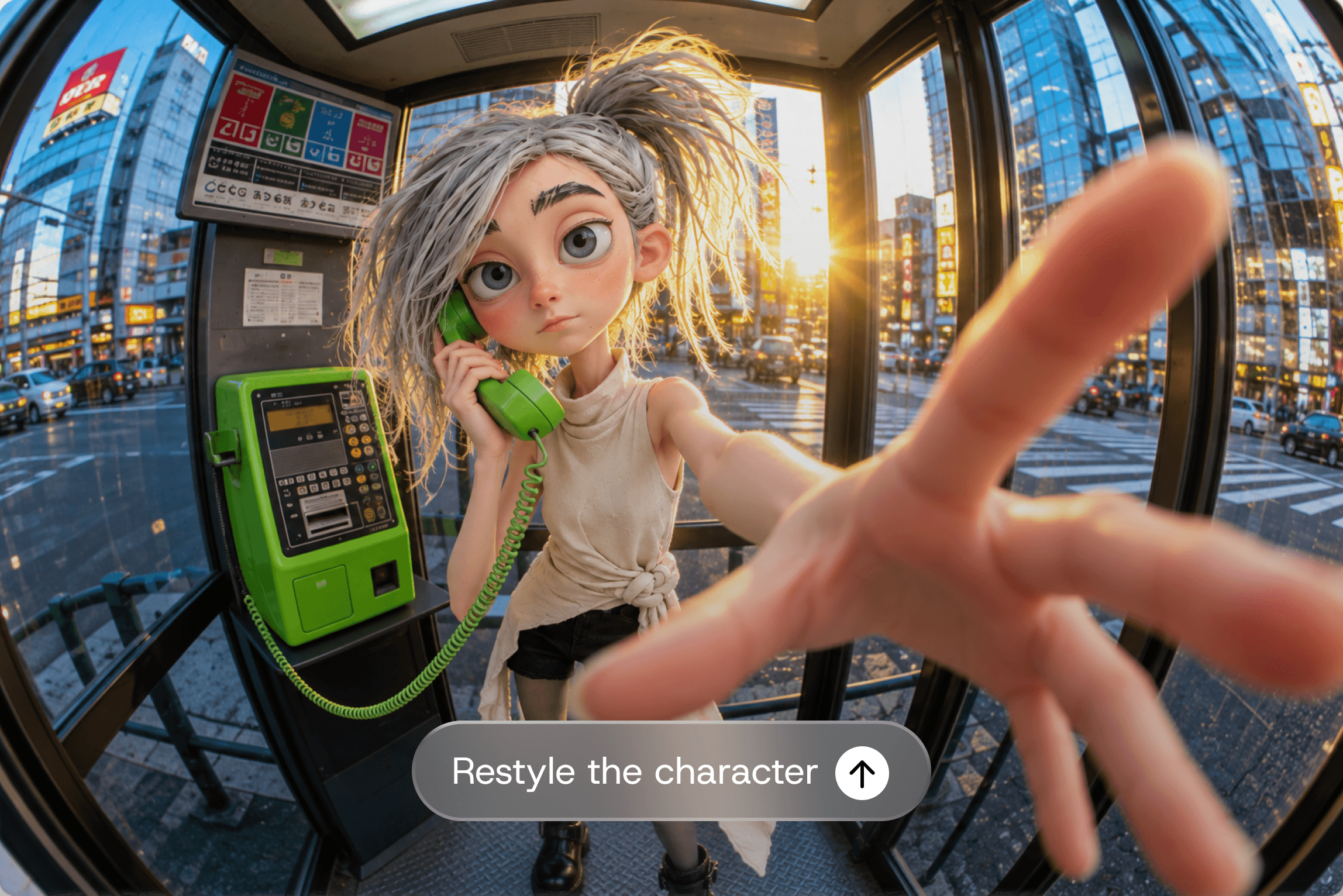
Turn a character reference into candid snapshots, a clay figure, a pixel-art action sheet, or a realistic scene. Use GPT Image 2.5 to create the images, then assemble frames into a GIF or animate a still with a video model. Replace the bracketed details to make each prompt your own.
Create a 3×3 candid snapshot grid of the reference character in [EVERYDAY SETTINGS]. Preserve appearance, outfit, and art style. Use natural expressions, varied angles, slight blur, backlighting, and imperfect framing, like photos taken by a friend. Vertical 9:16 canvas, no borders or text.
Turn the reference character into a handmade clay figure. Create a 4×4 sheet performing [SIMPLE LOOPING ACTION]. Preserve recognizable features, consistent scale, and fixed camera, lighting, and background. No borders or text. Split into sixteen frames in reading order with shared alignment; assemble an infinite-loop GIF at 125 ms per frame.
Turn the reference character into a pixel-art sprite. Create a 4×4 action sheet performing [ATTACK], from preparation through recovery to idle. Preserve details, scale, viewpoint, and ground alignment. Use solid magenta background, no magenta in the sprite, grid lines, or text. Remove background, split in reading order, and create a transparent looping GIF without recentering.
Create a photorealistic reference character in [SETTING], preserving features, hair, and outfit. Use natural skin texture, [LIGHTING], and a medium shot. Vertical 9:16, no text. Upload to a video model for a six-second shot with [SUBTLE ACTION], a gentle push-in, natural movement, and ambient sound. Preserve identity and surroundings; no cuts or dialogue.
A new profile picture, a campaign poster, or a set of character concepts. Create and edit with GPT Image 2.5, using your own images and instructions to steer the result.
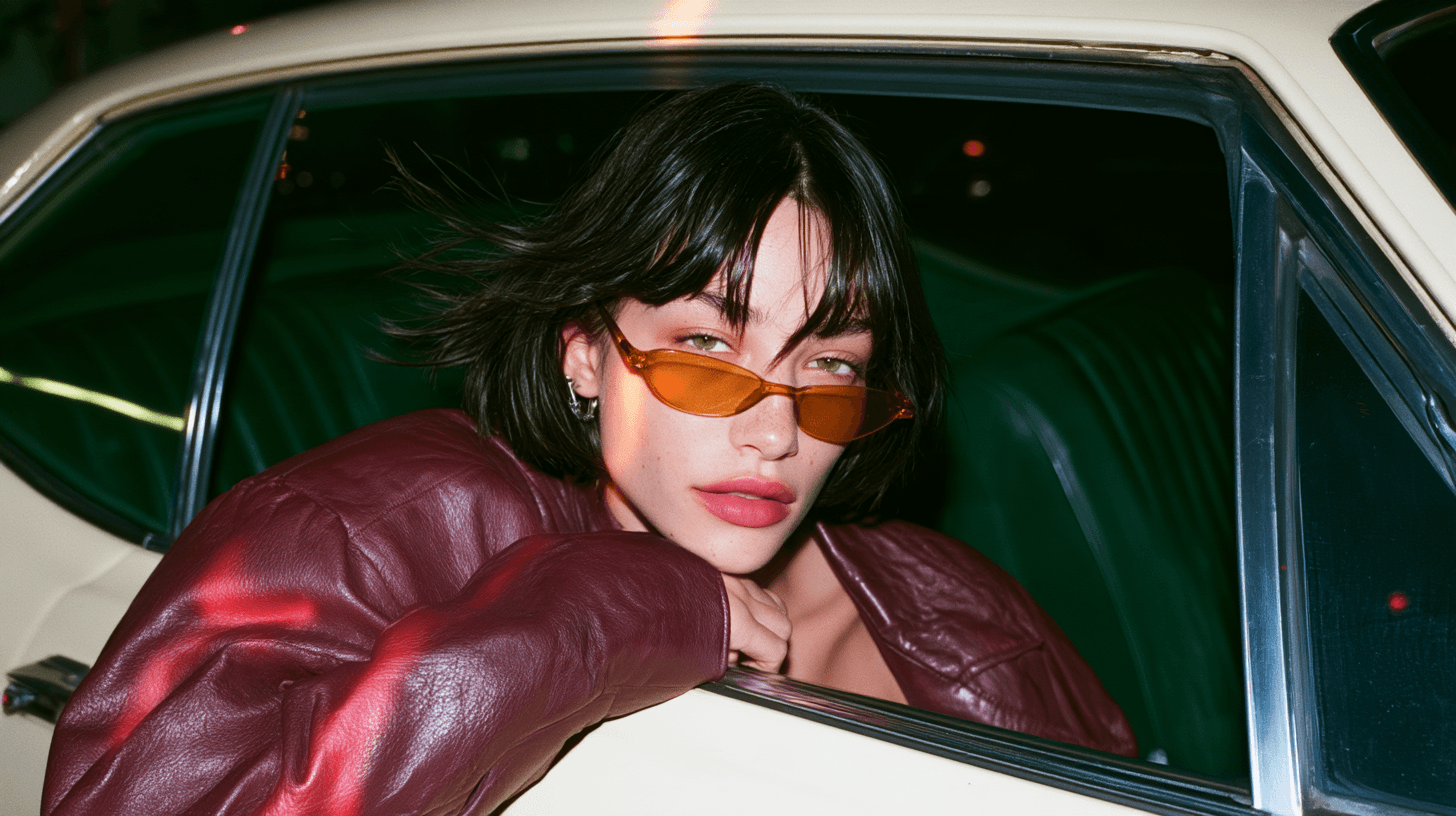
Give a portrait a retro look, turn a selfie into a cartoon avatar, or create a cover for your next post. Start with a photo and describe the style, colors, and details you want to change.
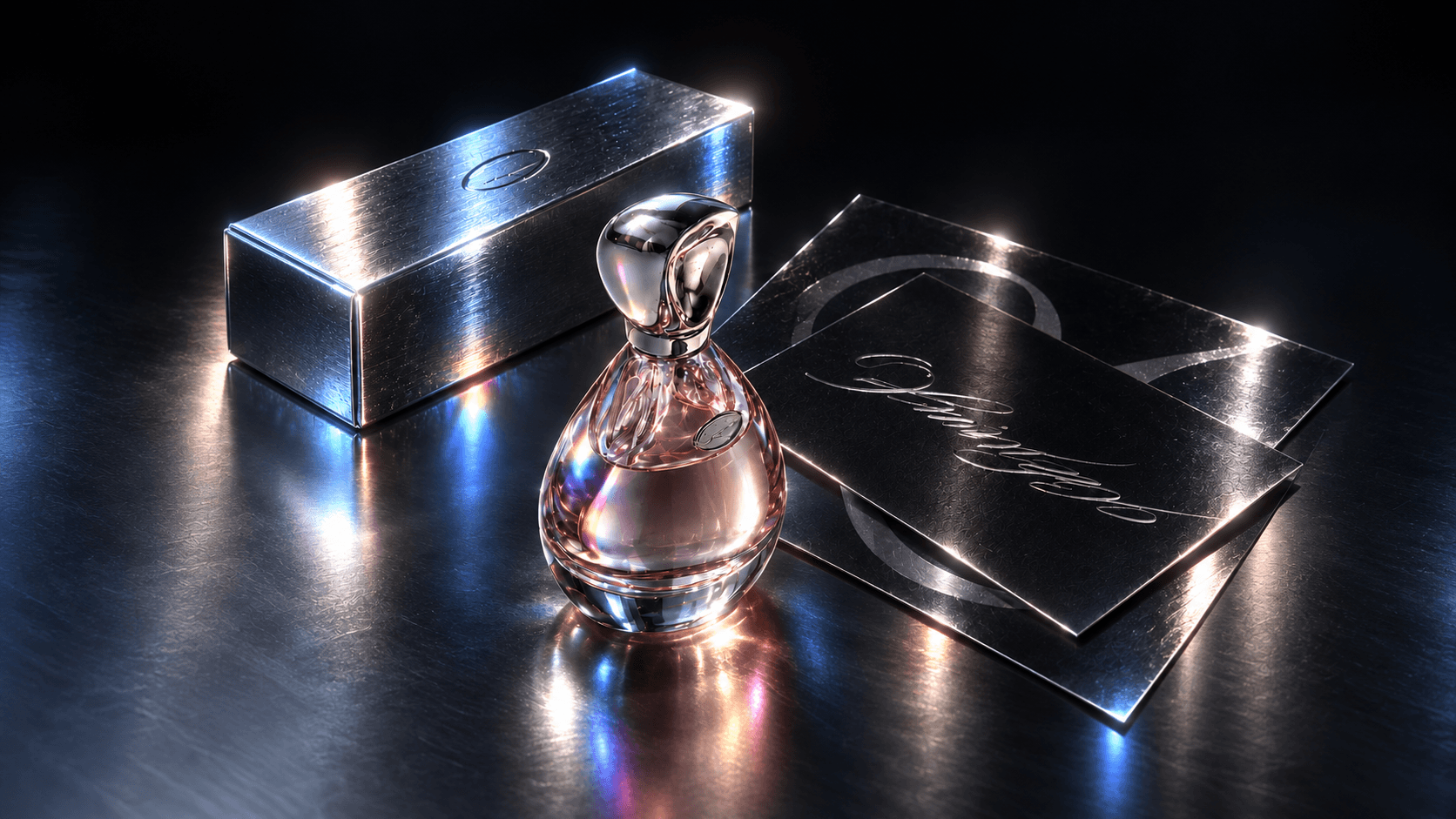
Build product visuals, event posters, and illustrated campaign graphics around your brief. Specify the headline, layout, and visual style, then revise one element at a time as the design develops, from the background to the wording.
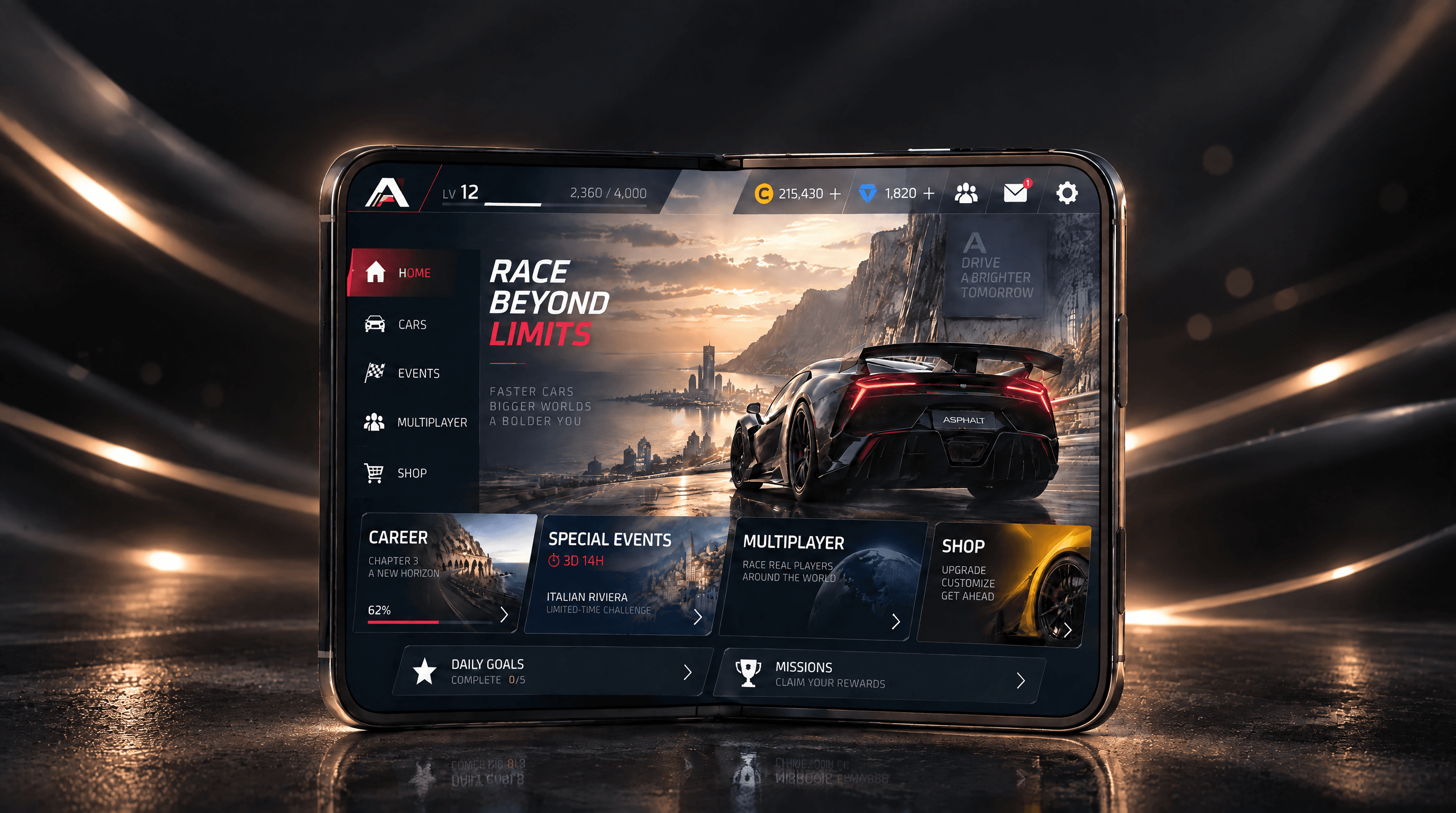
Explore character designs, storyboard scenes, and pixel-art action sheets. Use a character reference to guide appearance and clothing, then specify the poses, viewpoints, and panel layout you need for your project.
Create a new image or work from one you already have. Use GPT Image 2.5 in DomoAI to explore ideas, review the results, and refine the version you want to use.
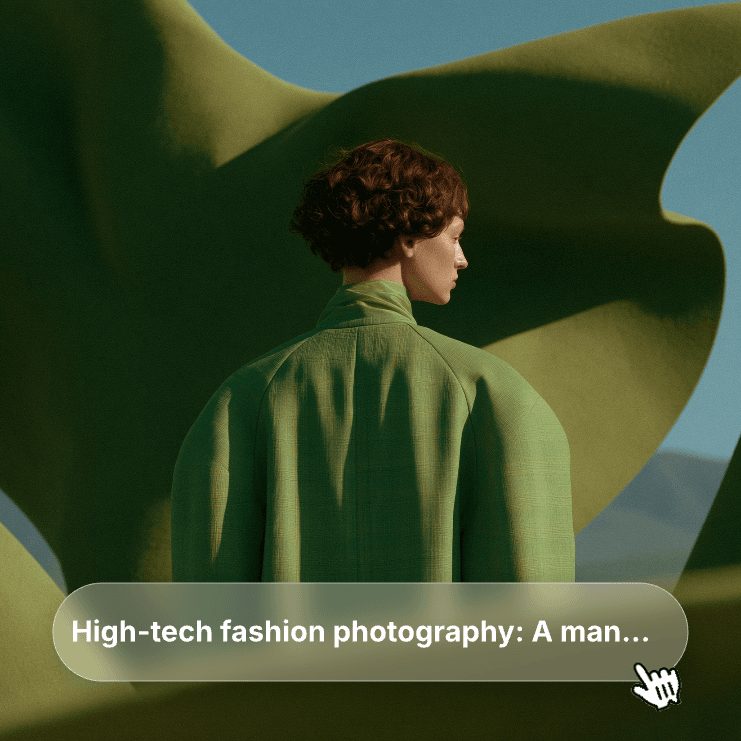
Open the Image Generator & Editor and select GPT Image 2.5. Start with a text prompt to create a new image, or upload a reference photo, illustration, or design to work from.
Describe the image you need, including its subject, style, and composition. If you add a reference, say what it should control, such as the person’s appearance, the product, or the layout. Put any words you want in the image in quotation marks and specify where they belong.
Check whether the image fits its intended use. Look at the overall composition first, then inspect faces, hands, lettering, and important reference details. Save the version closest to your brief as the starting point for your next edit.
Upload your selected version and describe the next adjustment, such as changing the background, updating a headline, or trying a different color palette. State which details should stay, then compare the new result with the previous version. Check the final image at the size you plan to use.
Not for every brief. Flare is built for speed on everyday images; Sunburst is slower and holds finer detail across a sequence of edits. Both cost the same credits, so choose on the result, not the price. Compare them on the same image and prompt.
Yes, you can request a targeted edit, but untouched areas may still change. Name the object and location to edit, then list what must stay. If an area must remain pixel-identical, retain it from the original in a separate image editor.
Reuse a clear character reference and repeat its defining features in each prompt. Compare each result with that reference before continuing. If an edit changes the face, return to the last acceptable image instead of building on the altered version.
Use the product photo as your reference and identify the shape, colors, and label to retain. Inspect those details before using the ad. For exact packaging reproduction, place the original product cutout over a separately created background in an image editor.
It can render text, but spelling and placement can still fail. Supply the final wording in quotes, specify where it belongs, and ask for no additional copy. Proofread the result. Add text separately when you need exact typography or editable layers.
Try specifying neutral daylight, balanced colors, and the surface texture you want. Remove warm, vintage, or film-grain cues if they conflict with your brief. Inspect the downloaded image as well as the preview; prompting alone may not remove every artifact.
Start with your existing prompt and compare the result. If the style shifts, describe the lighting, palette, and composition more explicitly or add an example image. Revise the part that misses your brief before replacing a prompt that already works.
You can request these fixes, but they may take manual work. Identify the hand, pose, and object it should hold. Check anatomy and alignment after the edit. If repeated attempts preserve the same error, finish that detail in an image editor.
Yes, in Relax Mode, which starts at the Standard plan. Relax covers 2K output with up to nine input images. Choosing 4K, or uploading more than nine images, spends credits at the rate shown on Generate.
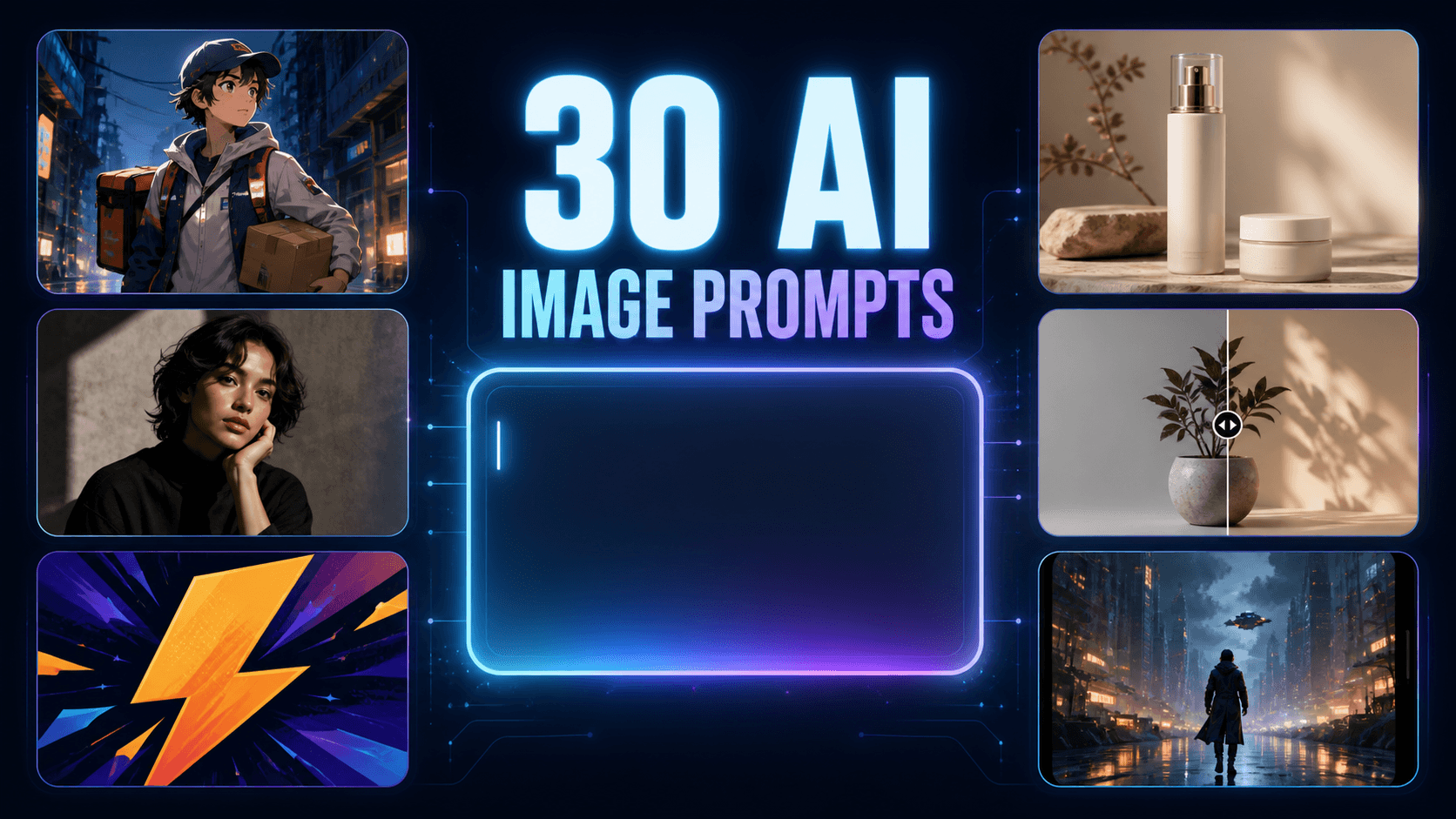
Explore adaptable prompts for characters, products, portraits, and image edits, with tips to fix common issues.
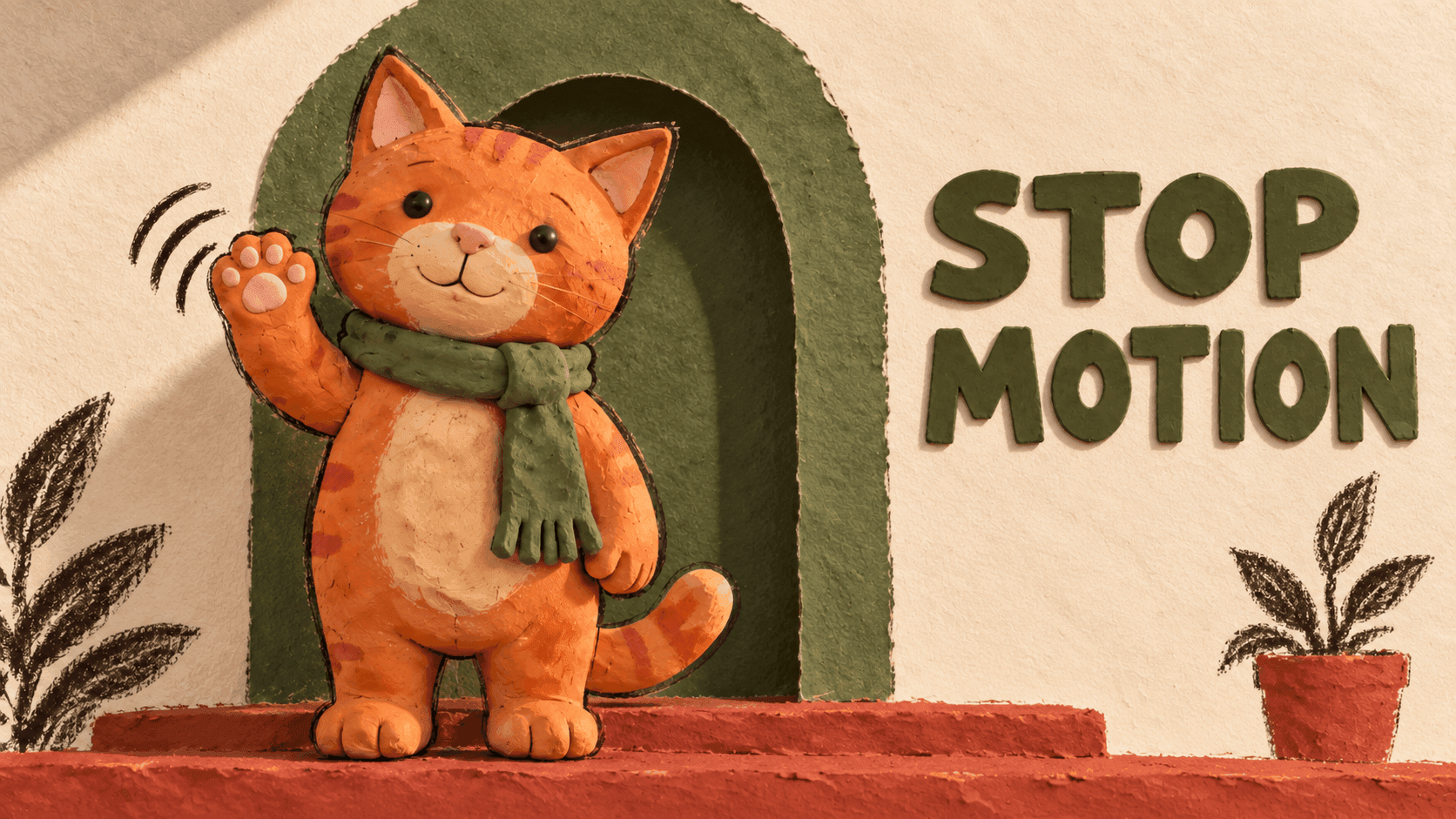
Create a 16-frame clay character sequence with GPT Image 2.5, then turn the stills into a looping GIF in Ezgif.
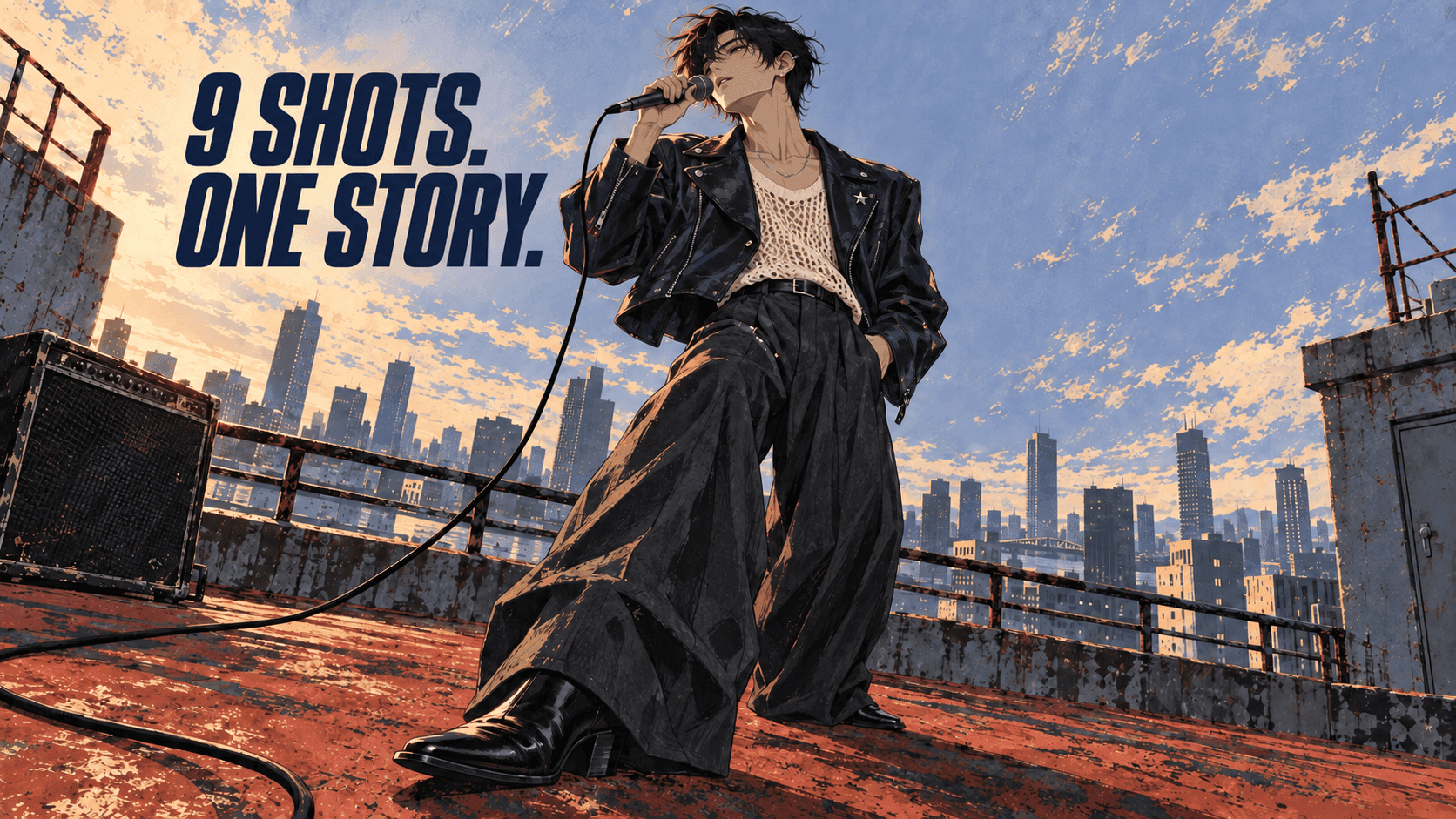
Turn one character reference into a nine-shot storyboard, then check continuity and refine individual panels.