
Create 9 Consistent Storyboard Shots with GPT Image 2.5

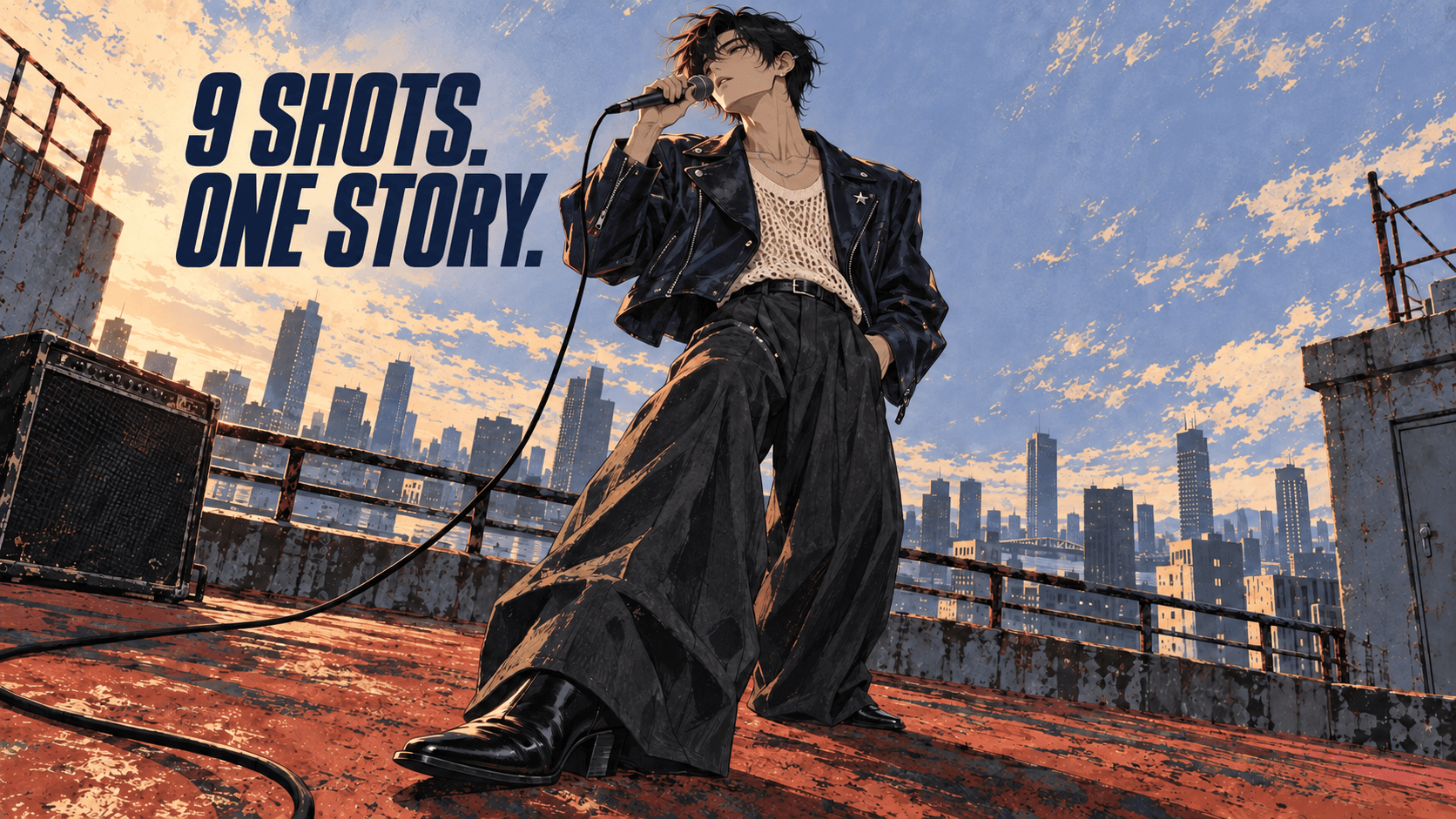
To create a GPT Image 2.5 storyboard, upload a character reference, describe nine shots, and generate a 3×3 sheet. Check the face, outfit, and scene across the panels, then export the shots you want to use.
For a music video, those nine images can cover a short performance. Start with a rooftop view, move into close-ups of the singer and microphone, then return to a closing wide shot.
Here’s a complete prompt for that sequence, plus a way to fix one panel without losing your approved work.
Start with One Approved Character Reference
Choose an image that shows the character’s face, hairstyle, clothing, and proportions. For this example, use an original singer with tousled black hair, a dark leather biker jacket, a cream open-knit shirt, and a silver star pin.
Use one approved reference to define the face, outfit, proportions, and accessories before planning the shots.
Write down the details you need to preserve:
| Detail | What stays consistent |
|---|---|
| Face | Face shape, eyes, and apparent age |
| Hair | Color, length, and parting |
| Proportions | Build and head-to-body relationship |
| Clothing | Jacket collar, shirt, sleeves, and fasteners |
| Accessory | One silver star pin on the left lapel |
Use your approved image directly. If you need to change the outfit first, edit the reference and approve that version before making the storyboard.
A single image may leave some details undefined. Add a side or back view only when a planned shot needs it. Check that the supporting view matches the original before using both together.
Open DomoAI’s Multi-Model Image Generator & Editor and select GPT Image 2.5. Upload the approved reference, then set the output to 2K with a 16:9 aspect ratio.
For composition tests and panel repairs, use Relax Mode on an eligible DomoAI plan. At 2K with zero to nine input images, Relax lets you repeat generations without using credits, though queues may take longer. Choose Fast Mode for faster processing, or when using 4K or ten or more input images; those generations consume credits.
Give Each of the Nine Shots a Job
Keep the first sequence small: one singer, one wired handheld microphone, one rooftop, and sunset lighting. Change the camera framing and performance while keeping the location coherent.
| Shot | Framing | Action | Purpose |
|---|---|---|---|
| 01 | Wide, eye level | Singer beside the railing | Establish the rooftop and microphone |
| 02 | Medium, three-quarter | Raises the microphone toward his lips | Introduce the next action |
| 03 | Close-up | Takes a small breath | Build anticipation |
| 04 | Hand detail | Right hand grips the microphone | Connect preparation to performance |
| 05 | Medium profile | Begins singing | Start the performance |
| 06 | Three-quarter close-up | Expression relaxes | Show the emotional change |
| 07 | Low-angle medium | Reaches the strongest phrase | Give the sequence a visual peak |
| 08 | Medium, eye level | Hand relaxes after the phrase | Let the performance settle |
| 09 | Wide, eye level | Remains beside the railing | Close on the established location |
Read the actions in order. You should be able to follow the sequence without seeing the images. If two shots serve the same purpose, change their framing or choose a different moment.
Keep timing notes alongside the table. A hand detail might become a quick cut; a close-up might hold through a lyric. You’ll set those durations in the video edit.
For a longer MV, plan the shots before generating so this sequence fits the surrounding scenes.
Copy the 9-Shot Storyboard Prompt
With the approved reference attached, paste this prompt into the image generator. It requests a landscape sheet with nine equal 16:9 panels.
Rooftop singer — nine-shot storyboard
Create a nine-shot music-video storyboard using the uploaded character reference.

Character: the original singer in the reference, with tousled black hair,
a dark leather biker jacket, a cream open-knit shirt, and one silver star pin
on the left lapel. Preserve the silver necklace, wide-leg charcoal trousers,
belt, and black heeled boots wherever they are visible.
Use this character description and the reference throughout all nine shots.
Preserve the face, hairstyle, body proportions, clothing, and accessory placement.

Story: the singer prepares for a quiet rooftop rehearsal, sings one phrase,
and relaxes afterward.

Visual style: textured cinematic anime illustration with fine linework,
painterly surfaces, warm highlights, and cool shadows.
Location: one weathered rust-red rooftop with a metal railing, a distant
city skyline, and a black amplifier on the left. The singer holds one black
wired microphone in his right hand. Keep the same microphone and cable.
Lighting: sunset from the left side of the established rooftop view,
with warm amber highlights and cool blue shadows. Keep the light source fixed.

Layout: one landscape sheet containing exactly three columns and three rows.
Create nine equal 16:9 panels, read left to right and top to bottom.
Keep any separators narrow and outside the panel artwork.
No panel numbers, captions, subtitles, timecodes, speech bubbles, or watermarks.

Shot 01: Wide, eye-level establishing shot. The singer stands beside the railing.
Include the amplifier and the microphone held near his waist.

Shot 02: Medium three-quarter shot. The singer raises the microphone
toward his lips, preparing to begin. Keep it in his right hand.

Shot 03: Eye-level close-up. The singer takes a small breath.
Preserve the face and hairstyle from the character reference.

Shot 04: Detail shot. The singer's right hand grips the microphone.
Keep the jacket sleeve, microphone design, and hand anatomy consistent.

Shot 05: Medium profile shot. The singer begins singing into the microphone.
Maintain the established relationship between singer, microphone, and railing.

Shot 06: Three-quarter close-up. The singer's expression becomes more relaxed.
Preserve the character design and all visible clothing and accessories.

Shot 07: Low-angle medium shot. The singer reaches the strongest phrase,
with a modest lift of the chin and an expressive but natural posture.

Shot 08: Eye-level medium shot. The phrase ends and the singer's hand relaxes.
Keep the singer and microphone in the same area of the rooftop.

Shot 09: Wide, eye-level closing shot. Return to the established rooftop view.
The singer remains beside the railing in a calmer pose.

Keep the same character, costume, prop design, location, and time of day.
Change only the specified framing, expression, and action.
Use visibly different shot sizes. Preserve logical screen direction.
Do not add characters, duplicate the singer, or introduce new props.
To use your own character, replace the Character paragraph once. The individual shots refer back to that description. Update the style and location fields if you want a different setting, then adjust the shot actions to match.
For example, a guitarist needs hand details on the instrument and performance poses that fit playing. Keep the sequence’s progression while changing those specific actions.
Save the first sheet before making edits. Check the panel count and reading order, then compare the images with your shot list.

Example output: read left to right, then top to bottom. Compare the framing and action in each panel with the nine-shot plan.
If several panels repeat the same portrait, make their framing instructions more concrete. Specify the full body, railing, and microphone for the wide shot. For the hand detail, name the hand and microphone as the main content.
Check the Character, Then Repair the Panel
Review the sheet at two scales. Look at the whole sequence to judge framing and scene continuity. Then compare each panel with the original reference to inspect the character.
Use pass, repair, or not visible for each detail. A wide shot may not show the star pin clearly enough to judge. A warm sunset highlight may shift the jacket’s appearance without changing its design.
Watch for concrete errors: a new collar, different hairstyle, duplicated pin, or microphone that changes shape. Check the connecting actions too. The hand detail in shot 04 should make sense beside the pose in shot 05.
For a larger project, apply the same checks to character continuity across MV scenes.
Fix one panel
Suppose panel 06 changes the jacket collar and loses the pin. Attach the original reference and the current sheet, then request this targeted edit:
Edit panel 06, the rightmost panel in the middle row of this 3x3 storyboard.

Use the original character reference to restore the jacket's collar
and the single silver star pin on the singer's left lapel.

Keep panel 06's three-quarter close-up, relaxed expression, face,
hair, microphone position, and sunset lighting.

Preserve the other eight panels and the existing sheet dimensions.
Keep all labels and text outside the artwork.
Check the surrounding panels after the edit. If they changed, extract panel 06 and edit it separately. Use the original reference for identity and the extracted panel for composition, then replace it in an image editor.
Stop a repair from introducing more damage
If later edits add noise or soften details, return to the earliest approved version that still has those details. Apply the remaining correction from that version, with the original character reference attached.
Compare the face, clothing edges, and background at the same zoom level. Keep the revision only if it fixes the intended problem without losing other important details.
When several panels need unrelated repairs, work on them separately. This gives you control over which corrected images enter the final sheet.
Export the Nine Shots at the Right Size
Open the generated image and save the original file. A screenshot of the preview can reduce the detail available in each panel.
The 2K setting applies to the whole sheet. For a borderless, even 3×3 sheet, divide its width and height by three. A 1920×1080 sheet would yield nine 640×360 panels. Check your actual output dimensions before deciding whether those crops suit your edit.

Size example: divide both sheet dimensions by three. The diagram illustrates the calculation, not the native dimensions of the generated sheet above.
If the sheet has separators or gutters, measure them before cutting. Keep those marks out of the extracted artwork.
- Mark the panel boundaries in an image editor.
- Extract each panel from left to right, starting at the top.
- Name the files
shot-01.pngthroughshot-09.png. - Open the exports and check their crops, dimensions, and shot order.
If a selected shot needs more detail, generate it separately using the extracted panel for composition and the original image for character identity. Review that larger output for changes before approving it.
Keep the reference, sheet, prompt, shot list, and approved exports together. Save a reusable character asset set so the next scene starts from the same design.
Choose the Shots to Animate
Select the moments that need movement. The breath before singing might need a subtle head movement; the hand detail needs a small grip adjustment on the microphone.
Use Frames to Video when you want reference images to guide a transition. DomoAI integrates ByteDance’s Seedance 2.0 for start-and-end-frame control. DomoAI’s own 2.4.1 mode supports two to eight keyframe images.
Choose a pair or smaller sequence that fits the selected mode. For a continuous transition, use frames with compatible positions and actions. Plan a wide-to-close-up cut in your edit. Request a camera move only when you want continuous movement between those views.
Review each generated clip against the intended action before adding it to your timeline.
Storyboard Questions
Can GPT Image 2.5 keep the same character in all nine panels?
A reference and specific design instructions help guide consistency. Check the output for changes in the face, clothing, proportions, and accessories. Nine panels give you nine places to review; they do not guarantee identical character details.
Do I need a full character sheet?
Start with one clear reference. Add approved side or back views when the shot list needs details your original image does not show.
Can I make a vertical storyboard?
Yes. Change the layout instructions to request equal 9:16 panels on a portrait 3×3 sheet. Check the generated layout and leave enough room for the action inside each narrow panel.
Why does a single exported shot look soft?
Each panel contains only part of the sheet’s pixels. Check its actual dimensions. Generate important shots separately when you need more detail, using the panel and original character reference together.
Choose your character, adapt the nine-shot prompt, and build the first sheet. Use the shot list and original reference to decide which panels are ready for your edit.