

Advances in generative AI now make it easy for anyone to create high-quality illustrations.
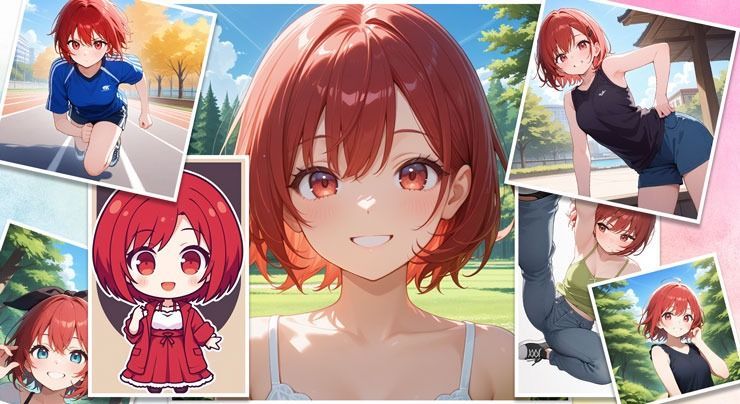
Hello, I’m Ny@Tech, pronounced “Nya-Tech.”
These images were created with PixAI, which specializes in generating Japanese anime-style character images.
My background is in web marketing, but I became interested in the possibilities of generative AI around 2024. These days, I also enjoy creating animation with tools such as DomoAI.
I previously used DALL-E 3 and Adobe Firefly to generate images for animation. After a friend recommended PixAI, I tried it and found that the workflow of
“Generate a character in PixAI → Animate it in DomoAI”
was smooth and intuitive, so I’d like to explain the process in this article.
Even if you have never made manga or anime, this article will show you how to create illustrations for websites, animations, and short videos.
An Overview of PixAI
PixAI is a service specializing in 2D anime- and illustration-style image generation.
Based on Stable Diffusion, it lets you generate character images in a variety of styles using numerous custom models and LoRAs (Low-Rank Adaptation).
Simple animation output also became available with model V2.5 and later, introduced in May 2025.
The Web and Mobile App Versions
PixAI is a browser-based web service, so there is no need to install it on your computer.
You can therefore access it from smartphones and tablets as well as computers.
Mobile apps for iOS and Android are also available. However, because the apps have more restrictions than the web version, this article uses the web version.
What Are Models and LoRAs?
One of PixAI’s major features is its Model Market, which brings together generative models trained and shared by users.
The Model Market lets you select your preferred style from thousands of image generation models and LoRAs (Low-Rank Adaptation) to create images.
This makes it flexible enough to handle detailed visual specifications and Japanese anime styles.
What Is a Model?
A model is the underlying AI model used to generate images.
These models are optimized for different styles, including anime and manga, polished illustrations, and more realistic artwork. Each has different specialties and visual tendencies.
What Is LoRA (Low-Rank Adaptation)?
A LoRA is a lightweight extension model trained to add specific features or styles to an existing image generation model.
It is mainly used to reflect character poses, expressions, clothing, hairstyles, and drawing styles flexibly. Applying it over an existing base model makes the desired expression possible.
LoRAs are therefore used together with a base model rather than on their own.
Precautions When Using the Model Market
The Model Market offers considerable flexibility by letting you use a wide variety of generative models and LoRAs created and shared by users.
At the same time, users need to take ethical and legal considerations into account.
For example, prompts containing sexual or suggestive content may be restricted as sensitive content under the guidelines, potentially making the results inaccessible to other users.
Some models may also infringe copyright or intellectual property rights. I recommend checking their descriptions and terms of use and avoiding models whose rights are unclear.
Features of Different Image Generation Services
Many AI image generation services have appeared in recent years, each with different features and uses.
The matrix below briefly compares and categorizes the main services related to or competing with PixAI by their features and uses, showing where each one fits.
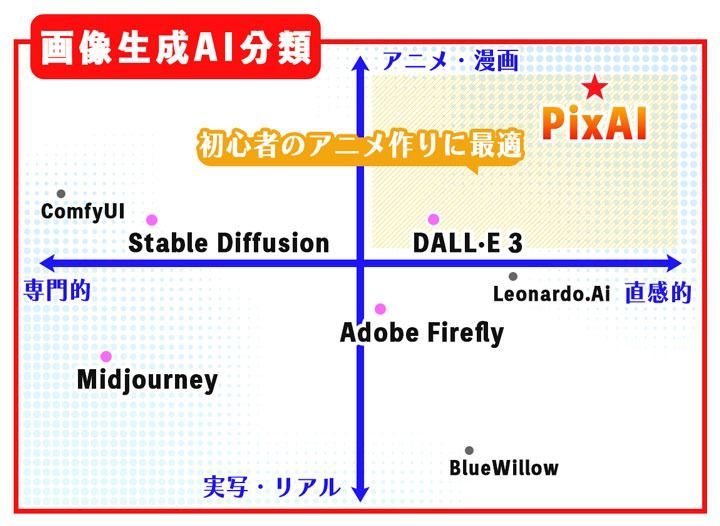
Here is a brief introduction to each AI image generation service.
About Stable Diffusion (SD)
Stable Diffusion is an open-source image generation model. Anyone can obtain its model data and run it locally.
Its greatest strengths are customization and extensibility. Users worldwide have developed numerous community-led extensions, including WebUI, LoRA, ControlNet, and inpainting, as well as custom models.
This gives advanced users considerable freedom. However, it requires technical knowledge such as setting up a Python environment, configuring a GPU, and placing model files, which makes it somewhat daunting for beginners.
About Midjourney
Midjourney is a proprietary, closed-source AI image generation service whose strengths include distinctive artistic styles and high-quality images.
It can produce unexpectedly beautiful compositions and colors, earning praise from creators and designers.
About DALL·E 3
DALL·E 3 is an image generation service provided by OpenAI, the company known for ChatGPT.
It lets you generate images while refining prompts through natural text conversations, making it approachable for beginners unfamiliar with AI image generation.
Support for Japanese prompts is another strength, although it struggles with specialized styles such as moe illustrations.
About Adobe Firefly
Adobe Firefly is Adobe’s AI image generation tool. Alongside text-to-image generation, it offers features for graphic design, including extending or filling existing images with Generative Fill, creating text styles, and adding patterns and effects.
It is designed for commercial use and trained on material such as Adobe Stock assets, with comparatively low copyright risk being a major feature.
However, it struggles to generate the same character consistently, which limits its usefulness for animation production.
About PixAI
A major feature of PixAI is that it provides access to a wide variety of Stable Diffusion-based models and LoRAs through a web browser.
It offers a wealth of community models and LoRAs specializing in 2D anime and manga illustrations, making it easy to adjust artistic styles and fine character details.
Applying models or LoRAs close to your desired style also gives you flexibility in adjusting hairstyles, outfits, and composition.
For these reasons, I think PixAI is a good image generation AI for beginners making anime.
PixAI Pricing and Points to Note
You can start using PixAI for free. New accounts receive credits to try generating several images.
There are also ways to earn additional credits, including daily login bonuses and likes on images you share with the community. With some planning, you can generate quite a few images even on the free plan.
Pricing and Commercial Use
Although PixAI can be used for free, three paid plans are available depending on your purpose and generation frequency.
| Item | Starter Plan | Plus Plan | Premium Plan |
|---|---|---|---|
| Monthly price (tax included) | ¥1,400 | ¥4,200 | ¥7,000 |
| Annual price (tax included) | ¥13,440 | ¥38,640 | ¥67,200 |
| Free model training allowance | Up to 3 times per month | Up to 5 times per month | Up to 10 times per month |
| Number of LoRA settings | Up to 5 | Up to 10 | Up to 15 |
| Monthly credits | 300,000 credits | 1,000,000 credits | 2,000,000 credits |
| Private model storage | Up to 15 | Up to 25 | Up to 35 |
| Generation speed | Fast generation (no speed limit) | ||
Information current as of December 2025. See Membership Pricing and Plans for the latest prices.
You can also purchase additional image generation credits as needed.
Commercial Use
The models and LoRAs available in the Model Market have different licensing permissions.
For example, PixAI’s official Haruka model permits commercial use, while some models uploaded by users do not.
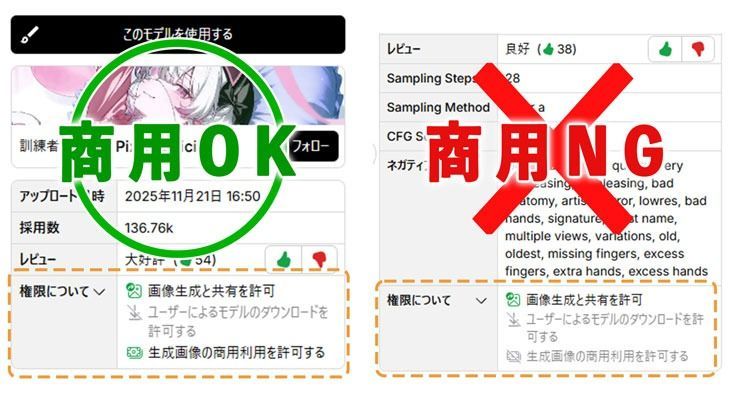
If you plan to use the results commercially, check each model’s permissions before using it.
PixAI’s Basic Features
Let’s look at the basic process of generating images with PixAI.
Basic Usage
First, log in to the PixAI website.
Then select Generate from the left-hand menu on the home screen.
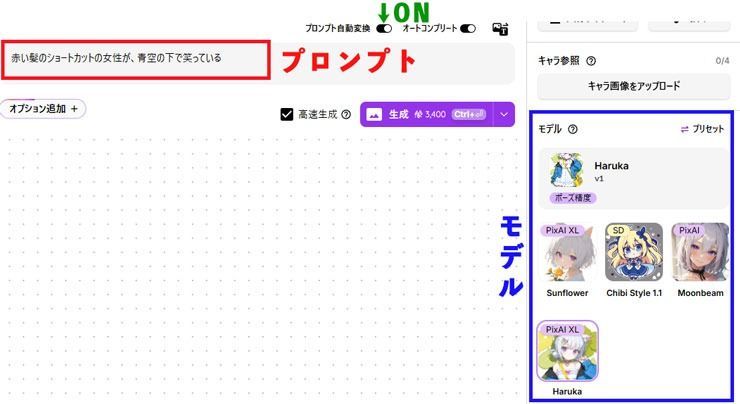
For this guide, I’ll use Japanese prompt examples, so turn on the Automatic Prompt Conversion toggle.
Enabling this toggle automatically optimizes Japanese prompts.
In the prompt field in the center of the screen, describe the illustration you want to generate.
Japanese is fine too—for example, a description meaning “a woman with short red hair smiling under a blue sky.”
Next, choose a model. A PixAI-recommended model is selected by default, but you can choose one you prefer from the Model Market if needed.
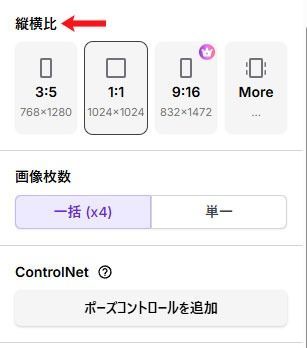
Then select the size of the image you want to generate.
You can also adjust finer details in the optional advanced settings, such as the sampling method—the diffusion model’s calculation algorithm—but the default settings are fine.
If you want to create a character suitable for animation, setting the VAE model to PPPAnimix VAE in the advanced settings tends to make the color boundaries between the character and background a little clearer, making the character easier to recognize and work with.
Finally, click Generate. An image matching your instructions will be generated in a few dozen seconds.
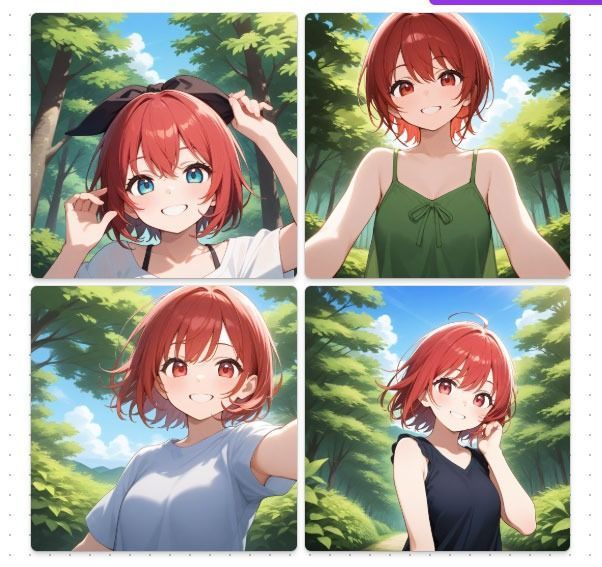
Generating the Same Character Consistently
When creating animated videos, it is important to keep the character’s appearance consistent.
PixAI provides several ways to reproduce the same character. One is to fix the seed value.
A seed is a unique value assigned to each generated image. Fixing it lets you generate similar characters more consistently.
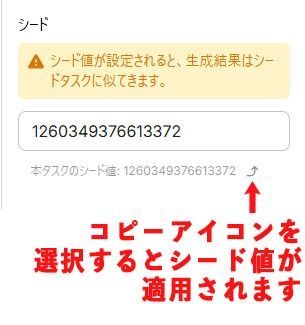
Seeds are not a cure-all, though. Specifying details in the prompt and minimizing changes helps you get results closer to what you want.
Removing the Background from an Image
PixAI’s Image Enhancement feature lets you edit generated images.
For example, you can remove the background to create a transparent PNG, convert an image to line art, or correct the shape of hands.
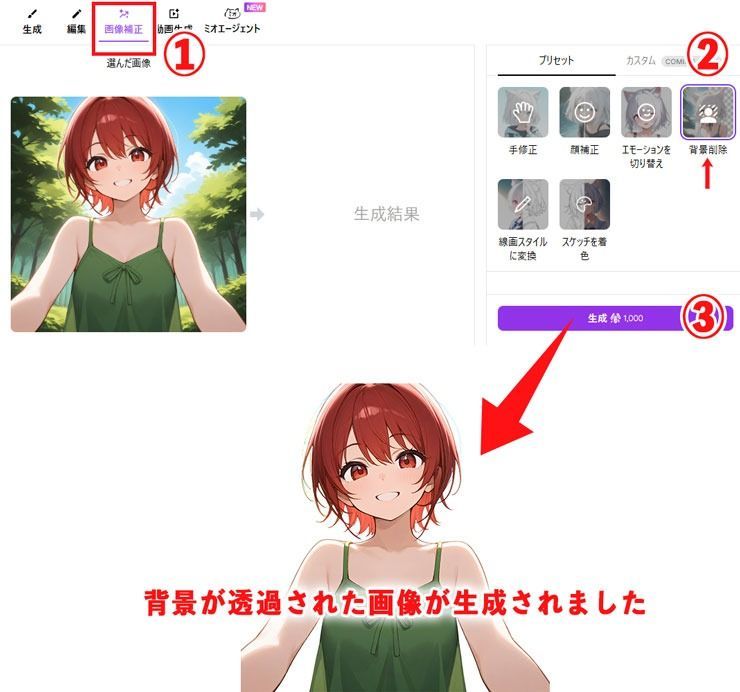
Cutting out just the character like this lets you composite it with another background in a video editor or animate several characters on separate layers.
Creating Multiple Variations for Animation
When turning a character into a video, it helps to prepare several images with different movements and angles rather than just one standing illustration.
For example, preparing character images from the front, side, and back, in a variety of angles and poses as shown below, greatly expands your video editing options.
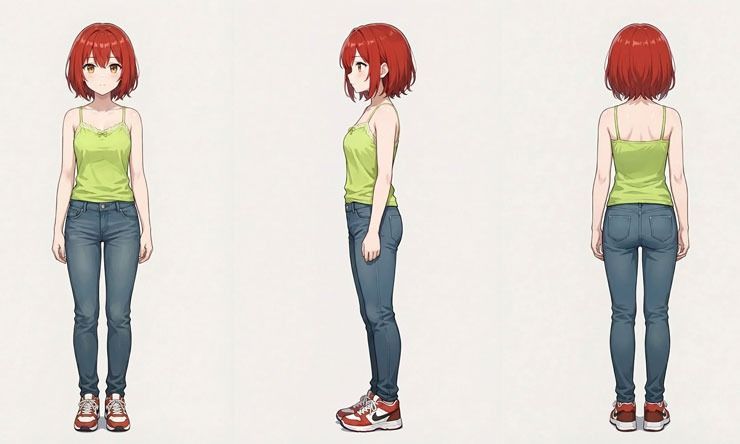
These images were created using the PixAI Reference Pro model.
Although they are displayed together in one image here, the front, side, and back views were actually generated separately.
PixAI Reference Pro is designed to capture character identity, clothing, body proportions, viewpoint, composition, style, and text placement from multiple reference images, making it easier to generate consistent images.
Here is how to use PixAI Reference Pro.
- Select the PixAI Reference Pro model.
- Upload reference images—up to four.
- Describe the edits you want.
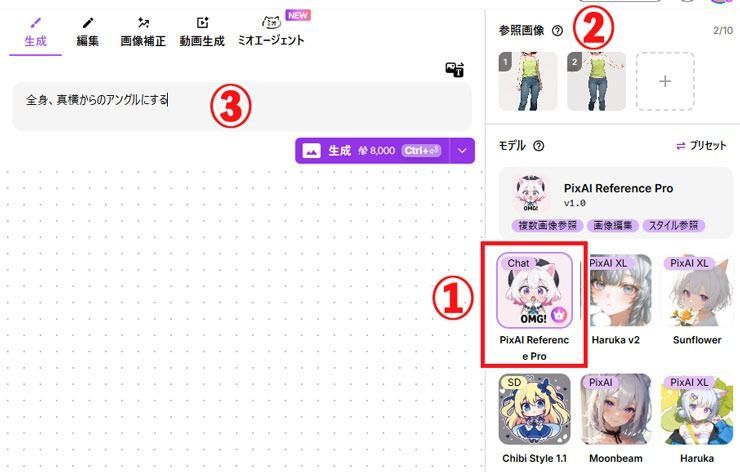
Although it consumes more image generation credits, PixAI Reference Pro is a very useful model for creating images of a consistent character from different angles.
You can also animate a character with DomoAI’s Image to Video feature, so there is no need to force yourself to generate lots of images. Still, I think having several variations helps with later video production.
DomoAI’s Basic Features
Next, let’s look at bringing the generated character illustrations to life by turning them into videos with DomoAI.
DomoAI’s basic features let you generate videos in the following ways.
- Text to Video: Create a video from text prompts.
- Image to Video: Create a video from a single image using text prompts.
- Video to Video: Transform an existing video into anime or another style by specifying a style or text prompt.
- Frames to Video: Select multiple images and describe the action between them in a text prompt to create a video.
- Character to Video: Select a character image and a motion video to animate the character.
- AI Talking Avatar: Select a character image and audio to make the character speak or sing.
Here, I’ll explain three of DomoAI’s distinctive features: Frames to Video, Character to Video, and AI Talking Avatar.
Frames to Video
DomoAI’s Frames to Video feature connects multiple images and turns them into a smooth video.
To use it, select the AI Video icon in the left-hand menu, then choose Image to Video > Frames to Video.
Upload the images that will serve as the starting and ending points of the video.
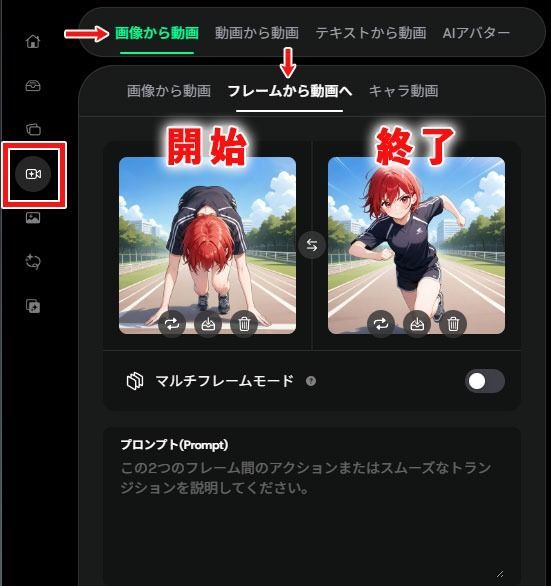
In the prompt, describe the action between the starting and ending images.
I found the following techniques helpful for improving the generation success rate.
- Leave some ambiguity in the instructions.
- Set a shorter video duration.
Below is an actual generated video displayed as a GIF.
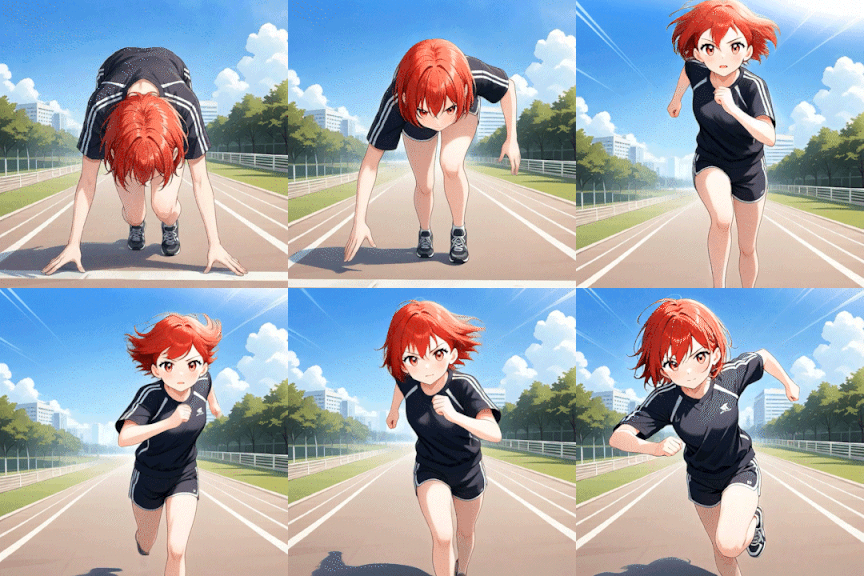
With Multi-Frame mode, you can upload between two and eight images and connect them into a continuous sequence.
I think the addition of Frames to Video has greatly expanded the freedom and expressive possibilities of animation production.
Character to Video
DomoAI’s Character to Video feature transfers a real person’s movements onto a character image to animate it.
For example, uploading a video of yourself dancing lets you generate a video of your character performing the same dance.
To use it, select the AI Video icon in the left-hand menu, then choose Image to Video > Character to Video.
Below is a generated video displayed as a GIF.
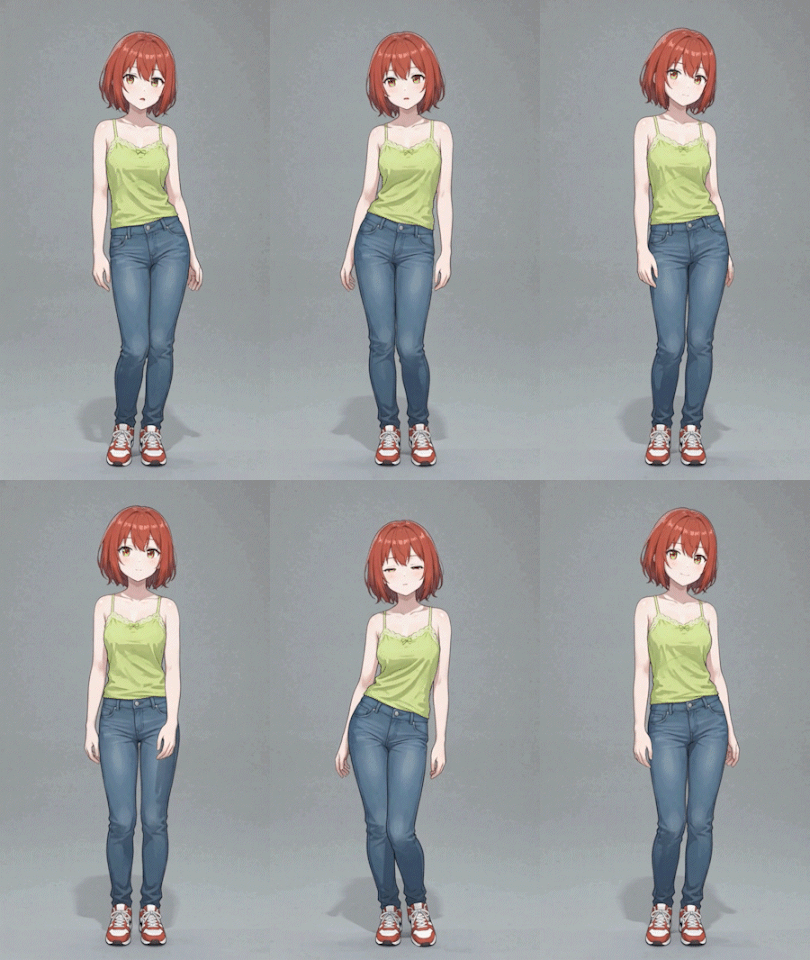
A major advantage is that it can reproduce poses and actions from real motion that are hard to convey through prompts, such as fine hand and finger movements like peace signs and pointing.
This makes it possible to create more realistic and engaging animation.
However, the original video’s background, clothing that moves easily such as skirts, and hairstyles such as long hair can affect the result. Using a video with as few unnecessary elements as possible should help you achieve the desired outcome.
AI Talking Avatar
DomoAI’s AI Talking Avatar feature adds audio or dialogue to an image of a character or person, generating a video with mouth movements and expressions that make them appear to speak.
For example, you can use an audio file you provide to add natural lip movements and changes in gaze to a character.
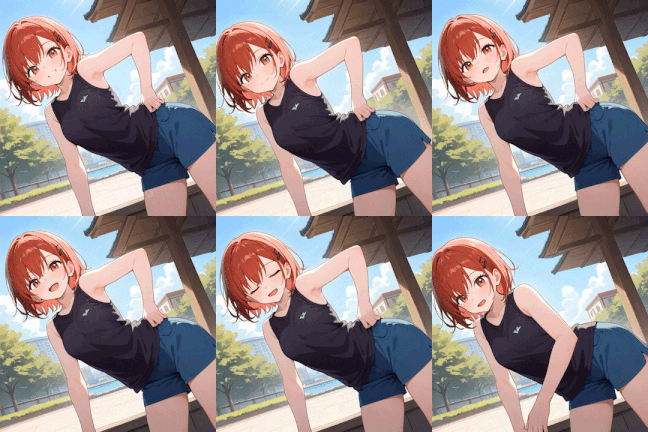
This lets you make a character deliver dialogue or create an avatar whose mouth moves in time with your own narration.
AI Talking Avatar also includes text-to-speech, allowing you to generate speech from text and save it as an MP3.
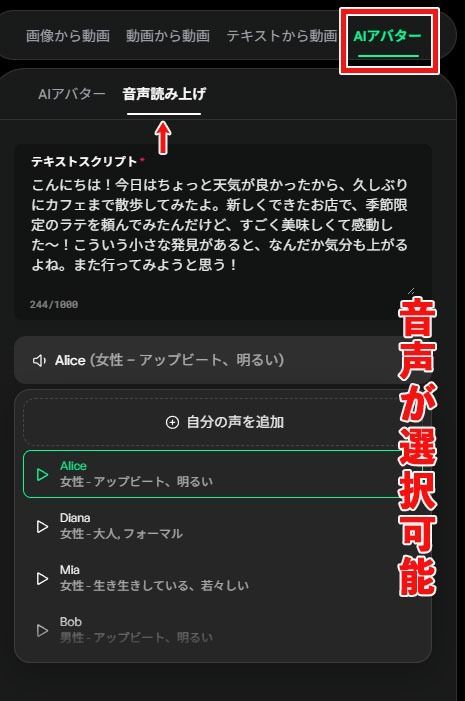
At the time of writing, DomoAI’s text-to-speech feature offers six voice styles: three female and three male.
You can also upload your own voice for use in the generated speech.
This could be useful not only for animation but also for presentation videos, educational content, and other applications.
DomoAI can generate a video from a single image. Try uploading one of your favorite PixAI images to DomoAI and bringing it to life.
Copyright in AI Video Production
We have covered ways to create images and videos with AI, but there is an important point to keep in mind.
That is the issue of copyright and ethics, including fake content.
Copyright
When creating anime-style character images or animation, you may upload source images or videos.
However, using other people’s dance videos from TikTok or Instagram, or using images from social media as training material without permission, may infringe copyright or portrait rights.
Even unintentionally generating an image closely resembling a famous manga or anime style and using it commercially can lead to rights disputes.
To avoid problems, creating original character designs and your own fictional world and using them as the basis for AI production is a safer approach.
Ethics and Fake Content
Generative AI makes it easy for anyone to create realistic fake content depicting people or events that do not exist. At the same time, the impact and spread of such content are increasingly causing social problems.
Fake videos that use a real person’s face or voice to make it look as though they said something carry particularly serious risks of defamation and privacy violations.
When AI-generated images or videos are difficult to distinguish from reality, third parties may believe and share them as fact, potentially spreading misinformation and confusion.
Whether or not the content is commercial, if it could mislead viewers or users, transparency matters. Consider adding a note such as “This content was generated by AI.”
I believe AI creators should always consider ethics and take responsibility for what they create and how they present it.
As a first step, take care not to include famous characters, real people, or brand logos in your generated content.
Frequently Asked Questions and Conclusion
Finally, here are some frequently asked questions about points you may be wondering about.
Q1. Can I use PixAI and DomoAI for free?
A1. Yes, the basic features of both services can be used for free. With PixAI, the credits awarded when you sign up and through login bonuses let you try generating a considerable number of images without paying.
DomoAI also provides initial credits, so you can try it out. However, a paid plan is essential for serious use or commercial use of either service.
Q2. Can I use the AI images and videos I create commercially?
A2. Commercial use is generally allowed, but you must follow any specific license conditions attached to the models or materials you upload.
Q3. How long can the videos be?
A3. At present, the longest video DomoAI can generate in one go is a few dozen seconds, and many features are limited to 5–10 seconds. Producing several minutes of footage, like a long anime, in a single generation is difficult, but you can join multiple short clips. DomoAI’s Frames to Video feature can also help create longer scenes.
Q4. Can I create adult illustrations or copyrighted characters?
A4. The terms of use of these services generally prohibit content contrary to public order and morals, as well as the generation of clearly copyrighted characters.
Q5. Will data uploaded to DomoAI be shared?
A5. DomoAI’s terms of use state that images and videos uploaded by users are not stored or shared for purposes other than AI processing.
That concludes the frequently asked questions.
I hope this information helps you create animation with PixAI and DomoAI.


