
How to Make Pixar-Style Animation With an AI Agent

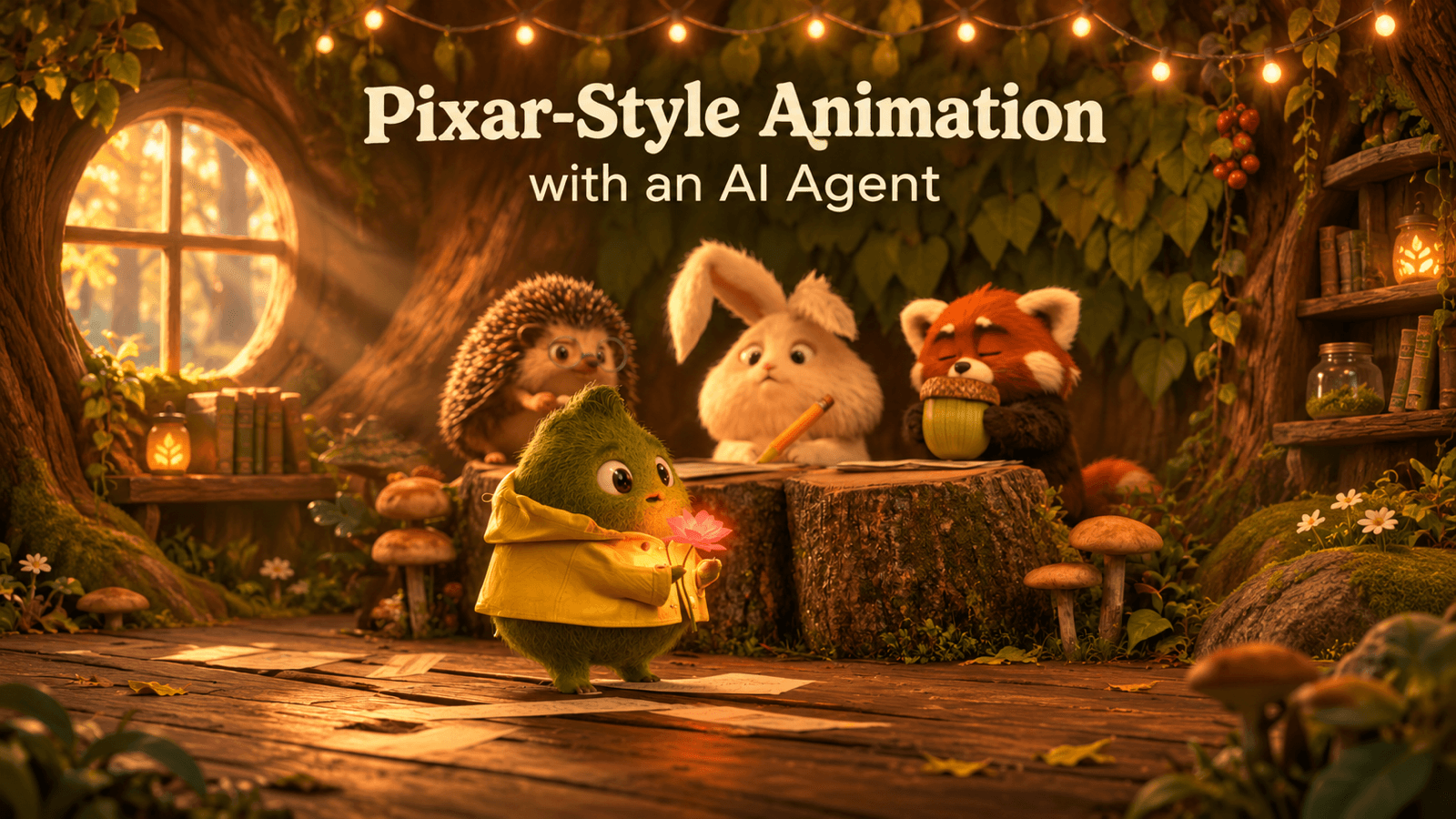
To make a Pixar-style 3D animation without jumping between browser tabs, pair an AI agent—like Claude, ChatGPT, or Cursor—with DomoAI MCP. Your agent handles the creative planning: the script, the shot list, and prompts that stay consistent. DomoAI MCP does the generating: reference stills first, then each video shot, all from one chat. Before any task runs, your agent shows a creation plan with the estimated credit cost, and nothing is charged until you approve.
You can make this kind of 3D animated short from a chat. The workflow below fits any original story. It starts with one style reference image.
Why Pair an AI Agent With DomoAI MCP?
A multi-shot 3D short has a lot of moving parts: a prompt for every shot, the right references on each one, and continuity from cut to cut. With DomoAI MCP connected, your agent carries that load inside one conversation:
- One brain for story and prompts: Your agent keeps the character traits, outfits, lighting, and camera moves from your script in view, so you don't rewrite style details for every shot.
- Several tasks from one message: Ask for all your reference stills, or a run of video shots, in a single request. The agent prepares a plan for each task and submits them once you approve. How many generate at the same time depends on your DomoAI plan.
- Upfront cost checks: DomoAI MCP offers the same creation tools, models, and credit prices as the DomoAI website. Each plan shows the model, settings, and estimated credits before anything is charged.
| Stage | DomoAI MCP capability | What your agent sends | What you get |
|---|---|---|---|
| Set the look and design references | Image Editing | A prompt plus your style reference image | 3D-look stills of your character, setting, and props |
| Animate shots | Omni Reference with Seedance 2.5 | Reference stills + an action prompt per shot | 4–30s clips at 480P or 720P, with native audio on or off |
| Match a gesture | Character to Video (Move) | One motion video + one character image | Your character following that motion |
| Add dialogue | Text to Speech, then Talking Avatar | The line of text, then the audio + a face image or video | A lip-synced speaking shot |
| Raise resolution | Video Upscale | A finished clip | A higher-resolution version, where your plan allows |
| Review cost | Creation plan, before every task | Proposed inputs and settings | Model, duration, resolution, and estimated credits to approve |
Step 1: Connect DomoAI MCP to Your AI Agent
First, give your AI agent access to DomoAI's creation tools:
- Follow the DomoAI MCP setup guide for your client.
- One-command setup: Claude Desktop, Claude Code, Cursor, and Codex.
- Local MCP setup: the ChatGPT desktop app, Antigravity, Kimi, and Grok. ChatGPT in the browser can't connect to a local MCP server.
- Sign in. Your agent shows a URL and a short code. Open the URL, sign in to DomoAI, check that the code matches, and click Approve.
- Restart your agent so the DomoAI tools load into your chat.
Once connected, you can plan, generate, check task status, and revise shots in the same conversation.
Step 2: Give Your Agent a Style Reference Image
Before you write a line of story, show your agent the look you want. A reference image tells the image and video models more than the words "Pixar-style" can.
Pick one still that shows the rendering you are after:
- Shapes: rounded, simplified forms with expressive proportions.
- Materials: soft fur, skin, or fabric with visible texture.
- Light: warm, cinematic lighting with clear depth.
Use an image you made or have the right to use. Save it where your agent can read it, for example as style-reference.png in your project folder, then tell the agent what it is for:
style-reference.png is the style reference for this project. Match its rendering, materials, and lighting in every image we generate with DomoAI. Take the look only: our character and story will be original.

Describe the look in three or four lines so we can reuse that description in every prompt.
The written description matters as much as the image. Your agent pastes it into each prompt, and attaches the image whenever it generates a still.
Step 3: Plan the Script and Shot List With Your Agent
With the look decided, have your AI agent act as your writer and storyboard artist. Ask it to settle the character design, the setting, and the exact shot breakdown before you spend any credits.
Use this reusable prompt template:
Write a [TOTAL LENGTH, e.g., 20-second] [ASPECT RATIO, e.g., 9:16 or 16:9] Pixar-style 3D animated short with [no dialogue / brief dialogue].

Story concept: [Describe your core plot in 1–2 sentences — e.g., a curious stray robot discovers a glowing flower in a rainy alley.]

Give me:
1. An original character description (face, proportions, textures, outfit, signature color).
2. One consistent setting description (time of day, lighting palette, key props).
3. A shot-by-shot list with duration, framing, camera movement, one character action per shot, and continuity notes across cuts.
4. The reference stills we need to generate first.

Keep everything consistent with our style reference.
Because the script lives in the same thread as DomoAI MCP, your agent can pull these details into every later prompt. To check pacing before you render video, ask the agent for quick AI storyboard frames with Image Editing. They are generations too, so each comes with a plan and uses credits.
Step 4: Generate Your Reference Stills in One Request
Now turn the style reference into the stills every shot will reuse. Your agent passes the reference image to DomoAI Image Editing along with each prompt:
- Character sheet: Full-body front and three-quarter views on a plain, evenly lit background, so proportions and details are easy to read.
- Environment still: The empty setting with the lighting mood established. Keep anything the character will pick up out of this image.
- Key props: A separate view of each object your character handles.
Ask for all of them in one message:
Using DomoAI Image Editing, generate our reference stills. Use style-reference.png as the style reference for every still: match its rendering, materials, and lighting. The character design comes from our script, not from the reference.

1. A character sheet of [CHARACTER] with front and three-quarter full-body views, plain light-gray background, even lighting, no text.
2. The empty setting, [ENVIRONMENT], in [9:16 or 16:9] with [LIGHTING STYLE], leaving room for the character.
3. [KEY PROP] on its own, on a plain background.

Show me the plan and estimated credits for each still before generating.
Already have a character? Give your agent the image and ask it to redraw the character in the reference look, or use it as the character sheet as it is.
Review the stills closely. Check facial proportions, outfit details, and whether all three share the same look, then ask the agent to redo any still that is off. A good AI character sheet saves retakes later, because every shot reads from it.
Step 5: Submit Your Shots to Omni Reference in One Request
This is where the agent does the most typing for you. It maps each beat of your shot list to the right references, writes the prompt, and prepares the video jobs for Omni Reference with Seedance 2.5, ByteDance's model.
- Pro tip: If your short has one complex interaction, like picking up an object or a tricky camera move, test that single shot first. Once the look and motion are right, send the remaining shots together.
Using DomoAI Omni Reference with Seedance 2.5 ([9:16 or 16:9], 720P, audio on), plan video jobs for Shots 1–[N] from our shot list.

For every shot:
- Attach the approved character sheet, setting still, and prop still in the same order, and say what each image is for.
- Use the shot's duration from the list (4–30 seconds).
- Describe one action and one camera move, plus what must stay the same.
- Ask for ambient sound only: no speech, no music.

Show me the plan and credit estimate for each shot before creating anything.
Approve the plans, and your agent submits the shots. How many generate at once depends on your plan; the rest wait their turn. If the inputs or the price change after you approve, DomoAI returns a new plan for approval, so you are not charged more than you agreed to.
Step 6: Refine Shots, Add Acting or Dialogue, and Assemble
Expect a retake or two. Staying in the agent thread means you only regenerate what needs fixing:
- Fix a single shot without starting over: Tell your agent, "Redo Shot 2 only—keep the same references and camera move, but fix [specific problem, e.g., extra prop or lighting shift]. Show me the new plan first."
- Direct specific body language: If a gesture matters, record yourself doing it and ask your agent to run Character to Video (Move) with your motion clip and your character image.
- Add spoken lines: Have your agent generate the voice line with Text to Speech, then pass the audio and the character's face to Talking Avatar for a lip-synced shot.
- Export and finish: Preview clips in chat if your client shows them, or download them from your DomoAI library. Drop the clips into your video editor in story order, add music or captions, and run Video Upscale if you need higher resolution and your plan allows it.
One character is the simplest place to start. When you are ready for a cast, see how to build an animated scene with three recurring characters.
Quick Continuity Checklist Before Exporting
Before you stitch the short together, scan each clip for four things:
| Check | If it's off |
|---|---|
| Character: face, hair or fur, proportions, and outfit match the character sheet in wide shots and close-ups | Redo that shot with the same references. If it keeps drifting, fix the character sheet first |
| Lighting: color temperature and light direction hold from cut to cut | Name the light source again in the prompt for that shot |
| Object interaction: props don't duplicate, vanish early, or change shape | State the count and the order of events, or cut the shot down to one action |
| Audio: ambient sound sits cleanly across edits | Trim or crossfade in your editor, or redo the shot with audio off and add sound later |
FAQ
Can Claude or ChatGPT make Pixar-style animations?
Yes, when connected to DomoAI MCP. Claude or ChatGPT writes the script, structures the shot list, keeps the prompts consistent, and submits the generation tasks. DomoAI generates the reference images and the video clips.
Why use DomoAI MCP instead of generating on the website?
It's the same set of tools, models, and credit prices. The difference is where you work. Through MCP, your agent holds the story, writes a prompt for every shot, and submits tasks from chat. MCP runs in Fast mode only and has no Ghost Mode, so use the website for Relax mode or private creation.
Which AI agents work with DomoAI MCP?
Claude Desktop, Claude Code, Cursor, and Codex support one-command setup. ChatGPT works through its desktop app; ChatGPT in the browser does not support local MCP servers. Antigravity, Kimi, and Grok can also connect through their local MCP settings.
How much does an AI-animated short cost, and how long can each shot be?
Cost depends on the number of stills, shot lengths, resolution, and retakes. Your agent shows the estimated credits for each task before you approve it. With Seedance 2.5 in Omni Reference, a single shot runs 4–30 seconds at 480P or 720P. For a longer story, stitch several clips together.
Do I need a style reference image?
No, but the result is better with one. A reference image shows the model the rendering, materials, and lighting you want. Use the same one for every still so the character, setting, and props share a look.
Can I use my own character?
Yes. Give your agent your character image and use it as the character reference in Omni Reference, in place of a generated character sheet. You can also ask Image Editing to redraw it in your style reference's 3D look first. Use the same image in every shot.
Ready to build your first 3D short from chat? Set up DomoAI MCP