Nano Banana 2.1 Image Generator & Editor

Make event posters, product photos, and group illustrations with Nano Banana 2.1, Google’s image generation and editing model in DomoAI. Start with a prompt or up to 14 reference images to change the wording, try a new color, or bring people and objects into one scene.

#7

Discord Server Globally

70+

AI Video Models

5,000,000+

Active Users
What Can You Create with Nano Banana 2.1?

Create a poster with a large headline, show a product in a new room, or bring several characters into one picture. Nano Banana 2.1 works with photos and illustrations, from simple color changes to scenes built from several references.
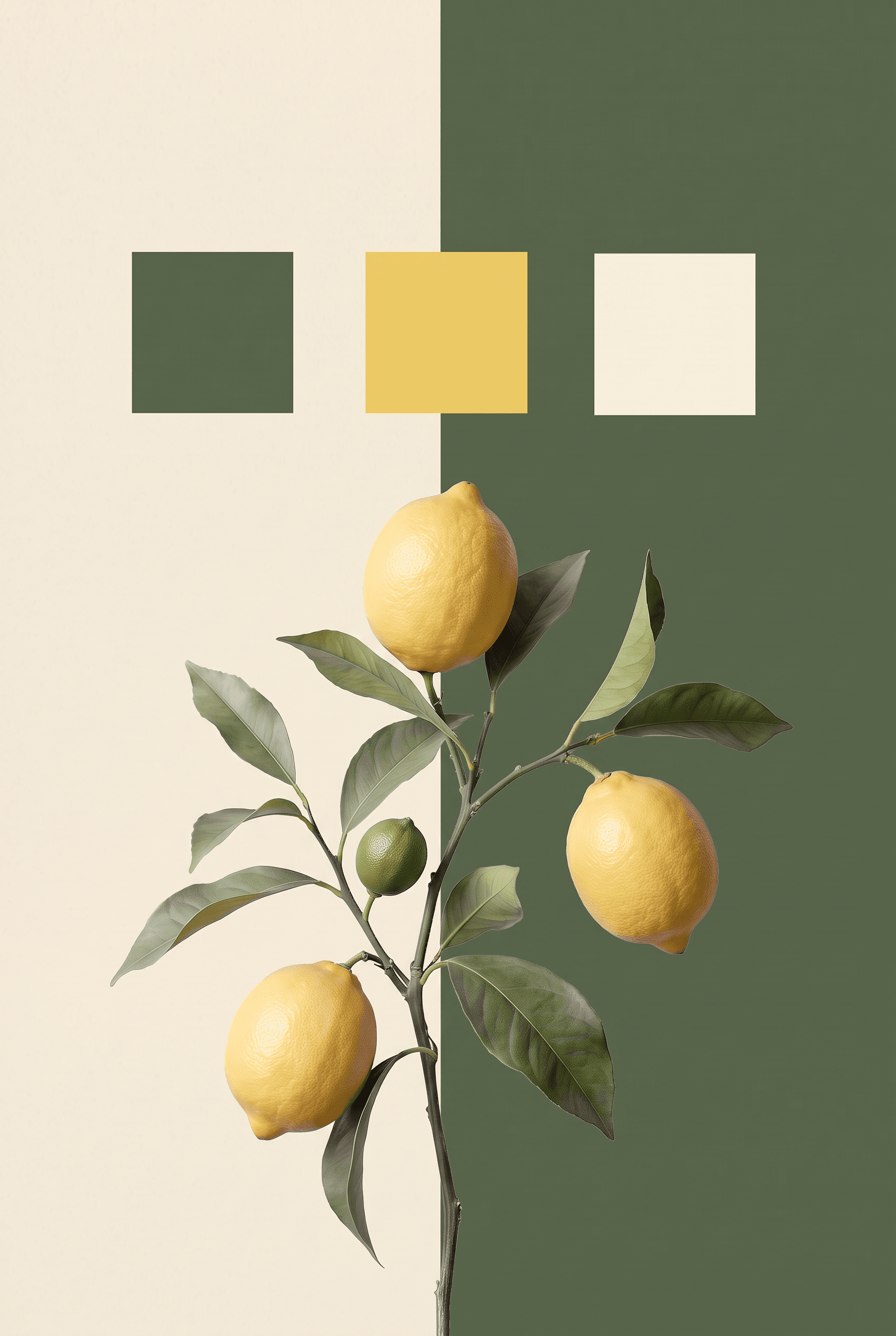
  • Three lemons on a leafy branch against cream and olive panels, with green, yellow, and cream color swatches.Product Color Options
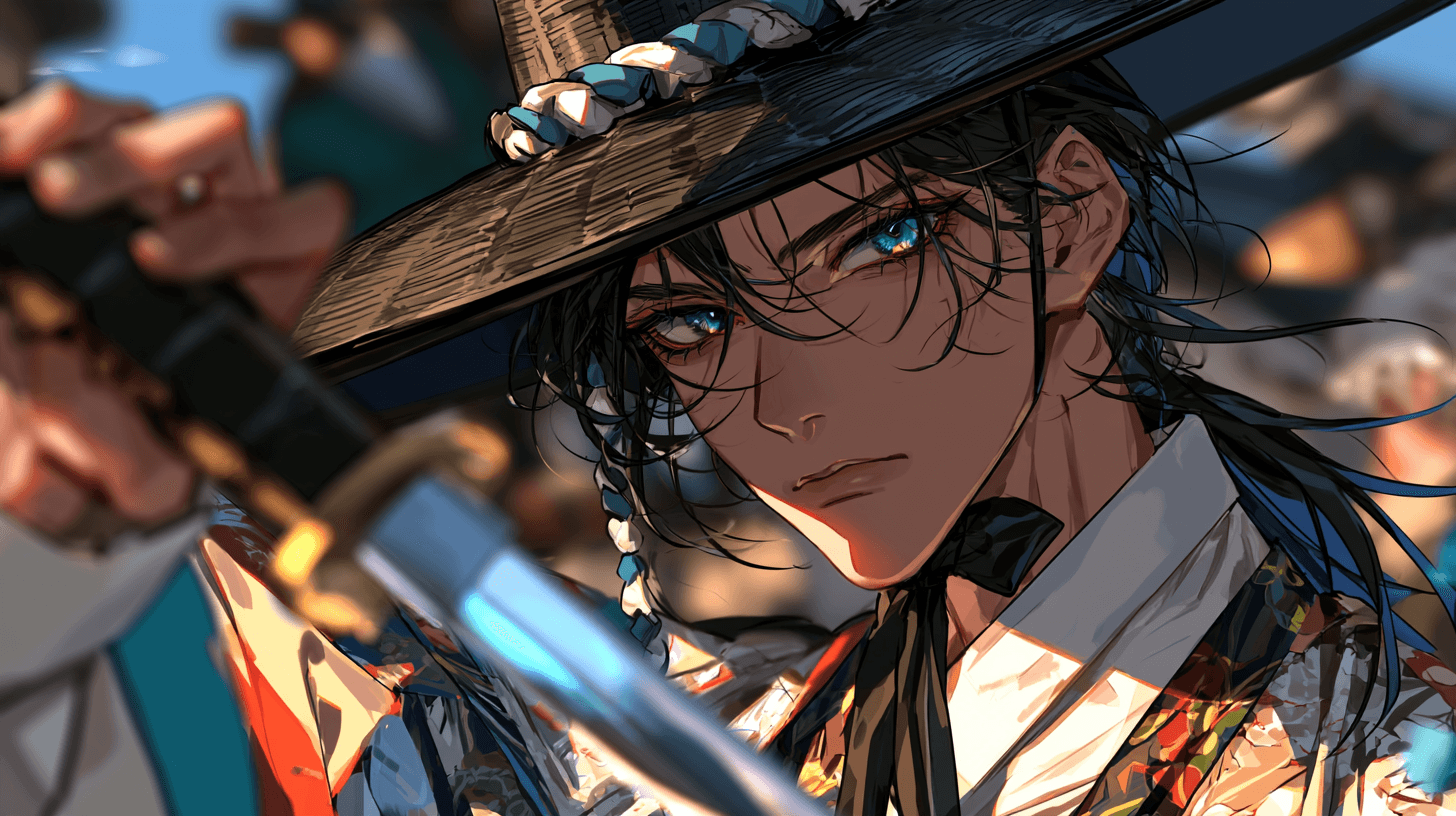
  • Close-up anime illustration of a blue-eyed character wearing a broad-brimmed traditional hat.Anime Character Art
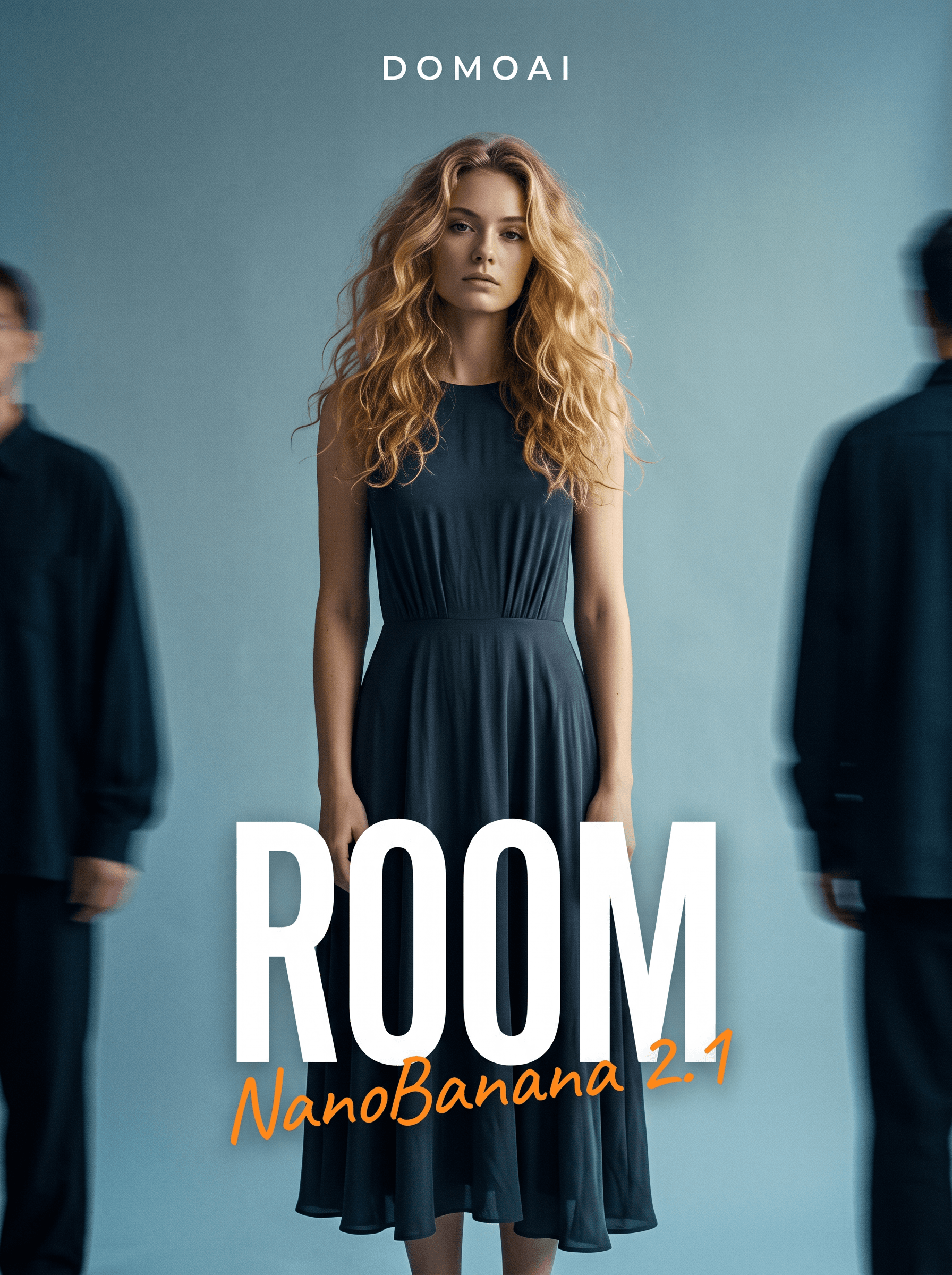
  • Fashion poster with a woman in a dark dress and white ROOM lettering.Posters & Lettering
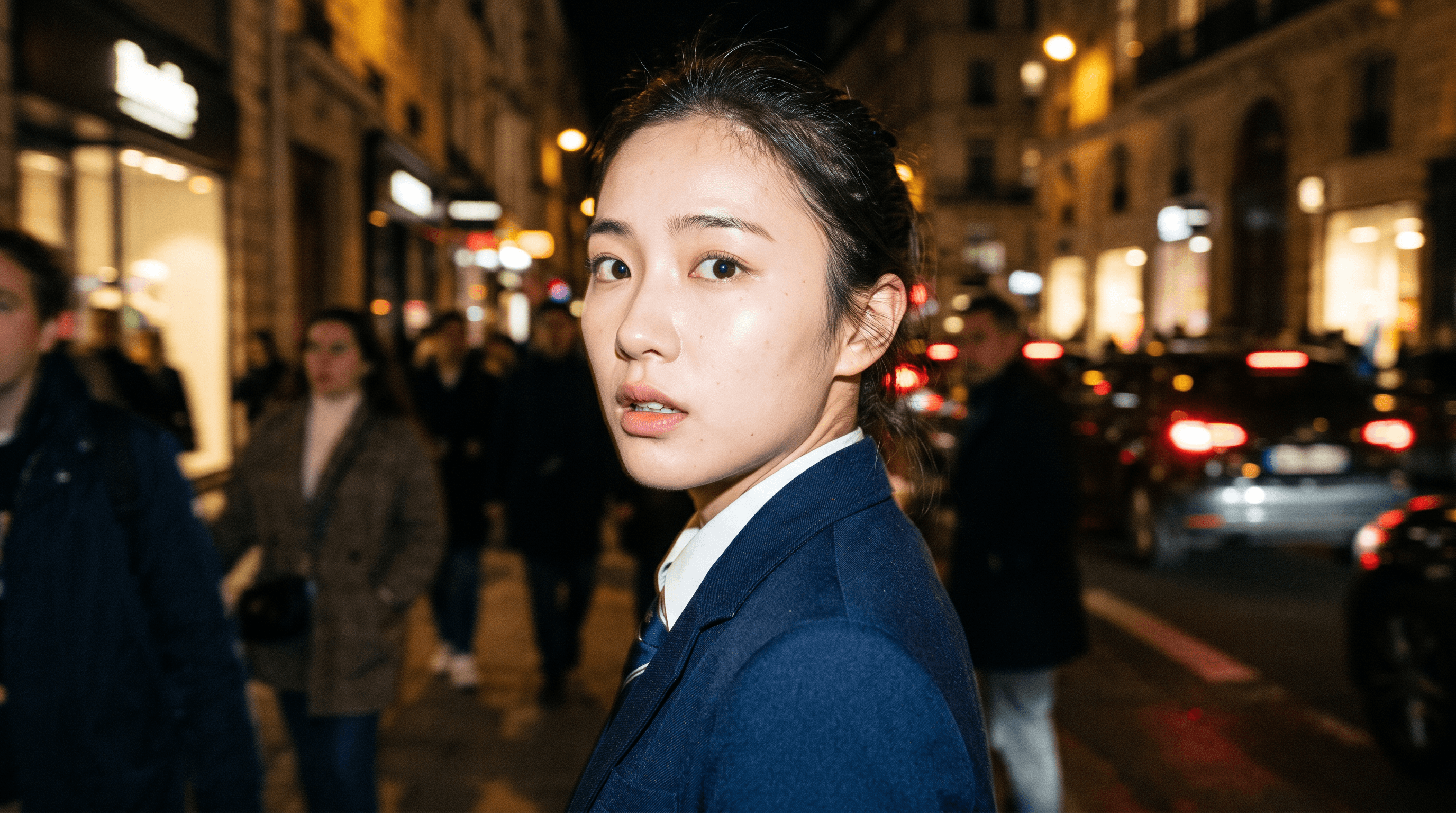
  • Flash-lit portrait of a woman in a navy jacket on a city street at night.Editorial Portraits
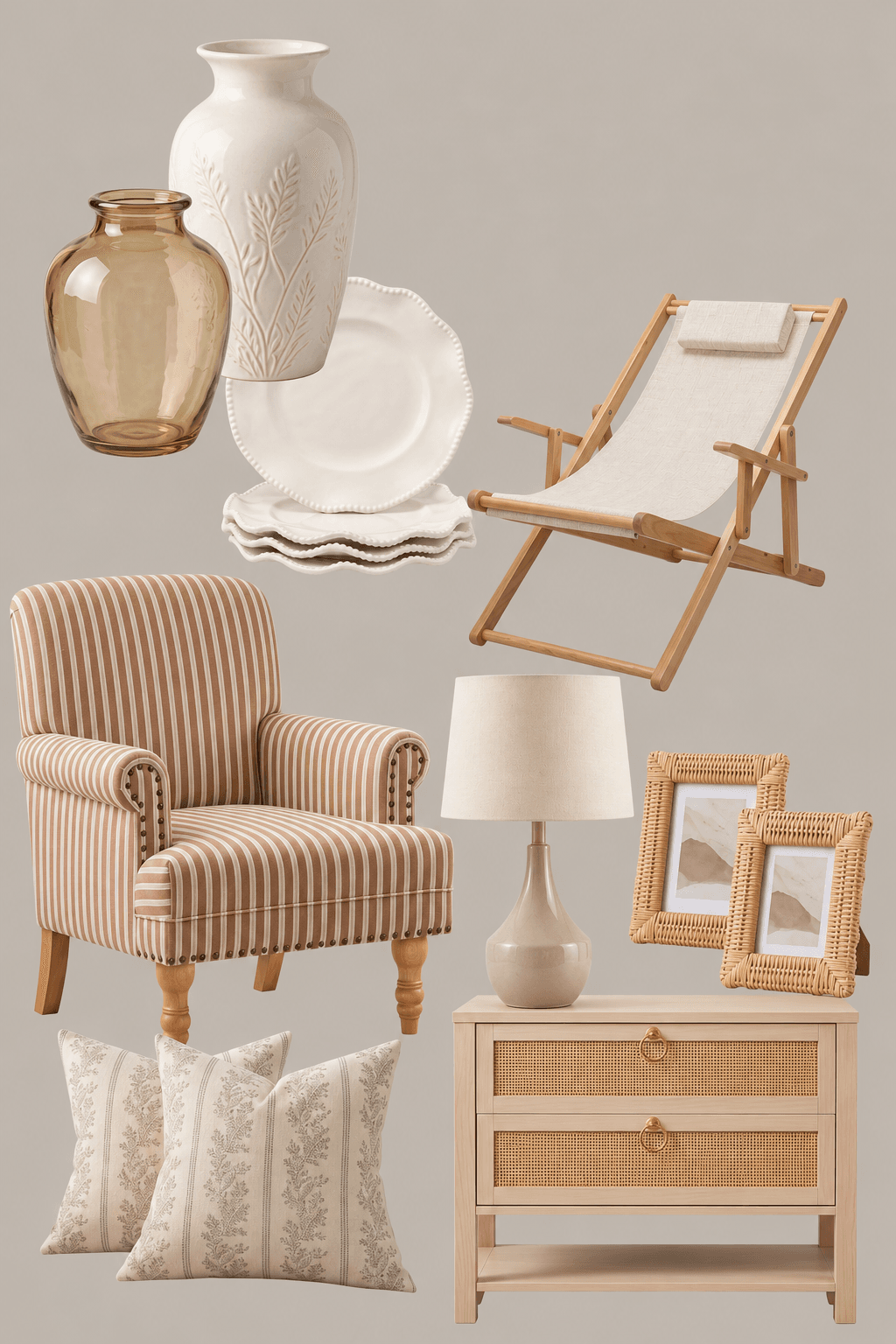
  • Collage of neutral-toned chairs, vases, plates, cushions, a lamp, frames, and a wooden cabinet.Objects Arranged Together
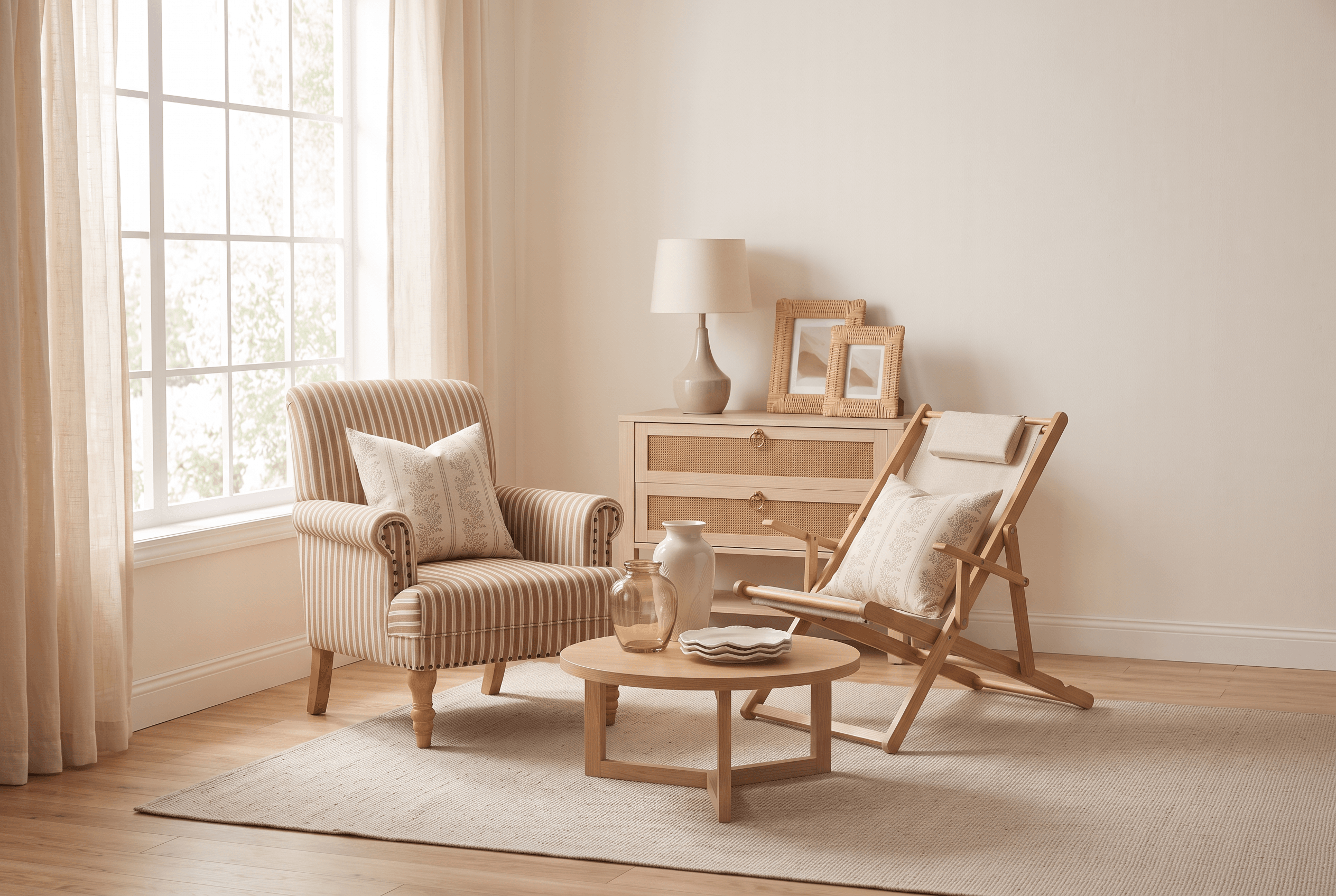
  • Sunlit living room with a striped armchair, folding chair, round coffee table, and wooden cabinet.Products in Room Settings

How to Use Nano Banana 2.1

Start with a written idea, an image to change, or several images to combine.
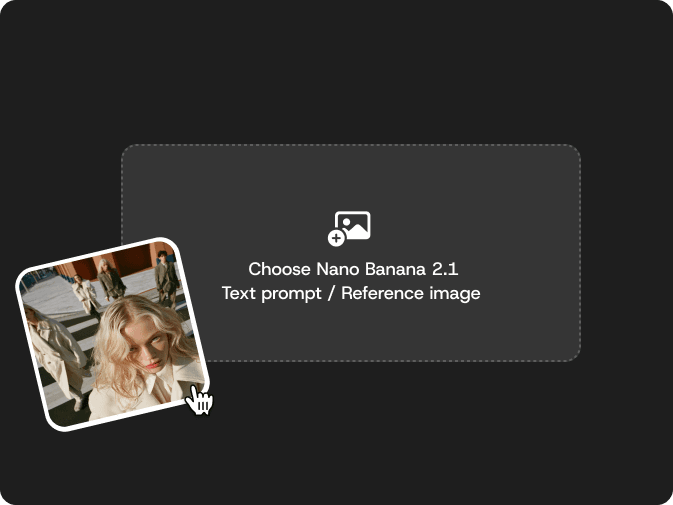
Nano Banana 2.1 image input area with a portrait reference beside the text prompt and reference image instructions.

STEP 1

Select Nano Banana 2.1

Go to DomoAI’s Image Generator & Editor. Open the model picker and choose Nano Banana 2.1.
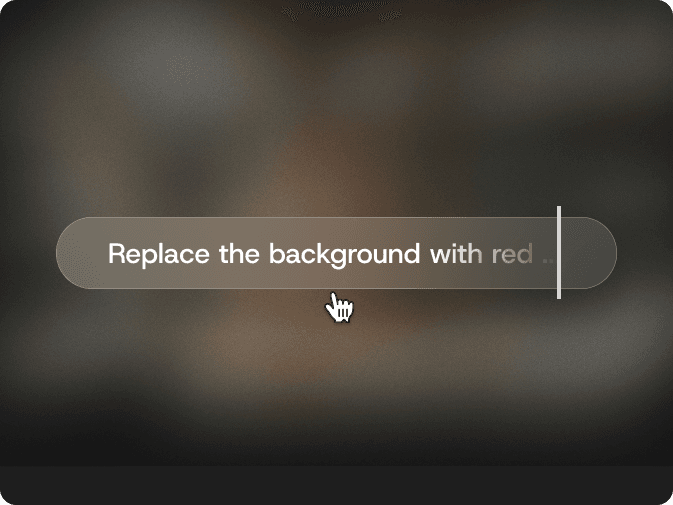
Image-editing prompt reading “Replace the background with red” in a rounded text field.

STEP 2

Add Your Images and Instructions

Upload the photos or artwork you want to use, or leave the image input empty to start from text. Enter your request and choose the output settings.
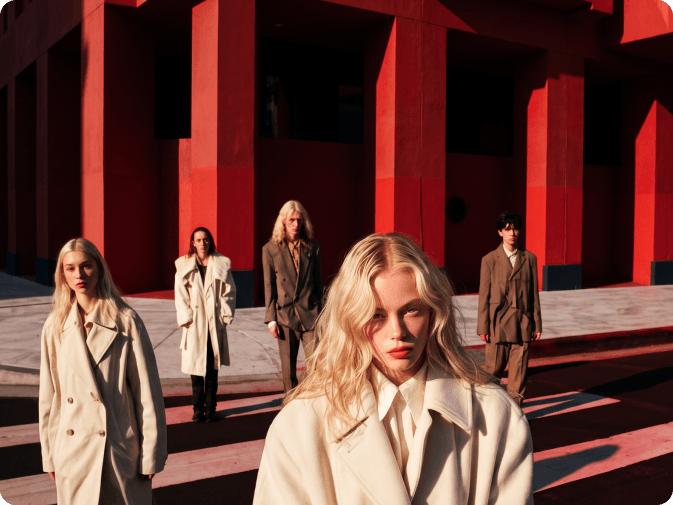
Five fashion models in neutral coats standing in front of vivid red architectural columns.

STEP 3

Generate Your Image

Click Generate and open the result to check it. Download the image you want to keep. To make another change, upload that result and enter a new request.

Try These Image Prompts

Model Workflow

Ask for a poster layout, a new product color, or a scene made from separate images. Replace the subjects and details below with your own.

Set the Headline and Small Print

Design a vertical poster for an independent print fair. Use an oversized indigo paper-cut bird on warm ivory, with generous margins. Set “PRINT FAIR” as the main headline across the top and “OPEN 10AM TO 5PM” in a smaller line at the bottom. Keep both lines separate from the illustration. Use only these words, with no extra labels or decorative lettering.

Change a Product’s Color

Use the uploaded travel-mug photo. Change only the red body to matte sage green. Keep the lid, handle, logo, proportions, camera angle, background, and lighting as they appear in the reference. Preserve fine surface detail and keep the lighting direction consistent. Do not add objects or text.

Place a Product in a Room

Use Image 1 for the yellow armchair and Image 2 for the room. Place one copy of the chair beside the window in Image 2, with all legs resting on the floor. Preserve the chair’s shape, fabric, and color, and the room’s existing furniture. Match the window light, perspective, and contact shadows. Keep the whole chair in frame.

Put Three Characters in One Scene

Combine the three character references into one wide anime illustration at a quiet train platform. Show exactly three characters, once each: Image 1 on the left, Image 2 in the center, Image 3 on the right. Preserve each character’s face, hair, outfit colors, and accessories without swapping details. Use one shared perspective and soft evening light. Keep all faces and headwear visible. No extra people or text.
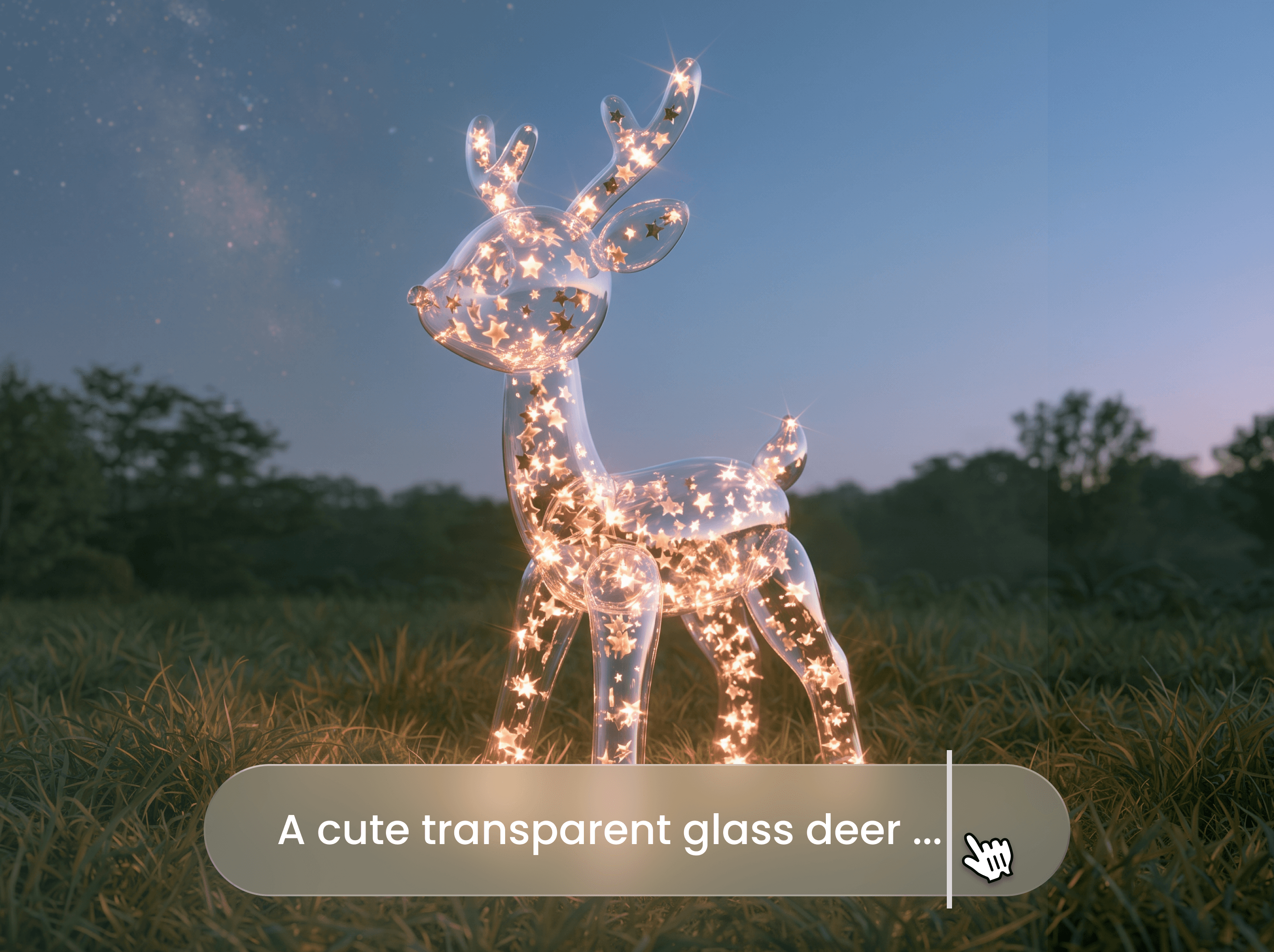
A transparent glass deer glowing with tiny lights in a grassy field, with an image prompt overlay.

Images for Shops, Events, and Stories

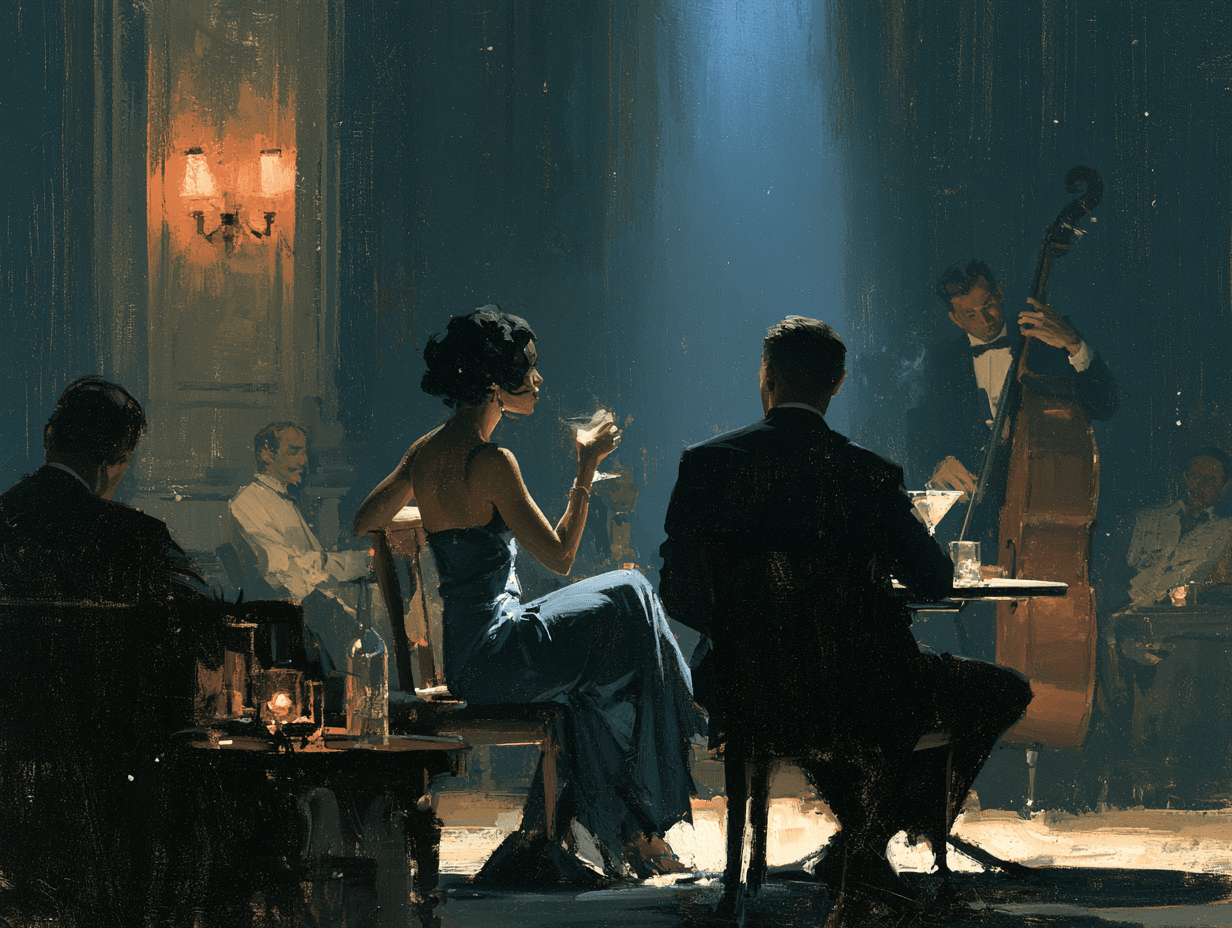
Painterly jazz lounge scene with seated guests, candlelit tables, and a double bass player.

Shop Owners & Event Organizers

Make a poster for a market, workshop, or store event from the event name and a short message. When the date or offer changes, use the saved design as a reference and ask for the new wording.
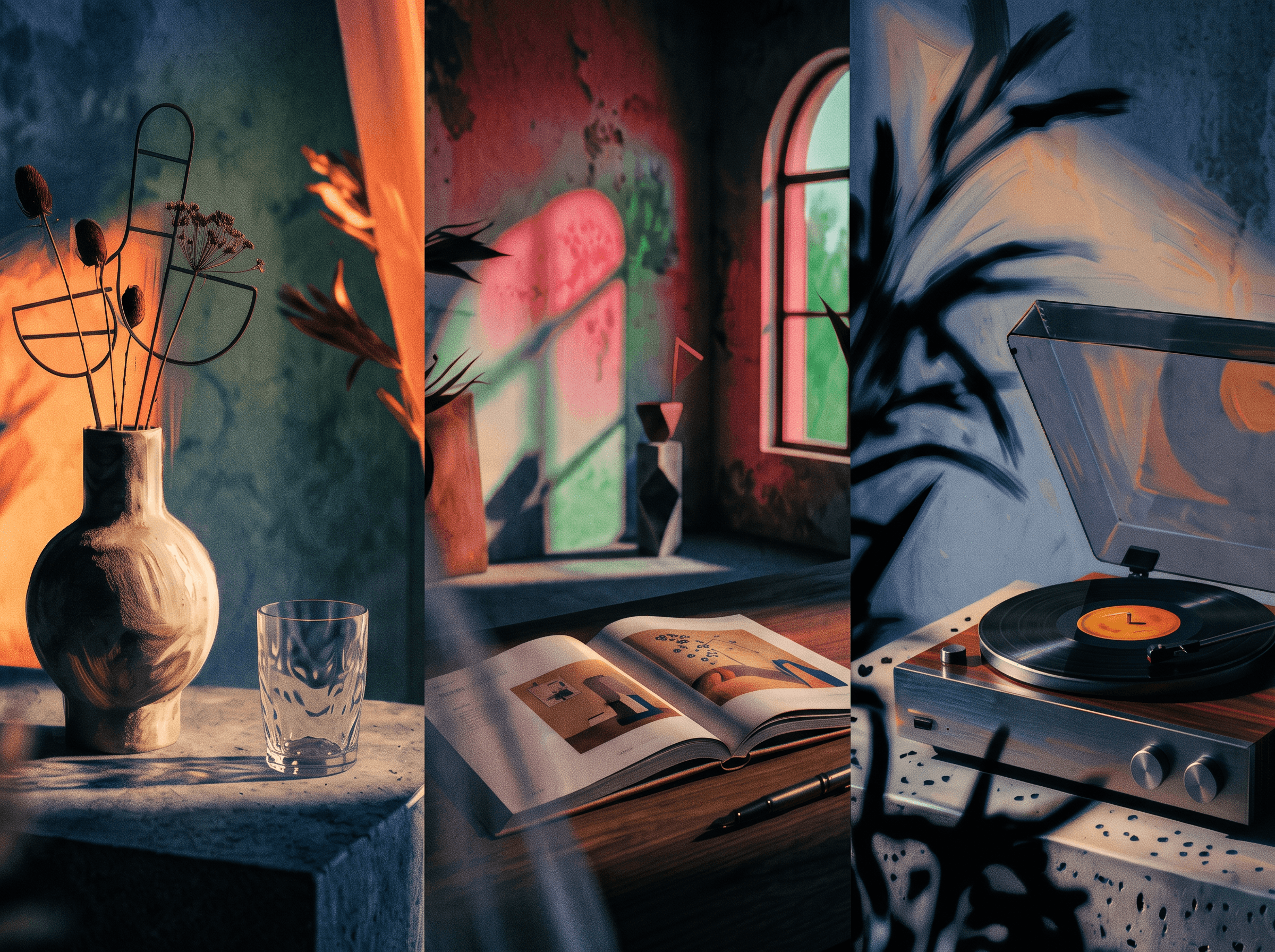
Three-panel interior collage showing a vase and glass, an open book by a window, and a record player.

Online Sellers

Try a different product color or see how an item looks in a room before choosing an image for your listing. Use a product photo on its own for a color edit, or add a room photo to try a new setting.
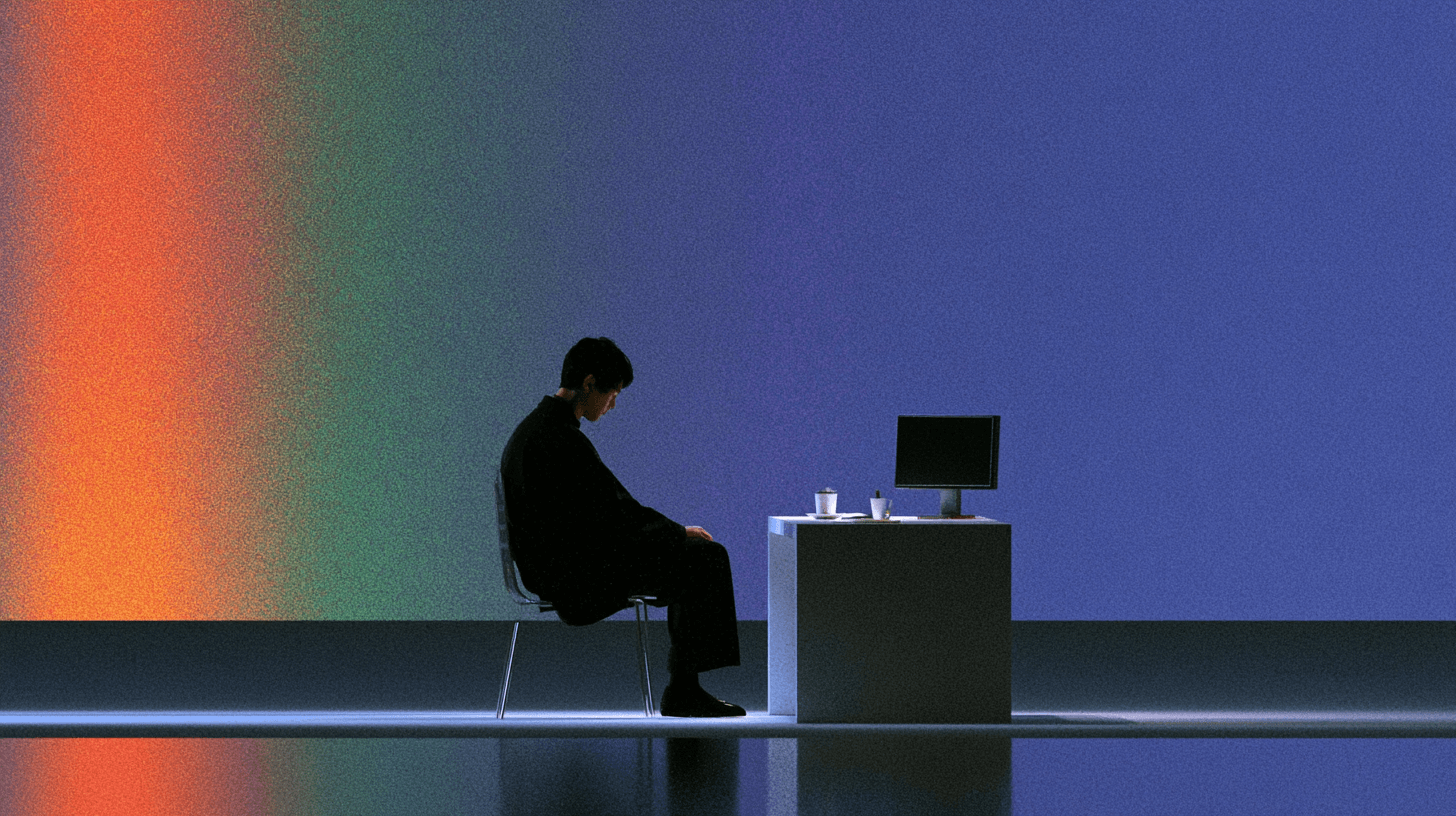
A silhouetted person sits at a computer desk against a wall lit in orange, green, and blue.

Illustrators

Put characters from separate drawings into one scene for a cover or story idea. Use each drawing as a reference and decide who goes where, instead of describing every character from scratch.

Tips for Text Edits and Multiple References

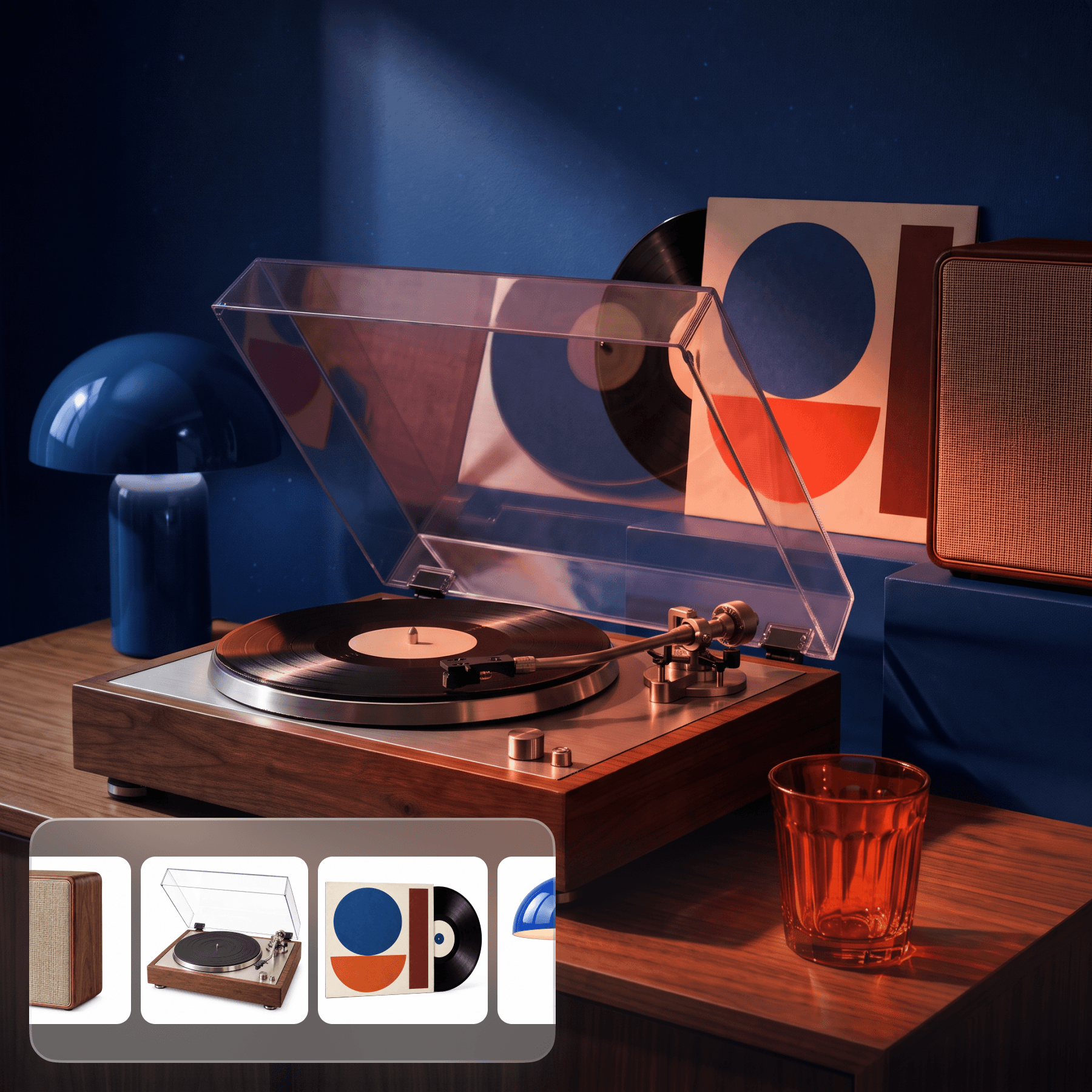
A record player, blue lamp, abstract artwork, and orange glass arranged together, with reference thumbnails below.

Say What Each Image Is For

If you upload a product, a room, and a style example, tell the model which is which. A style image may also contain words or borders you do not want. Name the parts to use and the parts to leave out.

Start with the Details That Matter Most

For a poster, get the headline and layout right before adding decoration. For a group picture, start with the people and their positions. Adding every small detail at once can make the result harder to check.

Pick the Right Image for Your Next Edit

If the layout works, use that result for the next change. If a face or product has changed too much, go back to the original reference. Upload the version you want to work on.

Look Beyond the Main Subject

Zoom in on the small text, count the props, and check the edges of the picture. A scene can look right at first glance but still have a missing object, an extra word, or part of a hat cut off.

Nano Banana 2.1 FAQ

Which Nano Banana version should I start with?
Try 2.1 for posters with text, edits to an existing image, or scenes made from several references. Nano Banana 2 is still available, so you can keep using it when its results suit your work. Pro is another option, with up to 9 reference images compared with 14 for 2.1. Use the same images and request when comparing them; a newer version will not always give you the result you prefer.
Should I upload all 14 reference images?
Only if each one adds something you need. For a product in a room, start with the product and room photos. Add other references for a clear reason, such as another person or a style to follow. Fourteen is the upload limit; it does not guarantee 14 correctly reproduced subjects.
Why did other parts of the image change during a small edit?
The model may redraw nearby details even when you only ask for a new color or a different word. Identify the part to change and name what should stay, then compare the result with your source. If some areas must stay exactly the same, keep those areas from the original using a regular image editor.
How do I replace a Chinese headline and keep the smaller text?
Include the old headline and its replacement in quotation marks. Say where the headline is and ask to keep the smaller text and layout. Short Chinese wording can be generated and edited, but check every line afterward: a correct headline does not mean the remaining text and fine strokes are unchanged.
How do I stop a reference image’s border or text appearing in the result?
Say which parts of the reference you want, such as its colors or paper texture, and ask to leave out the border and words. If they still appear, use a simpler reference or describe the style in text. Repeating the same exclusions may not fix the problem.
The people look right, but a prop is missing. What should I try?
Check which part of the request matters most. If the prop is essential, try a simpler scene with fewer actions and details. You can also upload the result and ask to add the missing object, then check that the people still look right. Correct faces and headcounts do not mean every object or interaction will be correct.
Do I need credits for every Nano Banana 2.1 image?
No. Standard and higher plans include Relax Mode for eligible Nano Banana 2.1 generations. It takes longer than Fast Mode and uses no credits. Check whether Relax is available with your chosen settings; the upload limit alone does not tell you which requests qualify.
Will switching to 2.1 shorten my wait?
Not necessarily. The request and service conditions affect how long an image takes, so do not choose 2.1 just because it has a newer version number. Choose the result you prefer, and use Relax when you can wait longer for eligible generations without spending credits.

Generate, stylize, and upscale in one place