

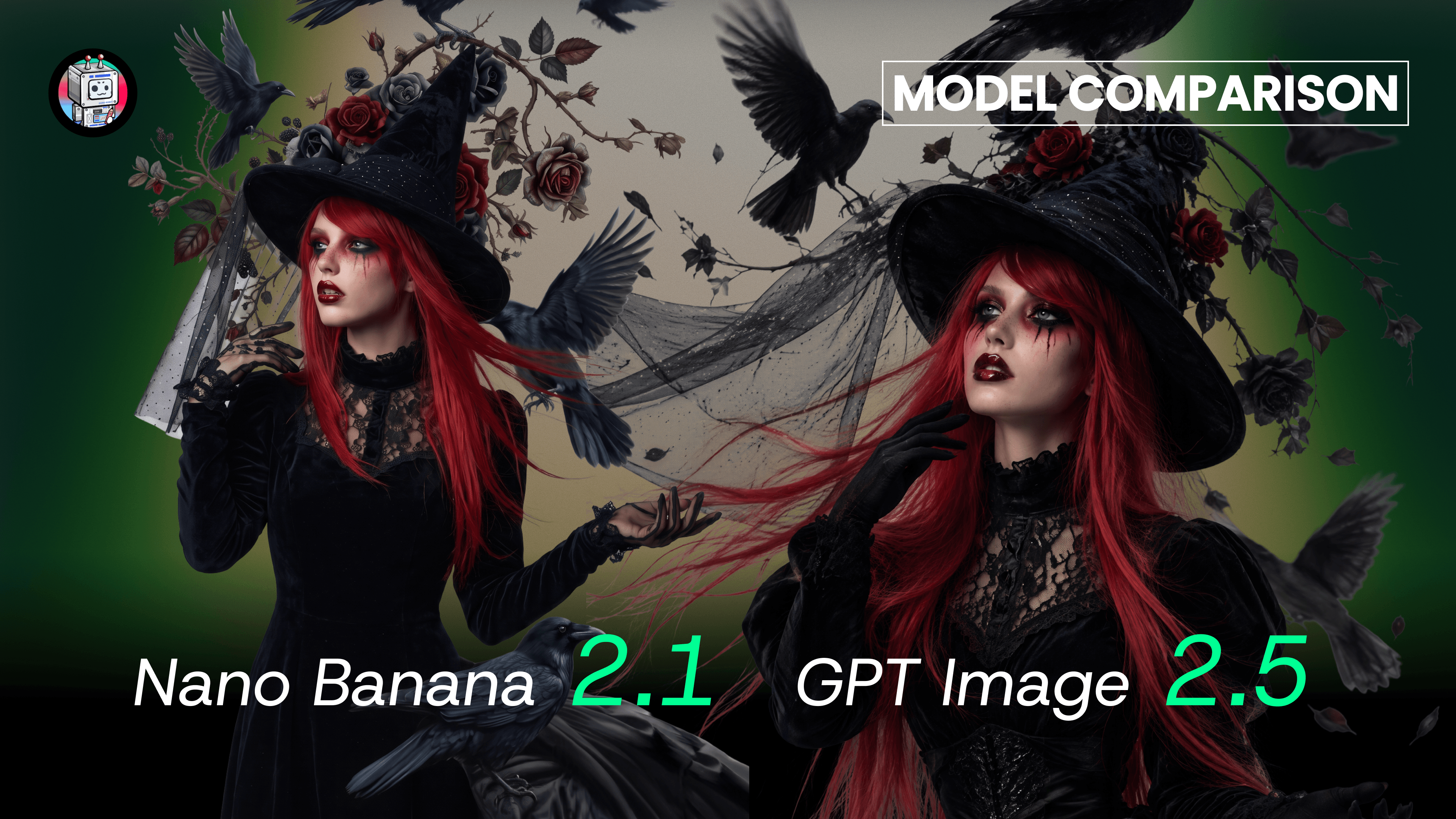
Consider Nano Banana 2.1 when your starting point is a set of reference images or a layout-focused brief. Within GPT Image 2.5, consider Flare for everyday creation and Sunburst for detailed refinement. Both model families are available in DomoAI, so your choice can change with the task.
Nano Banana 2.1 vs GPT Image 2.5 at a glance
Nano Banana 2.1 is Google’s image generation and conversational editing model. GPT Image 2.5 is OpenAI’s image model family, with Flare and Sunburst variants.
| Selection question | Nano Banana 2.1 | GPT Image 2.5 Flare | GPT Image 2.5 Sunburst |
|---|---|---|---|
| What is it positioned for | Efficient generation and editing from prompts and references | Everyday image creation and iteration | Detailed creative work and tighter editing control |
| A practical starting task | Combine a product reference, setting and layout direction | Develop campaign concepts or social visuals | Refine an approved composition |
| Published capability to consider | Up to 14 reference images; text and layout improvements | OpenAI’s general-purpose 2.5 option | Additional precision with longer generation times |
| DomoAI availability | Available | Available | Available |
Google describes the reference capacity and layout updates in its Nano Banana 2.1 documentation. OpenAI explains the Flare and Sunburst distinction in the Images 2.5 announcement.
A useful choice starts with the part of the job that is difficult. Is it combining source material, exploring a direction, or preserving an approved image while changing one detail? Those are different problems, even when the final deliverable is the same square product ad.
Start with the material you already have
Nano Banana 2.1 is a relevant option when several images contribute to one composition. For example, a skincare campaign might begin with a bottle photograph, a material reference for the surface and a rough layout.
The goal is not to use the largest possible reference set. It is to explain what each source contributes.
A bottle photograph should define the product’s proportions and cap. A reference showing rippled glass might define the surface treatment. A layout sketch could define the position of the bottle and the area reserved for copy. Without those roles, the model has to infer whether the glass should become a background, a material on the bottle or an unrelated prop.
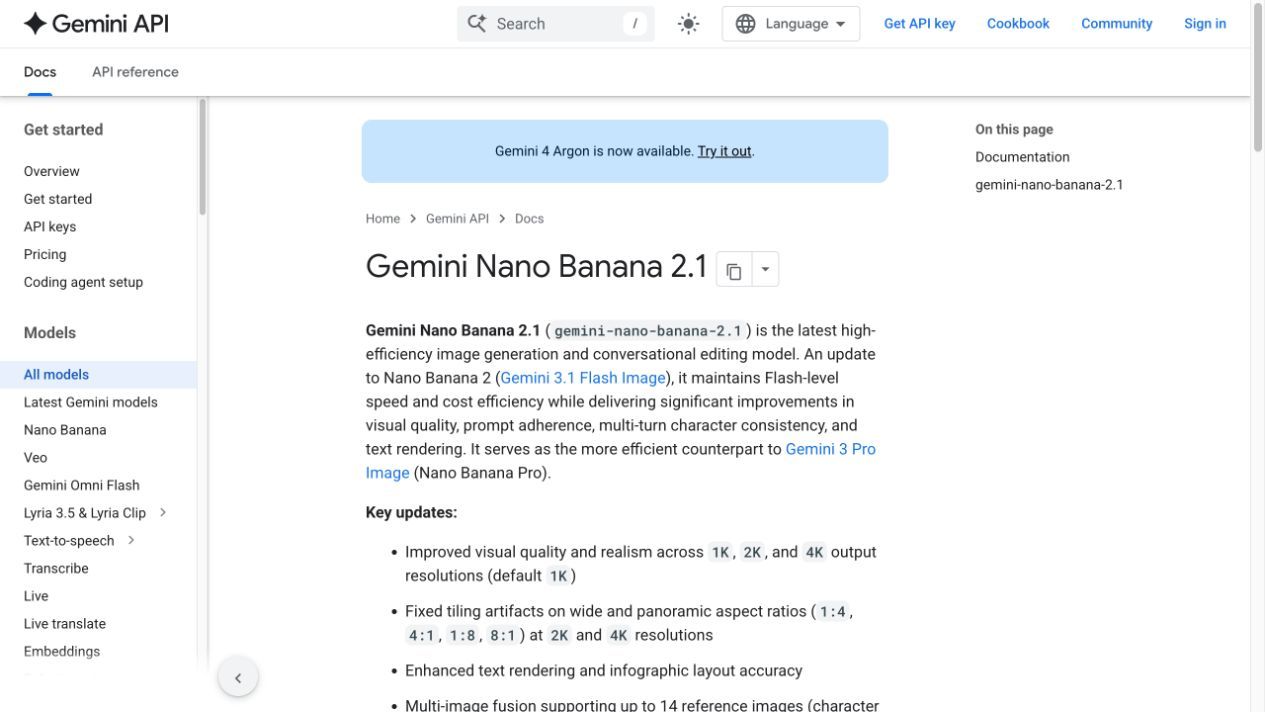
Google’s official Nano Banana 2.1 model documentation.
Before writing a prompt, separate fixed requirements from flexible ones:
- Fixed: product shape, label wording, brand color and any approved composition.
- Flexible: supporting props, lighting direction, background texture and crop.
- Excluded: objects, effects or changes that would misrepresent the product.
That distinction matters more than whether you describe a style as cinematic or premium. Those adjectives leave many decisions open. “Keep the bottle upright, retain its matte white cap and place it on pale blue glass” gives the model more concrete information.
A reference allowance also does not guarantee that every detail in every image will survive. When the subject matters, make the intended identity unambiguous. Several clear views of one bottle are usually easier to interpret than a folder containing multiple products with similar packaging.
If you are moving from the previous Google model, the Nano Banana 2.1 vs Nano Banana 2 comparison covers that narrower version decision.
Choose Flare for concepts or Sunburst for detailed edits
Within GPT Image 2.5, your first choice is between Flare and Sunburst. Choose according to how much of the image you still want to explore and how much you need to preserve.
OpenAI positions Flare as the default for most applications and Sunburst for work that benefits from greater precision across edits. That makes Flare a reasonable starting point while you are still deciding what to make. Sunburst is worth considering once there is an approved direction and the remaining changes are specific.
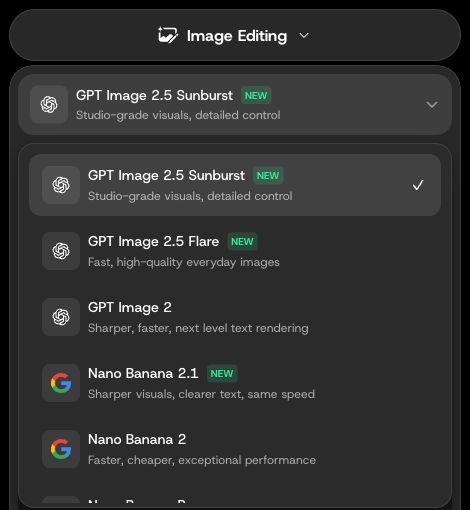
Open the model selector above Add Images to choose GPT Image 2.5 Sunburst, GPT Image 2.5 Flare or Nano Banana 2.1. All three appear in the same Image Editing menu.
For the skincare campaign, early questions might include whether the bottle should sit on glass or stone, whether the crop should be close or wide, and whether the scene should feel clinical or warm. Those are concept decisions.
Later requests look different: preserve the crop, retain the bottle’s position, remove one prop and soften a reflection. Now the value of the edit depends on keeping much of the existing image intact.
DomoAI’s GPT Image 2.5 model page provides the platform-specific overview. When saving a prompt or reviewing a result, record which variant you selected. “GPT Image 2.5” alone leaves out a meaningful part of the configuration.
Choose a model for the image you need
Start with what your finished image needs to get right: product details, readable text, a specific edit or a recognizable character.
Product images
For a product asset, recognition and accuracy often matter more than decorative detail. Check the silhouette, proportions, cap or closure, material and label placement.
A dramatic reflection may look attractive but obscure the product. A realistic-looking image may still depict the wrong number of buttons or a slightly different container. Those are separate issues from resolution.
A useful brief gives the product a clear role: hero object, supporting object or item being used. It also defines which visible features are essential. For source-heavy composition work, Nano Banana 2.1 is a sensible candidate; for a focused correction to an established image, GPT Image 2.5 Sunburst is another relevant candidate. Neither choice removes the need to inspect the result.
Posters and text-heavy images
Consider Nano Banana 2.1 for posters, labels and infographic layouts. Give it the exact wording and a clear layout, then check spelling, line breaks and alignment in the result.
Separate the wording from its visual treatment. Supply the exact copy, then specify hierarchy: headline, supporting line and small-print area. State which text may wrap and which must remain together.
For a campaign that needs legal copy, product measurements or a precise price, keep the approved wording available for a final check. If the design needs reliably editable type, you can generate the visual and place the final text in your design tool.
Review the text at its intended display size so you can judge whether the headline, supporting copy and small print are readable.
Targeted edits
For an edit, write down both the requested change and the elements that must remain stable.
“Make this more luxurious” could change the lighting, background, palette and product surface at once. “Replace the rough stone base with smooth beige limestone; preserve the bottle, label, crop and light direction” defines a more bounded task.
When a result is already close, several unrelated requests in one pass make it harder to identify what caused an unwanted change. Make the important correction first, then decide whether another pass is necessary.
This is particularly relevant to the Sunburst use case, but the prompting principle applies to both model families.
Characters and recurring subjects
For a recurring subject, define the identifying features before changing the scene. A face, hairstyle, outfit and signature accessory do not all have to change together.
Use a stable source image and keep a record of the approved appearance. If the output becomes a new reference, check it first; otherwise, an accidental change can become part of the next instruction.
Choose the aspect ratio and resolution for your image
Choose your aspect ratio around the placement: a portrait story, a square card and a wide banner need different compositions. Then select the resolution for your final image. In DomoAI, open the ratio and resolution control beside Generate.
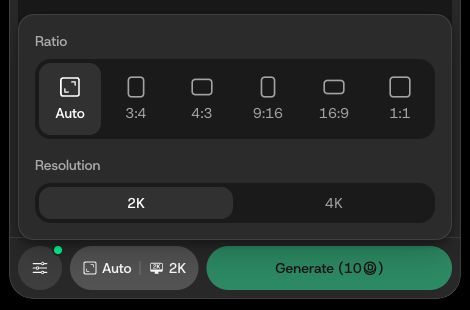
In DomoAI, click the ratio and resolution control beside Generate. This GPT Image 2.5 Sunburst view shows the available aspect ratios and 2K/4K options; the Generate button displays the quote for the current settings.
Check the product shape and label wording before increasing the resolution. A larger image still needs the right details.
During concept development, judge whether the image is the right image. For the final export, check whether its dimensions suit the intended placement. Increasing size before the composition is settled can add cost without resolving the underlying creative decision.
What the choice costs in DomoAI
In DomoAI, Flare and Sunburst are priced the same. You can choose between concept development and detailed refinement without paying a premium simply for selecting Sunburst.
Before generating, review your resolution, reference count and generation mode, then check the credit quote on Generate.
Relax Mode is available on eligible Standard and higher plans for supported configurations. For GPT Image 2.5, the documented Relax configuration is 2K with up to nine reference images; 4K or larger reference sets use credits. Relax generation is slower and does not consume credits for eligible tasks. Consult DomoAI pricing and plan details when comparing subscriptions.
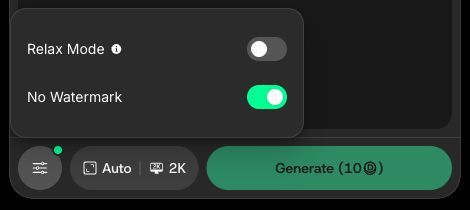
To find Relax Mode, open the sliders icon at the bottom-left of the editor. The switch is off in this screenshot; availability depends on your plan and selected configuration.
Compare the quote for your intended job and the work needed to reach an acceptable asset, including preparation and revisions.
A practical workflow for choosing the model
Start with one deliverable and a clear definition of finished. For the skincare example, that might be a square campaign visual with one accurately depicted bottle, a quiet background and room for a short headline.
- Prepare the source material. Use the approved product image and only the additional references needed to describe the setting or composition.
- Choose the first model by the task. Consider Nano Banana 2.1 for a composition built from several references, Flare for broad concept work, or Sunburst for a detailed revision.
- Set the output around the placement. Choose the aspect ratio, then the available resolution and generation mode.
- Write a bounded brief. Describe the subject, composition, requested change and details that must remain.
- Check the quote and review the result. Inspect product accuracy, wording and crop before using the image elsewhere.
Here is an example prompt you can adapt:
Create a square campaign image using the uploaded bottle as the product reference. Keep the bottle shape, matte white cap and label wording unchanged. Place it upright on pale blue textured glass against a warm off-white background. Use soft daylight from the left. Keep the upper-right area visually quiet for a headline that will be added later. Add no other products and do not generate new text.
For a later edit, narrow the request:
Keep the bottle, label, crop and lighting unchanged. Remove the small decorative object beside the bottle. Preserve the surface texture and the bottle’s contact shadow.
The first prompt establishes an image. The second protects an existing decision while changing one element. Choosing the model with that distinction in mind is more useful than asking for a universal winner.
Open either model in DomoAI
You can choose either model family in the same editor. Open AI Image in DomoAI’s left sidebar, select Image Editing from the category menu at the top, then open the model selector above Add Images. Choose Nano Banana 2.1, GPT Image 2.5 Flare or Sunburst for the task in front of you.
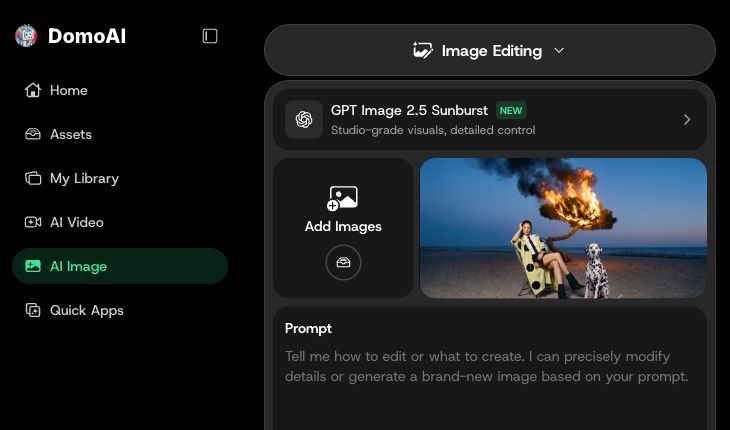
Entry path: AI Image → Image Editing → model selector. Add reference images with Add Images, then describe the task in Prompt.
You also do not need to switch models after every unsatisfactory result. First check whether the brief omitted an essential detail or whether the references conflict. If the task itself has changed—from exploring a scene to preserving one—then reconsider the model.
Bring your approved references and a specific first task to the DomoAI Multi-Model Image Generator & Editor. Choose Nano Banana 2.1, GPT Image 2.5 Flare or Sunburst, check the settings and credit quote, and build the image around the result you actually need.


