GPT Image 2.6 can make a poster from a description, edit a photo, turn a drawing into a looping GIF, or create an SVG icon you can resize and recolor. In DomoAI, try Flare when you want to see several designs quickly. Choose Sunburst when you want to edit a picture and keep details such as a face or product label recognizable.
What’s New in GPT Image 2.6? Key Features at a Glance
GPT Image 2.6 adds two ways to use a generated image: you can download a short animation as a playable GIF or a logo as an editable SVG. It also improves how you work on still images. Flare makes it quicker to compare layouts, while Sunburst gives you more control when you want to change one part of a picture and keep the surrounding details consistent.
Native GIF generation. Start with a drawing or a text description, then describe the movement you want. For a sticker of a waving hand, specify where the hand starts, how far it swings, and how it returns to its opening position. The result is a GIF you can play immediately, so you can see whether the wave reads clearly and whether it jumps when the loop starts again.
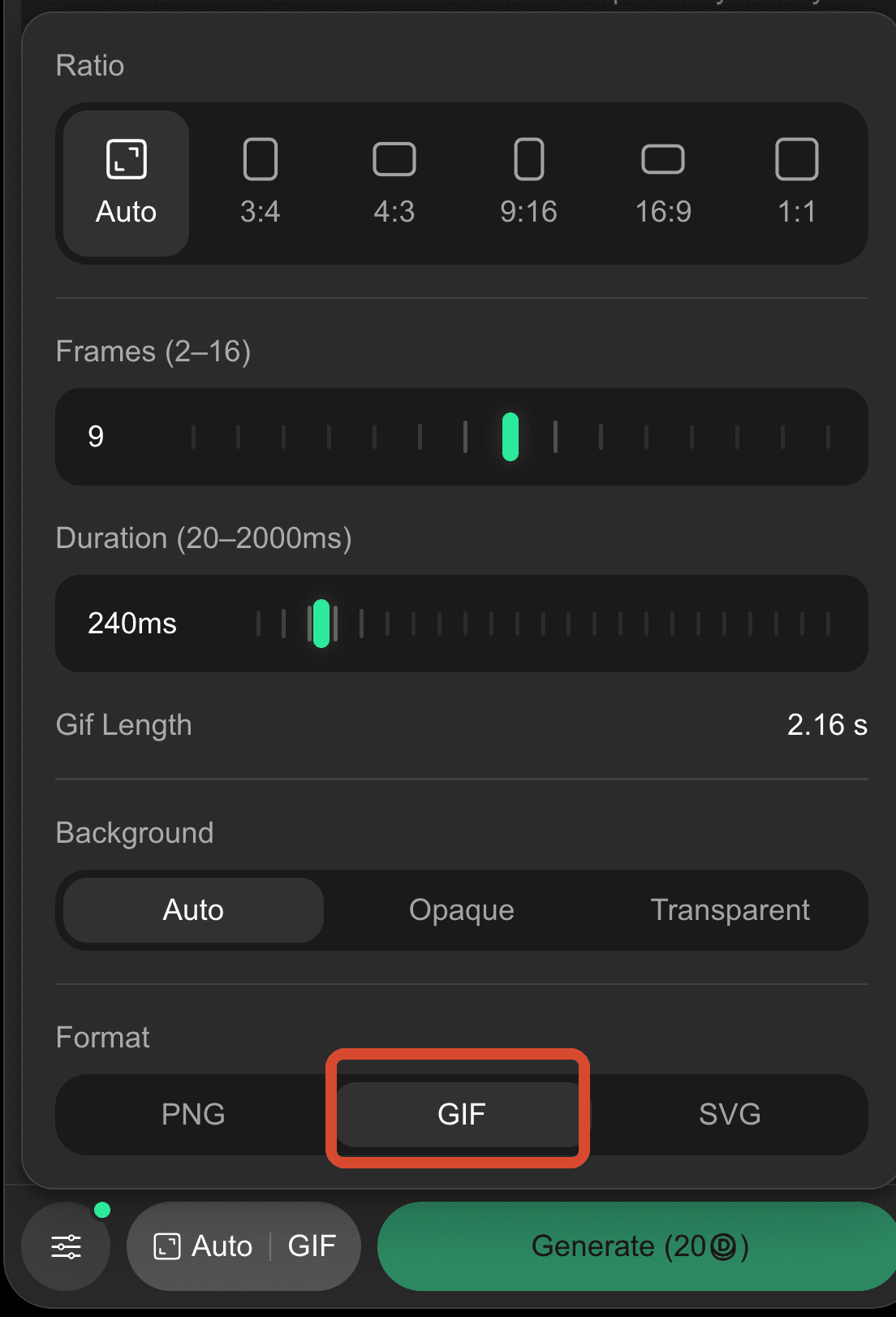
Frame count and playback speed. A GIF’s length depends on how many frames it contains and how long each frame stays on screen. Ten frames at 200 milliseconds each make a two-second loop. If the wave looks right but feels slow, keeping those ten frames and reducing their duration to 100 milliseconds gives you a one-second loop. If the hand jumps abruptly between two positions, adding an intermediate pose addresses a different problem.
More precise photo edits. You can change the color of a garment while asking Sunburst to preserve its texture, folds, and stitching. For a white shirt with an embroidered badge, specify whether the badge should keep its original colors. That small instruction defines exactly where the color change should stop.
Editable SVG graphics. An SVG stores shapes as paths. If you generate an icon and later decide its outline is too thin, you can adjust the stroke in a vector editor. The same file can scale from a website header to a printed sign. For a photograph where skin texture, fabric, or soft shadows matter, choose PNG.
| Format in DomoAI | What you can provide | What you can adjust |
|---|---|---|
| PNG | A text prompt, with an optional reference image | Aspect ratio, 2K or 4K resolution, and background |
| GIF | A motion prompt, with an optional reference image | Frame count and time per frame, with the total loop length shown in the editor |
| SVG | A text description of the graphic | Aspect ratio and background, including transparency |
GPT Image 2.6 Flare vs. Sunburst: Which Should You Use?
Choose Flare when you want to compare several ways to arrange the same content. On an event poster, for example, keep the headline, date, and artwork the same across versions. Try one layout with the title above the artwork and another with the title beside it. View both at the width of a phone screen. If the date is easy to miss in one version, you have a concrete reason to choose the other.
Choose Sunburst when you already like the image and can point to the detail that needs work. Suppose the poster layout is approved, but the venue changes from “Town Hall” to “Riverside Arts Center.” Upload the approved poster and give Sunburst the replacement wording. Say whether the longer name can wrap onto two lines and which elements must stay in place. That tells the model how to fit the new text without pushing the date down or covering the artwork.
OpenAI’s Field & Flour bakery logo example shows how the choice can come down to where the design will appear. Flare’s version has the clearer layout for a small sticker. A single golden loaf sits above the name, and the eye can move directly from the symbol to the lettering. Sunburst’s version works better on a larger pastry box. Wheat frames the loaf, and a rolling pin beneath the name gives the design the shape of a bakery seal. At sticker size, those extra lines compete with the lettering. On a box, there’s room to see what they depict.
GPT Image 2.6 vs. GPT Image 2.5 vs. Nano Banana 2.1: What’s Different?
Choose GPT Image 2.6 if you need a playable GIF or an editable SVG. For still images, GPT Image 2.5 is useful when you want to change one detail in an existing picture, such as the wording on a poster. Nano Banana 2.1 is a good starting point when you want to combine a subject, setting, and layout from separate reference images.
| Model | When it fits |
|---|---|
| GPT Image 2.6 | You want to animate a drawing, export a vector logo, or carry a recognizable character into a different visual style. |
| GPT Image 2.5 | You want to revise an existing still in stages, such as replacing a line on a poster and then adjusting the background while preserving the layout. |
| Nano Banana 2.1 | You want to combine several reference images in one composition or create a labeled diagram. DomoAI supports up to 14 reference images. |
For animation, 2.6 changes the work you do after generation. With GPT Image 2.5, you can generate a sheet of character poses, split it into frames, and assemble the loop yourself. That gives you a chance to remove a weak pose or hold an expression for an extra beat. With 2.6, you can choose GIF, set the frame count and timing, and play the result immediately. The difference is especially useful for a reaction sticker, where you can tell in one playback whether the gesture reads.
For character artwork, check which details survive the change of style. One creator gave GPT Image 2.6 and Nano Banana 2.1 the same fictional portrait and four identical prompts, keeping the first result from each. The film covers looked similar. The boxed toy figures showed a clearer difference: the creator reported that 2.6 kept the face visible on the packaging and rendered the requested name and accessories, while Nano Banana preserved the colors and silhouette but simplified some identifying details. If you’re designing character merchandise, compare the face, accessories, and package lettering separately. A figure can have the right outline and still be missing its signature earring.
For realistic scenery, look at repeated textures and light. In a separate same-prompt comparison of GPT Image 2.5 and Nano Banana 2.1, several readers preferred Nano Banana’s landscape. They pointed to concrete details in the 2.5 image: the vegetation repeated in patterns, and the stones in a wall looked unusually round and soft. One reader preferred Nano Banana’s lighting but still favored the overall image quality of 2.5. If you’re making an architectural rendering, inspect the stonework, foliage, and shadows at the size you plan to use. Those details give you a more useful basis for choosing between the two results than the thumbnail alone.
How to Use GPT Image 2.6 in DomoAI
1. Choose the model. Open AI Image in the left sidebar and select Image Editing from the menu at the top. Click the model name and choose GPT Image 2.6 Flare or GPT Image 2.6 Sunburst.
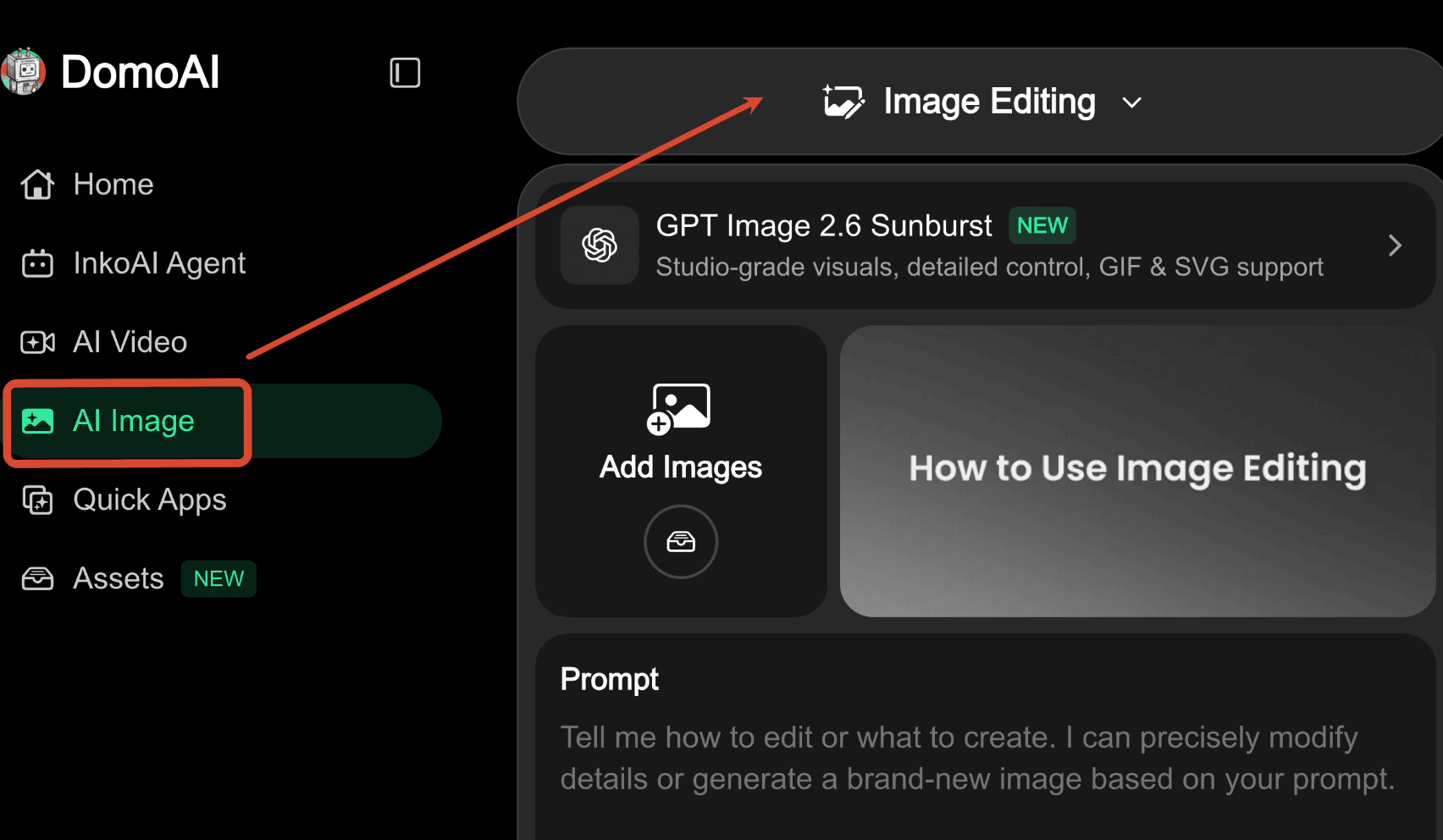
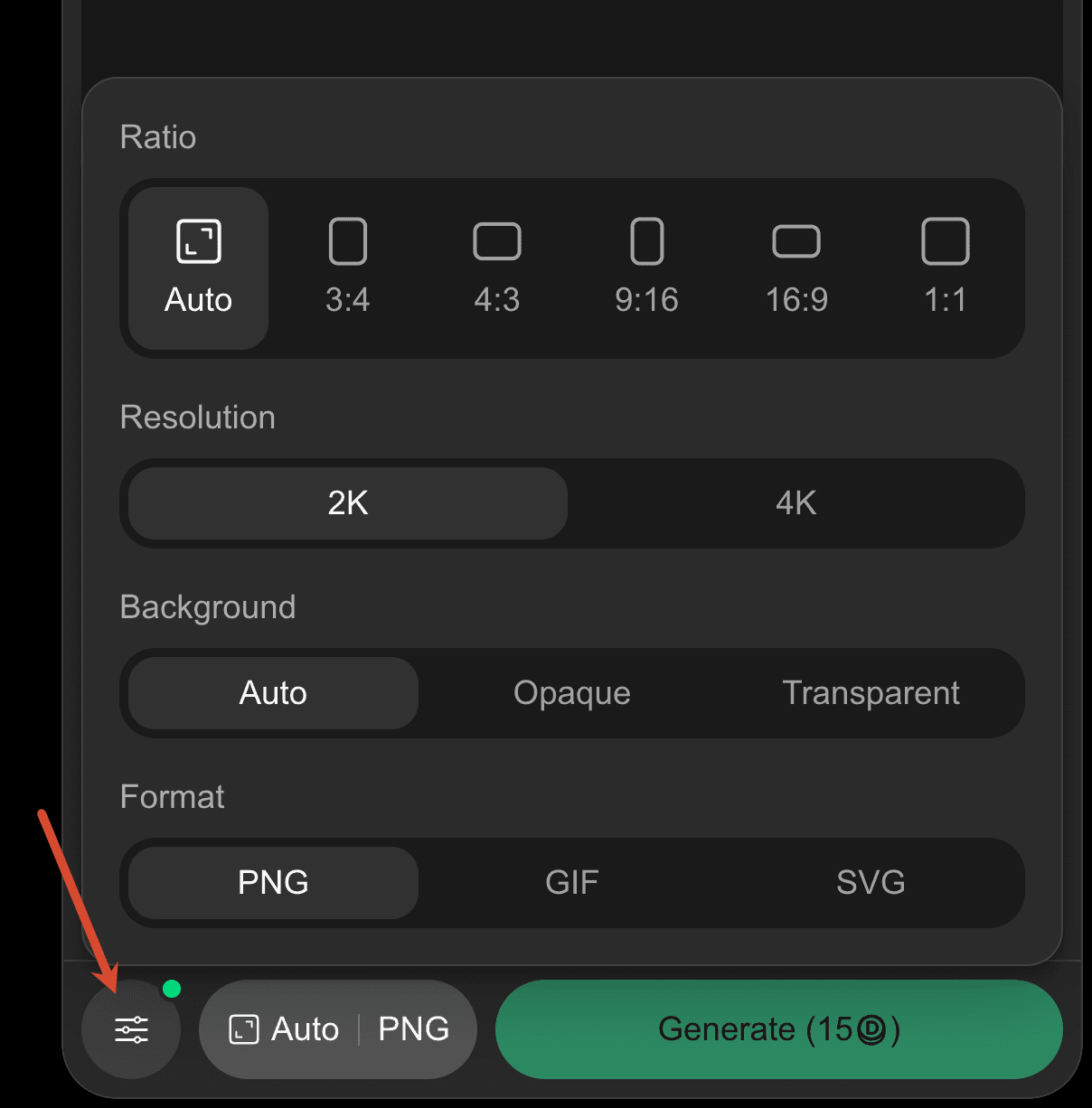
2. Choose the file type. Click the sliders button at the bottom left to open settings. Under Format, select PNG, GIF, or SVG. For a photo edit, choose PNG and upload your photo with Add Images. For an SVG, leave Add Images empty and describe the graphic in the prompt.
3. Set the timing for a GIF. Selecting GIF reveals two sliders. Frames sets the number of images, from 2 to 16. Duration sets the time per image, from 20 to 2,000 milliseconds. In the screenshot, 9 frames at 240 milliseconds each give a Gif Length of 2.16 seconds.
4. Generate and download. Enter your prompt and click Generate. Open the result in History to preview and download it.
GPT Image 2.6 Prompt Guide
Generating an image from text
Start with what you need to make and where it will appear. Then describe the decisions that would make you accept or reject the result. If a person’s shoes need to be visible, ask for a full-body view with space below the feet. If a headline needs to fit above the subject, reserve that space in the composition.
Use the lines that matter to your image:
Create [type of image] for [where it will be used].
Show [subject and action] from [viewpoint], framed from [top] to [bottom].
Place [main element] at [position]. Leave [area] open for [purpose].
Use [medium or material], [colors], and [direction of light].
Write “[exact wording]” once, in [position], on [number of lines].
Describe style through details you can see. “Brushed brass under a narrow overhead light” tells the model what the surface and shadows should look like. For an image with text, specify the wording and line breaks separately. A correctly spelled headline can still wrap in the wrong place.
Editing part of an existing image
Name the change, locate it in the picture, and identify the nearby details that need to survive it. A visible edge, seam, or printed label gives the model a more precise boundary than “change the left side.”
Change [specific part] from [current appearance] to [desired appearance].
Apply the change up to [visible boundary].
Preserve [specific features], the original crop, and [lighting or shadow that matters].
Choose the input for your next edit by looking at what went wrong. If the model changed the right area but you want a different shade, use the edited image and ask for that color adjustment. If it also changed the subject’s face or damaged a label, return to the last version where that detail was correct.
Using more than one reference image
Number the images in upload order and give each one a job. Identify which image supplies the subject and composition, then name the specific detail to take from each additional reference.
Edit image 1. Keep its subject, pose, and framing.
Use image 2 for [specific color, material, or garment].
Apply that detail to [location in image 1].
If you’re editing an image with a reference photo and only need its color or texture, crop the reference to that detail before uploading it. For example, a close crop of upholstery fabric shows the weave and color without bringing the rest of the chair into the edit.
Prompting for an SVG
Specify where the graphic will appear and how small it needs to remain readable. Describe its silhouette, the shapes inside it, and any gaps that must stay open. For a set of icons, give them the same stroke width, corner style, and outer margin.
Draw [symbol] for use at [display size].
Build it from [main shapes] using [colors or stroke style].
Leave [specific opening or gap] clear.
Use a transparent background.
Preview the SVG at its intended size. If two shapes touch or a narrow opening disappears, adjust that spacing in a vector editor. You can keep the parts that already read clearly.
Can GPT Image 2.6 Make a GIF from a Photo or Text Prompt?
Yes. For a text-only GIF, describe the opening pose, the movement, and how the subject returns to the start. With a reference image, identify which parts should move and which should stay still. If several things happen in sequence, number them in the order you want them to appear.
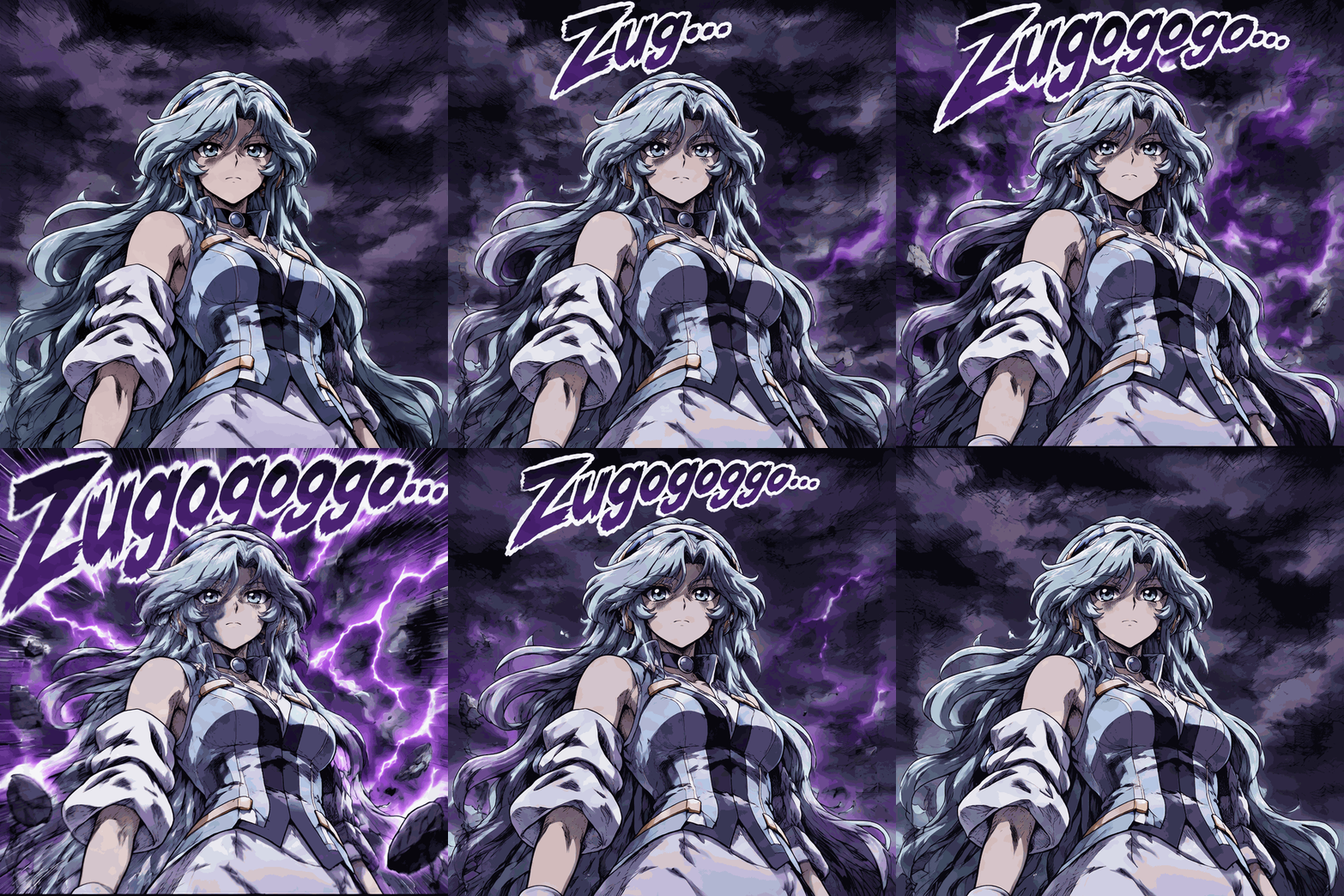
The manga GIF below was made with GPT Image 2.6 Sunburst.
Uploaded image
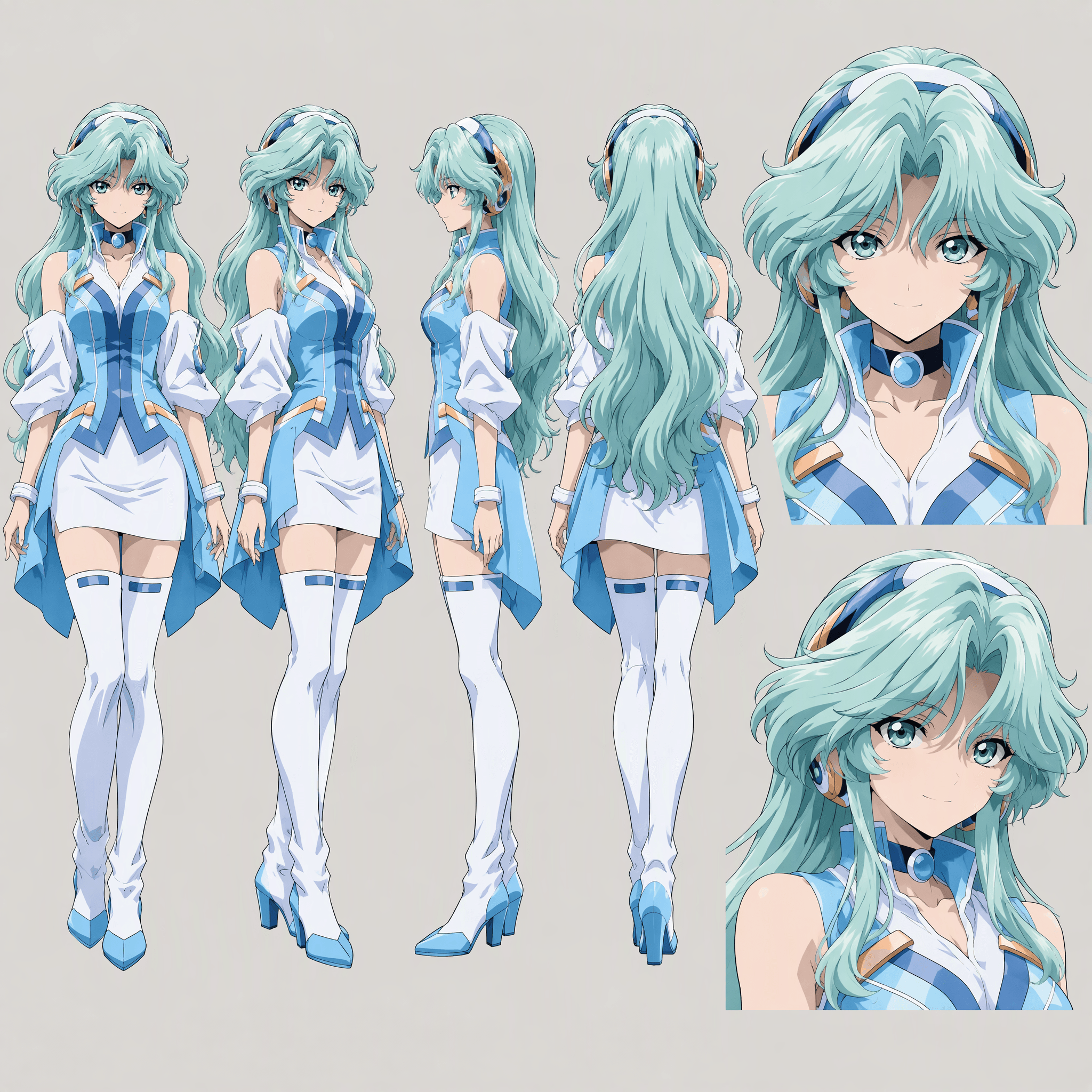
Original prompt
Please create a looping GIF using the character in the attached image, conveying an intense sense of intimidation in the style of Japanese gekiga and battle manga.

Most important: Faithfully preserve the character design, face, hairstyle, clothing, body type, and color scheme from the reference image in every frame.

【Animation Structure】

1. The character stands silently and majestically. The camera is at a slight low angle.
2. The small text “Zu…” appears at the top of the screen.
3. As the text grows into “Zug…” and “Zugog…,” it also grows larger.
4. An eerie purple-and-black aura appears in the background.
5. Finally, a huge “Zugogogogo…” covers the top of the screen.
6. Purple lightning, dark speed lines, and floating rocks appear.
7. The text and background shake violently in small, rapid bursts, and the overwhelming sense of intimidation reaches its peak.
8. The aura subsides, the text shrinks and disappears, and the scene returns to its initial quiet state.

【Visuals】

- The background is an ominous purple sky with black clouds.
- Bold shading, extreme perspective, and gekiga-style speed lines.
- “Zugogogogo…” is a huge, angular, dark-purple manga sound-effect lettering. Give it a thick white outline and a black shadow.
- The text floats and expands, pressing in as if to overwhelm the screen.
- The character remains almost still. Only the hair and clothing sway slightly from the aura.
- The camera looks up at the character from a low position.
- A serious, dramatic presentation that evokes the entrance of an overwhelmingly powerful figure.

【GIF Specifications】

12 frames, 200 ms per frame, approximately 3 seconds. Match the first and last states so the loop is seamless. Avoid deforming the character or changing the face, and focus the motion on the text and background effects. Render the Japanese sound-effect lettering accurately.
GIF result
GPT Image 2.6 FAQs
Can I still use GPT Image 2.5 in DomoAI?
Yes. Open AI Image → Image Editing and select GPT Image 2.5 from the model picker.
Why is SVG grayed out after I upload an image?
SVG generation in DomoAI takes a text prompt. Remove the reference image to enable SVG, then describe the shapes, colors, and spacing you want.
Can I turn a finished PNG into a GIF without regenerating it?
You’ll need to generate the animation. Open the PNG in History, use it as your reference image, choose GIF, and describe what should move.
How do I make a two-second GIF in DomoAI?
Choose GIF, set Frames to 10, and set Duration to 200 ms. Gif Length will show 2 seconds.
How do I keep the same character across several images?
Choose an image where the character already looks right and use it as a reference for the next scene. Repeat the details that identify the character, such as the shape of their glasses, the part in their hair, or the cut of their jacket. Then describe the new pose or setting. If the face starts to change after several edits, go back to the last image where it was correct.
How do I translate text in a poster and keep the layout?
Upload the poster and give the model each replacement phrase along with its location. For an event poster, you could ask: “Replace ‘SATURDAY AT 6 PM’ with ‘SAMEDI À 18 H’ on the line showing the event time. Keep it centered in navy. Leave the title and artwork in place.” If the translation is longer, say whether the model may reduce the type size or wrap it onto another line. Proofread the finished image, including accents, dates, and times.
Can I keep a product label exactly as it appears in the original photo?
A prompt can ask the model to preserve the label, but small letters and logos may still change. If the label must match the original pixel for pixel, keep the original product on a separate layer in an image editor and place the generated background behind it. That preserves the lettering you already approved.
How can I tell whether the background is really transparent?
Place the downloaded image over a solid color in a design editor, then switch to a second color. Both colors should show through the empty areas, including openings inside the artwork. If the same white or checkered pattern stays visible on both backgrounds, that pattern is part of the image.